


Install Parameters
Windows Installer properties are used during the installation process.
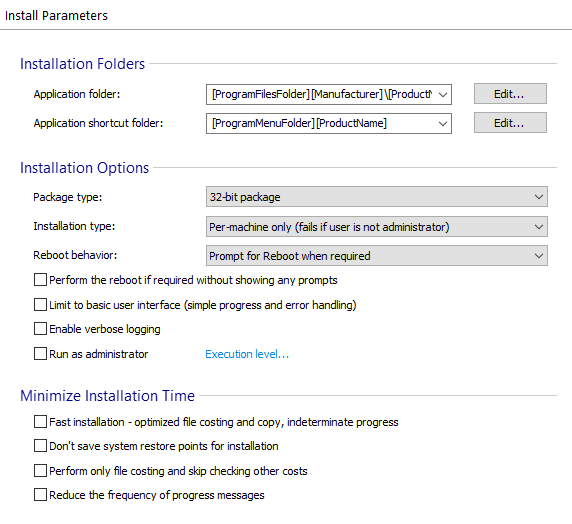
 You can use the drop-down list in the toolbar to select the current build. Also, all
the changes made in this view apply only to the current build.
You can use the drop-down list in the toolbar to select the current build. Also, all
the changes made in this view apply only to the current build.
Installation Folders
- Application Folder - in this field, you can specify the default location for the Application Folder (APPDIR). This path is stored in the APPDIR property, and it is applicable only to those files and folders which are located under the "Application Folder" directory in the Files and Folders Page - Installer Project. During the installation, the user can modify this path by either using the button in the "FolderDlg" (Select Installation Folder) dialog or by manually editing the Path Edit control on the same dialog. The default value of this field points to a sub-folder of the ProgramFilesFolder for the per--machine installs.
- Application Shortcut Folder - in this field, you can specify the default location for the Application Shortcut Folder (SHORTCUTDIR). This path is stored in the SHORTCUTDIR property, and it is applicable only to those files and folders which are located under the "Application Shortcut Folder" directory in the "Files and Folders" page. The default value of this field points to a sub-folder of the ProgramMenuFolder.
These values are directly editable, with a suggested set of defaults available in the drop-down lists. Click the button to change them through the Edit Formatted Type Dialog.
Installation Options
Package Type
Select between 32-bit, Arm64, 64-bit for Intel 64 Itanium processors, 64-bit for AMD64 or EM64T processors and mixed 32/64 bit packages.
 If the package runs on an x64 processor, the "64-bit package for x64
processors(AMD64, EM64T)" must be selected.
If the package runs on an x64 processor, the "64-bit package for x64
processors(AMD64, EM64T)" must be selected.
You can read more about the difference between those types in the Package Types page.
Installation Type
- Per-user only - the application will be available only for the user who
installed it.
- On Windows Vista or above, with this option set, the logged user will never be elevated to administrative privileges, so if the installation requires such privileges, it will fail.
- Per-user only (with administrator rights required) - on Windows Vista or
above, use this option to create a package which will be installed per user but requires
administrator privileges (e.g. its application files need to be installed in a privileged
location such as "Program Files").
- In this case, the user may see an Elevation Prompt dialog that will ask for administrator privileges. If the logged user is a member of the "Administrators" user group, he will be asked to allow or deny the installation. Otherwise, he will be prompted to provide credentials for one of the computer administrators.
- On other Windows versions, this option behaves like the previous one.
- Per-machine only (fails if the user is not administrator) - the
application will be available for all the users of that machine.
- On Windows Vista or above the user may see an Elevation Prompt dialog that will ask for administrator privileges when installing the package. If the logged user is a member of the "Administrators" user group, he will be asked to allow or deny the installation. Otherwise, he will be prompted to provide credentials for one of the computer administrators.
- Per-machine if the user is an administrator, per-user otherwise - the
application will be installed "Per-machine" if the user has administrative
rights and "Per-user" otherwise.
- To help with the appropriate install location, AI_UserProgramFiles property will be referenced in the application folder path.
- On Windows Vista and above this option has the same installation behavior as the previous one.
- On Windows 7 or above the installation will be per-user with no UAC prompt only if the resources are installed in per-user locations. Besides this, the installation will also require the InstallTypeDlg so the user can choose the per-user option. This option will set the MSIRunningElevated property which can be manually set instead of using the dialog.
 The "Per-machine if the user is an administrator, per-user otherwise" option requires
"InstallTypeDlg" dialog to be present in Dialogs
page
The "Per-machine if the user is an administrator, per-user otherwise" option requires
"InstallTypeDlg" dialog to be present in Dialogs
page
A per-user installation cannot upgrade a per-machine installation, and a per-machine
installation cannot upgrade a per-user installation. However, you can try using a Preserve Install Type of the
old version predefined UI custom action.
On Windows Vista or above, it is strongly recommended that you do not alter the value of
the ALLUSERS property during install.
When performing a Per User installation, the package must respect some rules:
- it creates registry entries only under HKEY_CURRENT_USER
- it creates shortcuts only in the user's profile (not in per-machine locations)
- it writes information only in Per User locations (for example a normal user cannot write in the "Windows" or "Program Files" folders)
Reboot Behavior
Windows Installer can determine when a system reboot is required and automatically prompt the user at the end of the installation. For instance, if the installer needs to replace any files that are in use during the installation it will automatically prompt for a reboot once the installation is finished.
You can change this default behavior by specifying one of the options below to always prompt for a reboot or to suppress some or all reboot prompts.
- Prompt for Reboot when required - let Windows Installer decide when a system reboot is necessary (for example, when it needs to replace any files that are in use during the installation).
- Force Reboot after install - always prompt for a reboot at the end of the installation, even if a system reboot is not required.
- Suppress Reboot after install, except for ForceReboot actions - Suppress prompts for a reboot at the end of the installation. If the installer encounters the ForceReboot action, it still prompts the user with an option to reboot during the installation.
- Suppress all Reboots and Reboot prompts - all reboots and reboot prompts at the end of the installation and during the installation (initiated by the ForceReboot action) are suppressed.
A reboot request will discontinue a chained
installation. If one of the chained packages requires a reboot, you should suppress
it by setting the REBOOT property to ReallySuppress. For the main
package, you can set the REBOOT property to Force. This way a reboot
will be performed when the chained installation is complete.
Perform the reboot if required without showing any prompts
This option makes the installer perform any required reboots automatically, without prompting the user.
Limit to a basic user interface (simple progress and error handling)
This option directs Windows Installer to display only a dialog with a progress bar showing the evolution of the installation and the message boxes that display error messages. It is used especially for unassisted or automated installs (e.g. deployment through Group Policy).
If you select this option, the “Disable Modify” option from
“Programs and Features (Control Panel)” will also be selected.
Enable Verbose Logging
By enabling this option, a log file will be generated each time the install package runs. This option sets the Windows Installer MsiLogging property to vp value. Windows Installer will automatically set the MsiLogFileLocation property to the path where the log file will be generated. By default, the MsiLogFileLocation will point to:
- CurrentUser\LocalSettings\Temp\MSI*.LOG for Windows XP.
- CurrentUser\AppData\Local\Temp\MSI*.LOG for Windows Vista or later.
Where * is a random set of letters and numbers.
The MsiLogFileLocation is a Read-only property and cannot
be changed by the package author or by the user. Its value is automatically set
during the runtime of the installation package.
This option requires Windows Installer 5.0 on Windows Server 2008 R2 or Windows 7.
Windows Installer 4.0 or Windows Installer 4.5 on Windows Server 2008 or Windows Vista,
Windows Installer 4.5 on Windows Server 2003 or Windows XP to work properly.
Execution Level
Run as administrator - enabling this option automatically sets the execution level to "Require Administrator". Disabling it will set the execution level back to "As Invoker" default.
Checking "Run as administrator" doesn't give administrative permissions to the Control
Panel instance of the application.
Run as administrator does not work for MSI packages launched in maintenance
mode.
Execution level... - this link displays the EXE bootstrapper's Execution Level Settings.
Minimize Installation Time
Fast Installation
These options enable you to drastically reduce the time it takes your application to install by:
- Moving files on the same volume rather than copy
- Suppressing installation progress estimate
Requirements:
- Installation is using the Enhanced User Interface.
- The install location selected by the user is on the same drive where the files have been extracted.
- Per-machine installation is performing.
- The first time the application is installing.
- No features are being advertised or installed to run from source.
- No isolated components are being installed.
On Windows 7 and above when Fast Installation option is used, the
standard users access to installed files will be restricted.
The three following options can be used together but are ignored on machines with
Windows Installer 4.0 or older. The installation time can be decreased with these options
only when Windows Installer 4.5 or higher is found on the target
machine.
Don't save system restore points for installation
If this option is set, Windows Installer will no longer create system restore points for the install process.
Perform only file costing and skip checking other costs
If this option is set, Windows Installer will perform only file costing, ignoring the rest of costs.
Reduce the frequency of progress messages
If this option is set, the installation progress is updated less frequently.
Topics
- Execution Level Settings Dialog
Dialog to set the execution level.