


Working with Windows Installer ComboBox and ListBox controls
 The following article uses options that are available starting with the Enterprise edition and project type.
This tutorial will describe how Windows Installer ComboBox and ListBox controls can be used for various user interface scenarios.
 The information presented in this article can be applied in a similar fashion for
List View (using AI_LISTVIEW_DATA property) and Check List
controls (using AI_CHECKLIST_DATA property) as well. The prefefined custom actions
for working with them are : Populate List View, Extract List View data, Delete items from List
View, Populate Check List, Extract Check List data, Delete items from Check List.
The information presented in this article can be applied in a similar fashion for
List View (using AI_LISTVIEW_DATA property) and Check List
controls (using AI_CHECKLIST_DATA property) as well. The prefefined custom actions
for working with them are : Populate List View, Extract List View data, Delete items from List
View, Populate Check List, Extract Check List data, Delete items from Check List.
- 1. Introductory concepts
- 2. Predefined custom actions for working with ComboBox and ListBox controls
- 3. Populate ComboBox and ListBox controls
- 4. Delete items from ComboBox and ListBox controls
- 5. Extract item values and text from ComboBox and ListBox controls
- 6. Refresh ComboBox and ListBox controls
- 7. Example projects
- 8. Scenario 1: moving items dynamically between two side-by-side ListBox controls
- 9. Scenario 2: Populating a ComboBox control with the output of an external program
- 10. Scenario 3: Dynamically adding/removing items to/from a ListBox control
- 11. See also
1. Introductory concepts
Both controls allow the user to select a single value from a list of predetermined values. A typical installation task would be to populate these controls dynamically with data retrieved at install time (for instance, a list of local SQL Server databases may be required). Another usage scenario would be to allow the user to define a list of IP addresses (or address ranges) which can be used to configure the Windows Firewall or saved to the registry and used subsequently by your application.
These operations involve inserting records manually into the ComboBox and ListBox tables, which is cumbersome, at the very least. For this reason, Advanced Installer (starting with version 6.3) includes predefined custom actions to populate, delete from and extract data from ComboBox and ListBox controls.
The following sections describe how Windows Installer stores ComboBox and ListBox data inside the MSI database, how the predefined custom actions can be used, as well as typical UI scenarios involving these controls.
Similar to other Windows Installer controls, ComboBoxes and ListBoxes have an attached property which can be set in the right Properties pane. As described below, all the items from a ComboBox or ListBox control are tied to the same property.
These controls have several attributes which can also be set in the right Properties pane. An important attribute is “Sort By Index” which specifies whether the items should be sorted alphabetically (the attribute is False) or sorted according to the order defined in the ComboBox or ListBox tables (if the attribute is True).
In Advanced Installer, in order to add items to a ComboBox or ListBox control, select the “Control Data” context menu item or press the Ctrl + D keys while the focus is on the control. The data for these controls is stored in the ComboBox and ListBox tables inside the MSI database and each record from these tables represents a control item. Both tables have the following 4 columns:
- Property: represents the property attached to the ComboBox or ListBox control to which this item belongs. All the items having the same property become part of the same control.
- Order: a positive integer that specifies the ordering of the items within the control. This column is ignored if the ComboBox or ListBox control is defined as unordered (namely, the “Sort By Index” attribute is False).
- Value: a Formatted value which represents the value string associated with this item. When the user selects this item in the control, the associated property will be set to this value.
- Text: an optional, Formatted and Localizable string to be displayed for the item. This is what the user sees displayed in the ComboBox or ListBox control, and, if a value for this column is not specified, the text defaults to the corresponding entry in the Value column.
2. Predefined custom actions for working with ComboBox and ListBox controls
There are 3 predefined custom actions for working with ComboBox controls, namely:
- PopulateComboBox for inserting one or more items into a ComboBox control.
- DeleteFromComboBox for deleting one, more or all items from a ComboBox control.
- ExtractComboBoxData for extracting item values and text from a ComboBox control.
Their ListBox equivalents are named PopulateListBox, DeleteFromListBox and ExtractListBoxData, respectively.
The custom actions that work with ComboBox controls use as input/output property AI_COMBOBOX_DATA, while their ListBox counterparts use the AI_LISTBOX_DATA property. More specifically, in order to populate a ComboBox control, you will set the AI_COMBOBOX_DATA property to a list of values that should be inserted, respecting a special format (which will be described in more detail in the following section). Then you will invoke the predefined PopulateComboBox custom action which will do the actual insertion. On return, the custom action will set the AI_COMBOBOX_DATA property to a status message indicating the success or failure of the operation.
In conclusion, the following steps are required in order to use these predefined custom actions in your project:
- Add the required predefined custom action(s) as a custom action without sequence in the Custom Actions page.
- Set either the AI_COMBOBOX_DATA or AI_LISTBOX_DATA properties according to the predefined custom action you have added (the correct format will be described in the following sections). You will use either a Set installer property value control event or, most often, you will set these properties programmatically (using Session.Property in a VBScript custom action or MsiSetProperty in C++ DLL custom action).
- Invoke the predefined custom action you have added in step 1 using either an Execute custom action control event or programmatically, using Session.DoAction in a VBScript custom action or MsiDoAction in C++ DLL custom action.
- Optionally, retrieve the value of the AI_COMBOBOX_DATA or AI_LISTBOX_DATA property and provide information to the user based on the status message returned by the predefined custom action (for instance, the user might have attempted to delete an inexistent item from a ListBox control).
The following sections describe the format that should be used to set the AI_COMBOBOX_DATA and AI_LISTBOX_DATA properties in each case (populating, deleting from and extracting data from ComboBox and ListBox controls). Additionally, the return status messages for each predefined custom action will be described.
3. Populate ComboBox and ListBox controls
You will use the PopulateComboBox or PopulateListBox predefined custom actions, depending on the type of control you wish to insert data into. The input format for the AI_COMBOBOX_DATA (AI_LISTBOX_DATA) property is:
Property#OrderStart#OrderDelta|Value1#Text1|Value2#Text2|Value3#Text3|...
For List View controls there is one more parameter (used for the icon). The input for
AI_LISTVIEW_DATA propery should be:
Property#OrderStart#OrderDelta|Value1#Text1#Binary1|Value2#Text2#Binary2|Value3#Text3#Binary3|...
Where Property is the property attached to the ComboBox (ListBox) control in which data should be inserted and OrderStart, OrderDelta are used to compute the value of the Order column for each item (refer to the first section above for details). OrderStart and OrderDelta are optional (if missing, they will both default to 10), as well as the Text for each item.
There is no limit to the number of items that can be inserted. The first item ("Value1") will have the Order column set to OrderStart (or 10 if no OrderStart was specified), the second item ("Value2") will have the order OrderStart + OrderDelta, the third item ("Value3") will have the order OrderStart + 2 * OrderDelta and so on, the n-th item will have the order OrderStart + (n-1) * OrderDelta.
Please note that the item ordering is dependent on the “Sort By Index”
attribute, as mentioned above. The items will be sorted according to the Order
column only if this attribute is True, otherwise they will be sorted
alphabetically.
 The OrderStart and OrderDelta values can be
used to control the relative ordering of the items on successive insertions. For instance,
suppose that you have a ListBox control with the “Sort By Index” attribute
set to True and attached property MY_LISTBOX. First you insert the
values "1", "3", "5" and "7" (in this order), by setting the AI_LISTBOX_DATA
property to: MY_LISTBOX|1|3|5|7. Since no
OrderStart and OrderDelta are specified, they
will default to 10, such that the items will receive the following orders: 10, 20, 30, 40.
Now, if you want to insert the values "2", "4", "6" such that after the insertion the order
will be the natural one ("1", "2", "3", "4", "5", "6", "7"), you will set the
AI_LISTBOX_DATA property to: MY_LISTBOX#11|2|4|6, such
that the orders of the 3 new items will be: 11, 21, 31 (since no
OrderDelta is specified it will default to 10, which is appropriate
in this case).
The OrderStart and OrderDelta values can be
used to control the relative ordering of the items on successive insertions. For instance,
suppose that you have a ListBox control with the “Sort By Index” attribute
set to True and attached property MY_LISTBOX. First you insert the
values "1", "3", "5" and "7" (in this order), by setting the AI_LISTBOX_DATA
property to: MY_LISTBOX|1|3|5|7. Since no
OrderStart and OrderDelta are specified, they
will default to 10, such that the items will receive the following orders: 10, 20, 30, 40.
Now, if you want to insert the values "2", "4", "6" such that after the insertion the order
will be the natural one ("1", "2", "3", "4", "5", "6", "7"), you will set the
AI_LISTBOX_DATA property to: MY_LISTBOX#11|2|4|6, such
that the orders of the 3 new items will be: 11, 21, 31 (since no
OrderDelta is specified it will default to 10, which is appropriate
in this case).
Some examples for specifying the AI_COMBOBOX_DATA and AI_LISTBOX_DATA properties in this case:
- Inserting a single value (its order will be 10): MY_COMBOBOX|value
- Inserting a single value and specifying an order explicitly (33): MY_COMBOBOX#33|value
- Inserting multiple values (orders 10, 20, 30): MY_LISTBOX|value 1|value 2|value 3
- Inserting multiple values (orders 5, 12, 19): MY_LISTBOX#5#7|value 1|value 2|value 3
- Specifying text for some of the values (orders 5, 15, 25): MY_LISTBOX#5|value 1#text 1|value 2|value 3#text 3
On return, the predefined custom actions PopulateComboBox and PopulateListBox will set the AI_COMBOBOX_DATA (or AI_LISTBOX_DATA) property to one of the following status messages, in order to indicate the success or failure of the insertion:
- SUCCESS (successful insertion)
- ERROR_NO_VALUE (no value - to be inserted - was specified)
- ERROR_DUPLICATE_ITEM: %s (an attempt was made to insert an existing value)
- ERROR (generic error message)
ComboBox and ListBox Values must be unique: attempting to insert a Value that
already exists in a ComboBox or ListBox control will cause the installation to fail with an
2878 Windows Installer error. The predefined PopulateComboBox and
PopulateListBox custom actions detect this situation and abort the insertion,
setting the AI_COMBOBOX_DATA (or AI_LISTBOX_DATA) property to
ERROR_DUPLICATE_ITEM: %s (where '%s' is a placeholder and will be replaced
with the actual value that already exists).
Multiple ComboBox and ListBox items can have the same Text, it is the Value that must be
unique for a particular control.
You must escape the '#' character using '\' should you want to use it inside the item
text or item values. In essence, write "\#" wherever you need the '#' character used.
4. Delete items from ComboBox and ListBox controls
You will use the DeleteFromComboBox or DeleteFromListBox predefined custom actions, depending on the type of control you wish to delete data from. The input format for the AI_COMBOBOX_DATA (AI_LISTBOX_DATA) property is:
Property|Value1|Value2|Value3|...
Where Property is the property attached to the ComboBox (ListBox) control from which data will be deleted. There is no limit to the number of items that can be deleted. If no values to be deleted are specified, then all the items from the ComboBox or ListBox control are deleted.
Some examples for specifying the AI_COMBOBOX_DATA and AI_LISTBOX_DATA properties in this case:
- Deleting a single value: MY_COMBOBOX|value
- Deleting multiple values: MY_LISTBOX|value 1|value 2
- Deleting all the control items: MY_LISTBOX
On return, the predefined custom actions DeleteFromComboBox and DeleteFromListBox will set the AI_COMBOBOX_DATA (or AI_LISTBOX_DATA) property to one of the following status messages, in order to indicate the success or failure of the delete operation:
- SUCCESS (all items were deleted successfully)
- ERROR_NO_VALUE: %s (the value to be deleted was not found)
- ERROR (generic error message)
 Windows Installer cannot always reliably modify table rows that are authored in the MSI database
(when creating the package). More specifically, if you add items to a ComboBox control when
authoring the package in Advanced Installer (using the “Control Data” context menu
command) you will notice that it will not be possible to delete these items at install time
or the installation will fail unexpectedly. However, if you first insert other items (at
install time), it will be possible to delete the values that were added in Advanced Installer (at
authoring time).
Windows Installer cannot always reliably modify table rows that are authored in the MSI database
(when creating the package). More specifically, if you add items to a ComboBox control when
authoring the package in Advanced Installer (using the “Control Data” context menu
command) you will notice that it will not be possible to delete these items at install time
or the installation will fail unexpectedly. However, if you first insert other items (at
install time), it will be possible to delete the values that were added in Advanced Installer (at
authoring time).
Therefore, if you are going to allow the user to delete ComboBox or ListBox records at install time, there are 2 possibilities to avoid the issue discussed above:
- Populate the control dynamically at install time using the PopulateComboBox or PopulateListBox custom actions.
- Create another ListBox or ComboBox control with the “Visible” attribute set to False that will hold the initial data and use the ExtractComboBoxData or ExtractListBoxData predefined custom actions (discussed below) to extract all the item values and text. After this, you will populate the control that the user will see with the extracted data. This method is suitable if there are many values to be added.
5. Extract item values and text from ComboBox and ListBox controls
You will use the ExtractComboBoxData or ExtractListBoxData predefined custom actions, depending on the type of control you wish to extract data from. The input format for the AI_COMBOBOX_DATA (AI_LISTBOX_DATA) property is:
Property
Where Property is the property attached to the ComboBox (ListBox) control from which data will be extracted.
On return, the AI_COMBOBOX_DATA (AI_LISTBOX_DATA) property will contain the extracted data, in the following format:
Value1#Text1|Value2|Value3#Text3|...
If an item has no text, only the value will be extracted, in which case the "#" character will be omitted. If the respective control contains no items, AI_COMBOBOX_DATA (AI_LISTBOX_DATA) will be empty (not set). If an error occurs, the corresponding property will be set to ERROR.
When item texts or item values contain the '#' character, the character will be
extracted in escaped form. For example, an item with the value "value 1" and text "text # 1"
will be extracted as "value 1#text \# 1". This is to differentiate between the separator and
the '#' used as a text/value character.
The data extracted from a control can be easily inserted into another by prepending its
property and optionally specifying the OrderStart and
OrderDelta values, followed by invoking the
PopulateComboBox (PopulateListBox) custom actions.
6. Refresh ComboBox and ListBox controls
Windows Installer does not automatically refresh ComboBox and ListBox controls once the underlying MSI tables with the same name are modified. Only after switching to a different dialog are these tables re-read.
Hence, if you are going to allow the user to dynamically add and remove items to/from ComboBox or ListBox controls, you will need to use the Refresh the current dialog published event to refresh the controls. Otherwise, the user will have to change to the next or previous dialog in the sequence and then return to the current dialog in order to see his change to the ListBox/ComboBox control.
7. Example projects
Download and unzip the ComboBox and ListBox sample projects to better understand the concepts discussed above. At least an Enterprise version of Advanced Installer is required in order to build and run the projects.
There are 2 example projects within the archive named "DualListExample.aip" and "ComboListExample.aip", presenting 2 common ListBox usage scenarios, as well as 1 ComboBox usage scenario. The "scripts" folder within the archive contains the supporting VBScript custom actions for each project.
8. Scenario 1: moving items dynamically between two side-by-side ListBox controls
Since Windows Installer ListBox controls do not support the selection of multiple items, using 2 side-by-side ListBox controls and allowing the user to move items between them might represent a good alternative solution.
The sample project "DualListExample.aip" illustrates how this can be implemented. At install time the dialog could look like it is showed below:

A brief explanation regarding how the sample project is configured follows:
- In the Install Parameters page there are defined 2 Properties (LIST_ORDER and LIST_ORDER_DELTA) that are used to compute the order of the items in both lists. Every time an item is added to the right list (and also removed from the left list) and vice-versa, the value of LIST_ORDER_DELTA is added to the value of LIST_ORDER. An improvement would be to maintain 2 distinct properties to hold the current order for each list, but this is not actually required since there will be a relatively small number of operations the user will perform (the Order column of the ListBox table can have a maximum value of 32767).
- The Custom Actions page contains the predefined PopulateListBox, DeleteFromListBox and ExtractListBoxData custom actions, as well as VBScript custom actions that are executed when the “Add”, “Remove” and “Extract” buttons (from DualListDlgA and DualListDlgB dialogs) are clicked. The code for these custom actions can be found in the file "DualListExample.vbs" inside the archive.
- In the Dialogs page, two new custom dialogs have been created: DualListDlg and ListBoxDataSpawnDialog. ListBoxDataSpawnDialog is a spawned dialog that is showed when the “Extract” button is clicked.
- The “Add” button removes the selected item from the left list and adds it to the right list, while the “Remove” button does the opposite. Notice how the Published Events and Control Conditions have been configured for these 2 button controls.
- The “Extract” buttons demonstrate the usage of the ExtractListBoxData predefined custom action - a spawned dialog is showed, containing the values from the corresponding ListBox control.
- The left ListBox control is populated dynamically at install time via an Init Event.
9. Scenario 2: Populating a ComboBox control with the output of an external program
The example we shall consider involves populating a ComboBox control with the system environment variables. At install time, the dialog can look like the following:
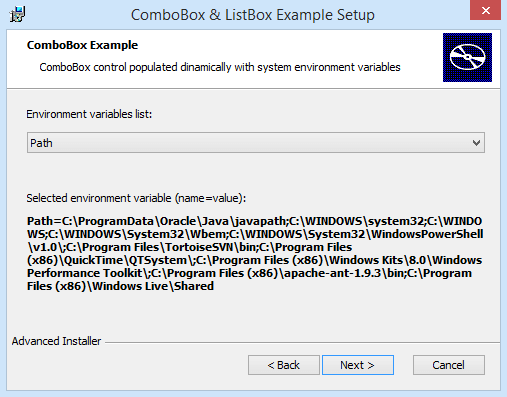
The environment variables and their values are obtained by running the internal set command of the command interpreter and redirecting the output to a text file. Subsequently, the file is read line by line and the ComboBox is populated. After this, the temporary text file is deleted.
See how the Init Events have been configured for the ComboBoxDemoDlg dialog from "ComboListExample.aip". The corresponding VBScript custom actions can be found inside "ComboListExample.vbs" inside the zip archive.
10. Scenario 3: Dynamically adding/removing items to/from a ListBox control
If your application requires a list of values that should be specified by the user at install time, a dynamically populated ListBox control would be an appropriate solution. For example, if a list of IP addresses (or address ranges) is required, the dialog could look like this:

This scenario uses the Refresh the current dialog published event in order to dynamically refresh the contents of the ListBox control. See how the dialog ListBoxDemoDlg from ComboListExample.aip has been configured.