


Creating a Java Product Installation
 The following article uses options that are available starting
with the Professional edition and project
type.
The following article uses options that are available starting
with the Professional edition and project
type.
This tutorial will present in detail how to achieve this goal. In order to replicate it on your own machine, you need to have a Sun JDK installed (the latest version is recommended).
1. Create project
First you must download and unzip the Java Product Example. It contains all the files necessary to finish this tutorial, including a sample Advanced Installer project.
Let's say that we want to create a Windows Installer package for the included Java Product example. Start Advanced Installer and choose “Java” > “Java Application” as the project type.

 A good idea is to save and name the
project at this point. Use the “Save” menu item under the
“File” menu or the Ctrl+S keyboard
shortcut and let's name it JavaProductExample.aip.
A good idea is to save and name the
project at this point. Use the “Save” menu item under the
“File” menu or the Ctrl+S keyboard
shortcut and let's name it JavaProductExample.aip.

3. Add Installation Files
 Go to the Files and Folders page by clicking on
“Files and Folders” on the left side page
menu.
Go to the Files and Folders page by clicking on
“Files and Folders” on the left side page
menu.
 Click on the toolbar button. Browse to where your downloaded the
example folder, then select DemoJar.jar file and click
.
Click on the toolbar button. Browse to where your downloaded the
example folder, then select DemoJar.jar file and click
.

4. Define Java Products
 Go to the Java
Products page by clicking on “Java Products”
on the left pane.
Go to the Java
Products page by clicking on “Java Products”
on the left pane.
 Create a new Java Product
by clicking on the toolbar button. Let's
call it Java Product Example.
Create a new Java Product
by clicking on the toolbar button. Let's
call it Java Product Example.

In the "Settings" tab, click on the button and select the DemoJar.jar file and click OK.
Edit the Main class to: DemoMainClass
Go to "Virtual Machine" tab and set the JVM parameters:
- Initial heap size - 64 MegaBytes
- Maximum heap size - 256 MegaBytes
Specify the JRE version min and max to whatever version you have installed on your machine.
 You can set the parameters by clicking on [...] button from the JVM
Parameters field this way accessing the Edit Java Virtual Machine Parameters Dialog.
You can set the parameters by clicking on [...] button from the JVM
Parameters field this way accessing the Edit Java Virtual Machine Parameters Dialog.
Back in the "Settings" tab select GUI Application. Optionally set a splash screen for your java product.
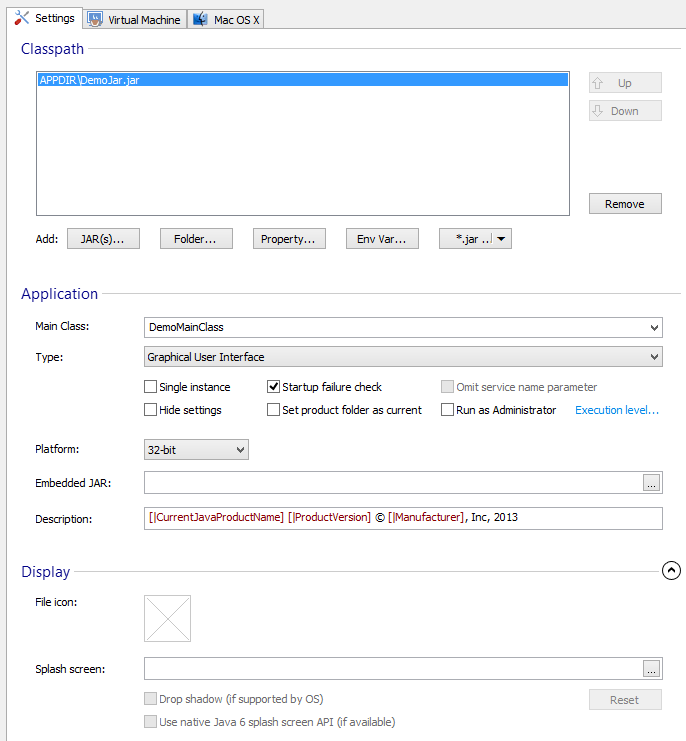
Now a new file has appeared in the Files and Folders Page: Java Product Example.exe.
5. Create program shortcut
Go to the
Files and Folders page by clicking on “Files and
Folders” on the left pane.
 Select the Java Product
Example.exe file and click on the toolbar
button. Set the description to: Java Product Example Application. Find
yourself a nice icon on your computer. Click
OK.
Select the Java Product
Example.exe file and click on the toolbar
button. Set the description to: Java Product Example Application. Find
yourself a nice icon on your computer. Click
OK.

 Click on the
 7. Run, test and remove
 Click on the
toolbar button to run and test the MSI you created. After installation
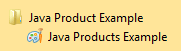
you should have a Java Product Example folder in your “Start”
menu. Run the application by selecting Java Product Example.
Click on the
toolbar button to run and test the MSI you created. After installation
you should have a Java Product Example folder in your “Start”
menu. Run the application by selecting Java Product Example.
To remove the installed package, simply Run it again and select Remove.