


Creating an MSI Package
 The following article uses options that are available starting with the Freeware edition and project type.
This tutorial will guide you step by step through the creation of a simple Advanced Installer project in order to obtain an MSI package (or installer). It is addressed to those who have no previous experience in using Advanced Installer. Gain an extended knowledge of working with MSI Installers by visiting our MSI Packaging Training ebook.
1. Create project
Let's suppose that you want to create a package to install a simple text file, a story you wrote. Choose an already existing text file on your local disk or create one. Name the file story.txt, open it in your favorite text editor, and type a couple of lines to give it some content.
After launching Advanced Installer, you will be presented with a dialog where you can choose the type of project you want to create.
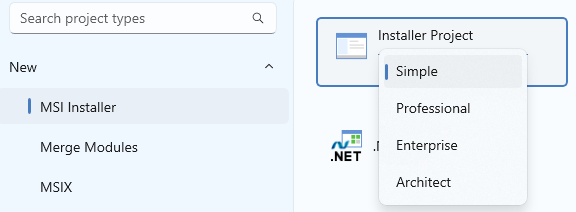
- Select the “Simple” type.
- Uncheck the “Use wizard...” option.
- Press the button.
- The new project has been created and from now on you can edit it.
 Save the project by using the toolbar button and
choose the file name and the destination folder. This will also be the folder where your
MSI package will be created. Give it an appropriate name,
story.aip for this example.
Save the project by using the toolbar button and
choose the file name and the destination folder. This will also be the folder where your
MSI package will be created. Give it an appropriate name,
story.aip for this example.
 A common mistake made by developers new to Advanced Installer is creating a project
then copying it and using the copy as a base for a new project. This is wrong, it leads to
duplicate ProductCode and UpgradeCode. The article on Product Identification explains why this is wrong in the "Copying
your project files" section.
A common mistake made by developers new to Advanced Installer is creating a project
then copying it and using the copy as a base for a new project. This is wrong, it leads to
duplicate ProductCode and UpgradeCode. The article on Product Identification explains why this is wrong in the "Copying
your project files" section.
2. Add files
The most important step in creating an MSI installer is adding a file or folder.
 Switch to the “Files and
Folders” page by selecting it in the left-side panel. The folders which interest
you most are “Application Folder” and “Application Shortcut Folder”.
Switch to the “Files and
Folders” page by selecting it in the left-side panel. The folders which interest
you most are “Application Folder” and “Application Shortcut Folder”.
In Application Folder, you can add the files and folders used by your application, this folder representing the installation folder. In Application Shortcut Folder you can add shortcuts to your application, to a help file or to a URL, this folder representing a folder in the “Start > All Programs” menu of the Windows taskbar. You can read more about these folders in the Install Parameters page.
 Click on the toolbar button, browse to your
project's folder and select the story.txt file you created.
Click on the toolbar button, browse to your
project's folder and select the story.txt file you created.

3. Build and install the MSI package
Now that you have added a file to your project let's build the MSI file.
 Click on the toolbar button and a “Build
Project” dialog will appear showing you the build evolution.
Click on the toolbar button and a “Build
Project” dialog will appear showing you the build evolution.
 Once the build is complete, click on the toolbar
button. A setup wizard will appear that will guide you through the install process of the
“story.txt” file.
Once the build is complete, click on the toolbar
button. A setup wizard will appear that will guide you through the install process of the
“story.txt” file.
Congratulations! You have created your first Advanced Installer MSI package. By default, the story.txt file will be installed in C:\Program Files (x86)\Your Company\Your Application. Browse to that folder in Windows Explorer to check.
4. Remove installed file
You can remove the installed file either from the “Programs and Features” in the Control Panel or from within the Advanced Installer application itself. Simply press the button again without modifying anything and the Setup wizard will appear. Select in the second screen and wait until the uninstall process is complete.
If you change anything in the project, pressing will cause a
different package to be generated. The only way to uninstall the old one will then be from
the “Programs and Features” in Control Panel.
5. Edit product and company names
Of course, “Your Company” and “Your Application” aren't too expressive names for the story you are trying to distribute. Let's change them.
 Switch to the “Product
Details” page by selecting it in the left-side panel and edit them to better
values.
Switch to the “Product
Details” page by selecting it in the left-side panel and edit them to better
values.

Build and Run the package again to check the results. Don't forget to uninstall afterward.
6. Create shortcuts to the MSI Installer
Installing in Programs Files(x86) is not of much use if we don't create shortcuts to the installed file. We will create two: one in the “Start” menu and another one on the desktop.
Start by switching back to the “Files and Folders”
page.
 Select the story.txt file by clicking on it, then click on
the toolbar button. The “New Shortcut” dialog
will appear, allowing you to customize the new shortcut.
Select the story.txt file by clicking on it, then click on
the toolbar button. The “New Shortcut” dialog
will appear, allowing you to customize the new shortcut.
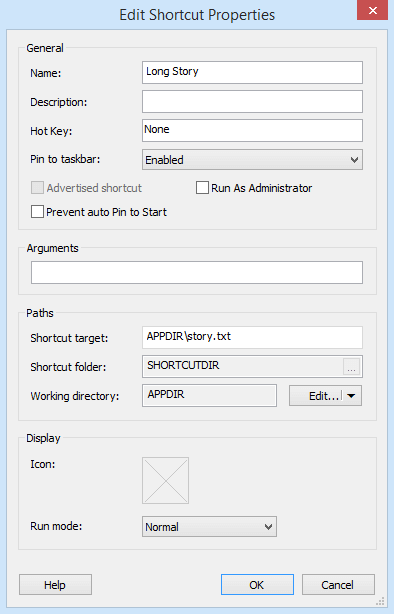
Change the shortcut name to “Long Story” and click . The new shortcut will be added in the Application Shortcut Folder. That means that this shortcut will be installed in the “Start > All Programs > Product Name” menu of the Target Computer.
To also create a shortcut that will be installed on the Target Computer's desktop, select the Desktop folder in the “Folders” tree and click the button. A file picker dialog will pop up, allowing you to select the target file of this new shortcut.
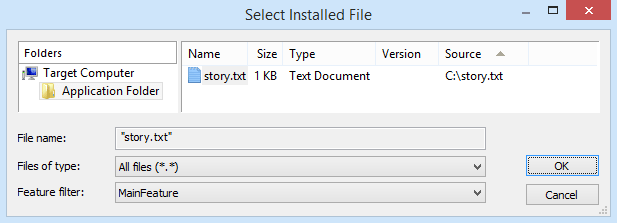
Select story.txt and press . Press again in the “New Shortcut” dialog, after you've changed the shortcut name to “Long Story”. The new shortcut will be added to the “Desktop” folder.
Build and Run again to check the results, uninstall when you're done.
7. Change product version
In time, you may want to release a new version of the story. Maybe you want to fix some issues discovered in the first release. Nothing easier with Advanced Installer.
First, open the story.txt file your favorite text editor and add a couple of lines to it, so that we have an actual file change.
Then switch to the “Product Details” page by selecting it
in the left-side panel. Edit the “Product Version” field to
“2.0.0”.

When building, saving or selecting another page, you will be asked to generate a new Product Code. Answer “Generate new” if you want the new package to automatically upgrade the previous version of the story, if found on the target computer. If you answer “Keep existing”, the two versions will be prevented from being installed simultaneously on the same computer.
8. Installer Analytics
In the Analytics Page, you can enable and configure automatic tracking of your application's installs. You get detailed information about which versions are installed more often, what is your upgrade rate, exceptions occurred during installation, OS environment details, the geographic distribution of your users base and much more.
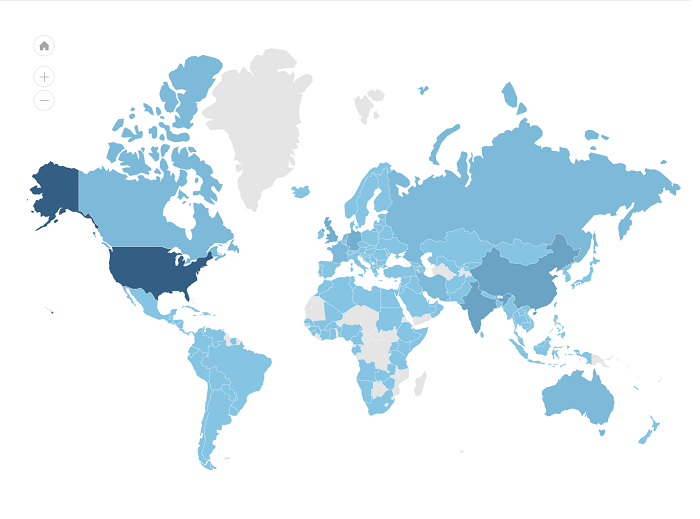
Each distributed package will send out data to Advanced Installer's Analytics servers enabling you to view reports and installation statistics from all your clients.
Using the exclusive Installer Analytics, information regarding installation are available in real time. Installer Analytics will provide with really great insights on how customers use the product. It will help to improve the overall user experience and conversion rates.