ConfigMgr LogFile Opener
ConfigMgr LogFile Opener - Introduction
I guess every ConfigMgr Admin can confirm that getting the right LogFiles into CMTrace can sometimes be pretty challenging, due to the huge amount of actual LogFiles. I'm no difference here and in the past years, while troubleshooting ConfigMgr client side issues, I noticed that I always did the same repetitive tasks:
- Connecting to the targeted client machine via c$
- Opening CMTrace
- Selecting the right (multiple) LogFiles and merging them if needed
A few months ago, I thought that there has to be a better way to do this. The Result was "ConfigMgr LogFile Opener", called CLFO below, which I will to introduce to you in this guest blog post.
Version History
1.0.0
- Initial Release
1.1.0
- Added multiple parameters to customize and further automate CLFO
- Added more log files to the Tools Menu
- Multiple bugfixes and performance improvements
1.2.0
- New 'Client Actions' sub menu
- Client Version will be displayed in the menu
- Multiple bugfixes and performance improvements
Usage of CMTrace
The main purpose of CLFO is to automate the usage of CMTrace. The Script therefore is a Wrapper, that utilizes CMTrace to open the most common LogFiles.
To make this work, you already need to have an existing copy of CMTrace at hand.
Due to licensing, I can't embed CMTrace into CLFO. Johan Arwidmark wrote a great blog post about this.
CLFO by default expects CMTrace.exe to be at "C:\Windows\CMTrace.exe". You can customize this by using the "-CMTrace" Parameter as shown below in the Parameters Section.
Requirements
- Starting with Version 1.2.0, CLFO requires PowerShell 3.0
- The User who executes CLFO needs to have access to C$ of the Client Machine
- CMTrace.exe needs to be present, as described in the above
Parameters
| Parameter | Description |
|---|---|
| -Hostname | Can be used for a direct connection to a client device. Otherwise the Tool will prompt you to specify the Hostname. |
| -CMTrace | Can be used to specify a different location for CMTrace.exe. The Tool expects CMTrace by default at "C:\Windows\CMTrace.exe" |
| -ClientLogFilesDir | Can be used to specify a different location for the ConfigMgr Client LogFiles. e.g. 'C$\Program Files\CCM\Logs' |
| -DisableLogFileMerging | Can be used to prevent CMTrace from merging multiple LogFiles. If using this Parameter, you'll need to use the 'Window' Menu in CMTrace to toggle between the different LogFiles. |
| -WindowStyle | Can be used to change the Window Mode of CMTrace and File Explorer. Possible values are 'Minimized', 'Maximized' and 'Normal'. |
Example
The following example will:
- Directly connect to 'PC01',
- with the LogFiles available at ‘C$\Program Files\CCM\Logs’
- and CMTrace being displayed maximized:
.\ConfigMgr_LogFile_Opener.ps1 -Hostname 'PC01' -ClientLogFilesDir 'Program Files\CCM\Logs' -WindowStyle 'Maximized'
Download
You can download CLFO from TechNet Gallery.
How to use CLFO
Go ahead and Download CLFO from the TechNet Gallery link above.
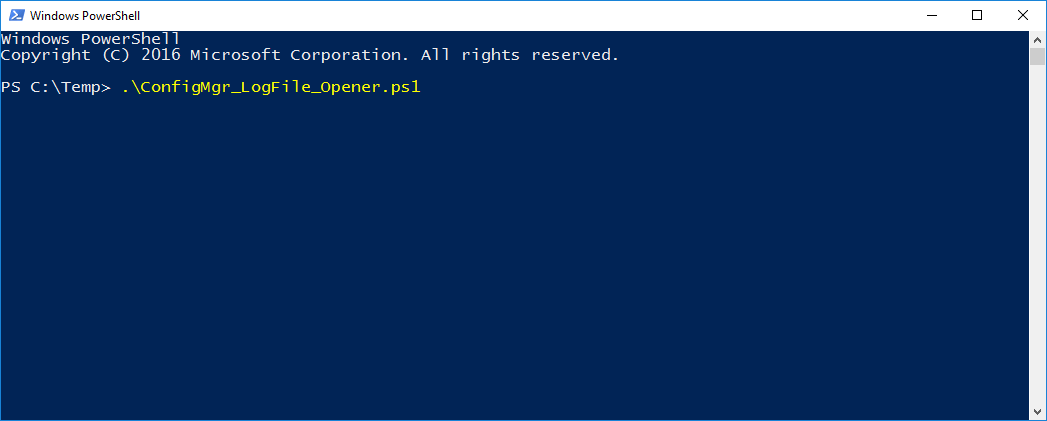
When downloaded, launch it from PowerShell as below. If needed, you can use the Parameters that were explained above. In this example, we won't use any Parameters and use the default settings.
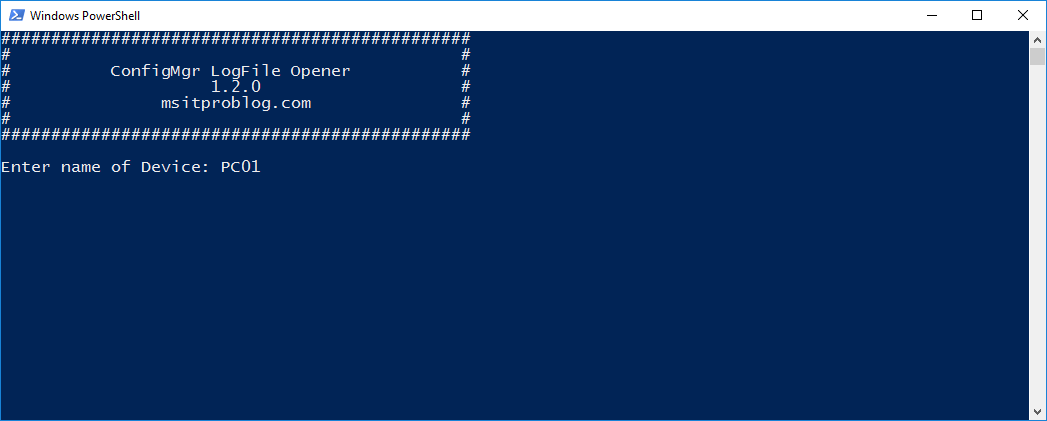
CLFO will now prompt you to specify a Device name. Enter the name of the device to which you want to connect.
 ProTip: Press Enter without specifying a Device name and the
name of the device, on which CLFO is running, will be
used.
ProTip: Press Enter without specifying a Device name and the
name of the device, on which CLFO is running, will be
used.
You are now in the 'Main menu' were you can select from multiple Actions.
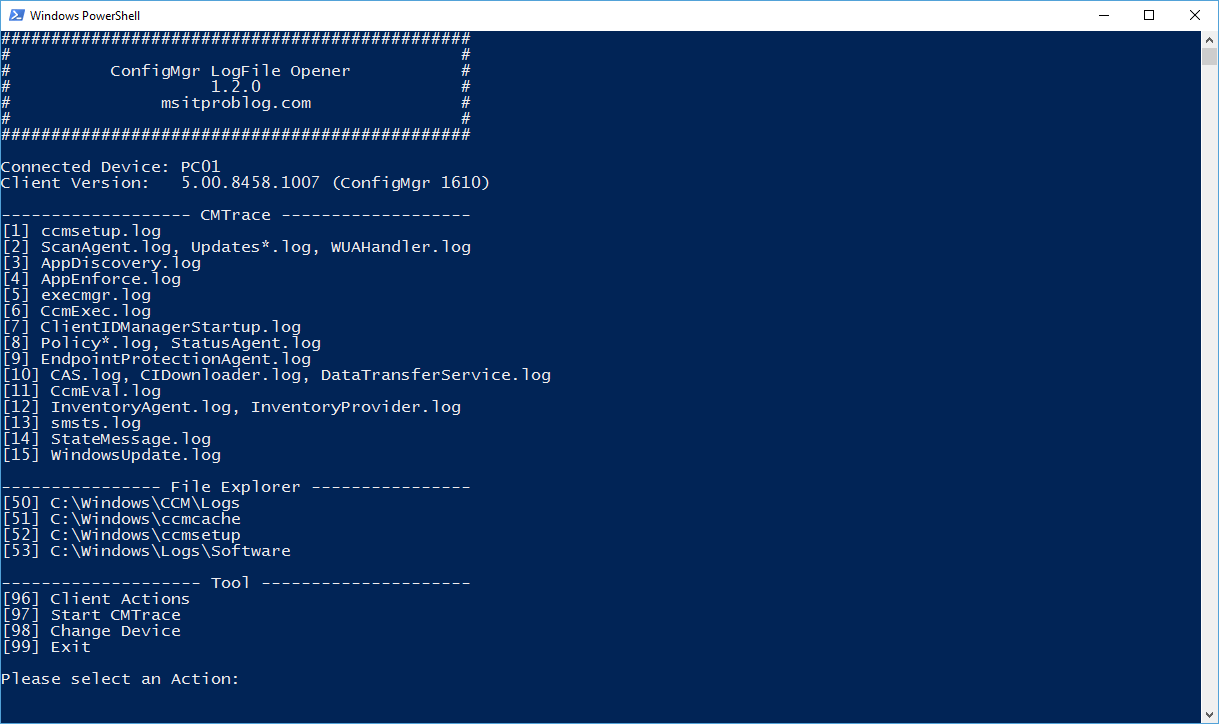
The CMTrace Actions will open the specified LogFiles. If there are multiple LogFiles specified, then CLFO will merge them in CMTrace. (If you don't want this, then you can use the -DisableLogFileMerging parameter.)
The File Explorer Actions will open File Explorer at the specified location.
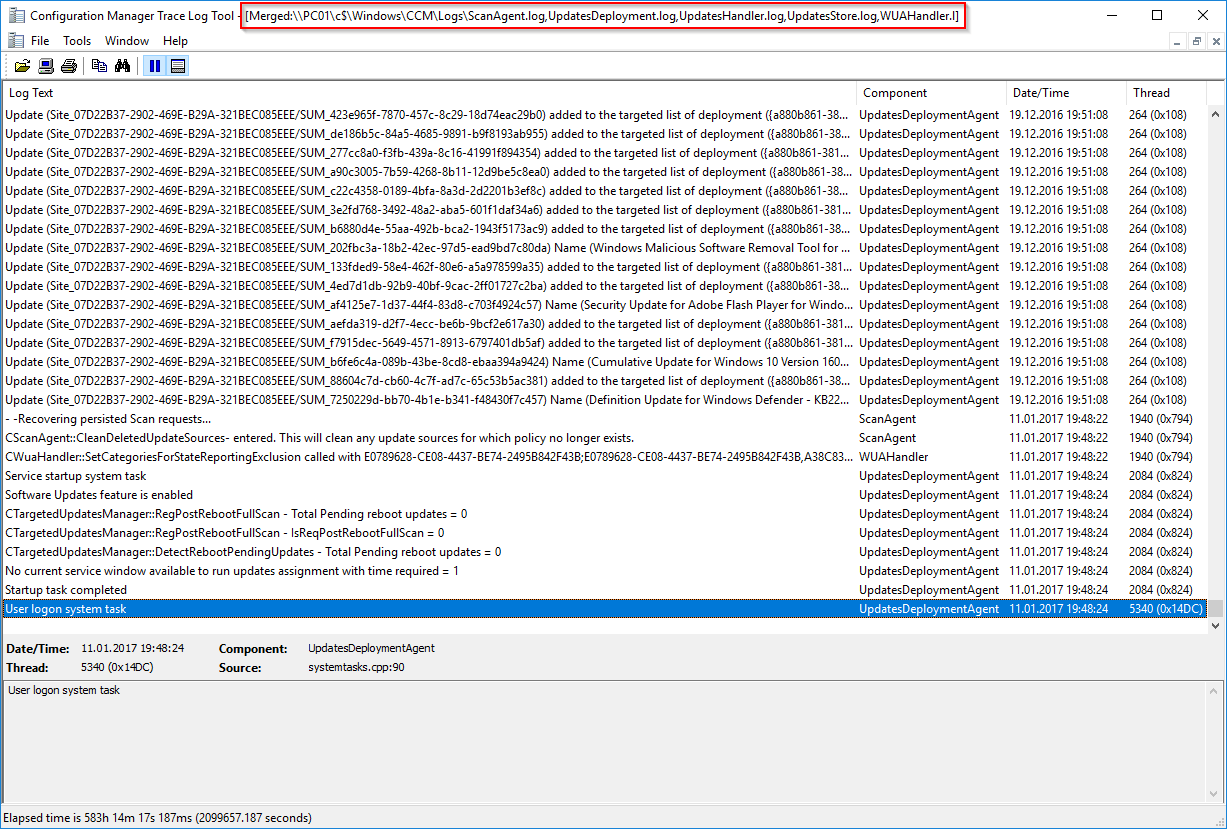
As an example, selecting the Action "2", will open all Updated related Log-Files, as seen below:
Starting with Version 1.2.0, you'll find a new Tool Action called Client Actions which will open the Client Action sub menu. From here you can execute the most common Client Actions, as you can do it from the ConfigMgr Control Panel Applet.
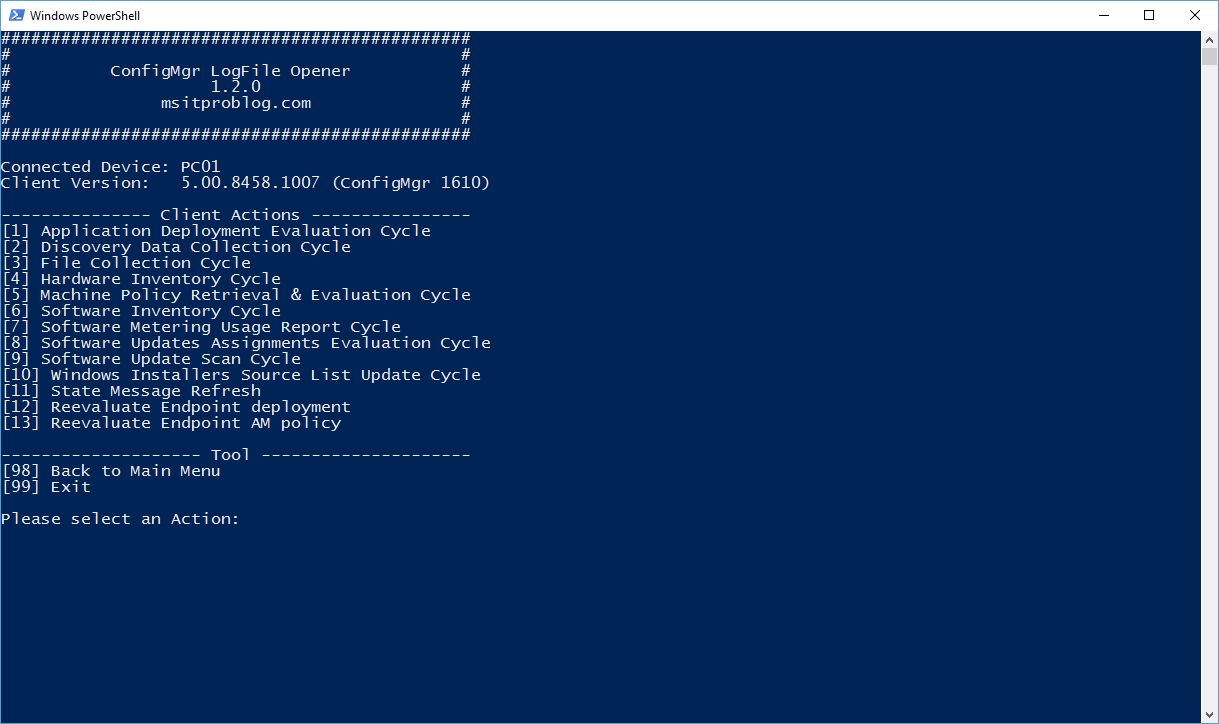
This should be especially useful, when you use CLFO for real time troubleshooting.
Feedback
If you encounter any problems, have questions or feedbacks, you can hit me up on Twitter (@SimonDettling) or on my blog (msitproblog.com).