


Advanced Installer extension for Visual Studio Overview
Advanced Installer comes packed with a Visual Studio extension to help you create and manage installers for your solutions directly from Visual Studio.
You can download and install the extension from the Visual Studio Marketplace.
To create a new project (.AIPROJ) in Visual Studio 2019 (or older), Advanced Installer must also be installed on the machine, together with our Visual Studio extension from the marketplace.
Create an Advanced Installer Project in Visual Studio
You can add Advanced Installer Projects and create installers for Visual Studio solutions containing any types of projects. To add an Advanced Installer Project to a new or existing solution, from the "New Project" dialog select the Advanced Installer Project option.
An Advanced Installer Project can contain a single .AIP project file. The Visual Studio solution can contain multiple Advanced Installer Project for Visual Studio.
To add an existing .AIP project file to an Advanced Installer Project, you can delete the default .AIP that was created and use the "Add -> Existing Item..." option to import the existing .AIP project file.
Edit the Advanced Installer project in Visual Studio
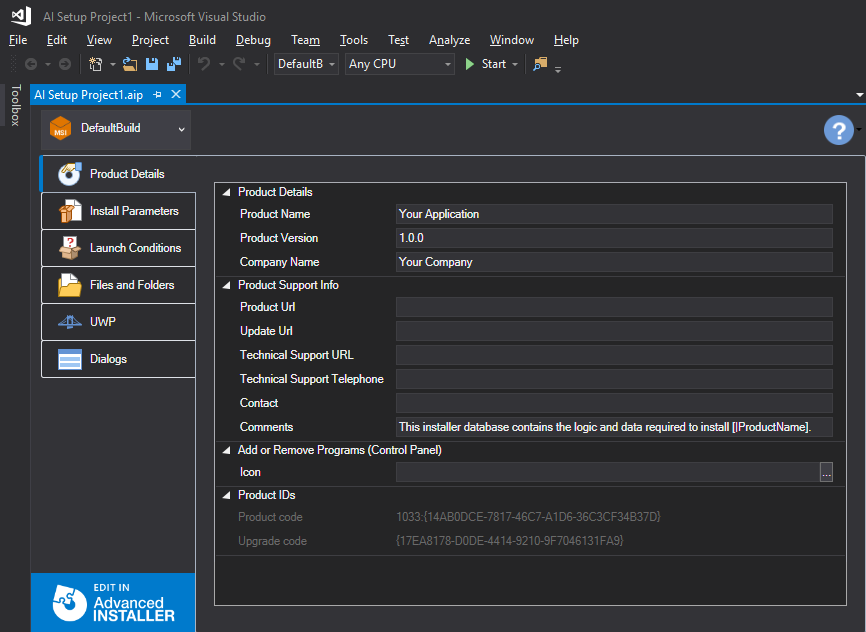
Every Advanced Installer Project features a viewer that can be used to quickly get access or edit basic information about your installer. Select the project .AIP file from the "Solution Explorer" to access the viewer.
Edit the Advanced Installer project in Advanced Installer
Use the button or the “Open with Advanced Installer” context menu option to open the installer project in Advanced Installer.
Opening the project in Advanced Installer gives you access to all available features for your installer. Once you finished editing the installer project, save it and exit Advanced Installer. Upon returning to Visual Studio you will be asked to reload the Advanced Installer Project files which include all your changes.
 By default, you can create installers for Visual Studio solutions using a
Freeware license of Advanced Installer. However, if you have a Professional,
Enterprise or Architect license for Advanced Installer, you can convert your
installer project to the desired project type from the Edit
Project Settings Dialog.
By default, you can create installers for Visual Studio solutions using a
Freeware license of Advanced Installer. However, if you have a Professional,
Enterprise or Architect license for Advanced Installer, you can convert your
installer project to the desired project type from the Edit
Project Settings Dialog.
Import Visual Studio solutions in your installer project
When adding an Advanced Installer project to a solution it will automatically import the build output from existent projects located in that solution.
Topics
- Advanced Installer Project
Advanced Installer Projects for Visual Studio - AIP Viewer/Editor
Displays key parts from content of an AIP file. Basic editing capabilities are also present. - Select the Advanced Installer build to use
Manage the Advanced Installer builds using Microsoft Visual Studio. - Extension options
Tailor Advanced Installer extension for Visual Studio to your needs.