


Java Product Settings Tab

On the Java Products page's right side panel, under settings tab, you can view and set the parameters of your Java Product.
Classpath
This list must contain all the JAR/Zip archives that form your application.
Add JAR components
Use the button to add components to the classpath. These archives must be already included in the installation, through the Files and Folders page.
Add path locations
Use the , or button to add a path to the "Classpath" parameter of your Java Application. Click the button to select an Environment Variable using the Environment Variable Picker Dialog.
Remove JAR components
Use the button, to remove a JAR/Zip archive from a Java Product. The actual files will not be removed from Files and Folders page.
 In case you are creating a Mac OS X package, any properties, environment variables or
folders not included in the Application Folder you specify in the classpath list will be
invalid.
In case you are creating a Mac OS X package, any properties, environment variables or
folders not included in the Application Folder you specify in the classpath list will be
invalid.
Add wildcard components
Use the button to add a new "Classpath" location. A list will appear giving you the possibility to select:
- *.jar
- This option lets you add to the "Classpath" parameter all the JAR files existing in the selected directory, at the application's run time.
- Selecting the *.jar option will open the Folder Picker Dialog in order to select the JAR files location.
- Custom...
- This option gives you to possibility to declare relative or absolute "Classpath" entries.
- Selecting the Custom...option will open the Add Classpath Files Dialog.
Application
Main class
Contains the exact main class of your application. Includes the package and does not include the .class extension. It is required.
While adding JAR files or Folders to your java product, the "Main Class" drop-down list box will be automatically populated with the "main" classes contained in every JAR or Folder.
Use the drop-down list button to select the one you want.
Type
Select your application's type (Graphical User Interface, Console or Windows Service).
Single Instance
If your application is of Console or Graphical User Interface type, you can set it to run as an Single Instance Application. Select the "Single Instance" checkbox to do that.
Startup failure check
Any uncaught exception from the main thread is described in a dialog box that will allow the user either to stop the application or to ignore the exception. This option applies only to GUI applications.
Omit service name parameter
When installing the Java product as a service the service name is passed as parameter automatically. If you do not need/expect that to be the first parameter received by your application, in the command line, enable this option.
Hide settings
The Native Java Launcher configuration can be seen and modified by the end user since it is placed into an INI file next to the application. The settings that are not resolved at install time can be hidden inside the launcher. This way the user will not be able to see your private settings.
Set product folder as current
Set the java application's current directory to the application's folder.
Execution Level
Run as administrator - enabling this option automatically sets the execution level to "Require Administrator". Disabling it will set the execution level back to the "As Invoker" default.
Execution level... - this link displays the java application launcher's Execution Level Settings.
Platform
This options allows you to select between 32-bit and 64-bit runtime environments.
- 32-bit - This option will select the 32-bit JRE to be used. Your java product will work on any 32-bit or 64-bit OS as long as a 32-bit JRE is present.
- 64-bit - This option will select the 64-bit JRE to be used. The 64-bit JRE is suitable for applications that can take advantage of the large memory addressing capability. Also double precision (64-bit) mathematical computationally intensive applications can have significant performance improvements. Your java product will require a 64-bit OS with a 64-bit JRE.
- Any CPU - This option enables your GUI or Console application to use any JRE installed on the target machine. Your java application will work on any platform having a 32-bit or a 64-bit JRE installed. It uses two java products (one for each JRE type) the 64-bit product being synchronized to have the same settings as the 32-bit product, so you only need to configure the 32-bit product. To have different settings for the 64-bit Java Product just select it from tree and start configuring it.
 Please note that any settings you change in the 64-bit java product will be
automatically unsynchronized, that means these settings will no longer be inherited from the
32-bit java product. To synchronize them back simply set identical options in both products,
for the correspondent settings.
Please note that any settings you change in the 64-bit java product will be
automatically unsynchronized, that means these settings will no longer be inherited from the
32-bit java product. To synchronize them back simply set identical options in both products,
for the correspondent settings.
Embedded JAR
This option allows you to specify a JAR file that will be inserted into the Native Java Launcher. The JAR will automatically be added to the class path. You could use this option together with the “Hide settings” option to minimize the content visible for the end-user.
Display
For a Graphical User Interface Application, you can set:
- An icon for Native Java Launcher associated with this Java Product.
- A Splash Screen that will be displayed when the application starts.
- A splash screen shadow can be set optionally, and it will appear if supported by the Windows version (i.e. XP or higher).
- Native Java 6 splash screen API could be used. In that case, additional functionality
will be available like:
- Getting the splash screen Graphic to use it from your java application.
- Closing the splash screen from your application whenever you desire.
Customize EXE Metadata
Click on this hyperlink to customize metadata for your Java EXE Application. The Edit EXE Metadata Dialog will be displayed.
Preferred JRE Version Dialog
This dialog allows you to specify a list of preferred JRE versions when running your Java Product.

To add a new version, type it in the top edit box and press the button. To remove a version, select one and press the button. Use to empty the list. Press when you are done or to undo your changes.
The versions are matched by integer fields, starting from the first one. The missing fields match everything, meaning that 1.4 matches 1.4.1 and 1.4.2_01, while 1.4.0 only matches 1.4.0 or 1.4.0_02. If more versions are matched, the highest one is selected.
Environment Variable Picker Dialog
This dialog allows you to select some environment variable that you expect to find on the target machine.
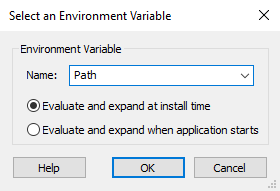
In the "Name" text field enter the variable's name. If the variable is present on your system, you can select it from the drop-down list.
If this variable doesn't exist on the target system, it will be expanded into a null string.
You can choose whether to expand the environment variable's value at the moment when the application is being installed or to expand it every time it is run. The second choice is very useful if you expect an environment variable to change it's content after the installation is complete.
Add Classpath Files Dialog

Wildcard Path
In this field, you can declare custom locations with wildcard support. The files selected by this wildcard will be added to the "Classpath" parameter of your Java Application at the application's runtime.
This Formatted Type field can be edited
using Smart Edit Control.
The location of the files can be absolute or relative. If the location will not point to an absolute path, it is considered as relative to the Java Product folder.
Examples:
In these examples we suppose:
The Java Product directory is placed in Application Folder from the Files and Folders Page - Installer Project; The lib folder is located in the Java Product directory and contains multiple JAR files. The lib_DIR identifier is assigned to the lib folder.
- [lib_DIR]\*.jar
- In this case, all the JAR files from the lib folder will be added to the "Classpath" parameter. This is considered an absolute path. This is equivalent to the relative path lib\*.jar.
- *.jar
- All the JAR files from the Java Product folder will be added to the "Classpath" parameter. This is considered a relative path. This syntax is equivalent to the absolute path [APPDIR]\*.jar.
Using Absolute Paths
Based on the first example, the location [lib_DIR]\*.jar will be resolved at the application's runtime and it will point to absolute paths. The files selected by the wildcard will also be added to the "Classpath" parameter at the runtime of the application. If the lib folder is renamed or moved in Advanced Installer, the location will still be correctly resolved and the files will be added at the application launch time.
Using Relative Paths
Based on the first example, if a relative path is being used the lib\*.jar will be resolved at the application's runtime and will point to a location relative to the Java Product's folder. If the lib folder no longer resides in the Java Product directory or has been renamed, the location cannot be correctly resolved and no file can be added to the "Classpath" parameter.