


Organization Page
Windows Installer organizes a product in features and components. A feature is a set of components that are installed together. A component is a piece of the product to be installed and it is the smallest piece of a product that Windows Installer can install.
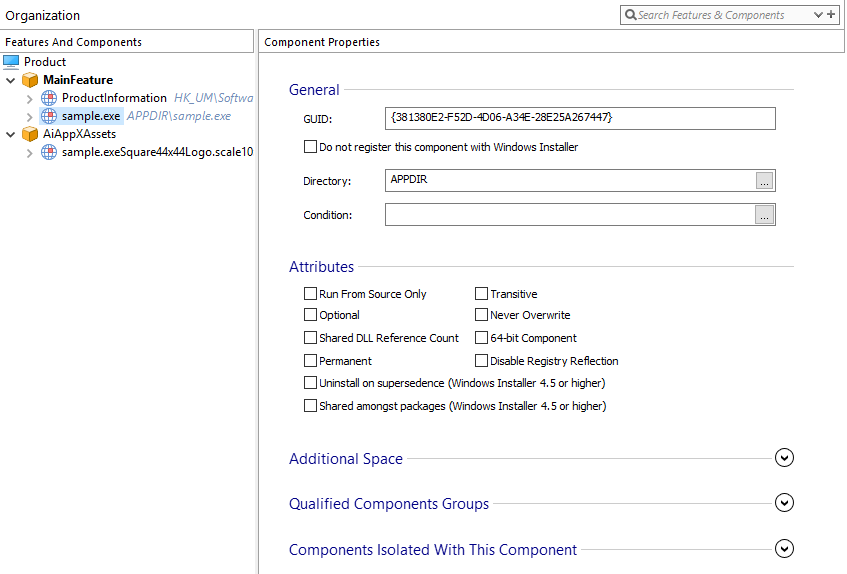
This page allows you to create new features and to select which components belong to a feature. In the left pane there is a tree that hierarchically displays the product's organization. On the first level of the hierarchy there are the features. A feature can contain sub-features and components. A component is made of resources. A resource can be a file, a folder, a registry key or value, a data source, a shortcut, an extension, an environment variable, a service installation, a service operation, an ODBC driver or an ODBC translator.
Every component has a key resource that can be only a file, a folder, a registry key or value or a data source. The resources are displayed under their component. The key resources are displayed with a key overlaid over the resource's usual image. During an installation Windows Installer decides which features to install along with all the sub-features and the components of the selected features. When a component is installed, all the resources of that component are installed (and only then).
Organizing components
The components in an Advanced Installer project are created by following the Windows Installer rules and best practices. Therefore, you should follow these rules when reorganizing your installation package:
- Never create two components that install a resource under the same name and target location.
- Two components must not have the same key path file.
- Do not create components containing resources that will need to be installed into more than one directory on the user's system.
- Do not include more than one COM server per component.
- Do not specify more than one file per component as a target for the Start menu or a Desktop shortcut.
- Define a new component for every .exe, .dll, and .ocx file and designate these files as the key path files of their components.
- Define a new component for every .hlp or .chm help file and designate these files as the key path files of their components.
- Define a new component for every file that serves as a target of a shortcut and designate these files as the key path files of their components.
 Creating components which don't respect these rules may result
in an installation package which doesn't work correctly.
Creating components which don't respect these rules may result
in an installation package which doesn't work correctly.
Creating new features
 Use the toolbar button, the “New Feature” tree
context menu item or press the Insert key while the
“Features And Components” panel is focused. The new
feature will be added after the last sub-feature of the selected
feature. The feature will get a default name, which you can edit
anytime.
Use the toolbar button, the “New Feature” tree
context menu item or press the Insert key while the
“Features And Components” panel is focused. The new
feature will be added after the last sub-feature of the selected
feature. The feature will get a default name, which you can edit
anytime.
 When a new component is created and there is no feature in the
project, a new feature, named "MainFeature" will be automatically
created. Also when you create a feature from this page and there is no
other feature in the project, that feature will also get the name "Main
Feature". All the components will be added by default in the "Current
Feature".
When a new component is created and there is no feature in the
project, a new feature, named "MainFeature" will be automatically
created. Also when you create a feature from this page and there is no
other feature in the project, that feature will also get the name "Main
Feature". All the components will be added by default in the "Current
Feature".
Renaming a feature
Use the “Rename” tree context menu item or press the F2 key while a feature is selected. Only the features names can be edited.
Renaming a component
Use the “Rename” tree context menu item or press the F2 key while a component is selected. This identifier is used in conditions to refer to the installed state or the action state of a component.
 When changing the name of a component, all the conditions that refer
to this identifier must be updated accordingly.
When changing the name of a component, all the conditions that refer
to this identifier must be updated accordingly.
Moving a feature up, down, left or right
Use the “Move Up”, “Move Down”, “Move Left” or “Move Right” tree context menu items or press Shift + Up, Shift + Down, Shift + Left or Shift + Right. When moving to the left, the feature will be moved after the last feature of its parent feature. When moving to the right, the feature will be moved after the last feature of the feature before it. You can also move features and components by drag and drop.
A feature's position among its siblings is important because at
install time, in the Customize dialog, the features will be displayed in
the order they appear in the left tree.
Setting the Current Feature
Use the “Set As Current” tree context menu item. The Current Feature will be displayed in bold text. Newly created components for various resources (files, registry keys, etc.) will always be added to the Current Feature.
You can also set the Current Feature using the drop-down list box in
the toolbar of the Component-producing pages.
Moving a component between features
Drag and drop the component to the new feature.
Moving resources between components
Use the drag and drop to move the resources (file, registry or data source etc) between components.
When moving resources between components the following restrictions must be taken into consideration:
- The files that are target for Service Installs, File Associations or Advertised Shortcuts, are made key members and cannot be moved into a new component.
- The files of CHI or CNT type cannot be moved. (they follow automatically the component of the corresponding CHM and HLP files)
- If a resource is the only one from the component that can be a key member(e.g. files) and the rest of the resources in the component cannot be key members(e.g. Environments),then the file cannot be moved.
- Resources can only be moved between components if they have the same Directory attribute.
- All the files related to a Java Product cannot be moved because they must be attached to the Java Product file.
Moving a resource to a new component
Use the "Move To New Component" tree context menu item. The current resource will be moved into a newly created component, in the same feature.
Setting a resource as Key Member
Use the "Make Key Member" tree context menu item.
Locating a resource
Use the “Go To Resource” context menu item or press the F8 key on a selected resource. This command will activate the appropriate page and will select the tree or list item corresponding to the resource.
Sharing a component
Drag and drop the component to a new feature while the Shift key is pressed, use the “Share” context menu or ribbon button. The component will be present under both features.
Sharing a feature
Drag and drop the feature to a new feature, while the Shift key is pressed. All the components of the dragged feature will be present under both features.
Adding resources to the search list
Use the “Add to list” context menu item or press the F4 key while a tree item is selected.
Use the “Add Children to List” option or press the Shift + F4 key to add all the item's children to the list.
Removing features and shared components
 Use the
toolbar button, the “Delete” tree
context menu item or press the Delete key while a
feature or component is selected.
Use the
toolbar button, the “Delete” tree
context menu item or press the Delete key while a
feature or component is selected.
A feature must be empty before you can remove it. A regular
component cannot be removed, only a shared one.
Searching for a feature, component or resource
 Type the label
text that you want to search in the top right corner edit box. Press the
Enter key to trigger the search.
Type the label
text that you want to search in the top right corner edit box. Press the
Enter key to trigger the search.
 To search for
the next value use the Find Next button or press the
F3 key. The search results are displayed in the
Search Pane.
To search for
the next value use the Find Next button or press the
F3 key. The search results are displayed in the
Search Pane.
 Use the
Find and Append button to append the search results
to the search pane list.
Use the
Find and Append button to append the search results
to the search pane list.
If you want to search for the whole word you must enclose the string from the combo in quotes (").
The search is case insensitive.
Topics
- Search Pane
Contains the results of the search. - Feature Properties
Setting a Feature's properties in Advanced Installer. - Component Properties
Setting a Component's properties in Advanced Installer. - Feature Picker Dialog
The "Feature Picker" dialog