


Component Properties

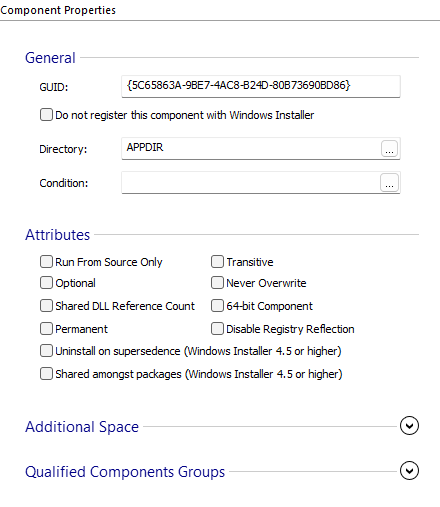
General Properties
- GUID
A globally unique ID for this component, version, and language. Every component gets a default GUID at its creation, but you can change it anytime. - Do not register this component with Windows Installer
If this option is selected the component will have an empty GUID, and thus it will not be registered. This means that the component cannot be removed, repaired or patched by the installer. This might be useful if you intend to service/uninstall the component yourself (using a custom action, for instance). - Directory
This is the directory where the component will install. You can change the directory of a component by using the button, but it must only contain empty folders or registries. - Condition
A Windows Installer condition which is evaluated and the result determines the component's installation. If the condition is null or is evaluated to false, the component is not installed. Use the button to edit the conditional statement.
Attributes
- Run From Source Only
The component can only be run from source. - Optional
The component can run locally or from source. - Shared DLL Reference Count
Windows Installer increments the reference count in the shared DLL registry of the component's key file. - Permanent
This component is not removed during an uninstall. - Transitive
Windows Installer reevaluates the statement from the Condition field after a reinstall. - Never Overwrite
The component is not installed or reinstalled if a key path file or a key path registry entry for the component already exists. This affects only future installers which try to overwrite the component key path; it doesn't affect already installed resources. - 64-bit Component
This component is marked as a 64-bit component. - Disable registry reflection
This option applies only to 64-bit systems with Windows Installer 4.0. If this option is not enabled for a component, Windows Installer makes the associated registry changes in both 64 and 32-bit registry views. - Uninstall on supersedence (Windows Installer 4.5 or higher)
The installation of a superseding patch can leave behind an unused component on the computer. To avoid this behavior, you can set this option. The same effect can be obtained for all components by setting the MSIUNINSTALLSUPERSEDEDCOMPONENTS property to "1". - Shared amongst packages (Windows Installer 4.5 or higher)
This option marks the component as shared among multiple packages. In doing so, if a package containing this component is uninstalled, the highest version of it (installed by other packages) will still be shared by Windows Installer. It is enough to mark the component as shared in one package for it to become shared among multiple packages. If the DisableSharedComponent policy is set to "1", this flag is ignored for all components.
 Shared components must have the same component GUID and the same key path resource.
Also, their resources must be installed under the same location.
Shared components must have the same component GUID and the same key path resource.
Also, their resources must be installed under the same location.
 If registry reflection is disabled the changes are performed only in the targeted
view.
If registry reflection is disabled the changes are performed only in the targeted
view.
Additional space
This section allows you to reserve an amount of disk space in any directory that depends on the installation state of a component.
Folder
Specify the destination directory.
Run Local
The number of bytes of disk space to be reserved if the selected component is installed to run locally.
From Source
The number of bytes of disk space to be reserved if the selected component is installed to run from source.
Qualified Components Groups
This section allows you to add the current component to a category of qualified components.
For example, let's say you have several components that contain resource DLLs with the localized strings for your application. You can group these components into a single category, using the qualified components feature.
Adding the current component to a category.
Use the button, the “New” list context menu item or press the Insert key while the list control is focused. The Edit Qualified Component And Group Dialog will be displayed allowing you qualify this component.
Editing the qualified properties
Use the button, the “Edit” list context menu item or press the Space key while the list control is focused. The Edit Qualified Component And Group Dialog will be displayed allowing you to edit the qualified properties for the current component.
Removing the component from a category
Use the button, the “Remove” list context menu item or press the Delete key while the list control is focused.
Isolated Components
When creating an install package, you can specify if the installer should copy some files used by a certain application, in the application's folder rather than in a shared location.
Using Isolated Components have the following advantages:
- The application will always use the original files(the files it was installed with).
- Installing other applications that use the same files, but with a higher version, will ensure that the original files are not overwritten.
Isolating a component
Use the button, the “Add...” list context menu item or press the Insert key while the list control is focused. The Component Picker will be displayed allowing you to select a component. The selected component will be isolated with the current one.
Removing an isolated component
Use the button, the “Remove” list context menu item or press the Delete key while the list control is focused.
Topics
- Edit Qualified Component And Group Dialog
Add a component to a group of qualified components. - Edit Component Policies Dialog
Modify the Component Policies