


Hi,
I am Persian speaking, so if there is a problem with this text, I apologize.
I am using version 17 of the software.
In the final dialog, I wanted to create two checkboxes that the user could control by checking or unchecking to create shortcuts on the desktop and start menu.
Please guide me in simple language.
Thank you very much.
Suggested Articles
-
Medwin1994
- Posts: 3
- Joined: Thu Jun 11, 2020 8:06 pm
Re: How can I create a shortcut checkbox?
Hi and welcome to our forums.
I'm afraid that the shortcuts are created during the "ProgressDlg" dialog, they cannot be created when the "Finish" button is pressed. So, in order to create them based on a checkbox, you can use the "ShortcutsDlg" built-in dialog.
Let me know if you have other questions.
Best regards,
Eusebiu
I'm afraid that the shortcuts are created during the "ProgressDlg" dialog, they cannot be created when the "Finish" button is pressed. So, in order to create them based on a checkbox, you can use the "ShortcutsDlg" built-in dialog.
Let me know if you have other questions.
Best regards,
Eusebiu
-
Medwin1994
- Posts: 3
- Joined: Thu Jun 11, 2020 8:06 pm
Re: How can I create a shortcut checkbox?
Hello
Thank you very much for your help Eusebiu
But I want to create checkboxes in the "InstallTypeDlg" section. as you know this dialog is before "ProgressDlg".
For example, I put this photo.
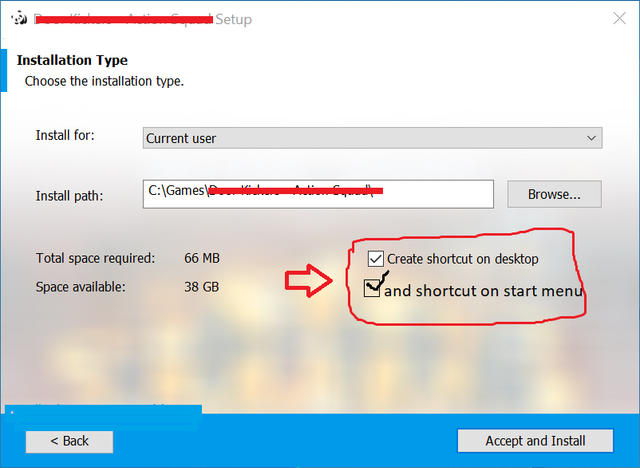
please help me.
Thank You again.
Thank you very much for your help Eusebiu
But I want to create checkboxes in the "InstallTypeDlg" section. as you know this dialog is before "ProgressDlg".
For example, I put this photo.
please help me.
Thank You again.
Re: How can I create a shortcut checkbox?
Hi,
In order to install a shortcut based on a checkbox, you can implement the steps described in the "Create shortcuts if condition" thread.
Best regards,
Eusebiu
In order to install a shortcut based on a checkbox, you can implement the steps described in the "Create shortcuts if condition" thread.
Best regards,
Eusebiu
-
Medwin1994
- Posts: 3
- Joined: Thu Jun 11, 2020 8:06 pm
Re: How can I create a shortcut checkbox?
Hi,Eusebiu wrote: ↑Mon Jun 15, 2020 1:29 pm Hi,
In order to install a shortcut based on a checkbox, you can implement the steps described in the "Create shortcuts if condition" thread.
Best regards,
Eusebiu
Thanks again for answering to my questions, I clicked on the link you put and unfortunately I didn't understand anything. I am a Persian speaker and it is a bit difficult for me, so if you are kind and explain in a way that I understand, I will be grateful. I use Google Translator for writing and typing.
(For example, just explain how to create a checkbox to create a shortcut on the desktop)
Best regards.
Re: How can I create a shortcut checkbox?
Hello,
In order to achieve what you want, please follow the steps provided below:
1. add the file for which you want to create a shortcut and a dummy file in the "Files and Folders" page
2. right click on your EXE for which you want to create a shortcut --> "New Shortcut To" --> "External File"
3. Configure the shortcut as in the screenshot below:
4. go to "Dialogs" page and add the checkbox to your dialog
As you can see, the checkbox control has the following property assigned to it:
CHECKBOX_1_PROP
and, if the checkbox has the "checked" state, the above property will have the following value:
5. go back to "Files and Folders" page. Here, right click on your dummy file --> "Go to Component"
6. here, please make sure that the resource for your shortcut is under the dummy resource component
7. set the "Condition" as in the above screenshot
Hope this helps.
Best regards,
Catalin
In order to achieve what you want, please follow the steps provided below:
1. add the file for which you want to create a shortcut and a dummy file in the "Files and Folders" page
- FilesAndFoldersPage.png (233.71 KiB) Viewed 5799 times
2. right click on your EXE for which you want to create a shortcut --> "New Shortcut To" --> "External File"
- rightClickShortcutToExternalFile.png (47.62 KiB) Viewed 5799 times
3. Configure the shortcut as in the screenshot below:
- ShortcutConfiguration.png (33.78 KiB) Viewed 5799 times
4. go to "Dialogs" page and add the checkbox to your dialog
- CheckBox.png (365.23 KiB) Viewed 5799 times
As you can see, the checkbox control has the following property assigned to it:
CHECKBOX_1_PROP
and, if the checkbox has the "checked" state, the above property will have the following value:
Code: Select all
CHECKBOX_1_PROP = "CheckBox"5. go back to "Files and Folders" page. Here, right click on your dummy file --> "Go to Component"
- GoToComponent.png (59.5 KiB) Viewed 5799 times
6. here, please make sure that the resource for your shortcut is under the dummy resource component
- ComponentCondition.png (87.42 KiB) Viewed 5799 times
7. set the "Condition" as in the above screenshot
Hope this helps.
Best regards,
Catalin


FOLLOW US
Get the latest news in Application Packaging