Advertised vs Non-Advertised Shortcuts in MSI Installers
As application packagers, we deal with shortcuts in almost every package we build. Some enterprise clients want desktop shortcuts, and some don’t. But when working with MSI installers, not all shortcuts are created equal. Windows Installer gives us two types of shortcuts: advertised and non-advertised.
If you are moving from script-based installer builders, this difference can be confusing, so in this article I am going to show you the differences between advertised and non-advertised shortcuts and see how you can easily configure them in Advanced Installer.
TL;DR

- An advertised shortcut is a special type of shortcut that is linked directly to a Windows Installer feature and that points to the MSI product code. A non-advertised shortcut is your standard Windows shortcut, which points straight to the target executable.
- How to create an advertised or non-advertised shortcut in Advanced Installer: Files and Folders -> Shortcuts -> Double-click the shortcut to open Shortcut Properties -> Find the advertised shortcut -> Check or uncheck as needed
What is an Advertised Shortcut?
An advertised shortcut is a special type of shortcut tied directly to a Windows Installer feature.
Instead of pointing directly to your application's executable (e.g., C:\Program Files\MyApp\app.exe), it points to the MSI product code.
Why is this important?
When a user double-clicks an advertised shortcut, Windows Installer takes over the launch process. It checks the integrity of the application components. If a critical file or registry key is missing, the MSI automatically triggers a self-repair (auto-healing) before launching the app.
The bad news is, since the shortcut points to the MSI engine and not the target file, you can’t simply append custom command-line arguments directly in the shortcut properties without complex workarounds.
Good news: if you need to apply user configurations of an app deployed in system context, advertised shortcuts can do just that with the right package setup. By configuring an advertised shortcut and setting the user-specific data as the component's keypath, clicking the shortcut triggers the MSI to automatically "repair" and pull those missing configurations straight into the user's profile.
What is a Non-Advertised Shortcut?
A non-advertised shortcut is your standard Windows shortcut. It points straight to the target executable.
When a user clicks it, the EXE is launched immediately. Windows Installer is not involved in the launch process, which means no auto-repair is triggered. Because it behaves like a normal shortcut, you can easily add custom command-line arguments to the target path.
For example, VLC creates multiple non-advertised shortcuts, which in essence execute the same EXE, but because it has different command lines, the application launches in different ways.
When to use which?
Advertised: When you want to use the MSI self-healing capabilities to keep the application intact, or when you need to safely populate per-user configurations from a system-context installation.
Non-Advertised: Your application requires specific launch arguments, or when you are wrapping legacy setups where MSI resiliency isn't needed or results in unwanted repair loops.
How to Create a Non-Advertised Shortcut in Advanced Installer
By default, when you add a shortcut to an installed file, Advanced Installer makes it advertised to follow standard Windows Installer best practices.
If you want to change it to a non-advertised shortcut, here is how:
- Open your project then go to the Files and Folders page
- Go to the Shortcuts view, or find your current application shortcut
- Double-click the shortcut to open the Shortcut Properties dialog
- Look for the Advertised shortcut checkbox
- Uncheck it
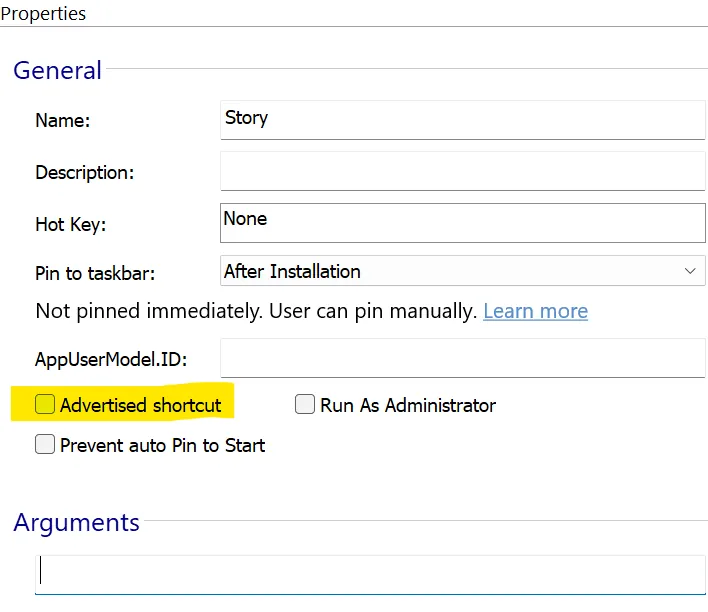
That's it. When you uncheck that box and build your MSI, the resulting shortcut will point directly to your executable. Now you can add any needed parameters in the “Arguments” field just below it.
Conclusion
Understanding how Windows Installer works with entry points like shortcuts can save you a lot of time when troubleshooting later. Whether you rely on the strong self-healing of advertised shortcuts, or the pure flexibility of the standard ones, you shouldn’t need complex XML to configure them.
Written by

Radu Popescu
Technical Writer at Advanced Installer, Technical Engineer on various enterprise client projects. Experienced in Software Packaging, SCCM infrastructure and System Administrating. Tech enthusiast and music producer in his spare time.