How to Change the Installer Icon for EXE Application
Many vendors, or even some IT infrastructure landscapes, may want the EXE installer icon changed. This is done for many reasons, including branding and marketing purposes, but it may also give users confidence that the downloaded installer is from the vendor.
In this article, I’d like to explain how we can change or set the EXE installer icon directly from Advanced Installer when you build your project, or how an IT Pro can do it for installers where the source project is not available.
IT Pros: Which Tools Can Help You to Change the Installer EXE Icon?

If you are an IT professional and have been asked to change the EXE installer icon, but you don’t have access to the source project, you have two options:
- Do a full recapture on the EXE file and make sure that the icon is changed before proceeding with the build process. However, this will be a time-consuming task that will necessitate thorough testing and quality assurance to make sure that the final EXE product behaves exactly like the original one. This will require a third-party recapture tool like Advanced Repackager.
- Use a third-party software tool that helps you change the EXE installer icon. However, as a disclaimer, this will cause the installer checksum to change, which means that any software you use that checks the checksum of that specific installer will detect that it has been modified. There is no checksum implementation in the software deployment tools used by IT professionals.
We’ll go over the first point in more detail in the next chapter, so let’s get started on the second. We can point to two popular tools and provide an easy way to change the icon.
Resource Hacker
The first tool is widely used and has far-reaching applications beyond icon changes.
Resource Hacker is a free, powerful tool for editing and customizing Windows executables and resource files.
It allows you to view, modify, add, or delete resources inside .exe, .dll, .scr, .mui, and .res files, making it popular among developers and advanced users who want to tweak applications or customize the Windows interface.

To edit the icon of your executable, click Open and then select the desired EXE installer. In this case, we used the VLC Player EXE installer.

From there, all you need to do is navigate to the left pane and double-click on the Icon folder. You will see multiple options, which are icons based on the user’s resolution. In most cases, the first one will be enough for replacement. After that, right-click on the first icon and select Replace Icon. A new window will appear, prompting you to select the new icon.

After that, click on the Save As button and select the location where the EXE installer should be saved.

As you can see, the resulting EXE installer has the icon changed.
Executable Icon Changer
The second tool we will present is even more user-friendly. This one is called Executable Icon Changer, and it has a very minimalistic and straightforward design.
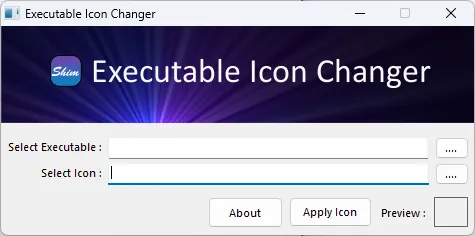
All you need to do is just select the executable for which you want to change the icon, as well as the new icon, then click on Apply Icon.

Advanced Installer
As previously mentioned, Advanced Installer allows you to change the output executable icon. However, you have two scenarios:
- Repackage the entire executable
- You have the source project, and here there are just a few simple steps
Repackaging an installation is not an easy task, and this process is carried out by experienced IT Professionals in the industry.
 You can read a brief tutorial on how the repackaging process works, or if you want to learn more, you can check out the free MSI and MSIX training with e-books, courses, videos, and exams from Advanced Installer Academy.
We also have a dedicated chapter in the ebook where you can learn about the repackaging process.
What you should understand is that after the repackaging process, you will need to follow the steps outlined below to change the icon.
So let’s assume you already have the Advanced Installer project at hand with all the details.
To change the resulting EXE installer icon, all you need to do is navigate to the Builds page. Select the build, and on the right pane, under the Output section, click on the EXE icon to select the desired icon.

After that, all you need to do is click on the build icon on top, and the EXE will contain the desired icon.
Conclusion
Changing the icon of an EXE installer may seem like a minor detail, but in practice it plays a significant role in branding, user trust, and overall product presentation.
Whether you are a vendor looking to make sure that your installer reflects your company identity or an IT professional tasked with customizing third‑party packages, there are reliable approaches available.
If you have access to the source project, Advanced Installer simplifies the process by giving you full control over the output and ensuring consistency.
Without the source project, tools like Resource Hacker and Executable Icon Changer provide useful alternatives, allowing you to replace icons quickly and effectively.
Icon customization is possible with the right tools and knowledge, though each method has trade-offs like checksum changes and repackaging complexity.
By carefully applying these techniques, IT pros and software vendors can deliver installers that not only work properly but also inspire confidence and reinforce brand identity.
Sign up to receive the latest news, videos, exclusive how-tos, and guides from Advanced Installer every week. (You can unsubscribe at any time.)
Written by

Alex Marin
Application Packaging and SCCM Deployments specialist, solutions finder, Technical Writer at Advanced Installer.