How to extract .ico file from your installer (EXE or MSI)
Most Windows applications include one or more embedded icons in their installer files. These icons are used throughout the Windows operating system to help users quickly identify applications in locations such as desktop shortcuts, the Start Menu, taskbar pins, file associations, and application listings.
Extracted icons are commonly used by application packaging teams for:
- Custom shortcuts and branding
- Enterprise software catalogs
- Importing Microsoft Intune applications
While it may be tempting to download an application logo from the internet, extracting the icon directly from the executable ensures that you are using the original vendor-provided resource. This not only guarantees authenticity but also provides access to the correct icon sizes and formats, which were designed specifically for the application.
In the following sections, we'll explore several methods for extracting icons from executable files.
Method 1: Extract icon using 7-Zip

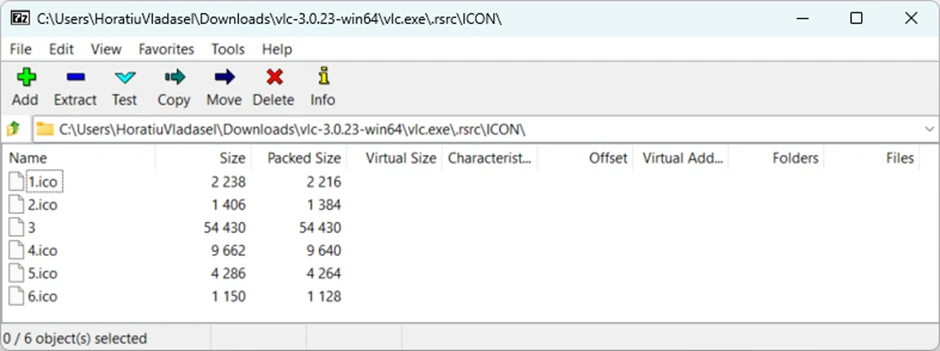
Although 7-Zip is best known as a file archiving and compression utility, it can also be useful for inspecting the contents of certain executable files. Many software installers are packaged as self-extracting archives, allowing 7-Zip to access embedded resources, including icon files.
If you already have 7-Zip installed, this method is quick and simple and does not require any additional software.
Steps
- Right-click the EXE file
- Select 7-Zip > Open Archive
- Browse the executable’s contents
- Look for files with the .ico extension
- Extract the desired icon file to your preferred location
Advantages of using 7-Zip to extract .ico files
- Free and widely available
- Fast and easy to use
- No separate software required
- Quick method for many installer packages
Limitations
Not all executable files expose their resources in a format that 7-Zip can access.
Some applications store icons in resource sections that cannot be directly viewed or extracted through archive browsing. In these situations, a dedicated icon extraction tool may be required.
Method 2: Third-party icon extractor
There are many icon extraction tools available, both as Win32 and web apps. If you don’t want to install additional software, the ConvertICO EXE Icon Extractor offers a convenient web-based alternative.
The tool can extract icons directly from Windows executable formats such as EXE, DLL, OCX, SCR, and CPL. Once extracted, icons can then be downloaded in ICO or PNG format for use in deployment platforms, documentation, or software catalogs.
According to ConvertICO, all processing takes place locally within the browser, so files are not uploaded to external servers.
Steps
- Browse to ConvertICO EXE Icon Extractor
- Drag and drop your EXE file into the tool, or browse for it
- Allow the tool to scan the executable and identify embedded icons
- Select the icon that you want to extract
- Download the icon

Advantages of using third-party icon extractors to extract .ico files
- No software installation required
- Displays multiple icon sizes and color depths
- Useful when working on devices where software installation is restricted
Limitations
Because the tool operates in a web browser, it may not be suitable in highly restricted enterprise environments where access to external websites is limited.
Some organizations may prefer offline solutions for security or compliance reasons.
Method 3: Advanced Installer
For organizations that already use Advanced Installer as part of their application packaging process, icon extraction can be performed directly in the packaging environment.
Advanced Installer allows you to view and manage resources stored within MSI packages, including application icons. This makes it a convenient option for packagers who want to avoid switching between multiple tools during the packaging process.
Steps
1. Open the MSI with Advanced Installer
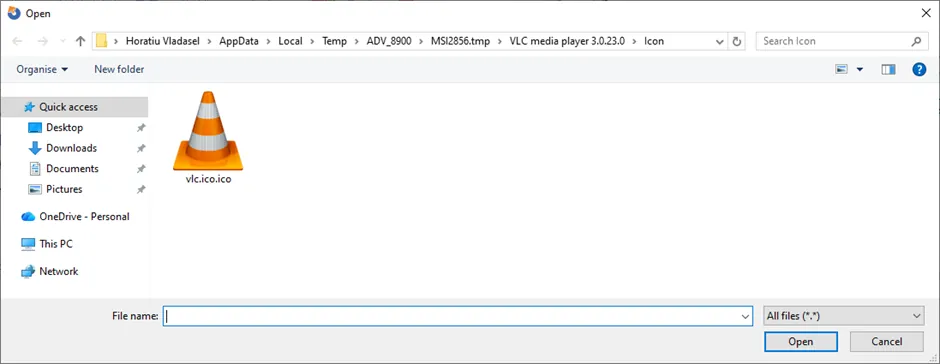
2. Browse to “Table Editor” -> “Icon” table.

3. Browse to the temp folder where the .ico files are extracted.
Advantages of using Advanced Installer to extract .ico files
- Integrated into a professional packaging tool
- Useful during application packaging workflows
- Eliminates the need for separate tools
- Particularly useful when working directly with MSI packages
 Unlock a smooth packaging workflow by trying Advanced Installer for 30 days. No credit card required.
Conclusion
Extracting icons from EXE files is a small but important task in application packaging and endpoint management.
While it may seem like a simple cosmetic step, using the correct application icon contributes to a more consistent and professional user experience across software catalogs, deployment tools, and enterprise portals.
Final Takeaways
- While it may be tempting to download an application logo from the internet, extracting the icon directly from the executable ensures that you are using the original vendor-provided resource.
- As the first method, you can use 7-Zip to extract the .ico file, which is free and available. However, not all executable files expose their resources in a format that 7-Zip can access.
- The second method implies the use of a third-party icon extractor, such as the web-based ConvertICO EXE Icon Extractor utility, which may not be recommended in highly restricted enterprise environments for security or compliance reasons.
- Finally, for those who already use Advanced Installer, icon extraction can be done directly in the packaging environment, eliminating the need for additional tools and making it suitable for environments where security and compliance are important.
Written by

Horatiu Vladasel
Horatiu is a Software Packager/Sequencer with over 10 years experience, who has worked as a Software Packager at IBM and is currently offering software packaging services to companies such as BT or Nationwide.