“Failed to load the JNI shared library” error after repackaging a legacy Java application as MSIX
Scenario: A legacy Java desktop application works when installed using a classic MSI setup. When repackaged as an MSIX, it installs successfully but fails at application runtime with a “Failed to load the JNI shared library” error.
TL;DR

The "Failed to load the JNI shared library" error in MSIX packages occurs when Windows cannot resolve legacy native dependencies (like MSVCR71.dll) required by jvm.dll due to virtualized DLL search paths.
You can identify the missing file using Process Monitor and fix it in Advanced Installer by adding a New DLL Path fixup pointing to the dependency folder (e.g., jre\bin).
Typical Error: “Failed to load the JNI shared library”
After the MSIX package is installed, an error similar to the following may be seen when launching the application:
Failed to load the JNI shared library
"...\jre\bin\client\jvm.dll"
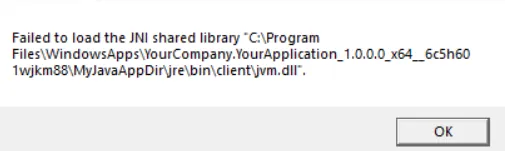
The message can be misleading. The launcher may have found jvm.dll, but Windows can still fail to load it because one of the native DLLs required by the JVM cannot be resolved.
Typical Legacy Application Layout
A legacy Java or Eclipse/Equinox application may have a directory layout such as:
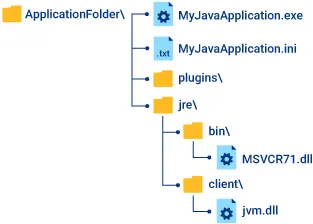
The same files may work fine when deployed by an MSI setup but will fail when launching the application from the installed MSIX package.
Why the Error Happens
Loading the JVM is a dependency chain, not a single-file operation:
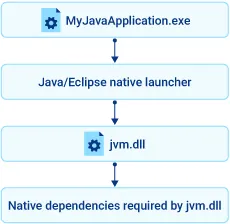
Older JVMs may depend on legacy Microsoft Visual C++ runtime libraries. For example:
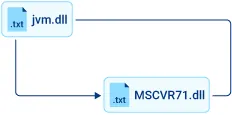
If Windows can locate jvm.dll but cannot resolve MSVCR71.dll (or some other dependency), the JVM fails to load and the launcher reports the JNI shared library error.
Why Do MSI and MSIX Behave Differently?
Legacy Win32 applications often rely on traditional DLL search behavior. A Java runtime may assume that DLLs stored under a directory such as jre\bin will be found while loading the JVM.
When the application runs as an MSIX packaged desktop application, the DLL search environment may differ from the one used by the original MSI-installed application.
A dependency can therefore exist physically in the MSIX package but not be discovered in the location expected by the old Java launcher or JVM.
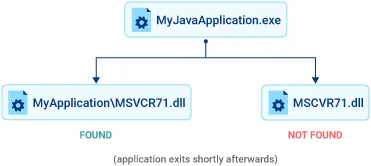
Diagnose the Missing Dependency with Process Monitor
Microsoft Sysinternals Process Monitor (ProcMon) is useful for identifying the native DLL that actually fails to resolve.
1. Start Process Monitor and filter on the application executable, for example: Process Nameis MyJavaApplication.exe.
2. Launch the MSIX application and reproduce the error.
3. Search for events like:
OPERATION is CreateFileOPERATION is Load ImageRESULT is NAME NOT FOUND or RESULT is PATH NOT FOUND
4. Search for DLL files whose names or paths were never found
A suspicious sequence might look like this:
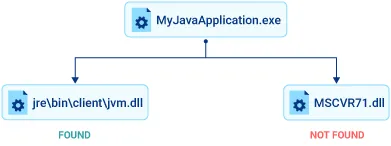
If every lookup for the same DLL dependency (e.g., MSVCR71.dll) fails and the process then terminates, that related DLL is a strong candidate for the underlying JNI failure.
Quick Confirmation Test
As a diagnostic test, copy the suspected NOT FOUND dependency next to the application executable and rebuild the MSIX.
For example:
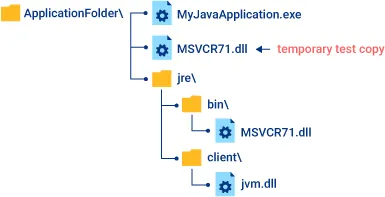
If the application launches successfully after this change, the problem is confirmed as a DLL search-path compatibility issue.Recommended Solution in Advanced Installer
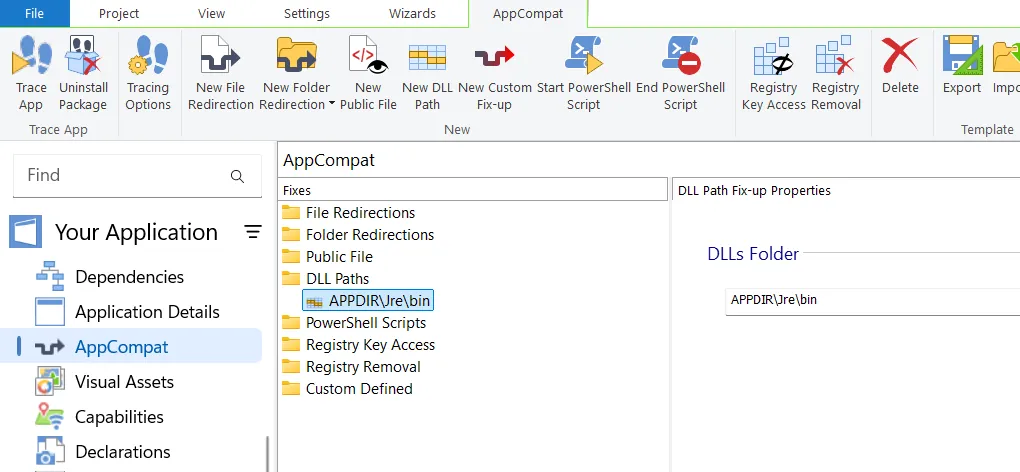
Using the AppCompat view support, Advanced Installer can easily address this type of failure to load a dependency library. All you need to do is to add a “New DLL Path” fixup pointing to the folder (e.g., Application Folder\Jre\bin) containing the suspected NOT FOUND dependency (e.g., MSVCR71.dll).
Conclusion
“Failed to load the JNI shared library” can be a secondary error. Always check if jvm.dll itself is missing or Windows is failing to load one of its OS native dependencies.
Written by

Daniel Radu
Daniel has been part of Advanced Installer’s Technical Support team for about ten years. He is very passionate about maintaining great communication between our customers and the development team. He is the one exposing to our customers the technical implementation of our product features and the right way to make use of them. You can meet him on our forums or over the e-mail at support at advancedinstaller dot com . There, he helps our customer community fulfill all of their setup packaging requirements.