


Up to now, I have been adding/creating this context menu using a .REG file and double-clicking it to run it.
Here is an example entry in the .REG file I was using:
[HKEY_LOCAL_MACHINE\SOFTWARE\Microsoft\Windows\CurrentVersion\Explorer\CommandStore\shell\Lock]
@="Lock"
"icon"="shell32.dll,-48"
Note the addition of the key Lock as well as the default value "Lock" and string value "icon."
I have decided to use Advanced Installer to add the registry keys when my application is installed instead of using the .REG file. In my project I added the key Lock to the Registry section. Here is a screenshot:

Next, I built and ran the installer. To check if the registy key was there I used RegEdit to browse to the location where I expected the key to be and it was not there:
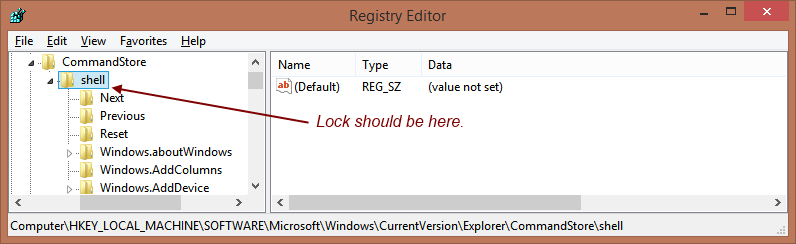
I wanted to see if the Lock key ended up anywhere in the Registry at all so I did a Find in RegEdit and I located it in an unexpected place:

For clarity, I will paste the two paths (the expected and the actual) below so you can see the difference:
[HKEY_LOCAL_MACHINE\SOFTWARE\Microsoft\Windows\CurrentVersion\Explorer\CommandStore\shell\Lock] (Expected Registry Location)
[HKEY_LOCAL_MACHINE\SOFTWARE\Wow6432Node\Microsoft\Windows\CurrentVersion\Explorer\CommandStore\shell\Lock] (Actual Registry Location)
Note the extra Wow6432Node key.
This explains why my context menu doesn't work after I install my program. The Lock key (and all the other menu item keys) are put in the wrong location in the registry.
Does anyone know why this might be happening and what the Wow6432Node key is?
Thank you.
Jan
P.S. My application also adds a registry key to HKEY_CLASSES_ROOT:

To the path: [HKEY_CLASSES_ROOT\DesktopBackground\Shell\Win Menu].
and this one works fine. No issues like the other one. Could it have something to do with the bad key being in HKEY_LOCAL_MACHINE and the good key being in HKEY_CLASSES_ROOT?


FOLLOW US
Get the latest news in Application Packaging