Fix Failed Intune App Installs: Retry, GRS, and IME
In our previous article about updating Win32 apps in Intune, we mentioned that simply replacing the .intunewin file is not enough to trigger a reinstallation on devices that already have the app installed.
They also briefly mentioned that after three consecutive failed installation attempts, the IME enters a cooldown period before it tries again.
In this article, let us understand what that means and how we can bypass that (if necessary).
How do retries work, and how can you force an immediate retry?

By design, if an installation fails three times in a row, IME enters the “Global Re-evaluation schedule”, or GRS for short, and puts the application installation into a 24 hour cooldown.
When that window expires, it will try again three more times, and the cycle will basically repeat itself. This is also a useful mechanism to prevent any spamming of both the servers and the user’s devices.
The part that would catch you off guard is that if you make any changes in the Intune portal, the GRS cooldown is not being reset. You can change details, the .intunewin file, and so on, but the IME on the device will still ignore the app until the 24-hour period is up.
However, as is customary during the testing phase of software packaging, there is a workaround you can apply on the device to force an immediate retry.
You have to manually clear the IME state on the device. IME tracks all of this in the registry under the following:
HKEY_LOCAL_MACHINE\SOFTWARE\Microsoft\IntuneManagementExtension\Win32Apps

To reset the failure state for a specific application, you need to delete two things:
- The application’s subkey
- The GRS key
Once this is done, restart the Microsoft Intune management Extension (IntuneManagementExtension) service, and IME will re-evaluate the application at the next check-in as if it had never attempted the installation before.
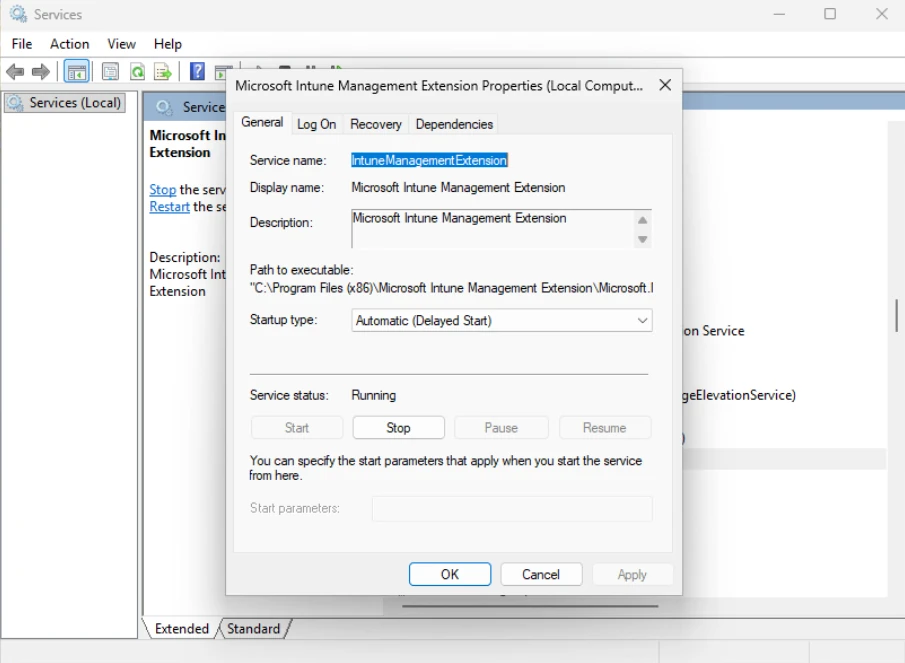
Manually searching for the GRS key in Regedit can be a bit tedious since the key names are hashes rather than readable identifiers.
In practice, most admins use PowerShell scripts to automate the cleanup. Here is an example of this type of PowerShell script:
$IMERegistryBase = "HKLM:\SOFTWARE\Microsoft\IntuneManagementExtension\Win32Apps"
$LogFile = "C:\ProgramData\Microsoft\IntuneManagementExtension\Logs\GRS-Reset_$(Get-Date -Format 'yyyyMMdd_HHmmss').log"
function Write-Log {
    param([string]$Message)
    $entry = "[$(Get-Date -Format 'yyyy-MM-dd HH:mm:ss')] $Message"
    Write-Host $entry
    Add-Content -Path $LogFile -Value $entry
}
function Get-FailedApps {
    $failedApps = @()
    # Exit codes that are NOT success
    $successCodes = @(0, 3010)
    $userKeys = Get-ChildItem -Path $IMERegistryBase -ErrorAction SilentlyContinue |
        Where-Object { $_.PSChildName -ne "Reporting" }
    foreach ($userKey in $userKeys) {
        $userObjectId = $userKey.PSChildName
        $appKeys = Get-ChildItem -Path $userKey.PSPath -ErrorAction SilentlyContinue |
            Where-Object { $_.PSChildName -ne "GRS" }
        foreach ($appKey in $appKeys) {
            $appId = $appKey.PSChildName
            $exitCode = (Get-ItemProperty -Path $appKey.PSPath -Name "InstallContext" -ErrorAction SilentlyContinue)
            # Look for ExitCode value
            $exitCodeValue = (Get-ItemProperty -Path $appKey.PSPath -ErrorAction SilentlyContinue).ExitCode
            if ($null -ne $exitCodeValue -and $exitCodeValue -notin $successCodes) {
                $failedApps += [PSCustomObject]@{
                    UserObjectId = $userObjectId
                    AppId        = $appId
                    ExitCode     = $exitCodeValue
                    AppKeyPath   = $appKey.PSPath
                }
            }
        }
    }
    return $failedApps
}
function Get-GRSKeyPath {
    param(
        [string]$UserObjectId,
        [string]$AppId
    )
    $grsBasePath = "$IMERegistryBase\$UserObjectId\GRS"
    if (-not (Test-Path $grsBasePath)) {
        return $null
    }
    $grsKeys = Get-ChildItem -Path $grsBasePath -ErrorAction SilentlyContinue
    foreach ($grsKey in $grsKeys) {
        # Each GRS key may contain a reference to the AppId
        $props = Get-ItemProperty -Path $grsKey.PSPath -ErrorAction SilentlyContinue
        if ($props -and $props.PSObject.Properties.Name -contains $AppId) {
            return $grsKey.PSPath
        }
    }
    # Fallback: if GRS key has only one child and we have one failed app, it's likely the right one
    # Return all GRS keys for the user to be safe - caller decides
    return $null
}
function Remove-AppRegistryKeys {
    param(
        [string]$UserObjectId,
        [string]$AppId,
        [string]$AppKeyPath
    )
    # 1. Remove app status key
    if (Test-Path $AppKeyPath) {
        Remove-Item -Path $AppKeyPath -Recurse -Force -ErrorAction SilentlyContinue
        Write-Log "  Removed app key: $AppKeyPath"
    }
    # 2. Remove reporting key
    $reportingPath = "$IMERegistryBase\Reporting\$UserObjectId\$AppId"
    if (Test-Path $reportingPath) {
        Remove-Item -Path $reportingPath -Recurse -Force -ErrorAction SilentlyContinue
        Write-Log "  Removed reporting key: $reportingPath"
    }
    # 3. Remove GRS key
    $grsKeyPath = Get-GRSKeyPath -UserObjectId $UserObjectId -AppId $AppId
    if ($grsKeyPath) {
        Remove-Item -Path $grsKeyPath -Recurse -Force -ErrorAction SilentlyContinue
        Write-Log "  Removed GRS key: $grsKeyPath"
    } else {
        # Fallback: remove all GRS keys for this user (aggressive but effective during testing)
        $grsUserPath = "$IMERegistryBase\$UserObjectId\GRS"
        if (Test-Path $grsUserPath) {
            $allGRSKeys = Get-ChildItem -Path $grsUserPath -ErrorAction SilentlyContinue
            foreach ($key in $allGRSKeys) {
                Remove-Item -Path $key.PSPath -Recurse -Force -ErrorAction SilentlyContinue
                Write-Log "  Removed GRS key (fallback): $($key.PSPath)"
            }
        }
    }
}
function Restart-IMEService {
    Write-Log "Restarting IntuneManagementExtension service..."
    try {
        Restart-Service -Name "IntuneManagementExtension" -Force -ErrorAction Stop
        Write-Log "Service restarted successfully."
    } catch {
        Write-Log "ERROR: Failed to restart service. $_"
    }
}
# ---- MAIN ----
Write-Log "===== Intune Win32 App GRS Reset Script ====="
Write-Log "Scanning registry for failed app installations..."
$failedApps = Get-FailedApps
if ($failedApps.Count -eq 0) {
    Write-Log "No failed app installations found. Nothing to do."
    exit 0
}
Write-Log "Found $($failedApps.Count) failed app(s):"
foreach ($app in $failedApps) {
    Write-Log ""
    Write-Log "Processing app: $($app.AppId)"
    Write-Log "  User Object ID : $($app.UserObjectId)"
    Write-Log "  Exit Code      : $($app.ExitCode)"
    Remove-AppRegistryKeys -UserObjectId $app.UserObjectId -AppId $app.AppId -AppKeyPath $app.AppKeyPath
}
Write-Log ""
Restart-IMEService
Write-Log ""
Write-Log "Done. IME will re-evaluate all cleaned apps on the next check-in."
Write-Log "Log saved to: $LogFile"Here is what the script does step by step:
- It goes throughout all the “HKLM:\SOFTWARE\Microsoft\IntuneManagementExtension\Win32Apps” key and identifies all applications with an exit code other than 0 and 3010
- It deletes the app status key Win32Apps\{UserID}\{AppGUID}
- It deletes the reporting key Win32Apps\Reporting\{UserID}\{AppGUID}
- It deletes the GRS key
- It restarts the IntuneManagementExtension service
- It logs all the details in “C:\ProgramData\Microsoft\IntuneManagementExtension\Logs\” (where IME keeps its own logs)
This must be executed with Administrator privileges or under the System context (NT Authority\System account).
If you want to make things easier by cleaning up the failed deployments on multiple machines automatically without involving the end user, you can run this script as an Intune Remediation script.
Intune offers a dedicated remediation functionality, and you have two options: run this as a full remediation script or as a platform script.

The difference between these two is that Remediation scripts have two steps:
- A detection script, which verifies a certain condition and returns a proper exit code so that Intune knows it needs to run the Remediation script
- The actual remediation script, which in our case is the above-created script. This one cleans up the keys mentioned above before releasing the applications for another try.
In our case, we don’t want to deal with any detections on the devices, as we just want to run the script. We go to the Platform scripts, upload the script, check “Run script in 64-bit PowerShell”, and assign it to the desired devices or groups.

This runs once without detection and without any detection logic, as opposed to the remediation scripts.
Another difference is that Platform Scripts don’t provide any feedback in the portal about what happened, so you cannot tell if it failed or not, which is why the script is documenting everything in the IME folder. You can then use the “Collect diagnostics” on the device or a fast RDP checkup to see what happened on the system after using this script.
Conclusion
The GRS is not a bug or an oversight. Rather, it is an intentional throttling mechanism that makes sense at scale. Waiting 24 hours between retry cycles, however, is simply not feasible during the packaging and testing phase.
Understanding where IME tracks its state and knowing how to clear it manually puts you back in control of the retry cycle, without having to wait for the cooldown to expire on its own.
Final Takeaways
- If an installation fails consecutively three times, IME enters what is called the “Global Re-evaluation schedule”, or GRS for short, and puts the application installation into a 24 hour cooldown. Once that window expires, it will try again three more times, and the cycle repeats itself
- To force a retry, you have to clear the IME state manually on the device. To reset the failure state, delete the app subkey and the GRS key, then restart the IME service
- You can use a custom PowerShell script to automate the cleanup, which goes through all the IME registry keys, identifies all applications with exit codes different from 0 and 3010, deletes the app status key, the reporting key, and the GRS key before restarting the IME service, and then logs all the details where IME keeps its own logs (C:\ProgramData\Microsoft\IntuneManagementExtension\Logs\).
- You can also use Intune’s remediation functionality, which has two options: remediation scripts or platform scripts.
- Remediation scripts have two steps: detection script and the actual remediation script
- Platform scripts run one time without detection and without any detection logic, and they don’t give feedback in the portal. You can use the “Collect diagnostics” on the device or a fast RDP checkup to find out what happened on the system after using this script type.
Written by

Alex Marin
Application Packaging and SCCM Deployments specialist, solutions finder, Technical Writer at Advanced Installer.