Advanced Installer Introduces New AI Assistant
We are very excited to inform you that, starting with version 24.0, Advanced Installer gets its own integrated AI Assistant!
If you ever stopped halfway through a packaging project to search into the documentation or forums because you couldn’t remember which page controls a specific setting or what a particular field on a properties page does, this will completely change the way you work with Software Installation packages.
Rather than just describing it, I actually put it through a real project to see how it holds up when you actually ask it to do things.
Before we get into details, it is worth mentioning that the biggest value here isn’t that the Assistant can make changes on your behalf in the project. It can tell you, step by step, exactly what to do and where to go, so you’re not burning time hunting through documentation for a setting you have forgotten. The automation is a nice bonus, but the guidance and the way of working are the main point.
TL;DR
- New feature, AI Assistant in v24.0: Advanced Installer introduced an integrated AI assistant (found in the View toolbar) that helps navigate the software and acts as an embedded product expert
- It handles tasks from updating package details to converting EXEs into services by explaining planned changes in plain language and awaiting user approval before executing
Putting Advanced Installer's AI Assistant Integration to the Test on a Real Project 

I started all from scratch and just created a new project. At first glance, you might say that nothing has changed, but if you navigate to the View page in the top toolbar, you will now see a new icon for Assistant, which you can later configure to show on the Right Side Pane.
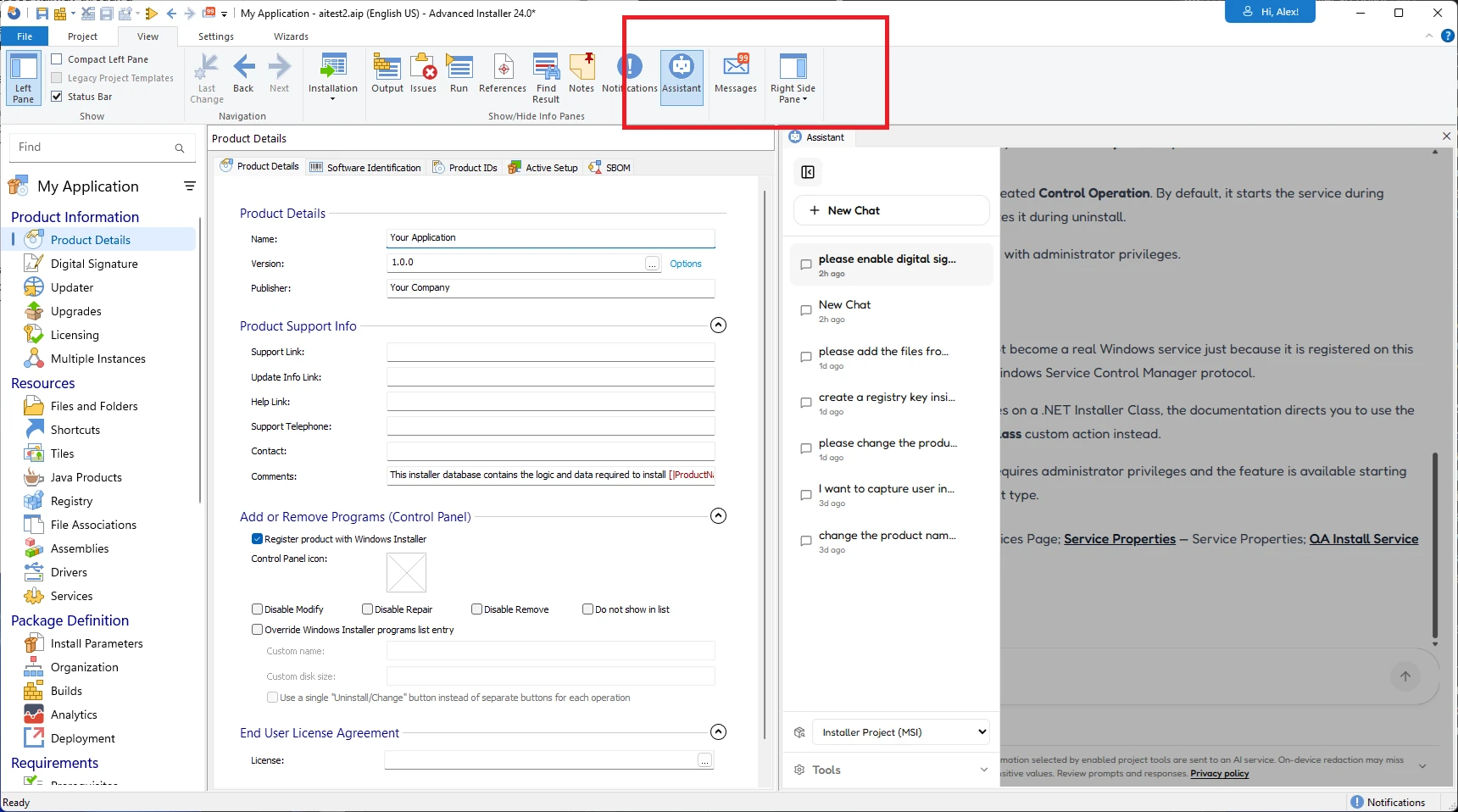
On the right pane, you will see a standard chat, as you’d expect with any chatbots out there.
You have a chat history, a project type, and the tools that are available to the agent to use to guide you or change your project, and of course, the actual chat itself.
I started simple and asked the Assistant to change the package name and the product version. It didn’t just silently rewrite the project. Instead, it returned with a plain-language summary of exactly what was about to change and waited for confirmation before touching anything.

This is a standard, it will always ask for your permission to run those actions.
Once this is confirmed, if we look in the Product Details page, this was automatically changed to “My Application” and the requested version "2.0".

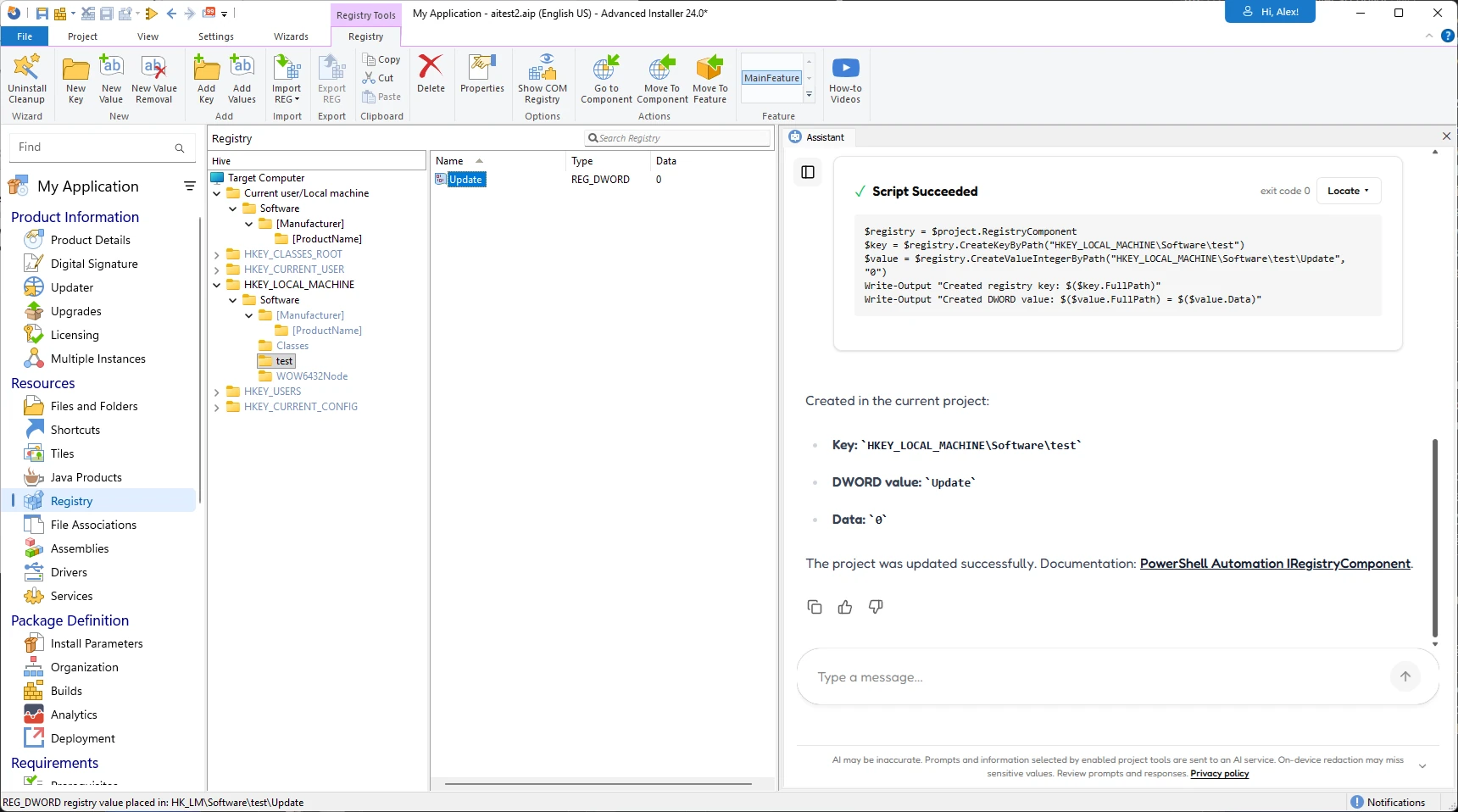
Next, I asked it to create a registry key in HKLM\Software named “test.”
Inside that key, I simulated that a registry value for “Update” exists and will be set to 0, so let’s assume this is the package’ auto-update mechanism that we want to disable.
Using the same pattern, the Assistant checked what it needed to do, and in a couple of seconds, the project was updated as requested.
Next, I had a folder on my desktop called ProjectFiles, and I was curious if the Assistant could look into that folder, take the files, and put them in the project.
So I basically instructed Assistant just to look into the folder and try to put the files, and it picked them up and added them without me having to navigate the file system inside Advanced Installer myself or manually configure the destination.

What is also interesting to mention is that, if you look closely, some of the Assistant’s replies include a “Locate” button. When you click on it, it actually shows what changes were done to your project.
For example, when the registry was added, a new component was created, and some registry keys were added, so you always know what is being changed in your project when you use the Assistant.

As mentioned before, the most interesting part wasn’t any of the changes Assistant made directly, but actually watching it explain something rather than do it.
Let’s assume we have an executable in the project that we want to install as a Windows Service but have really no clue on how to do this.
Instead of wasting time and going through the documentation or asking questions online, we just asked the Assistant to give us step-by-step instructions on how to do this. And that's what it did:
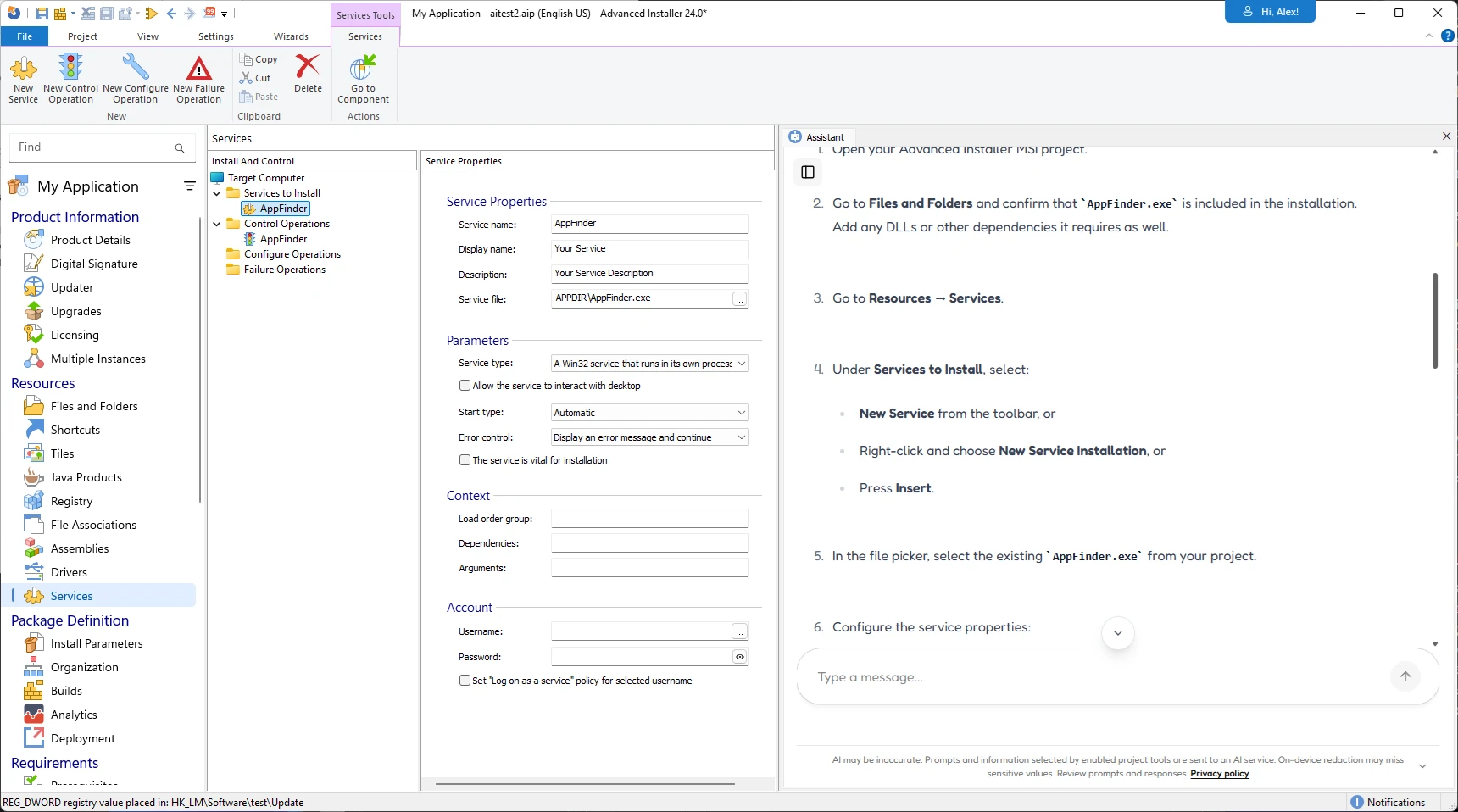
And that is really the main idea behind this feature.
It is not built only to automate repetitive changes but also to get you to the answer fast when you are stuck, without making you leave the application. Even if you never let it touch your project directly, having something that understands exactly the step you are in Advanced Installer and tells you what your next step should be is worth a lot on its own.
 It's worth keeping in mind, though, that as powerful as this is, it's still AI, and as such, it comes with the usual limitations. It works based on what it can see in the project and the instructions you give it, so double-checking anything critical before you ship is still a good habit, not a step you should skip just because the Assistant handled it.
We also have a video demonstration of this feature:
Conclusion
The pattern held steady across a package name and version change, a registry key with a DWORD value, importing a batch of files from a folder, and a full walkthrough on turning an existing executable into a service: describe what you want, get a clear explanation of what's about to happen, approve it, and move on.
However, automation is only a smaller half of the story. The bigger win is having a guide embedded in the tool itself, one that already knows the product inside and out and can point you to the right answer the moment you need it, instead of you having to go find it yourself.
Let me know in the comments what you think of this feature.
 Download Advanced Installer 24.0 to unlock new features, such as:
- AI-integrated Assistant
- WinGet Prerequisites
- Updater Cloud - full hosting for configuration files and setup packages
- SSO - log in with your Microsoft or GitHub account
- New predefined custom action: Copy MSI log to a user-friendly location
- Automatic AIP Backup Before Overwrite
Written by

Alex Marin
Application Packaging and SCCM Deployments specialist, solutions finder, Technical Writer at Advanced Installer.