How to Publish Application Updates Using Updater Cloud
Before version 24.0, when you published application updates with Advanced Installer, you had to host the updates configuration file and the corresponding installer package on your own server.
With Updater Cloud, you can now build, manage, and host the updates configuration files alongside the MSI/EXE directly on Advanced Installer Cloud.
In this article, I’ll show you how to publish an application update using Advanced Installer’s Updater Cloud.
1. Create an Updates Configuration project

Let’s assume you have already created and configured an MSI Installer project template that packages version 1.0 of an application.
This project must be configured to use the Updater from the Updater page, specifically the “Check for updates before installation” option.
Also, you have to create a new empty cloud updates configuration file by clicking the Select Updates File ribbon button (you have to be logged in to your Advanced Installer account for this):
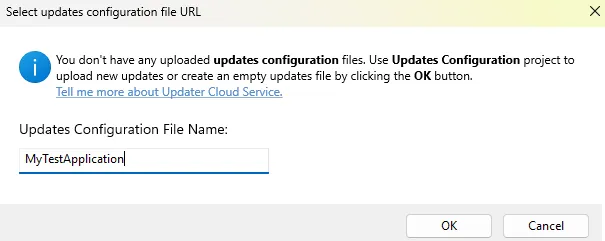
This empty configuration file will notify the Updater that no updates are available yet.
When you have the installer package for version 2.0 ready, the next step is to configure the updates configuration file.
To do this:
- Open Advanced Installer
- If you are not already logged in, sign in to your Advanced Installer account
- Select the Updates Configuration project and then click on Create New Project.

This project generates the configuration file used by the Updater to determine whether a new version of your application is available.
2. Add a new update
Once the project has been created:
- Select New Update to create an update entry

- In the opened dialog, select the installer package for your app’s version 2.0
- Use the available tabs to configure the update details such as the application version, update detection criteria, installation behavior, or release information.
You’ll find the Installer download URL field in the Properties tab. This field specifies where the Updater can download the MSI or EXE package for version 2.0.
When using Updater Cloud, you don’t need to manually enter a URL from your own server. After uploading the installer package to Advanced Installer Cloud, Advanced Installer generates and fills in this URL.
3. Upload the updates configuration file
Once you have configured the update in your project, click on Upload Updates File.
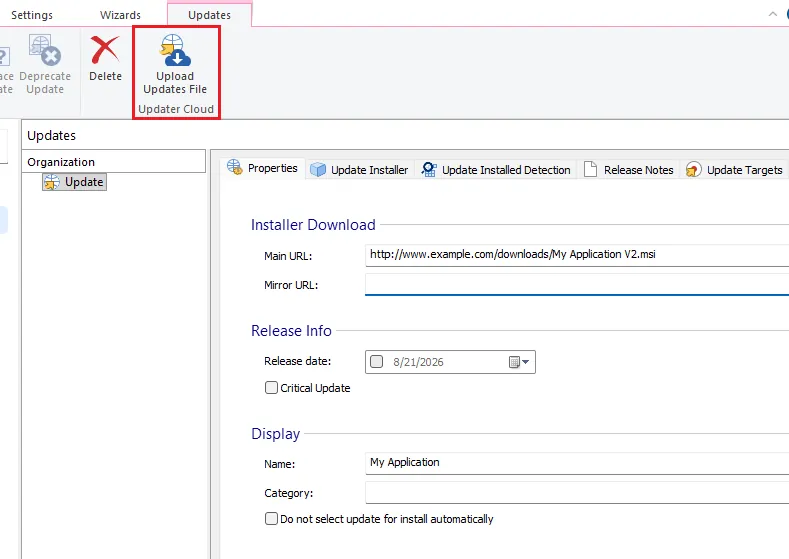
Next, select your updates configuration file.
Advanced Installer will upload the updates configuration file and the corresponding MSI or EXE installer package to your account.
After the upload is complete, the Installer download URL field is automatically filled with the cloud location of the installer package.

5. Build and test the application update
It’s time to test the auto update system.
Save and build the project to get the installer package, and then run it to install version 1.0 of the app. Your application will use the selected updates configuration file to check whether a newer version is available.
When the update is detected, the Updater downloads the corresponding installer package from Advanced Installer Cloud and installs it according to the settings defined in your Updates Configuration project.
Conclusion
With Updater Cloud, you can manage the uploaded config files and their corresponding MSI or EXE from your Advanced Installer account without configuring or maintaining your own server.
You can create the update, upload the required files, and connect the configuration file to your MSI project directly from Advanced Installer.
This reduces the number of manual steps involved in publishing updates and removes the need to manage your own hosting server.
 Download Advanced Installer 24.0 to unlock new features, such as:
- AI-integrated Assistant
- WinGet Prerequisites
- Updater Cloud - full hosting for configuration files and setup packages
- SSO - log in with your Microsoft or GitHub account
- New predefined custom action: Copy MSI log to a user-friendly location
- Automatic AIP Backup Before Overwrite
Written by

Renato Ivanescu
Renato is a technical writer for Advanced Installer and an assistant professor at the University of Craiova. He is currently a PhD. student, and computers and information technology are his areas of interest. He loves innovation and takes on big challenges.