Migrate From Legacy VDI to MSIX App Attach
MSIX App Attach delivers applications to the virtual desktop as disk images that are basically mounted at the user sign-in rather than actually putting the applications inside a “golden image” or merging them into the OS with a layering agent.
If you run Citrix, Omnissa Horizon (formerly known as VMware), or App-V today, this article is intended to explain why this shift might be worth making and what changes technically.
It also covers the part most migration guides skip and that is how to turn your legacy MSI and EXE installers into clean MSIX packages and App Attach Images using tools like Advanced Installer.
Why legacy layering is getting tougher to maintain
When it came to OS imagining, the idea of layering solved a real problem back in the day when departments needed different base images. Instead of creating multiple “golden” images, you now had the possibility to use layering, but this brought its own moving parts that you now have to take care of.
Platforms like Omnissa App Volumes and Citrix App Layering depend on central management components plus an agent on the machines that consume a layer.
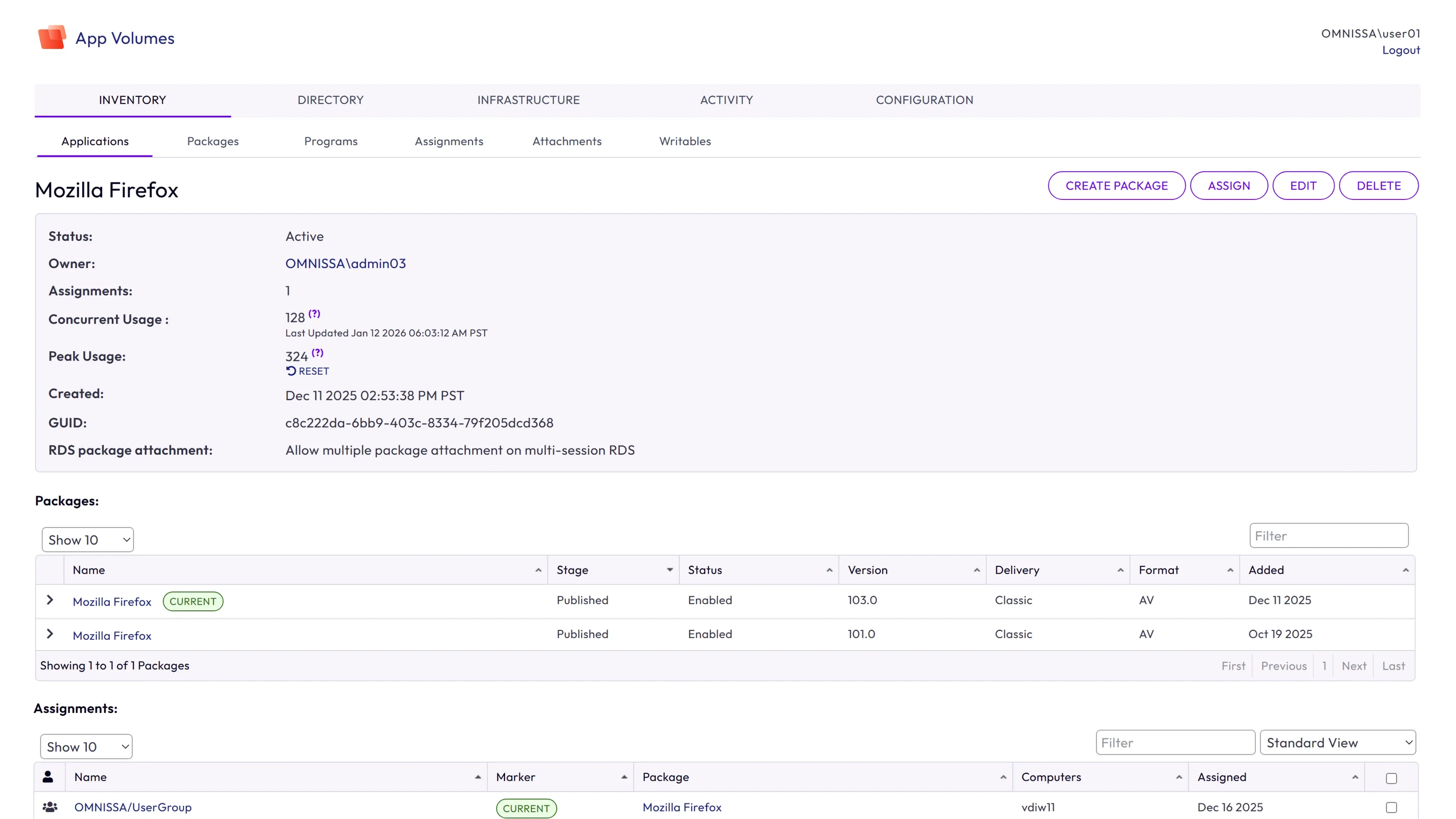
The central management components are the ones that keep the applications and configurations and push them in the infrastructure as required. The agent on the OS was the part that took the commands from central and acted accordingly.
For example, App Volumes runs a manager on Windows Server and an agent that acts as a filter driver between the OS and the attached volume. That means you now have more infrastructure to keep patched, more versions to keep compatible with your OS builds and one more suspect when a user reports a slow sign-in.
Each application update also becomes a layer lifecycle task, meaning you now need to rebuild the layer, test it against the other image-based setups, and publish a new image. When layers clash, teams often respond by splitting users across more images, which is how image sprawl starts.
App-V is indeed more native, but there is a catch here too. For App-V the clock is ticking as Microsoft’s App-V documentation states that extended support for MDOP, which includes the App-V server components, ended on April 14 of this year, while the App-V client is in fixed extended support and continues to ship with Windows, but that ends in 2029.
Retiring the App-V servers is a natural forcing function, and App Attach can deliver .appv packages directly while you convert the rest of your catalog to MSIX.
Why layers conflict even though they are virtual disks
The common misconception is that the applications that come “virtualized” should not cause conflicts. What causes the conflicts is not the format in which the applications are delivered but what happens to the contents after the disks are mounted.
A layer in App Volumes or Citrix App Layering lives inside a virtual disk, usually a VMDK or VHD, and an MSIX App Attach image in a VHDX or CIM. In both cases, the disk is only a container that carries the application binaries and executables and keeps it out of the golden image. The difference is how the contents are presented to Windows.
With App Volumes, the agent’s filter driver sits between the OS and the attached volume and redirects file system and registry access, so the application’s files and registry keys appear in the same file system and registry that every other process sees.
Citrix App Layering works on the same principle with layer priority deciding the order in which layers are merged into an image. Then the same file or registry exists in two layers, and only one can be presented to Windows, so the layer with the higher priority wins. This is where the “registry conflicts” you read about when everyone talks about “app attach” actually come from.
Two layers that ship different versions of the same runtime, register the same COM class or set the same configuration key do not coexist. Instead, one silently overrides the other and the fix is usually reordering layers or rebuilding one of them, and the registry hurts most because it is a single shared hierarchy for the entire machine.
What MSIX App Attach changes
As presented in multiple other articles, the MSIX technology itself runs differently from a normal application. MSIX runs each application in a container with its own virtual registry and file system, so apps stop sharing keys and files with each other.
Microsoft describes App Attach containers as separating user data, the operating system, and other applications, and MSIX packages ship their own registry data, which are the HKLM\Software entries in registry.dat and HKCU\Software entries in user.data.
At runtime, Windows merges those private hives with the real registry for reading, so the app sees one coherent registry, but the keys in the virtualized hive are visible only to that application.
Writes to the HKCU go to a private per-app, per-user hive, and on current Windows versions, new files created in the user’s AppData folder go to a private per-user and per-application location, as we discussed earlier.
When the package is removed, that private state goes with it.
 Advanced Installer’s MSIX training program covers these details in the registry chapter.
If we want to do a simpler-to-comprehend comparison between legacy layering and MSIX App Attach, it would look something like this:
Aspect | Legacy layering (App Volumes, Citrix App Layering) | MSIX App Attach |
|---|---|---|
Disk format | VMDK or VHD layers | VHDX or CIM images (VHD not recommended) |
What mounting does | An agent or driver merges the layer into the OS file system and registry | Windows mounts the image and registers the package; the app runs in its own container |
Registry visibility | Shared: every process sees the same merged keys | Private: package keys are visible only to the app, and HKCU writes go to a per-app, per-user hive |
When two apps collide | Layer priority decides which file or key wins | No shared keys to fight over; overlap is limited to what a package declares to the shell, such as file types and protocols |
Moving parts | Management server or appliance plus an agent on every VM | Built into Windows and the Azure Virtual Desktop service, images sit on an SMB file share |
Updates | New layer version and a new image in image-based setups | New disk image with a new version number; users get it at the next sign-in, no maintenance window |
As far as format goes, Microsoft says that mounting and unmounting CimFS images is faster and uses less CPU and memory than VHD or VHDX, but it only recommends CimFS for session hosts running Windows 11.
So basically the idea is to use CIM when your session hosts run Windows 11, and otherwise use VHDX and VHD as a last resort.
Packaging legacy apps with Advanced Installer and PacKit
Most of the time spent on VDI migrations is in packaging, and this is where Advanced Installer and PacKit fit in.
Advanced InstallerRepackager converts a legacy installer into an MSI or MSIX. If you already have an MSI, Advanced Installer will give you the option to convert it to MSIX without needing to take the repackaging approach.
In general, in the repackaging state, it runs the old installer on your machine or in a Hyper-V or VMWare virtual machine, takes a system snapshot before and after, and uses the difference to build a project.
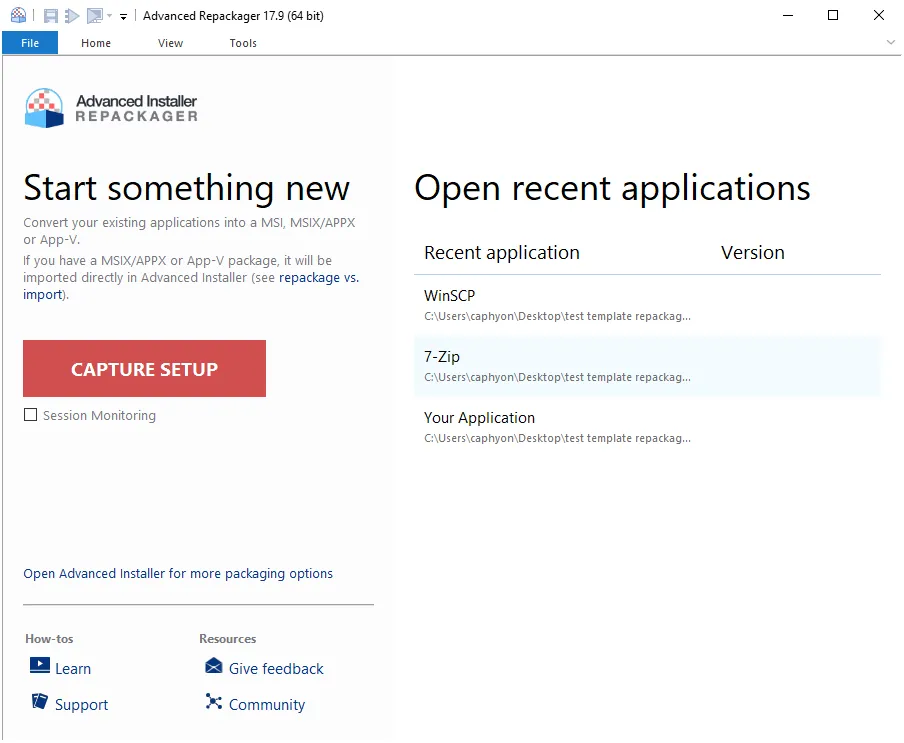
You can then choose what files, folders, registry entries, and system changes you want to keep and then just open up the results in Advanced Installer and build the MSIX.
The free Express edition already includes one-click digital signing and Package Support Framework (PSF) integration. This is how you apply fixups to applications that misbehave inside a container, plus detection of constructs like file type associations and firewall rules so they are mapped into the package manifest.
Advanced Installer can also produce the App Attach image for you. The MSIX project has an AppAttach tab where you enable the build option, choose a folder and a name, and just pick between CIM, VHD, or VHDX, so the image is generated every time you build.
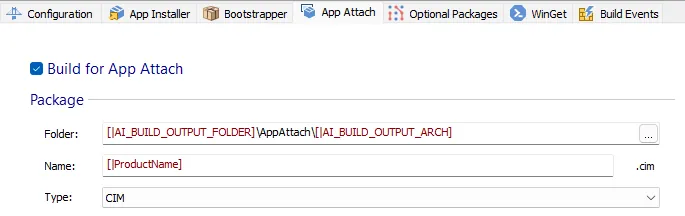
If you prefer to control the MSIXMGR yourself, a post-build event can call it with arguments like these:
-Unpack -packagePath "[|AI_BUILD_OUTPUT_FILE]" -destination "[|AI_BUILD_OUTPUT_FOLDER]AppAttach_DemoImage.vhdx" -applyacls -create -vhdSize 200 -filetype "vhdx" -rootDirectory apps
Since the package signature is absolutely mandatory for MSIX, Advanced Installer supports signing, PowerShell automation, and Visual Studio integration, so you can rebuild and resign a package when a vendor ships a new version.
Keep in mind that App Attach mounting will fail if the session hosts do not trust the certificate used to sign the package. Ensure your internal PKI root certificate (or trusted CA) is deployed to all host pool VMs via GPO or Intune before staging your images.
As mentioned, not every application needs the same treatment. As a general rule:
Starting point | Route |
|---|---|
Vendor ships an MSIX | Use it as is, or adjust it with the MSI/MSIX Editor, then create the image with MSIXMGR |
MSI | Convert to MSIX with Advanced Installer if the app suits a container; otherwise wrap it for Intune |
EXE with or without silent install | Repackage it with the Repackager into MSIX |
App that cannot run in a container | Deliver it through Intune or SCCM/MECM, wrapped with PacKit |
PacKit covers the other half of the job. Basically, it can wrap MSI, MSIX, or EXE packages with PSADT, generate .intunewin files, and upload packages directly into Intune or SCCM/MECM.
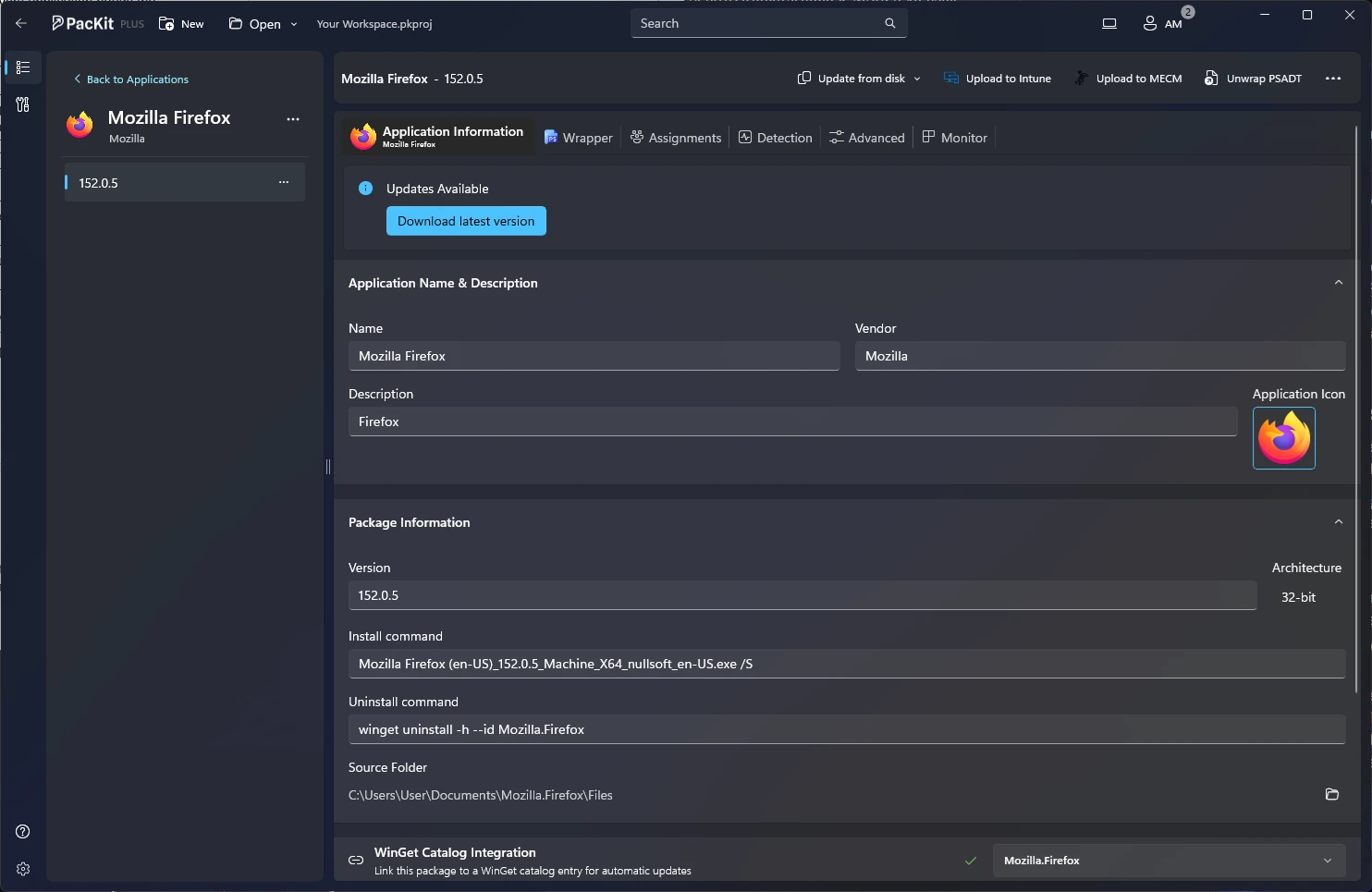
It does not build App Attach images, as Advanced Installer does. However, every VDI migration has a tail of applications and devices that do not use App Attach, as well as the base image, which cannot be containerized. PacKit lets you deliver that from the same packages instead of maintaining a second set.
Conclusion
Moving from legacy VDI layering to MSIX App Attach is mostly a packaging exercise.
The disk format barely matters. What matters is that each app moves out of the shared OS registry and file system into its own container. This removes the class of conflicts layering creates, along with the agents and servers that come with it.
Start small and inventory your catalog, pick a few apps from each packaging route, and pilot them in a test host pool. On the packaging side, you can start a 30-day fully featured Advanced Installer trial to repackage your legacy installers into MSIX and build App Attach images, and take a look at PacKit for wrapping and deploying the apps that stay outside of App Attach.
Written by

Alex Marin
Application Packaging and SCCM Deployments specialist, solutions finder, Technical Writer at Advanced Installer.