MSIX distribution: From ms-appinstaller to direct Appinstaller Hosting
We wrote a certain approach that you could use if you don’t want to publish your MSIX package to the Microsoft Store and instead want to use your own website.
Back in the day, the recommended approach was to use the ms-appinstaller link, which was designed to be a single click straight from the browser, which was indeed quite convenient.

However, that guidance has aged out, and Microsoft’s current documentation on choosing a distribution path for Windows Apps explicitly states that the ms-appinstaller URI protocol has been disabled by default since December 2023, and the recommended approach for direct MSIX distribution is now to link straight to the .appinstaller file itself, hosted on your own server.
Now let’s have a look at what changed and how you can achieve that.
What Actually Changed? (MSIX Web Distribution Update)

The old school ms-appinstaller method relied on a URI scheme that browsers would hand off to the App Installer, and it worked well on Edge and Internet Explorer but needed some extra user confirmation on Chrome or Firefox.
However, that URI scheme introduced some security breaches that could not be patched, and since December 2023, Windows disabled that protocol handoff by default.
Microsoft’s current guidance doesn’t replace this with a new protocol trick but simplifies the model a little bit.
If you want to distribute your package outside the Microsoft Store, just host the .appinstaller file on your server and link it directly to the “Download” button on your website. When the user opens the downloaded file, Windows automatically launches App Installer, and the .appinstaller file also enables the auto-updates for your application because it points to the current location of the MSIX package.
We also talked about this a while back, explaining how you can enable auto-update functionality for your MSIX packages outside of the Microsoft Store environment. This fits into a broader positioning in Microsoft’s current documentation:

This is now presented as the standard path for ISVs and commercial apps sold directly through a website, alongside the Microsoft Store path.
Setting Up Direct MSIX Distribution in the Current Way
Let’s go over the steps you’ll need to take to create and distribute your appinstaller file.
1. Make sure your MSIX package is signed with a CA-trusted certificate
First, I know this is quite repetitive in the MSIX articles, but without a trusted code signing certificate, your MSIX package simply won’t install.
Microsoft's current recommendation is Azure Artifact Signing (formerly known as Trusted Signing), which is marketed as a low-cost, CI/CD-friendly signing option that eliminates the need for a physical hardware token.
Modern web browsers flag unsafe files and sometimes refuse to allow the download, so having the package signed will help in this matter.
2. Generate the .appinstaller file alongside your MSIX package
It is important to understand that the .appinstaller file IS NOT the installation package. The .appinstaller file is just a small XML manifest that tells Windows where to find the package, what version it is, and whether or not to check for updates and how frequently.
If you are using Advanced Installer to build your MSIX package, this is quite a breeze because the .appinstaller file is automatically generated as part of your MSIX project configuration.
Basically, if you go to the Builds Page and add an MSIX build, you’ll see many configuration sections. One of them is the App Installer. If you click on it, you are presented with multiple options, but the key things the .appinstaller file needs to get right are:
- The URI attribute pointing to the MSIX resulted from the build. Both https and http protocols are supported.
- The Frequency check

Apart from that, everything is optional and simply adds to the customization of the .appinstaller file.
With Advanced Installer, you can easily enable automatic background tasks, prompt display, force update from any version, and other features with a click of a mouse button. We also added an option for a Custom AppInstaller UI that you can configure on the same page.
 If you want to distribute your package through WinGet, Advanced Installer can automatically generate the WinGet Manifest alongside the MSIX package during build time.
3. Host both files on your own server
Upload the .appinstaller file and the MSIX package to your website or CDN. Both need to be reachable, and the URLs in the .appinstaller file need to exactly match the actual hosted locations, including any path or filename changes between releases.
MSIX file extensions are not recognized by web servers, so MIME types need to be configured. Otherwise, you will receive a “404 not found” error or the browser will display a blank page. On your server, make sure to configure .appinstaller files as application/appinstaller and .msix files as application/MSIX.
4. Update your website's download link
If you still use the ms-appinstaller in your links, such as:
<a href="ms-appinstaller:?source=https://yourdomain.com/downloads/YourApp.appinstaller">Install</a>
Then it’s time to replace it with a plain link straight to the hosted .appinstaller file:
<a href="https://yourdomain.com/downloads/YourApp.appinstaller">Download</a>
When a user clicks it, the browser downloads the .appinstaller file, and double-clicking it launches the App Installer, which reads the manifest and installs the referenced MSIX package. There is no custom protocol handoff involved, and it behaves consistently across browsers.
5. Adjust your release pipeline for versioned hosting
Because the auto-update depends on the .appinstaller file being live at a stable, predictable URL, your CI/CD release step needs to:
- Build and sign a new MSIX package
- Regenerate the .appinstaller file with the new version number and correct URIs
- Publish both files to the same hosted paths
- Make sure the previously distributed copies of the app can still resolve the .appinstaller URL to detect the new version
6. Consider adding WinGet as a secondary channel
Regardless of the .appinstaller setup, submitting a manifest to the Windows Package Manager Community Repository provides technical users with a WinGet installation path.
It doesn’t replace your .appinstaller hosting, but it is a low-effort addition that broadens the discoverability of the same package.
The good news is that with Advanced Installer, the WinGet Package Manifest can be easily created during build time. By following the same steps as with App Installer creation, you have a separate WinGet tab.
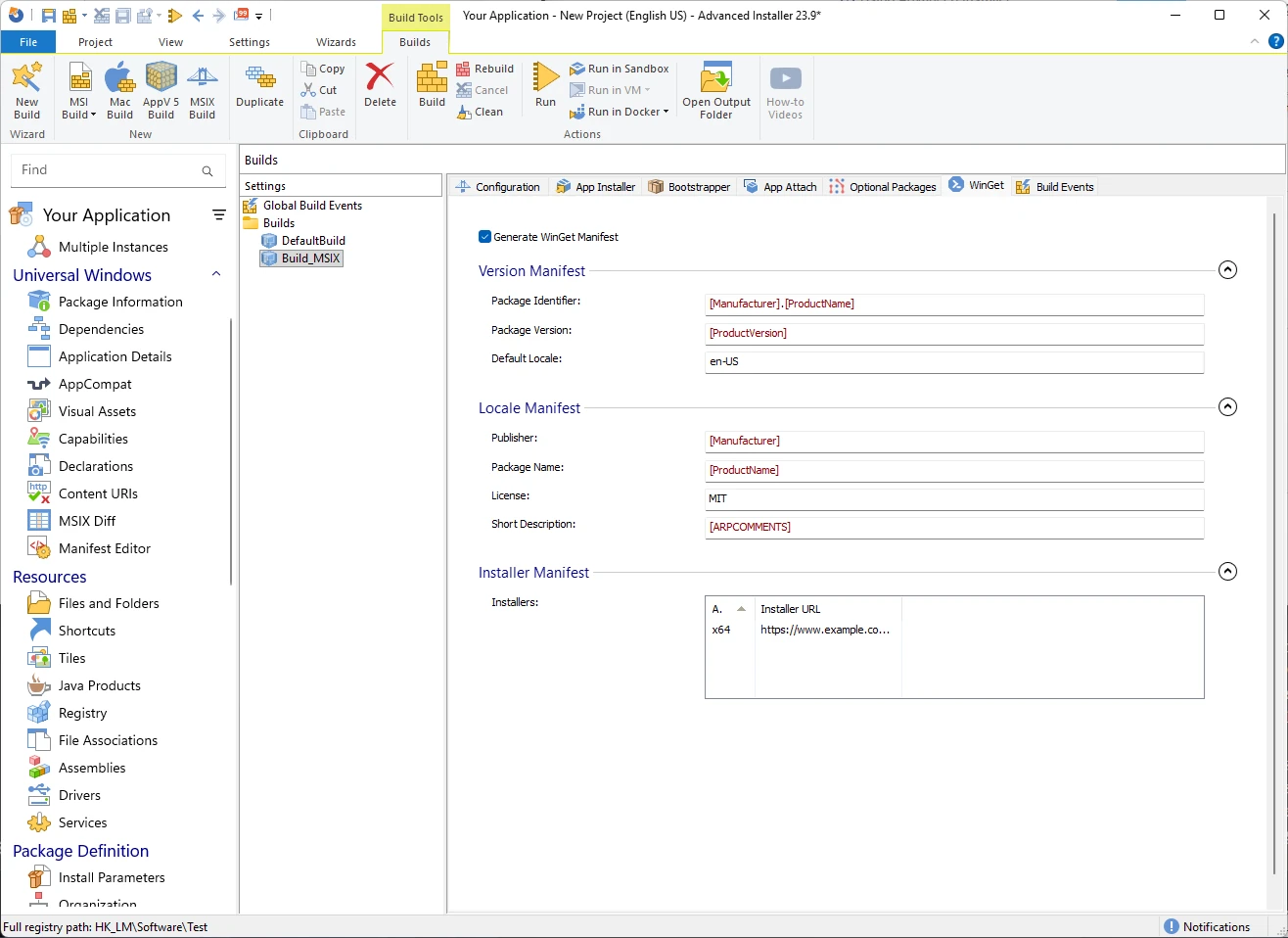
The WinGet tab in Advanced Installer allows you to automatically generate a Windows Package Manager (WinGet) manifest for your application (EXE, MSI, MSIX, APPX). The manifest consists of three YAML files: Version, DefaultLocale, and Installer. This is created during the project build within the appropriate manifests/directory structure.
Conclusion
The move away from ms-appinstaller: links isn't a deprecation that snuck up overnight. It has been the effective behavior since December 2023, but it is easy for older documentation, blog posts, and even build pipelines to keep referencing the one-click protocol approach long after it stopped working reliably for most users.
If your team is still pointing customers at ms-appinstaller:?source= links, or if your packaging pipeline was built around that flow, the fix is simple: host the .appinstaller file directly, link to it plainly, and make sure your release process keeps that file and its referenced package in sync on each version bump.
It's a smaller mental model than the old protocol trick, and it is the one Microsoft will support in the future.
Final Takeaways
Because the ms-appinstaller: protocol was disabled for security reasons, you can no longer trigger one-click browser installs.
The usual way to self-host and distribute MSIX packages outside the Microsoft Store is different.
What changed and what you can do:
- Direct file links: replace ms-appinstaller:?source=... links with a simple link pointing straight to your .appinstaller file
- Package signing: sign your MSIX package using a CA-trusted certificate (such as Azure Artifact Signing)
- MIME types: you can configure your web server to handle .appinstaller as application/appinstaller and .msix as application/MSIX to avoid download/404 errors
- Auto-updates: Keep the .appinstaller XML file hosted at a fixed and stable URL so installed apps can poll it for updates and retrieve the new MSIX releases
- Optional WinGet channel: consider publishing a WinGet manifest alongside your deployment to give command-line users an additional direct install path
Written by

Alex Marin
Application Packaging and SCCM Deployments specialist, solutions finder, Technical Writer at Advanced Installer.