What is MSXML? How to Install, Distribute and Deploy it?
In the Windows ecosystem, we have components that operate quietly in the background without the user’s knowledge, and they are essential for the correct functioning of other applications that might depend on them.
These types of components are commonly referred to as redistributables, and almost everyone is aware of and has encountered one at some point in their lives.
The VC++ redistributables are the most popular, as a large number of applications are dependent on them.
One of these components is Microsoft XML Core Services, or MSXML in short.
Applications, internal tools, and, in some cases, commercial software use MSXML, a long-standing XML processing library.
However, while modern technologies have replaced the need for MSXML, not all applications or enterprises have abandoned it. There are still organizations that rely on it for compatibility with older applications, and this creates a recurring challenge for software packages on how to correctly install and redistribute MSXML in today’s enterprise environments.
In this article, let us focus on what MSXML is, how to install and distribute it, which versions are still officially supported, and how to deploy them in infrastructure management tools such as MECM or Intune.
What is MSXML?

Microsoft XML Core Services (MSXML) is a collection of libraries that allow Windows applications to work with XML data.
We must remember that before JSON became the industry’s dominant data exchange format, XML was the main standard used for configuration files, data serialization, web services, and enterprise applications.
At its core, MSXML provides XML parsing and validation, which includes a full XML parser capable of reading XML documents, checking their structure, and validating them against schemas.
Aside from this, MSXML provides DOM and SAX APIs. These APIs were made accessible through COM, making MSXML usable from popular programming languages such as C++, VB6, classic ASP, .NET, and other scripting languages such as VBScript and JScript.
MSXML’s widespread compatibility with not only programming languages but also scripting languages is why it has become so popular in the industry.
MSXML also included a wide range of offerings such as MSLT transformations, XPath support, and COM components for Windows Applications, which we will not discuss in this article.
Installing and Redistributing MSXML
Microsoft continues to host the documentation for MSXML 3.0 and 4.0, but the official download pages no longer include the installers. With more in-depth research within the Microsoft downloads pages, you will eventually find them, but not through the official links in the documentation.
However, once you do find and download them, you’ll notice that they’re very small EXE files. Each EXE contains the actual MSI package, which simplifies customization and deployment.
So you have two options: use a third-party tool to extract whatever is in the EXE, such as 7-Zip, or you simply extract the MSI from the EXE with the /extract command line:
msxml4-KBxxxxxx-enu.exe /extract
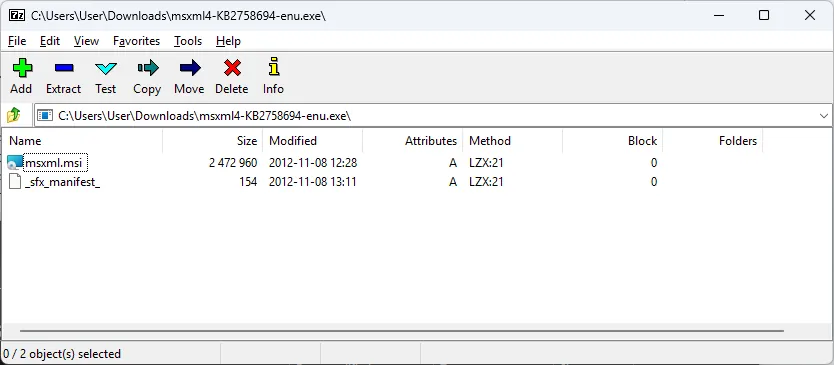
Once the MSI has been extracted, in the software packaging world, the IT Professional will typically start investigating the actual MSI to see what properties or update settings are there and perform a classic MSI transform on it.
However, anyone in the IT Professional world who is interested in deploying this MSI within the infrastructure must understand that MSXML does not provide any type of configurable public properties, update settings, or special parameters.
MSXML MSI packages are extremely simple. They just copy the DLLs and register the COM components inside the Windows ecosystem. This makes the next section of the article much easier.
Deployment through MECM or Intune
As previously stated, working with a simple MSI with no customizations is straightforward.
The installation needs to be performed silently, and since no other types of customizations are required, we can simply run the following command line:
Msiexec.exe /i msxml.msi /qn /l&v “C:\yourlocation\msxml.log”
Both MECM and Intune provide a simple way to deploy these, but it is ultimately up to the IT Professional to decide whether or not to add additional functionality to the deployment, such as adding a PowerShell App Deployment Toolkit wrapper that notifies the user this will be installed.
We have detailed articles on what an MECM or Intune deployment looks like, so feel free to check them out!
With that in mind, PacKit offers a much easier alternative to configure, wrap, and deploy packages.
For example, you can easily import the MSXML MSI inside PacKit and apply a PowerShell App Deployment Toolkit wrapper, as well as modify anything within the script using our text editor feature before automatically deploying it in MECM and Intune.
MSXML and Advanced Installer
Advanced Installer allows you to add prerequisites for your packages, making it easier for users to install.
In Advanced Installer, once you navigate to the Prerequisites Page, you have the option to add Predefined Prerequisites from a large list on the right or to add your own prerequisite if it is not on the list. When we search for MSXML in that list, we can see that we offer the possibility to add MSXML version 4.0 with Service Pack 3 to the project.
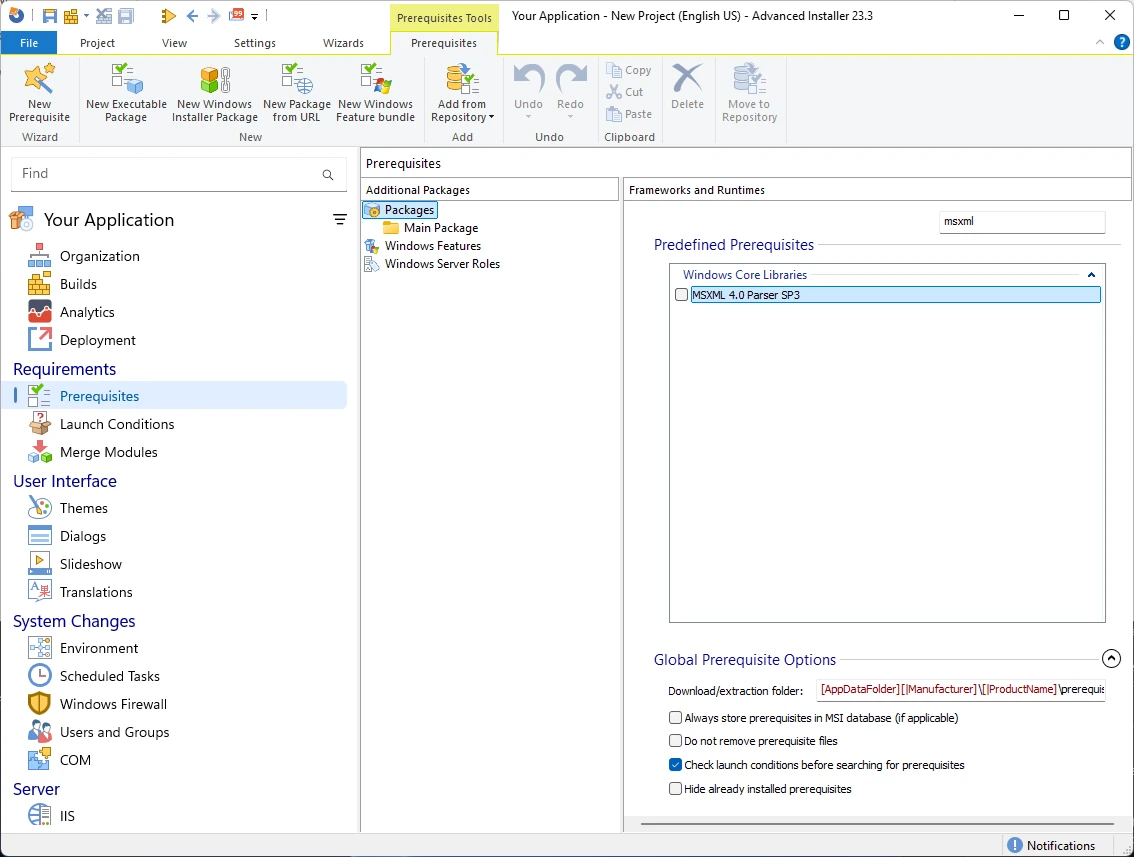
Once added, you can customize the installation, detection, and uninstallation behavior directly from the UI, and we have multiple articles in the user guide and blog on how prerequisites work in Advanced Installer.
 Advanced Installer does not store the prerequisite data. Each time a prerequisite is added into the project, Advanced Installer downloads the media from the official CDNs.
This scenario is quite useful if you want to wrap your installation package to contain the necessary prerequisites so that the user can install it much more easily.
MSXML Versions and Support Status
As of today, 2026, the only supported version of MSXML is 6.0, which receives continuous support from Microsoft. All the other versions are considered end of life (EOL), and the official statement is to migrate from other versions of MSXML as soon as possible.
With that said, the most recent version of MSXML 3.0 is SP7 (Service Pack 7), which is included in Windows for compatibility reasons.
MSXML 4.0’s latest version is SP3 (available in Advanced Installer’s Prerequisites Page), and it is the most widely used version. MSXML 4.0’s end of life has been in place since 2014, since no further security updates will be released, and it is not included in any Windows OS versions.
Conclusion
Many legacy applications continue to rely on MSXML, and software packagers must understand how to install and redistribute it properly.
While Microsoft no longer provides downloads for older versions, organizations can still deploy MSXML if they have the original redistributables.
Final Takeaways
- MSXML is a long-standing XML processing library that is used by applications, internal tools, and, in some cases, commercial software.
- MSXML provides XML parsing and validation, which includes a full XML parser capable of reading XML documents, checking their structure, and validating them against schemas.
- MSXML provides DOM and SAX APIs.
- Nowadays, the only supported version of MSXML is 6.0, which receives continuous support from Microsoft.
Installing and Redistributing MSXML:
- Microsoft continues to host the documentation for MSXML 3.0 and 4.0, but the official download pages no longer include the installers.
- MSXML does not provide any type of configurable public properties, update settings, or special parameters
Deployment through MECM or Intune:
- Working with a simple MSI with no customizations is simple, as we can simply run the following command line: Msiexec.exe /i msxml.msi /qn /l&v “C:\yourlocation\msxml.log”
- PacKit offers a much easier alternative to configure, wrap, and deploy packages: you can easily import the MSXML MSI inside PacKit and apply a PSADT wrapper, as well as modify anything within the script using our text editor feature before automatically deploying it in MECM and Intune
MSXML and Advanced Installer:
- In Advanced Installer, once you navigate to the Prerequisites Page, you have the option of adding Predefined Prerequisites from a large list on the right or adding your own prerequisite if it is not on the list.
- When we search for MSXML in that list, we can see that we offer the possibility to add MSXML version 4.0 with Service Pack 3 to the project.
Written by

Alex Marin
Application Packaging and SCCM Deployments specialist, solutions finder, Technical Writer at Advanced Installer.