How to Prevent UAC Prompts for MSI Self-Repair
Have you recently noticed unexpected User Account Control (UAC) prompts when launching MSI-installed applications, especially when using advertised shortcuts or opening associated files?
If this is the case, there’s no need to panic. This behavior is not a typical software bug but rather a consequence of intentional security hardening in Windows Installer (MSI), which was designed to close a potential privilege-escalation vulnerability.

Let’s start by understanding what MSI self-repair is.
MSI self-repair

MSI self-repair, also known as self-healing, is a native feature of Windows Installer that ensures the integrity of installed applications.
To maintain application integrity, the mechanism validates key application components and automatically reinstalls missing or corrupted files, registry keys, and related resources.
Self-repair can be triggered in multiple ways, including:
- Advertised shortcuts: When a user launches an application using an advertised shortcut, MSI checks the integrity of the installed components.
- File associations: When you open a file type that is associated with the application, it can trigger MSI to verify that all required resources exist.
- COM components: Invoking a COM object or verb associated with the application may cause MSI to detect missing or corrupted resources and initiate a repair.
Historically, these operations could be performed silently within a standard user context, allowing users to benefit from automatic repair without requiring any administrative intervention.
What changed?
In the past, this could run silently under a standard user account.
However, recent changes in Windows security updates have altered this behavior and, in some cases, made UAC (User Account Control) prompts appear unexpectedly for non-administrator users.
It all started with the September 2024 Windows security update and was then refined and enforced in August-September 2025.
Microsoft tightened the way MSI repair operations invoke privileges by requiring a UAC prompt for credentials when elevated CustomActions were detected.
This was intended to mitigate the CVE Record: CVE-2025-50173 exploit, which allowed MSI repair operations to be abused to gain elevated privileges under certain conditions.
However, this change also had a side effect: prompting standard users for elevation during previously silent or normal operations, such as self-repair when launching an advertised shortcut.
Solution
Microsoft came up with a solution that allows you to disable UAC prompts for specific apps by adding the MSI ProductCode to an allowlist.
This solution consists of two registry settings that must be added to the device:
1. Enable SecureRepairPolicy
Key:
HKEY_LOCAL_MACHINE\SOFTWARE\Policies\Microsoft\Windows\Installer
Value:
SecureRepairPolicy = 2 (REG_DWORD)
2. Add the trusted MSI to the whitelist
Key:
HKEY_LOCAL_MACHINE\SOFTWARE\Policies\Microsoft\Windows\Installer\ SecureRepairWhitelist
Value:
<ProductCode> = “” (REG_SZ)
Setting the SecureRepairPolicy DWORD to 2 enables the SecureRepairWhitelist subkey, which allows you to add specific product codes (GUIDs) to an allowlist and prevents UAC prompts for those applications.
Each ProductCode represents a specific MSI application. Adding it to the whitelist suppresses UAC prompts for that application’s self-repair operations, but all other installers are subject to normal elevation enforcement.
Identifying the Correct ProductCode
Before you add an application to the whitelist, you need to identify its ProductCode, which is a GUID that uniquely identifies the MSI package. Depending on your tooling, there are several methods:
1. Advanced Installer: The ProductCode can be found in the project settings, under the Product Details section.
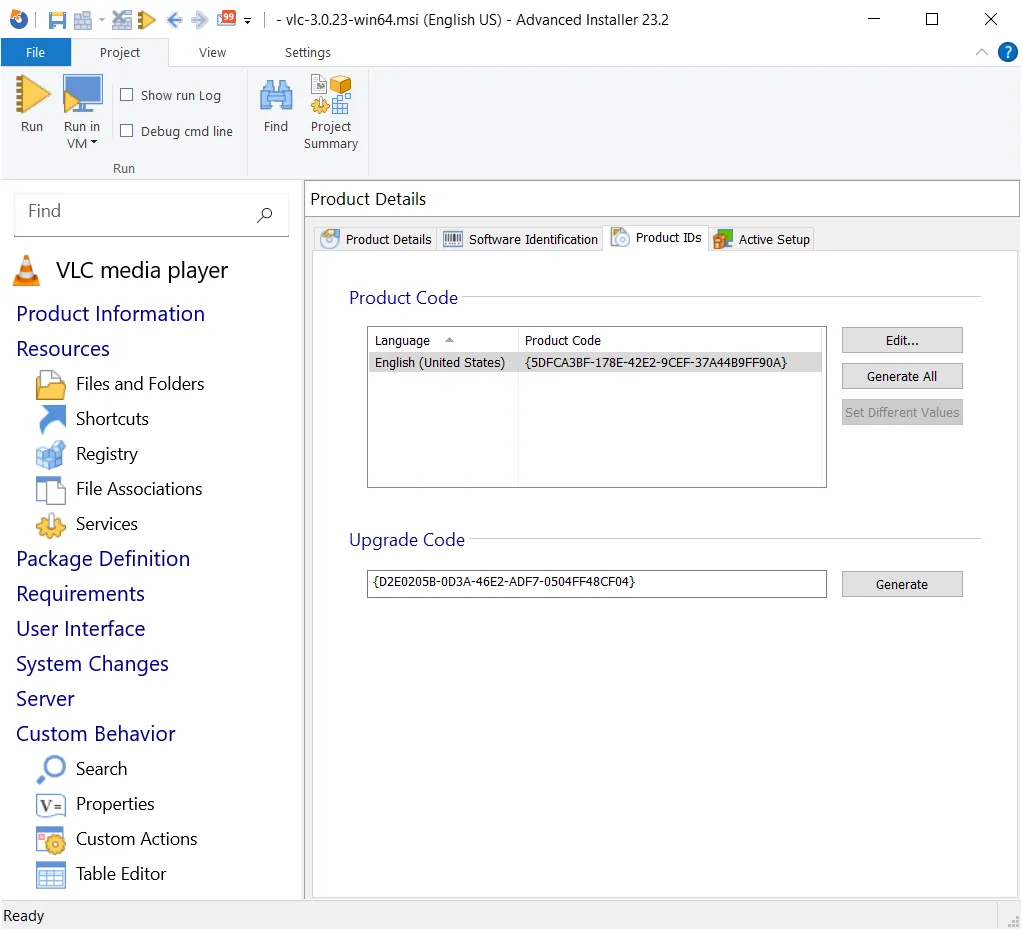
2. Orca: Open the MSI, go to the Property table, and locate the ProductCode property.

 Here is How to find the ProductCode GUID of an installed MSI.
It is important to enter the correct ProductCode. An incorrect GUID will not suppress UAC prompts and may cause unnecessary troubleshooting.
Conclusion
The SecureRepairWhitelist is a granular and reliable method for suppressing UAC prompts during MSI self-repair while maintaining the integrity of the Windows security architecture.
By allowing administrators to explicitly trust specific MSI ProductCodes, you ensure that only the applications you whitelist can perform elevated repair operations without disrupting standard users, while all other installers continue to be subject to UAC enforcement.
FAQs
Is this a bug in Windows or in my MSI package?
No. This behavior is the result of intentional security changes in Windows Installer, not a defect in your package.
Does this affect all MSI applications?
Only those that trigger self-repair and contain elevated CustomActions are impacted.
What exactly is MSI self-repair used for?
It ensures that critical application components are present and correctly installed, repairing them automatically if something is missing or corrupted.
Can I completely disable self-repair?
Yes, but it is not recommended. Disabling it removes an important safety mechanism that keeps applications functional.
What is CVE-2025-50173?
It is a security vulnerability that allowed attackers to exploit MSI repair mechanisms to gain elevated privileges.
Written by

Horatiu Vladasel
Horatiu is a Software Packager/Sequencer with over 10 years experience, who has worked as a Software Packager at IBM and is currently offering software packaging services to companies such as BT or Nationwide.