How to Update an INI File During Software Installation
Many applications rely on INI files for configurations. In some scenarios, you may want to allow users to define specific configuration values during the installation process and automatically write them inside the INI file.
This article will walk you through the required steps to create an installer that collects user input and maps it to an INI file entry during installation.
Create the Setup Project

First, we need to create the setup project:
- Open Advanced Installer
- Select the MSI project template from the start page
- Click [Create New Project]
- Once the project is created, go to the Product Details page to set the general information about the application installed by the package.
Add the resource files
Next, you need to add the application resources that will be installed on the target machine, including the INI file you want to update during installation.
To do this, navigate to the Files and Folders view and follow the steps below.
For the app resource files:
- Right-click on the Application Folder
- To add the files, select Add Files or Add Folder
For the INI file:
- Click Import Files and then Import INI
- Browse to and select the INI file you want to import

Add the Dialog for User Input
To collect data from users, you must include a custom dialog in the installation sequence:
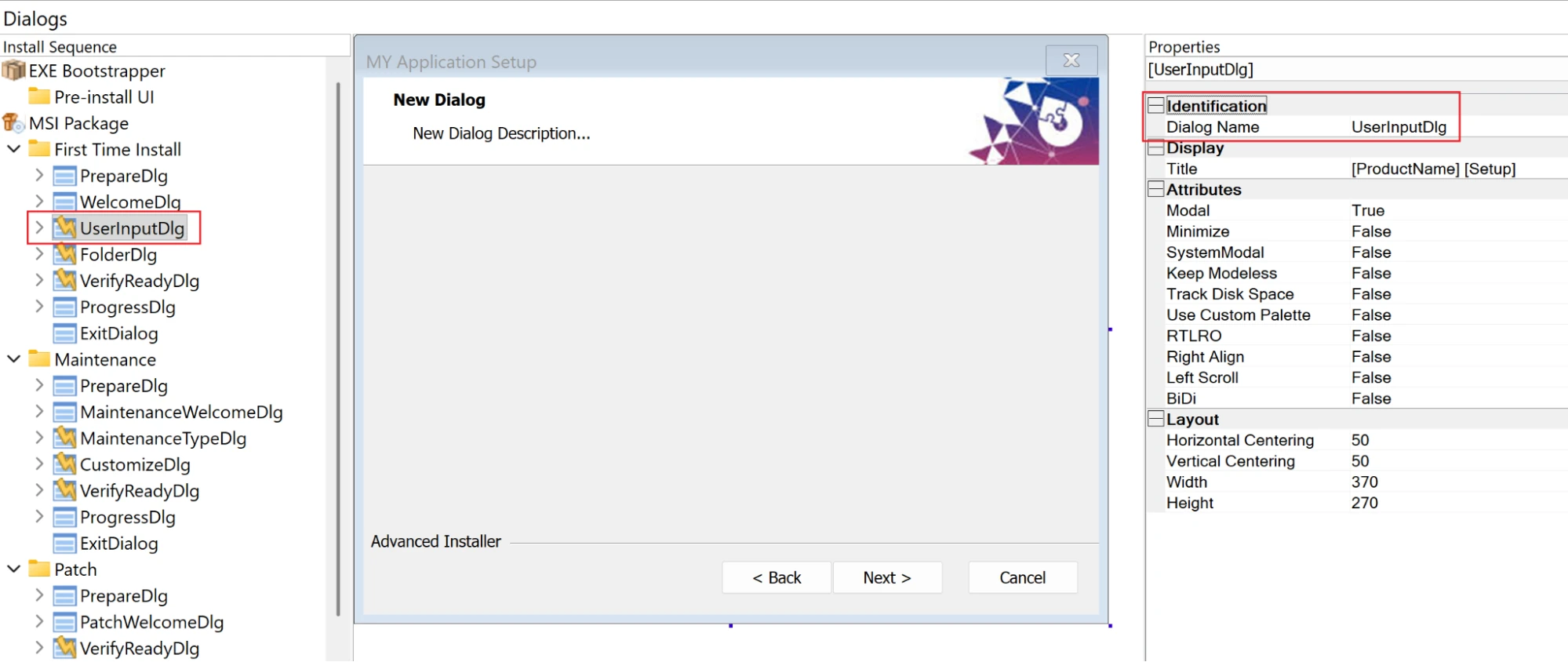
- Go to the Dialogs page
- In the First Install section, select the dialog that should precede the input dialog
- Right-click on that dialog and select New Dialog
- Use the Properties panel to rename the dialog
Add the Dialog Controls
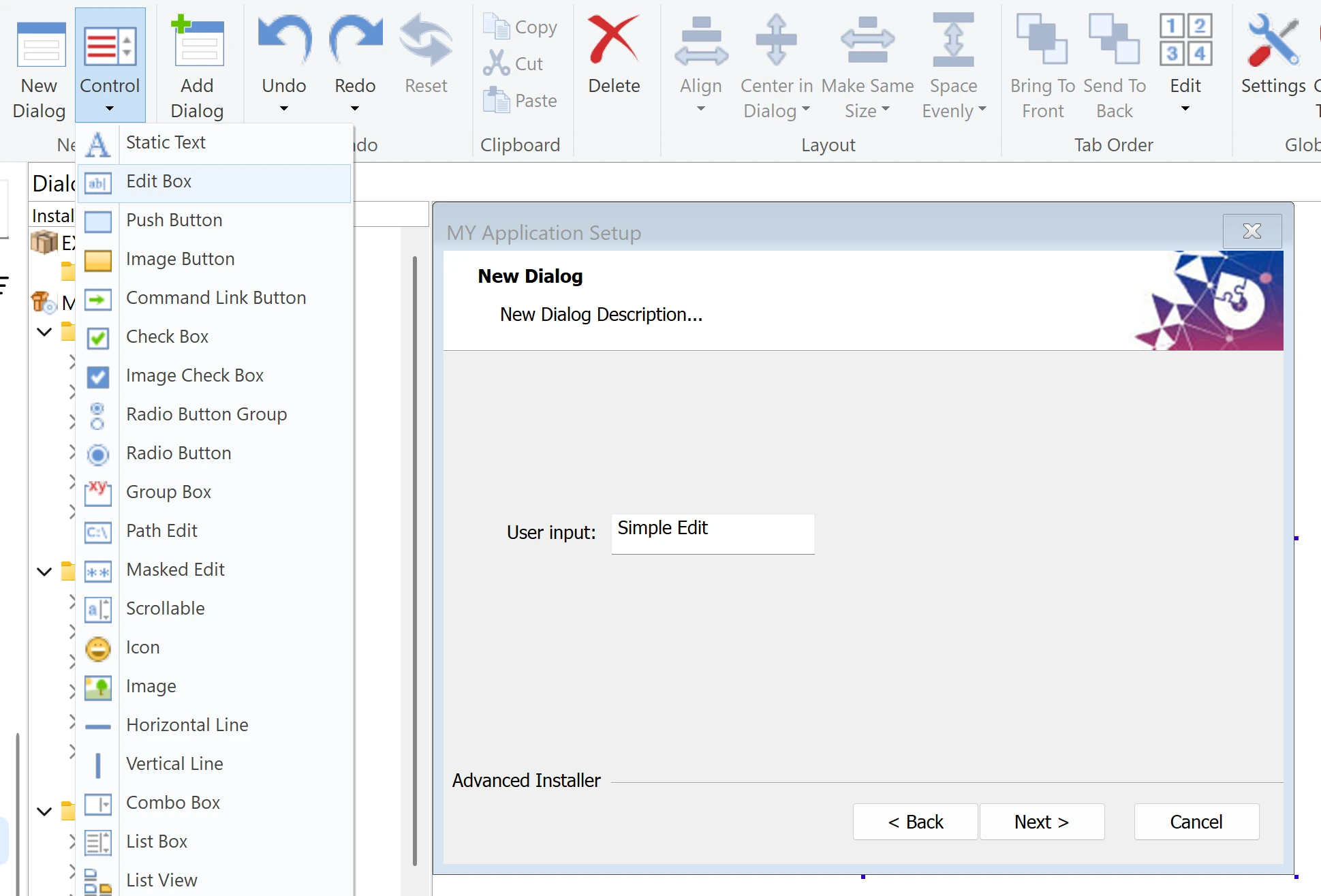
After you’ve created the dialog, you can add the UI controls that will collect the user input. Use an Edit Text control for this:
- Click the [Control] button from the toolbox
- Select the Edit Box option from the dropdown list
- Place the control on the dialog and adjust the size as needed. In addition, I’ve added a Static Text control in front of the Edit Box to serve as a label.
Link the Property to the INI File Entry
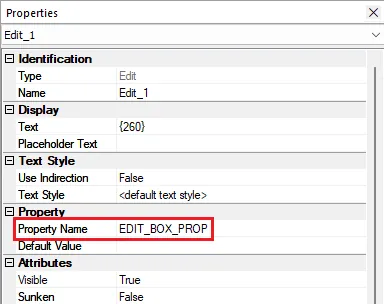
Each UI control can be associated with an installer property that stores a value.
In this case, the property stores the value entered by the user in the Edit Box control.
You can find the Property in the Edit Box’s Properties pane. You can change its name to something unique and uppercase.
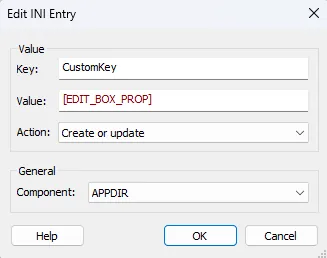
Now, you must instruct the installer to take the value from your property and write it into the INI file entry. For this:
- Go to the Files and Folders tab
- Navigate to the Application Folder and double-click the INI file to open the Edit dialog
- Once the Edit dialog is opened, select the section containing your key
- Select the key you want to update and click the [Modify] button
- In the value field of the Edit Key dialog, type the name of the property inside square brackets
Ensure the Property Persistence
In an upgrade scenario, installer properties are reset to the default value.
To prevent this, you must make the property persistent.
- Go to the Properties page
- By default, empty properties are not displayed on the Install Parameters page. To view the property, check the “Show properties with empty values or used in dialog controls” option
- Next, check the “Persistent” option for the property. That’s all!
Build and Install
You can now build the project and run the installer.
During installation, enter a value in the custom dialog field and complete the installation. Then, navigate to the installed location and open the INI file to verify the key value was entered correctly during installation.
Conclusions
You can use the Advanced Installer tool to allow your users to set INI key values during installation.
FAQs
Can I update an INI file during installation?
Yes, you can update an INI file during installation using Advanced Installer. Simply add the INI file to your project, associate its keys to installer properties, and modify their values during the installation process.
Written by

Renato Ivanescu
Renato is a technical writer for Advanced Installer and an assistant professor at the University of Craiova. He is currently a PhD. student, and computers and information technology are his areas of interest. He loves innovation and takes on big challenges.