WinGet Package Search Stuck in Advanced Installer? Check Your WinGet Version
Starting with Advanced Installer 24.0, you can add application prerequisites directly from the WinGet repository.
In the Prerequisites page, you can select New WinGet Package, search for an application, and add it as a prerequisite for your installation package.
However, you may encounter a situation where the Browse WinGet Packages dialog gets stuck while searching and never displays any results.
For example, when searching for a package such as Advanced Installer, the progress indicator continues running indefinitely:

If you see this behavior, the problem may not be with Advanced Installer itself. An outdated or malfunctioning local WinGet installation can cause the package search to hang.
In this article, we'll look at how to identify and fix this issue.
TL;DR

If Advanced Installer hangs while searching for WinGet packages, the issue is likely an outdated local WinGet client. Fix it by running Repair-WinGetPackageManager -Latest -Force via Microsoft.WinGet.Client PowerShell module to update WinGet.
Why Does the WinGet Package Search Hang?
Advanced Installer's WinGet integration relies on the WinGet infrastructure available on the machine to query packages from the WinGet repository.
As a result, if WinGet itself cannot successfully query the repository, Advanced Installer may exhibit the same behavior.
This is easy to verify outside of Advanced Installer.
Open PowerShell and try searching for a known package:
winget search "Google Chrome"
or:
winget search "Advanced Installer"
In our test environment, both commands were stuck on the WinGet progress indicator:
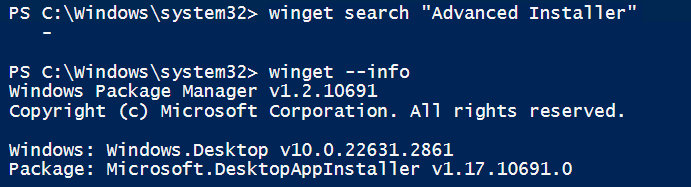
Because the same problem occurred directly from the WinGet command line, this confirmed that the issue was not specific to the Advanced Installer UI.
Check Your Installed WinGet Version
The first step is to determine which WinGet version is installed.
Run:
winget --info
In our case, the affected machine was running:
- Windows Package Manager v1.2.10691
- Windows: Windows.Desktop v10.0.22631.2861
- Package: Microsoft.DesktopAppInstaller v1.17.10691.0
The important value was Windows Package Manager v1.2.10691.
It was a very old WinGet client.
Verify the WinGet Sources
It is also useful to verify that the WinGet repositories are correctly configured.
Run:
winget source list
Our machine returned:
Name    Argument
-----------------------------------------------------
msstore https://storeedgefd.dsx.mp.microsoft.com/v9.0
winget  https://winget.azureedge.net/cache
The sources were configured correctly.
Therefore, we did not need to reset or manually recreate the repositories.
The next step was to update the WinGet client.

Repair and Update WinGet
Microsoft provides the Microsoft.WinGet.Client PowerShell module, which includes a cmdlet for repairing the Windows Package Manager installation.
First, install the module:
Install-Module -Name Microsoft.WinGet.Client
Then import it:
Import-Module Microsoft.WinGet.Client
Finally, repair WinGet and request the latest available version:
Repair-WinGetPackageManager -Latest -Force
The complete sequence is:
Install-Module -Name Microsoft.WinGet.Client
Import-Module Microsoft.WinGet.Client
Repair-WinGetPackageManager -Latest -Force
Depending on your environment, the repair command may complete without displaying additional output.
Verify the WinGet Version After the Repair
After repairing WinGet, verify the installed version:
winget --version
In our test environment, the result was:
v1.29.290
The machine had therefore been updated from:
v1.2.10691
to:
v1.29.290
 Note: v1.29.290 was the latest version installed on our test machine at the time of testing. It should not be interpreted as a specific minimum version required by Advanced Installer. The important step is to repair/update an outdated WinGet installation.
Test WinGet Before Returning to Advanced Installer
Before opening Advanced Installer again, test the package search directly from PowerShell:
winget search "Advanced Installer" --source winget
After updating WinGet, the command successfully returned the package:
Name                Id                         Version
------------------------------------------------------
Advanced Installer  Caphyon.AdvancedInstaller 24.0
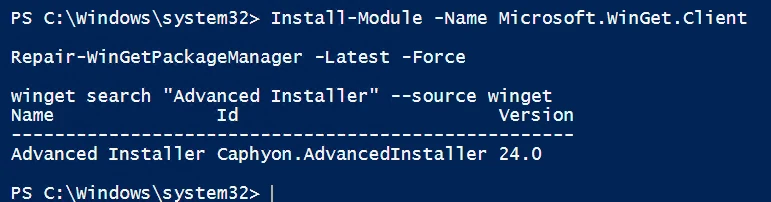
This confirms that WinGet can communicate with the repository correctly.
Now you can return to Advanced Installer and try to add the WinGet prerequisite again.
Go to Requirements > Prerequisites > New WinGet Package and search for the required application.
The package list should now populate normally.

Important: Installing Microsoft.WinGet.Client Does Not Update WinGet by Itself
There is an important difference between installing the PowerShell module and updating the WinGet client.
Running:
Install-Module -Name Microsoft.WinGet.Client
installs the Microsoft.WinGet.Client PowerShell module.
It does not, by itself, update the winget.exe installation.
The command that actually repairs and updates Windows Package Manager is:
Repair-WinGetPackageManager -Latest -Force
Therefore, running only Install-Module is not sufficient if the underlying WinGet installation is outdated.
Quick Troubleshooting Steps
If the Browse WinGet Packages window in Advanced Installer keeps loading without returning any packages, use the following troubleshooting sequence.
1. Check if WinGet itself can search for packages
winget search "Google Chrome"
If this command also hangs, then the problem is with WinGet and not with the Advanced Installer package browser.
2. Check the WinGet version
winget --info
3. Check the configured sources
winget source list
4. Repair and update WinGet
Install-Module -Name Microsoft.WinGet.Client
Import-Module Microsoft.WinGet.Client
Repair-WinGetPackageManager -Latest -Force
5. Confirm the updated version
winget --version
6. Test the repository again
winget search "Advanced Installer" --source winget
If the command is successful and returns results, re-open Advanced Installer and try searching for your WinGet prerequisite again.
Quick Recap
If the Browse WinGet Packages dialog in Advanced Installer gets stuck on the loading indicator, it is a good idea to look at the underlying WinGet installation before investigating the Advanced Installer project itself.
The problem is easily identified with a simple test:
winget search "Advanced Installer"
If the command hangs outside of Advanced Installer too, check the installed WinGet version:
winget --info
In our case, the machine was still running WinGet v1.2.10691. After repairing and updating Windows Package Manager using:
Install-Module -Name Microsoft.WinGet.Client
Import-Module Microsoft.WinGet.Client
Repair-WinGetPackageManager -Latest -Force
WinGet was updated and package searches started working normally again.
Since Advanced Installer uses WinGet when browsing packages from the repository, restoring the local WinGet functionality also restored the New WinGet Package workflow in Advanced Installer.
Written by

Danut Ghiorghita
Dan has been part of the Advanced Installer's team for over seven years as a Solution Engineer. If you visit the Advanced Installer's forum , you will likely find him helping clients with product explanations and technical difficulties that they may be experiencing. In addition, he is the person to go to for demos and technical presentations to our current and prospective clients. And we are grateful for his contributions to our blog, which he does whenever he has the occasion.