How to Use GPO to Install EXE Files on Multiple Computers
Group Policy is a powerful tool for managing Windows Environments, and we’ve previously discussed how you can deploy an MSI using GPOs.
Unfortunately, the limitation of GPOs is that you can only deploy MSI packages. You cannot deploy .exe installers directly, which may surprise administrators who expect GPO to handle any installer that they throw at it.
However, this doesn’t mean you are stuck, as there are several reliable workarounds that you can use to deploy .exe installers across your domain by using the GPO. Let’s look at the methods.
Deploy EXE Installers via Logon/Startup Scripts

Of course, IT Administrators quickly found a way around the limitations, and the simplest and most widely used method to run the .exe installer is through a script.
You simply place the installer on a network share.
This is a UNC Network Share that must be properly configured and accessible to all users/devices. This scenario has already been covered in this article using a PowerShell script.
Of course, you can use any type of script you want, including a simple batch script. Let’s assume that the exe installer is located here:
\\SERVER\Software\Installer.exe
Then we only need to create a batch file that runs the installer silently:
@echo off
\\SERVER\Software\Installer.exe /silent /norestart
We then assign this script via GPO. To do this, go to:
Computer Configuration > Policies > Windows Settings > Scripts (Startup/Shutdown)
or
User Configuration > Policies > Windows Settings > Scripts (Logon/Logoff)

Deploy EXE Installers Using Scheduled Tasks to Run the Installer
Another flexible method is to use GPO to create a Scheduled Tasks that runs the installer with elevated privileges.
The same rules apply, so you must have a network share that is accessible to the desired users and devices, and the software must be present in a location such as:
\\SERVER\Software\Installer.exe
Cool, now that we have what we need, we can open the Group Policy Management Editor. Under User Configuration > Preferences > Control Panel Settings > Scheduled Tasks, we right-click and add a new Scheduled Task (at least in Windows 7).
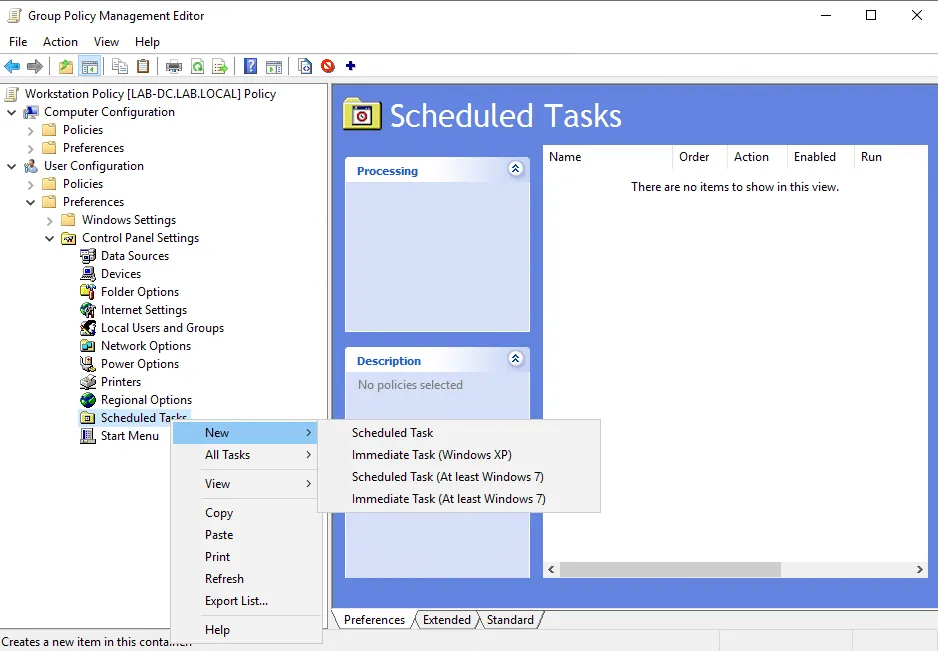
Next, you’ll see the standard form of a Scheduled Task configuration, and all you have to do is configure the settings of your task.
For example, on the General tab, we need to set the Action to Update and enter a task name. To make sure that the task runs on behalf of the current user, we leave %LogonDomain%\%LogonUser%.
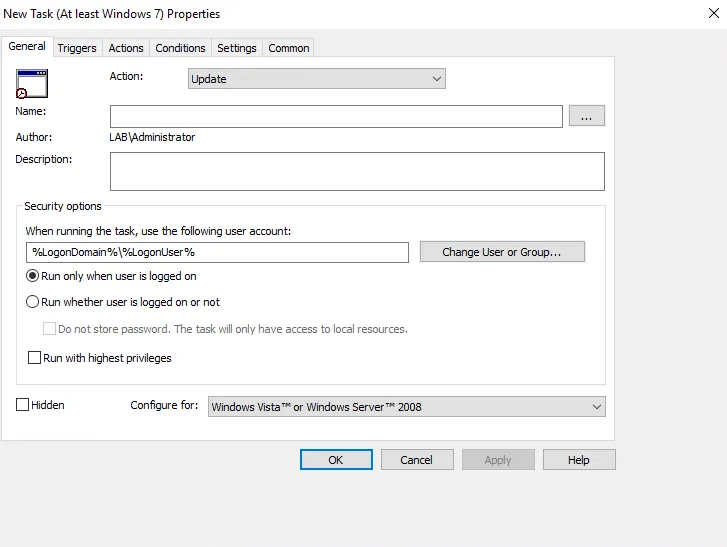
 If you want to install the EXE for all users, follow the same steps, but instead of placing the Scheduled Task in the User Configuration, do so in the Computer Configuration. Make sure the task is run with NT AUTHORITY\System!
Next, navigate to the Triggers tab and specify the date and time you want the task to run. The choice is yours, as you can do it on a schedule or just once.

The last step is to go to the Actions tab, where we need to specify a command or a script that will be executed during the run of the Task Scheduler. In your example, we can simply put:
\\SERVER\Software\Installer.exe /quiet /norestart
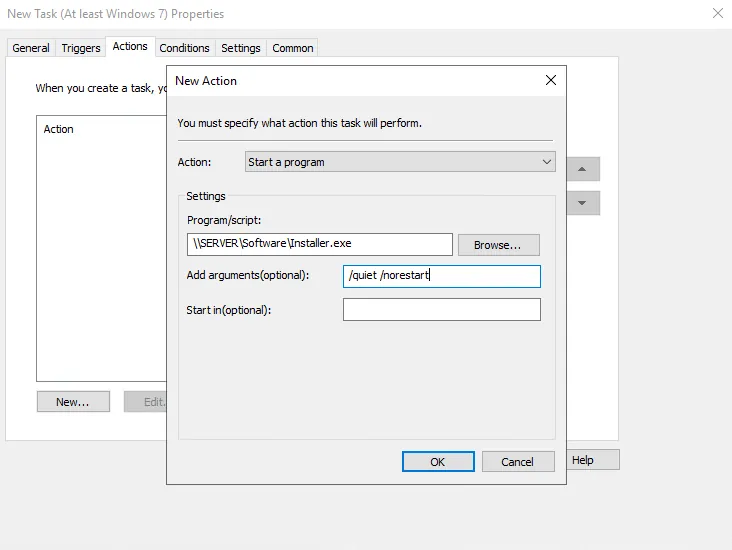
Alternatively, you can wrap your installation with a PowerShell wrapper, such as PowerShell App Deployment Toolkit, which can be easily accomplished with PacKit.
With PacKit, you simply add your installer, not the details, and click on a single button, and PacKit will handle the rest.
It will get the most recent version of the PowerShell App Deployment Toolkit, modify all the variables, and add the necessary install and uninstall commands, all with a few clicks.
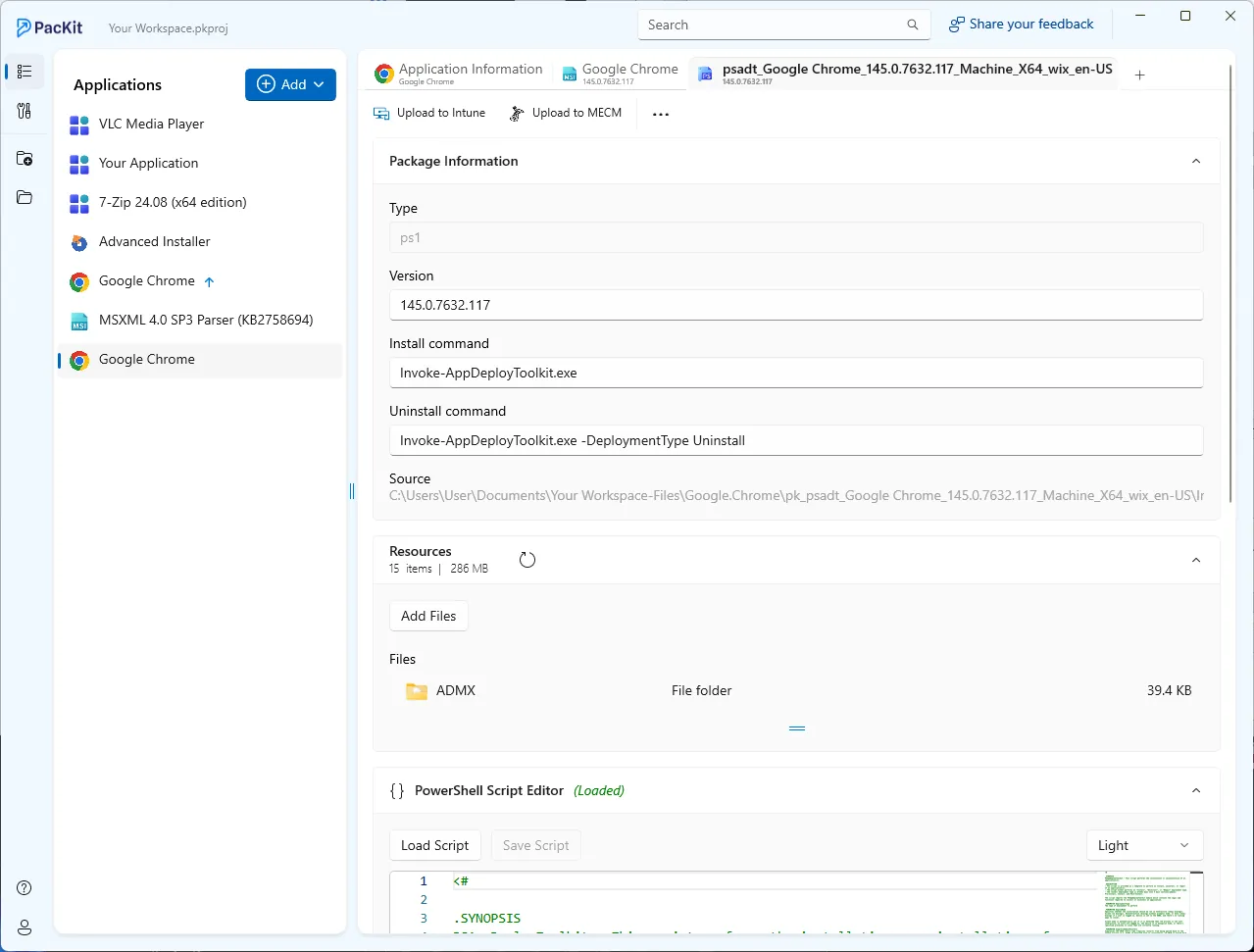
In this case, the Action must be configured slightly differently. In the Program/Script field, enter the PowerShell location:
C:\WINDOWS\system32\WindowsPowerShell\v1.0\powershell.exe
And, in the Add Arguments (Optional) field, we add:
-ExecutionPolicy Bypass -command "& \\SERVER\Software\
\Invoke-AppDeployToolkit.ps1" -DeploymentType Install
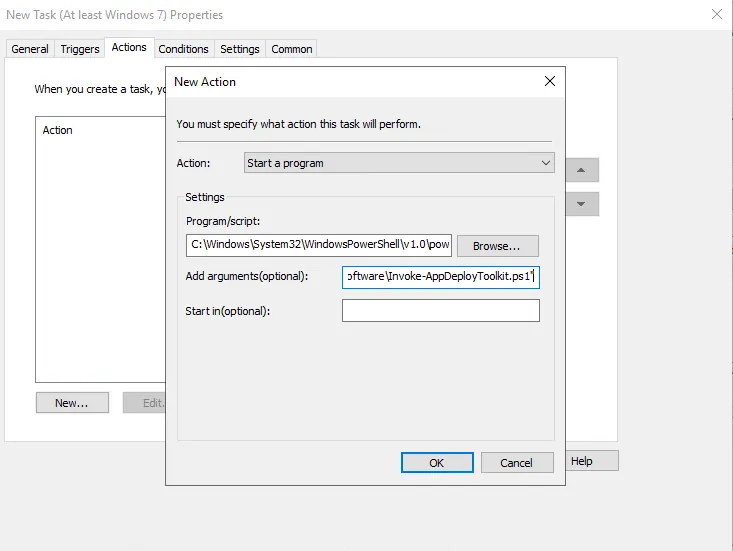
Once the computer is restarted to get the GPO, the scheduled task will run according to your preferences.
Converting EXE to MSI: A Better Long‑Term Solution
If you want to use the GPO’s native software deployment features, the cleanest approach would be to convert your EXE installer to an MSI package, which will allow the GPO to work exactly as intended.
There are tools out there that can help you with this, but Advanced Installer is one of the most user-friendly. It offers a GUI-based workflow and templates specifically designed for repackaging installers.
Of course, even in this context, you have two options:
- Go through the lengthy (but elegant) process of repackaging an EXE. If you are not familiar with this, I recommend that you look at this quick tutorial
- Create a “wrapper” MSI that simply runs the executable
The first option is a lengthy tutorial that is not an “all-in-one” solution, which means that each software is unique, and you must understand how software repackaging works. This is why IT Professionals (also known as software packagers) have years of experience in this field and know how to actually repackage an EXE.
The second option is simpler but not as elegant. However, in the end, it will work quite nicely.
This is simple to do with Advanced Installer. Once you’ve created a new project, first go to the Files and Folders Page and drag the executable file. In this case, we opted for FileZilla as an example.

Next, go to the Custom Actions Page and add a new Custom Action for “Launch Installed File”. This will open a new window displaying the project’s available files, which in our case is only the FileZilla executable.
After that, all that's left to do is to enter the /S parameter in the Command Line to make the installation silent, and everything else remains as is.
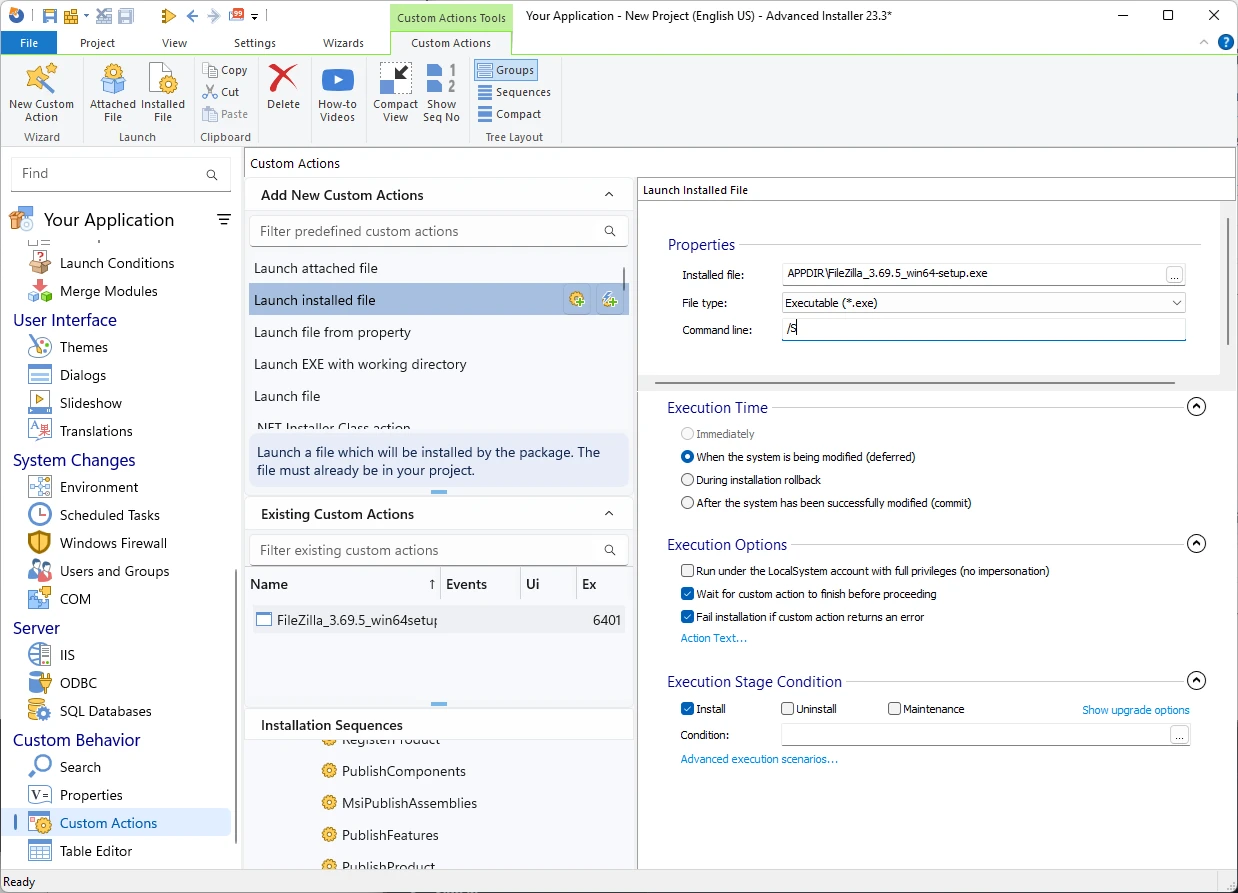
That is it.
Build your project, and the output will be an MSI that runs the executable.
One issue you will encounter is that the Add/Remove Programs will have two entries.
That is because you are running two installations: one for the MSI, which serves as a wrapper, and one for the actual FileZilla installer.
To fix this, uncheck the “Register Product with Windows Installer” in the Product Details Page, which will skip the whole registration and prevent the MSI entry from appearing.
Once you have your exported MSI, you can follow the steps laid out in this article, and you are good to go.
Final Takeaways
Group Policy is a powerful tool for managing Windows Environments, although the limitation of GPOs is that you can only deploy MSI packages.
Deploy EXE Installers via Logon/Startup Scripts:
- The simplest and most widely used method to run the .exe installer is through a script, as You simply place the installer on a network share.
- The exe installer must be located here: \\SERVER\Software\Installer.exe
- create a batch file that runs the installer silently: @echo off \\SERVER\Software\Installer.exe /silent /norestart
- Assign this script via GPO: Computer Configuration > Policies > Windows Settings > Scripts (Startup/Shutdown) or User Configuration > Policies > Windows Settings > Scripts (Logon/Logoff)
Deploy EXE Installers Using Scheduled Tasks to Run the Installer:
- Use GPO to create a Scheduled Tasks that runs the installer with elevated privileges.
- Steps: Launch the Group Policy Management Editor. In User Configuration > Preferences > Control Panel Settings > Scheduled Tasks, we right-click and add a new Scheduled Task (at least in Windows 7) and then configure the settings of your task.
- Ensure that the task runs on behalf of the current user and leave %LogonDomain%\%LogonUser% on.
- Next, navigate to the Triggers tab and specify the date and time you want the task to run. The last step is to go to the Actions tab, where we need to specify a command or a script that will be executed during the run of the Task Scheduler.
- Alternatively, you can wrap your installation with a PowerShell wrapper, such as PowerShell App Deployment Toolkit, which can be easily accomplished with PacKit.
Converting EXE to MSI:
- The cleanest approach would be to convert your EXE installer into an MSI package.
- You can go through the lengthy (but elegant) process of repackaging an executable.
- Alternatively, you can create a "wrapper" MSI that simply launches the executable. This is simple to accomplish with Advanced Installer. After you've created a new project, go to the Files and Folders Page and drag the executable file. Then, on the Custom Actions Page, add a new Custom Action for "Launch Installed File." This will bring up a new window displaying the project's available files. After that, all you have to do is enter the /S parameter in the Command Line to make the installation silent, and everything else stays the same. Build your project, and the result will be an MSI that launches the executable.
- One issue you will encounter is that the Add/Remove Programs list will contain two entries. To resolve this, uncheck "Register Product with Windows Installer" in the Product Details Page, which will skip the registration and prevent the MSI entry from appearing.
Conclusion
While GPO cannot deploy .exe installers directly, you still have several effective options.
Scripts and scheduled tasks provide quick workarounds, but converting the installer to MSI gives you a more polished and manageable long‑term solution.
With the right approach, deploying .exe files across your domain is entirely possible.
Written by

Alex Marin
Application Packaging and SCCM Deployments specialist, solutions finder, Technical Writer at Advanced Installer.