How to Convert an HTML to an EXE file
While it might not be a high-demand scenario in the industry, there are many cases where you might want to convert your HTML to an EXE.
The idea is that, rather than changing the programming language and creating a new desktop application, it is much simpler to package the web app’s existing code into a desktop application.
In contrast to a hosted web app, a packaged EXE file can run offline, making it particularly useful for kiosks, internal tools, or environments with restricted connectivity.
However, deploying an actual HTML file with all the necessary tools behind it is quite challenging. As a result, converting it to an EXE file not only makes it easier for any end user to access but also gives end users a sense of familiarity. They just double-click it, and it works.
In addition, an EXE file can be much easier to deploy in enterprise environments compared to hosting a web server.
Depending on the project’s complexity, converting it to a desktop app might offer access to OS-level features such as filesystem, notifications, tray icons, and so on. HTML alone cannot do this natively, but wrapping it in Electron will most likely bridge the gap.
In this article, let us look at the possibilities of converting an HTML to an EXE and provide a brief explanation of how it works in the background.
How Do Electron Apps Work?

The most popular framework for converting HTML to EXE is Electron. In simple terms, Electron takes your provided HTML and bundles it with Chromium and Node.js into a single executable.
This technology allows you to run web technologies such as HTML, CSS and Javascript as a desktop app, with access to both browser APIs and system-level Node.js APIs.
As an example, you could create a React/Vue/Angular application or plain HTML with JS or CSS.
When packaged with Electron, the Electron main process launches a window and loads your HTML file (index.html). The renderer process uses Chromium to display the UI, and when the user clicks on anything system-level (for example, a “Save File” button), the renderer sends an IPC message to the main process, which writes to the disk with Node.js.
 If you are interested, we’ve already published an article explaining how you can create an MSI installer by packaging an Electron application.
Now that we have a basic understanding of how the process works and what Electron does, let us look at the options for converting your HTML application to an EXE file.
HTML-TO-EXE
If you like Python, the html-to-exe utility is an awesome tool that helps you convert your HTML files.
The steps for installing and using html-to-exe are:
1. First, we need to make sure that Python is installed.
There are multiple ways to install Python:
- Go to their main website and download the installer
- Open the Microsoft Store and install it from there
- Use the WinGet utility, which is pre-installed on every Windows OS.
To find the exact ID of the Python version you want to install from WinGet, type in an elevated command prompt window (cmd) the following command:
Winget search python
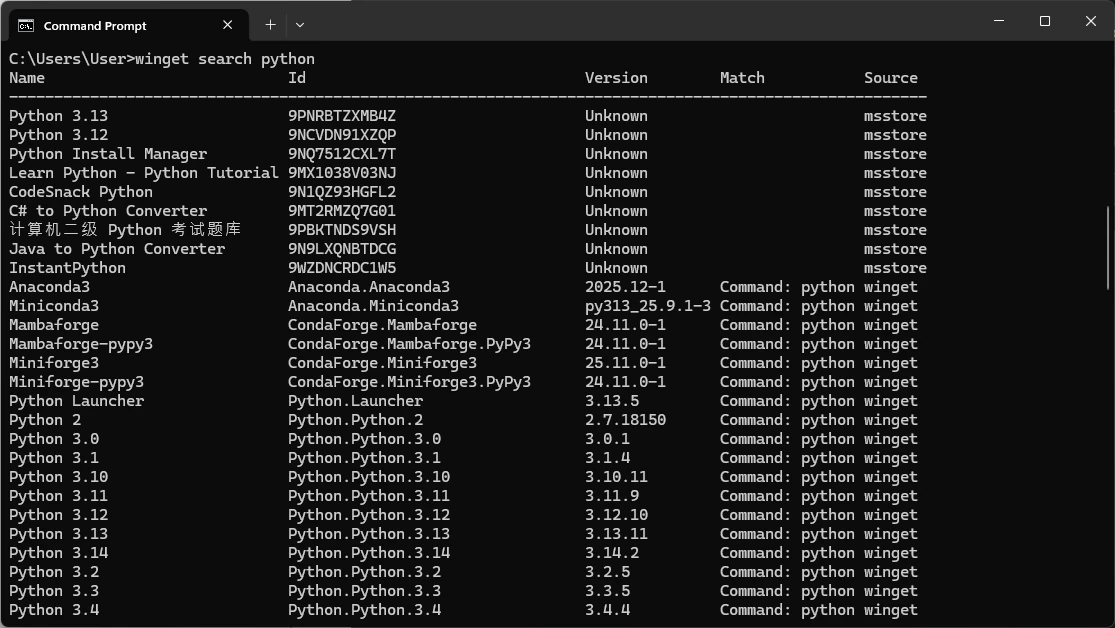
Then enter the ID for the Python version you want to use. For example, if we want to install Python 3.4, the correct WinGet command would be:
Winget install Python.Python.3.4
2. Now that Python is installed, the next dependency we want to install is the node.js.
This can be achieved the same way as Python:
- Go to the official website and download the installer
- Type in the elevated command prompt (cmd) the following:
winget install OpenJS.NodeJS
3. Install the electron-packager package, which can be done using the NPM package manager.
 The NPM package manager is only available to use after Node.js has been installed on the system.
To do this, simply type in the elevated command prompt (cmd):
npm install -g electron-packager
4. The final installation step is to install the html-to-exe package.
This is done using the PIP package manager, which is available after Python has been installed on the system.
pip install html-to-exe
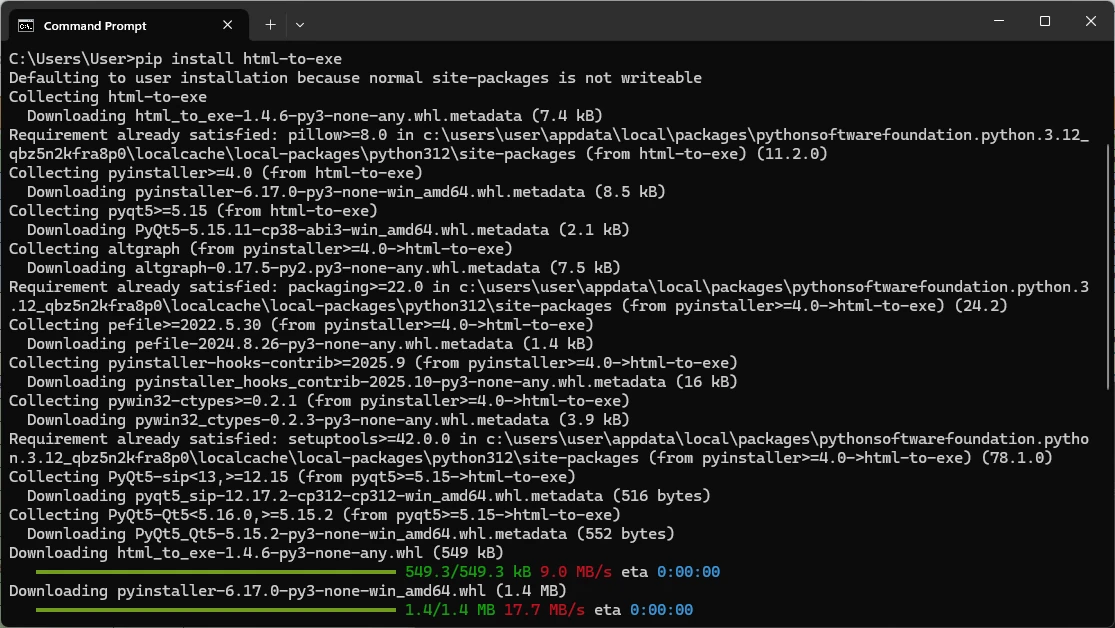
After installing html-to-exe, the simplest way to launch it is to open the download folder and run it from there.
To find out where html-to-exe has been installed, you can run the following command:
pip show html-to-exe
This will show certain details, and in the Location section, simply copy the string and paste it into an Explorer window.
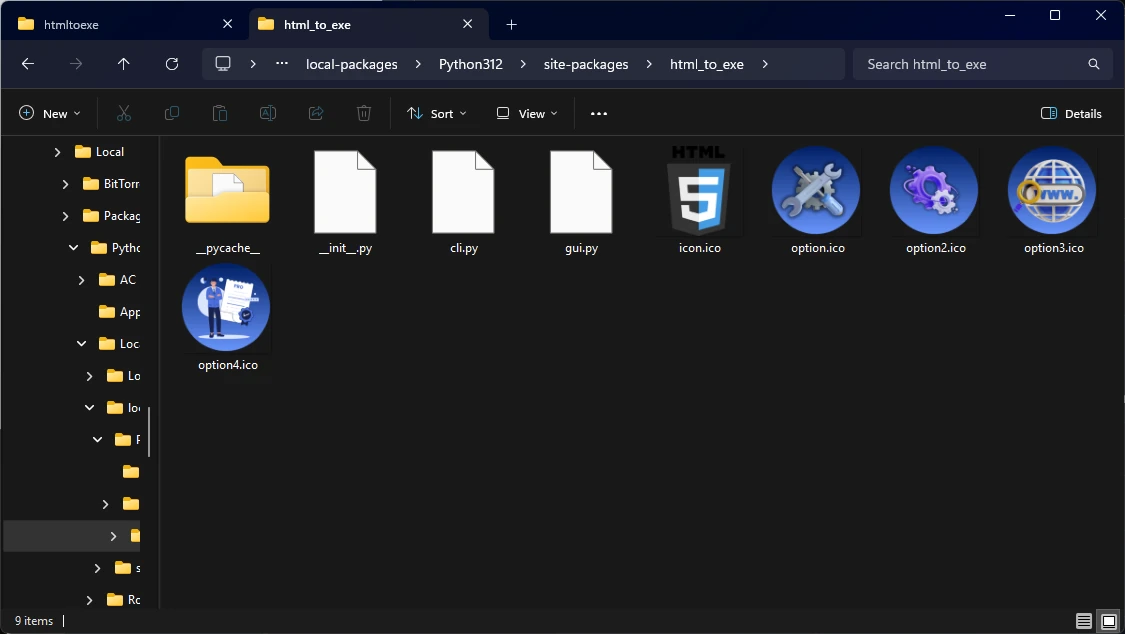
To run it, go back to the command prompt window and type:
"C:\Users\User\AppData\Local\Packages\PythonSoftwareFoundation.Python.3.12_qbz5n2kfra8p0\LocalCache\local-packages\Python312\site-packages\html_to_exe\gui.py"
Change the location of gui.py to your own location.
This will launch the html-to-exe GUI, and from here it is quite straightforward. If we look at the GUI, there aren’t many details required to convert your HTML.
First, select the web folder where all the HTML resources are stored. You can also specify an Application Name that will appear when the EXE is running, the output folder where the EXE will be created, and even an icon for the actual EXE.
In our case, the platform is Windows, but one of the benefits of Electron is that the packaged HTMLs are cross-platform, and this utility can also be used to create Electron packages for macOS or Linux.

Once all of the details have been filled, all we have to do is just click on Convert to EXE and everything will be done.
Once you click on the EXE file, your Chromium instance will launch, but it will behave exactly like a standard desktop application.

Of course you can further customize your EXE view in the html-to-exe’s Options menu by setting Window options such as width, height, and resizability, or if you want it to be fullscreen or in Kiosk mode.
You can also choose any node integration, WebGL, Sandbox, and so on.
For example, with some tweaking, you can remove the status bar, disable the resizability, and make this look like a really cool application.

VbsEdit
If you don't want to go through all of the steps described above for html-to-exe, a commercial tool like VbsEdit may be more convenient for you.
VbsEdit started as a simple VBScript editor designed to reduce the time spent writing .VBS scripts. Nowadays, it is still maintained, with many features added.
In general, VbsEdit is an IDE designed specifically for .vbs, .wsf, and .hta scripts, with an integrated debugger and breakpoints for step-by-step execution.
VbsEdit also provides the possibility to:
- Inspect and modify variables in real time
- Debug in both console (cscript) and windowed (wscript) modes
- Convert .vbs, .wsf, and .hta scripts into standalone executable files
- Package HTML, CSS and JavaScript into an executable application
The steps to convert your HTML to EXE with VbsEdit are much simpler:
1. First, launch VbsEdit and go to your main HTML page, such as index.html.
2. Once opened, simply navigate to File > Convert into Executable.
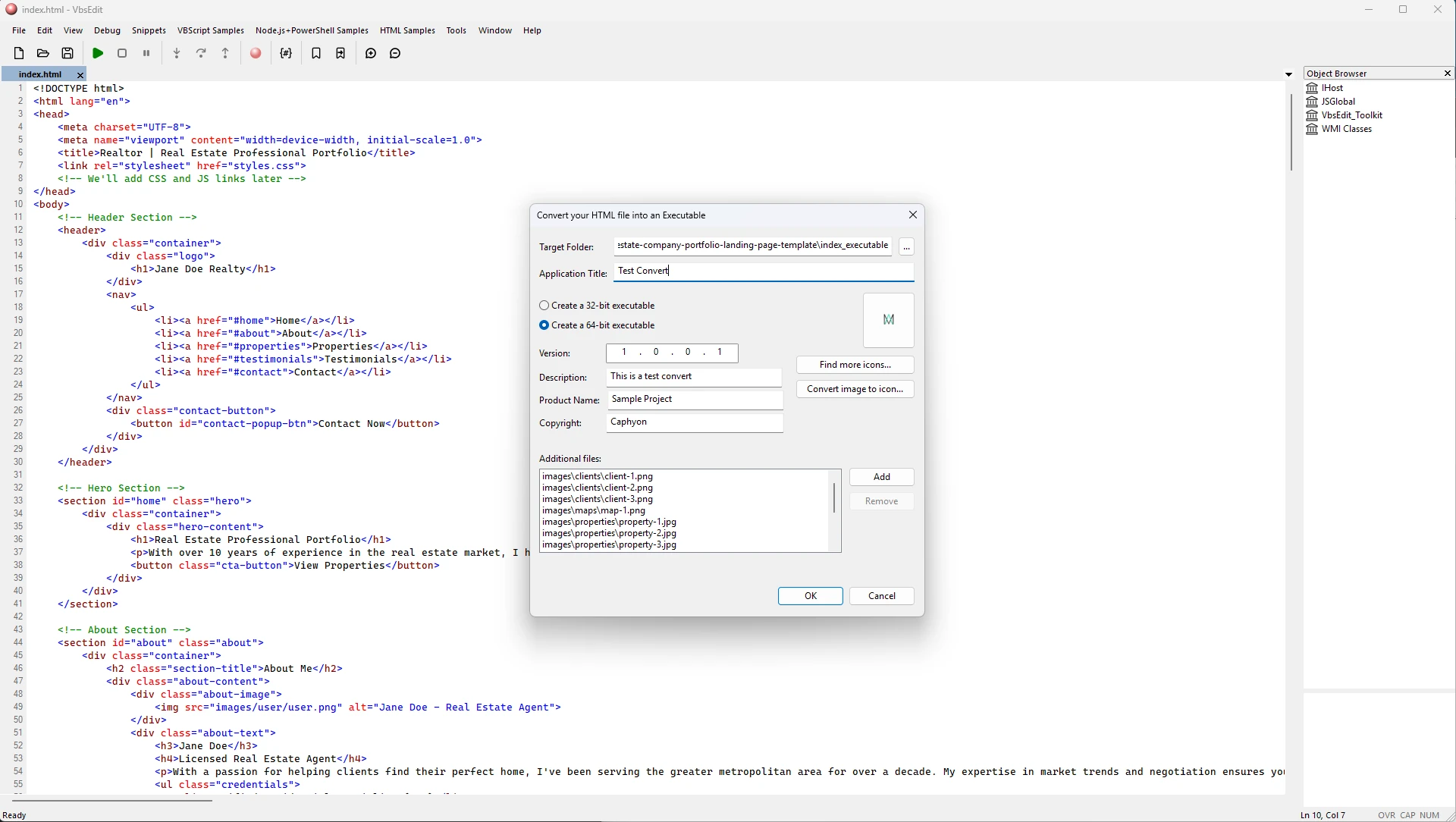
3. Next you define the available fields as desired and simply click OK. That’s it. You will have your HTML now converted into an EXE file.
Keep in mind that this VbsEdit functionality is only available in the paid model.
HTML2EXE
If you don’t need to convert your HTML to EXE for other platforms such as macOS or Linux, you can use HTML2EXE, which is free.
This utility is an open-source project available on GitHub that is free to download and use.
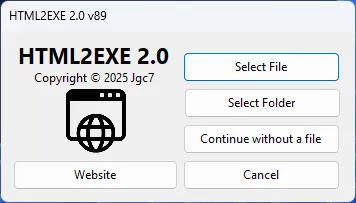
The interface is quite simple. Once downloaded and launched, you simply select whether you want to convert a specific page or an entire folder (site).
After that, a new window appears in which you can define simple elements such as Tile and some other visual elements like width and height, as well as other options such as resizability, zoom control, and so on.
It has fewer in comparison to html-to-exe, but it does the job for simple projects.
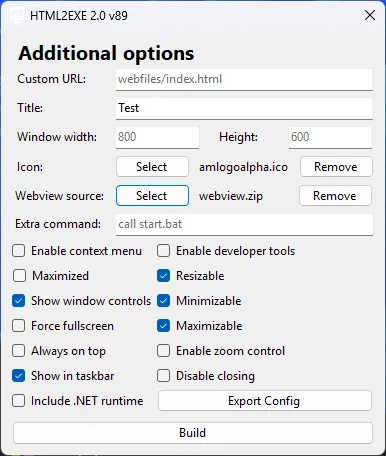
Make sure to correctly select the Webview source. The Webview must be downloaded from the downloads page, as previously shown. Without it, the conversion is not possible.
Once everything is in place, just click on Build to create the executable.
HTML2EXE, unlike Electron, does not use Chromium for rendering. Instead, it uses the Microsoft WebView2 runtime and IExpress packaging to wrap the HTML into a lightweight Windows executable.
Electron’s project conversion size is around 300 MB, while HTML2EXE’s conversion size is only 5 MB, so there is a significant difference in size.
So there are pros and cons to using HTML2EXE, depending on your needs.
So HTML2EXE produces much smaller executables and provides a faster startup of the executable since it uses the system WebView2. Unfortunately, it is only available on Windows and has limited access to native OS features compared to Electron, which includes Node.js.
Conclusion
Converting HTML into an executable offers a practical way to deliver web applications as desktop programs without rewriting them in another programming language.
Electron, html-to-exe, VbsEdit, and HTML2EXE take different approaches, balancing ease of use, portability, and performance.
Electron is the most powerful utility and provides cross‑platform options but comes with heavy package sizes, while HTML2EXE and VbsEdit produce lightweight Windows‑only executables.
Ultimately, the choice depends on whether you need cross‑platform support, deep OS integration, or simply a fast way to distribute a familiar .exe file for end users.
FAQs
Is Electron the same as a browser?
Not exactly. Electron bundles Chromium, but it also gives access to Node.js, which means you can interact with the file system, OS APIs, and hardware.
Why are Electron apps so large in size?
Because every Electron app ships with its own Chromium engine and Node.js runtime. That adds hundreds of megabytes to the final package.
Can I use any frontend framework with Electron?
Yes. React, Vue, Angular, Svelte, or even plain HTML and JavaScript all work the same way.
Is html-to-exe just a wrapper over Electron?
Yes. It automates the Electron packaging process and provides a GUI so you do not have to write Electron boilerplate code.
Does VbsEdit use Electron or Chromium?
No. It uses Windows scripting technologies and its own runtime to package content into an executable.
Written by

Alex Marin
Application Packaging and SCCM Deployments specialist, solutions finder, Technical Writer at Advanced Installer.