How to Correctly Align Columns in ComboBox, ListBox, or CheckListView in Advanced Installer
Creating installer packages sometimes requires presenting item lists in custom dialogs, where data must line up cleanly rather than drift into uneven text blocks. Advanced Installer offers controls such as ComboBox, ListBox, and CheckListView. However, to correctly align columns in these controls, there are some steps you should be aware of.
This article explains the steps for ListBox column alignment, and the very same approach applies consistently to ComboBox and CheckListView as well.
How to Load Data Into the Control

I’ve already set up a package project in Advanced Installer and added a new dialog with a ListBox control.
If your control is already populated with data, feel free to skip to the next section to see how to correctly align the column. Otherwise, let me show you an example of how you can populate the control with data.
Consider the following scenario: displaying the list of running Windows services in the ListBox, where the first column shows the service name and the second shows the Log On As account.
To achieve this, here’s what we need to do:
1. Create a PowerShell custom action to retrieve the list of services.
Param()
$COL          = 25
$PAD_CHAR     = '*'
$LABEL        = 'LogOnAs: '      # label before the account
# Pad/truncate the name to exactly $COL chars using $PAD_CHAR
function FixWidth([string]$s, [int]$w) {
    if ($s.Length -ge $w) {
        return $s.Substring(0, $w)
    } else {
        return $s + ($PAD_CHAR * ($w - $s.Length))
    }
}
# Get running services with their Log On As (StartName)
$services = Get-CimInstance Win32_Service | Where-Object { $_.State -eq 'Running' } | Sort-Object Name
# Build the display items: <fixed 25-chars name><LogOnAs: account><extra>
$items = foreach ($s in $services) {
    $account = $s.StartName   # e.g. LocalSystem, NT AUTHORITY\LocalService, DOMAIN\User
    (FixWidth $s.Name $COL) + $LABEL + $account
}
# (Optional) console check — one per line
# $items | ForEach-Object { "'$_'" }
# Feed Advanced Installer (pipe-separated)
$pipe = ($items -join '|')
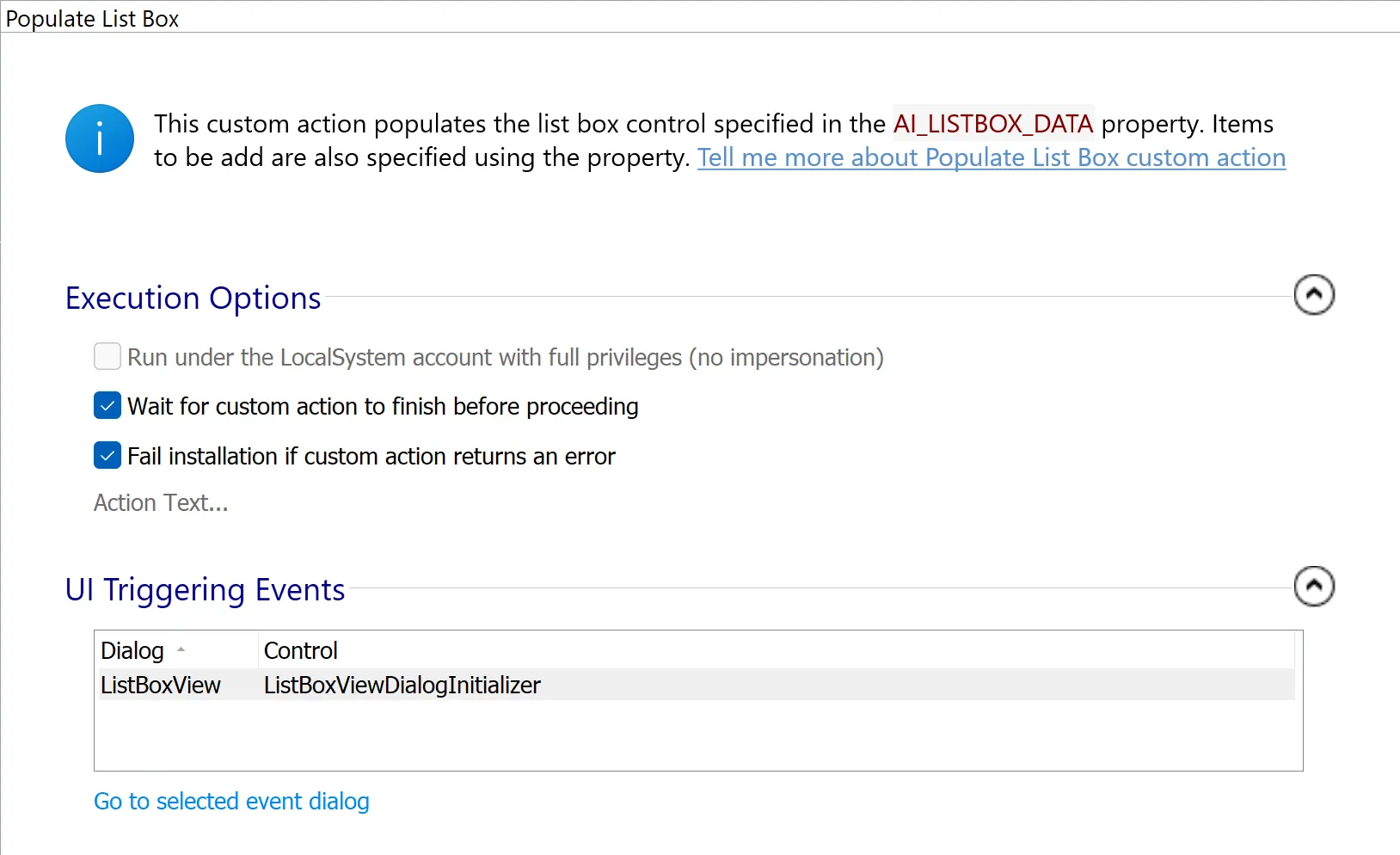
AI_SetMsiProperty AI_LISTBOX_DATA ("LISTBOX_1_PROP|$pipe")2. Add a PopulateListBox custom action to make the insertion in the ListBox control and invoke it before the dialog appears.
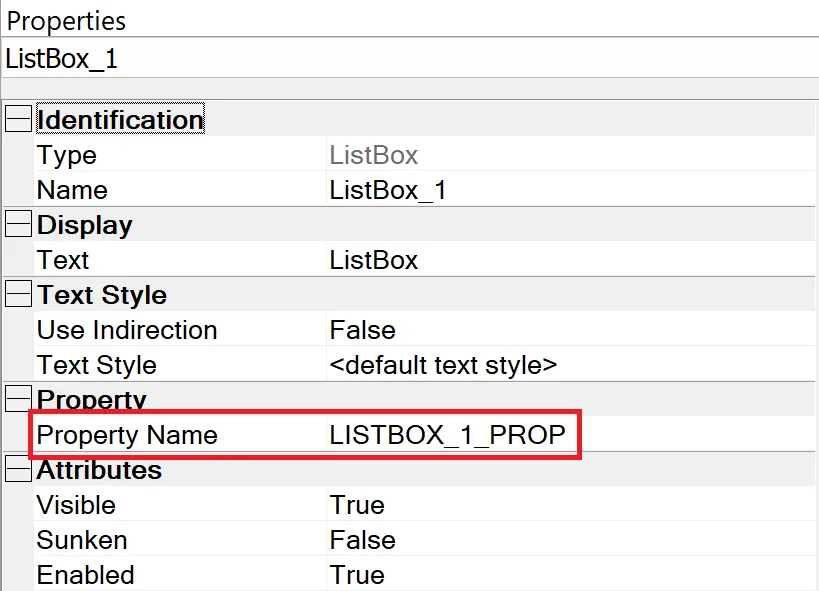
3. Set the ListBox control’s property to match the one used in the PowerShell custom action (LISTBOX_1_PROP).
 You can download the fully configured sample project here.
Why Does Column Alignment Break?
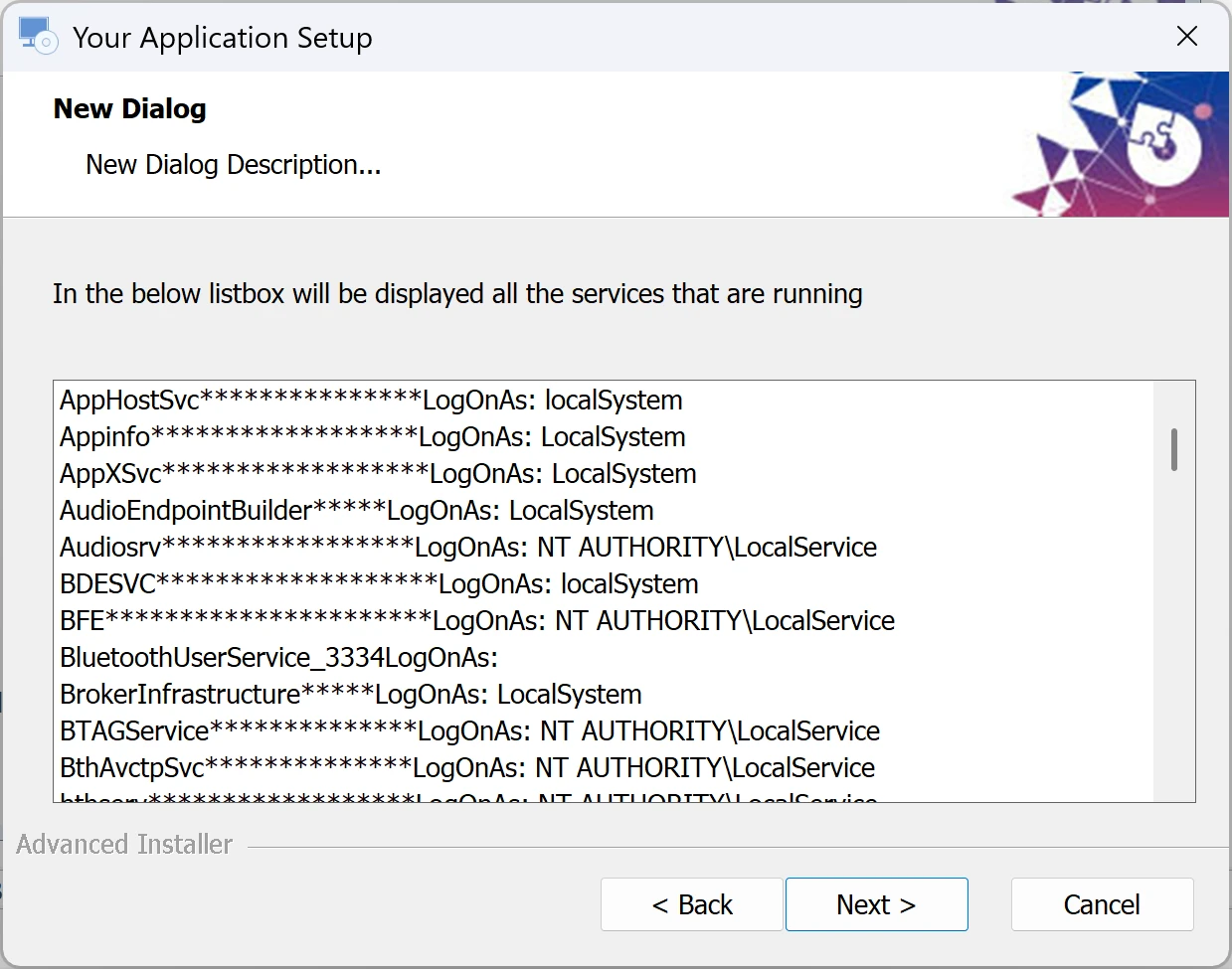
If you build the project and run the MSI, you will notice the columns are not correctly aligned.
That's because Advanced Installer uses Segoe UI by default, which is a proportional font with variable character width. As a result, the columns no longer line up as expected when displayed in the ComboBox.
How to Correctly Align Columns in the Control?
The solution to correctly aligning the columns is to switch the control’s Text Style to a monospaced font (Consolas or Courier New). For this, first you’ll need to define a new text style.
Here’s how:
- Go to the Themes page in Advanced Installer.
- Navigate to the Text Styles tab.
- Click New and define the new Text Style.

Once the new text style is added, it’s time to apply it to your control:
- Navigate to the Dialog containing the control.
- Select the ListBox control.
- In the Properties panel, set the Text Style to the new text style we previously created.

Build and Test
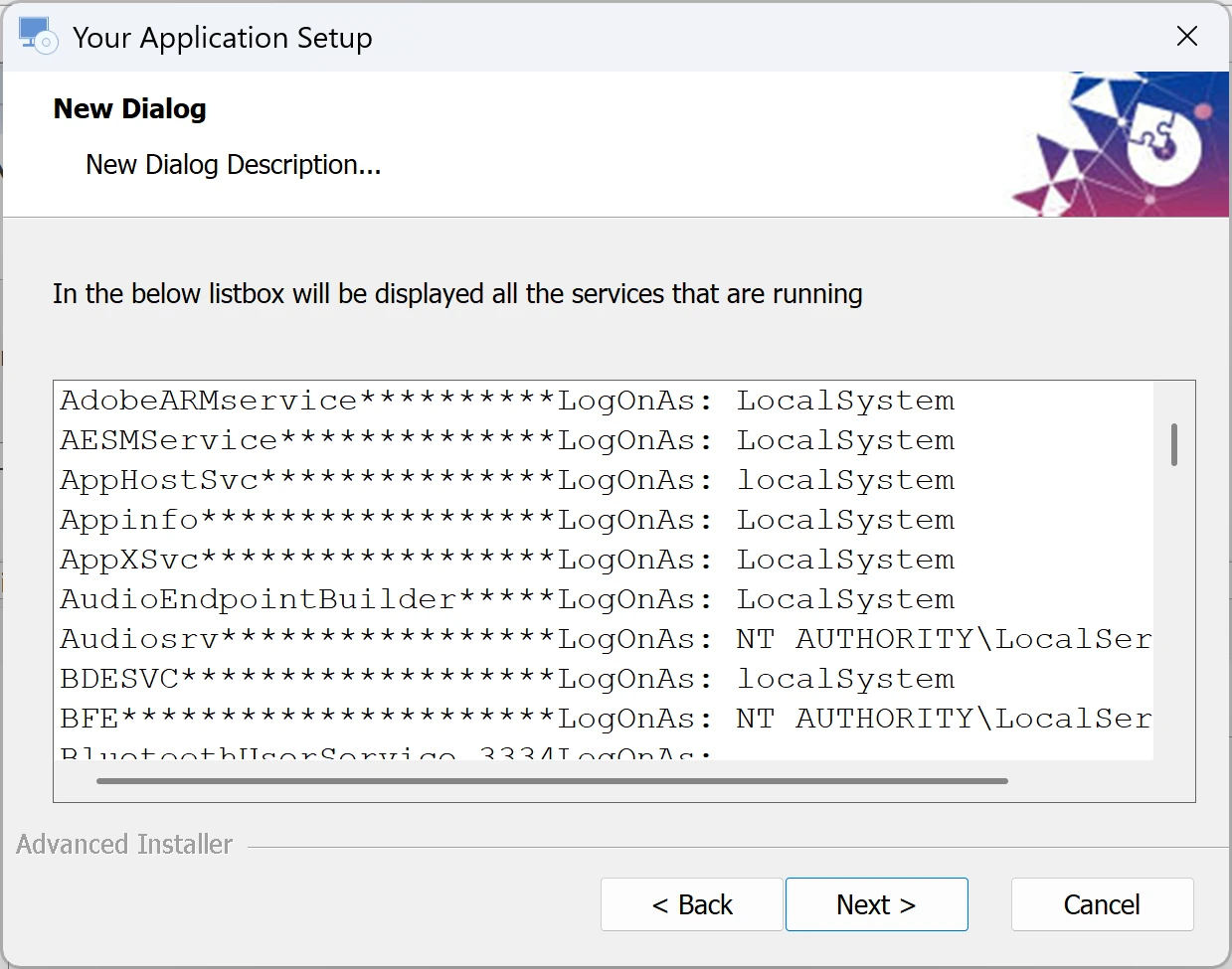
Once the modifications are done, build the project and run the installer again. At runtime, you should notice that the columns within the ComboBox are now properly aligned.
Final Takeaways
- Set a property in the control and fill the formatted values into it through a custom action (PowerShell in the example).
- Use a monospaced font (Consolas, Courier New) by creating a new Text Style under Themes → Text Styles so that padded characters align visually.
- Apply the new text style to the ListBox/ComboBox/CheckListView control in the Dialog UI settings.
- Build and run the installer to confirm that the text columns now align consistently at runtime, without uneven spacing.
- The column alignment breaks because Advanced Installer uses Segoe UI by default
Conclusion
When using list controls in Advanced Installer, column alignment may fail due to font issues. Proportional fonts make spacing inconsistent, so you need to switch your control to a monospaced font for correct alignment.
Written by

Renato Ivanescu
Renato is a technical writer for Advanced Installer and an assistant professor at the University of Craiova. He is currently a PhD. student, and computers and information technology are his areas of interest. He loves innovation and takes on big challenges.