How to Check Windows OS Version and System Architecture for Software Packaging
What version of Windows do I have? This is a far more common question than we’d think. Checking the OS version is important in software packaging and deployment, especially in the modern world. Each new OS version may include new functionality that third-party software developers can use. In cases like this, it is recommended to first check the actual OS version before installing or updating the software.
In this article, let’s focus on three scripting technologies that are currently used in the software packaging and deployment world, and on how we can check the OS version and the system architecture.
Batch

Batch scripting is the backbone of classic Windows automation and has been around for decades. Of course, in the modern world, many people consider batch scripting to be obsolete due to its many limitations, including no native support for functions or modularity, limited data structures, primitive error handling, architecture ambiguity, encoding issues, etc.
On the other hand, batch scripting is still used nowadays to automate many legacy systems, especially for automating repetitive tasks, managing system configuration, and orchestrating legacy workflows.
It is quite easy to use batch scripting to determine the OS version, and the ver command can be used:
@echo off
ver
This will display the Windows version, such as:
Microsoft Windows [Version 10.0.19045.3570]
If you want to identify the system architecture, then you could use the %PROCESSOR_ARCHITECTURE% variable:
@echo off
echo OS Architecture: %PROCESSOR_ARCHITECTURE%
This command outputs the present architecture, which is usually AMD64 for 64-bit systems and x86 for 32-bit systems.
However, %PROCESSOR_ARCHITECTURE% is not bulletproof and was created a while ago. If you run this variable in a 32-bit CMD window, you will get x86 as the returned value, which means that %PROCESSOR_ARCHITECTURE% will get the architecture based on the execution context.
As a workaround for this issue, it is recommended to check if ProgramFiles(x86) exists. This folder and variable are only available on 64-bit systems:
@echo off
if defined ProgramFiles(x86) (
    echo 64-bit OS
) else (
    echo 32-bit OS
)VBScript
VBScript (short for Visual Basic Scripting) is a lightweight interpreted scripting language that became the next big thing after batch scripting.
This is actually a subset of Visual Basic that was intended for scripting environments. VBScript runs in Windows Scripting Host (WSH), Internet Explorer, or embedded in HTML pages.
 The browser support for VBScript has been deprecated, including VBScript running in Internet Explorer and embedded in HTML pages.
VBScript has WMI integration and can easily query system information such as OS, CPU, and RAM.
It also has COM automation, which allows you to control applications such as the Office suite via COM objects. Last but not least, it includes file and registry integrations to create, read, and write to the registry or file system.
However, VBScript is now considered deprecated, and it is currently included in the Windows OS as an “add-on” package. In the future, this add-on will become obsolete and will not be installed by default on the systems.
For IT Administrators who still use VBScript, this add-on would have to be installed manually (for large enterprises, via automation). However, some security concerns are likely to arise in the future.
Microsoft generally allows you the time to migrate any technology, and this applies to VBScript. If you have any type of VBScripts active in your infrastructure, it is recommended to migrate them to PowerShell until the add-on is no longer needed.
The only real question will come to the software packaging world.
Overall, the MSI packages and Windows Installer technology were built to rely on VBScript for any custom actions that the IT Administrator wants to enable.
However, this would imply that the IT Administrators in charge of the software packaging would have to switch to PowerShell for the next era of custom actions. The problem is that MSI does not natively execute PowerShell scripts.
While third-party packaging solutions, such as Advanced Installer, have offered the possibility to implement PowerShell scripts as custom actions for many years, there are still a few things you should be aware of:
1. Each packaging vendor has their own implementation for storing and executing the PowerShell script within the package. In some cases, the PowerShell script will be embedded into a DLL file during the build process, so the only way to see what is executed in that specific package is to either:
- Have the original project.
- Download additional third-party software, such as decompilers, to check what is written in that specific DLL.
2.You can bypass the “native” vendor solution and manually invoke PowerShell through custom actions, but the execution stage must be defined with absolute precision.
3.If you rely on legacy software packages that no longer receive support and still use VBScript for custom actions, you are left with two solutions:
- Send the package to a packaging team to refactor the scripts and convert them to PowerShell.
- Update or replace the software package.
With that out of the way, let’s see how to get the OS version with VBScript:
Set objWMIService = GetObject("winmgmts:\\.\root\cimv2")
Set colOS = objWMIService.ExecQuery("Select * from Win32_OperatingSystem")
For Each objOS in colOS
    WScript.Echo "Caption: " & objOS.Caption
    WScript.Echo "Version: " & objOS.Version
    WScript.Echo "Build Number: " & objOS.BuildNumber
    WScript.Echo "Architecture: " & objOS.OSArchitecture
NextBecause VBScript has access to the WMI, it can obtain the OS name, version, build number, and architecture.
PowerShell
PowerShell is the future of scripting technology. PowerShell allows you to quickly get the information you may need.
To get the OS version, all you need to do is:
Get-ComputerInfo | Select-Object WindowsProductName, WindowsVersion, OSArchitecture
By using the Get-ComputerInfo cmdlet, you can then select the desired object from the output.
In this case, we extracted this:
- Windows Product Name: Windows 11 Pro
- OS Version: 10.0.22631
- Architecture: 64-bit
Sign up to receive webinar invites, tutorials, and experts’ best practices directly to your inbox. We appreciate your time, which is why we only send the content that supports your work and brings in genuine expertise.
Advanced Installer
The MSI technology is quite versatile and has a wide range of options for OS version checks. Additionally, Advanced Installer features additional places where the OS version can help.
Let’s start with the most basic OS version search you can do: the Launch Condition of a specific installer.
If you want your installer to run only on certain OS versions, all you have to do is navigate to the Launch Conditions page:

Advanced Installer allows you to define a specific OS version as a launch condition with a few simple clicks. An installer is meant to run on all Windows versions by default, but you can choose the OS version and architecture from the list to install the package.
Next, we’ll take a look at how resources within a package can be installed depending on the OS version. For example, you can create an installation package that includes resources based on the system architecture or OS version.
To do so, we need to understand the VersionNT property, which is available within MSI packages, and I recommend reading the documentation from here.
Basically, you can set the condition for the VersionNT for each component to a specific value. VersionNT can be split into two:
1. VersionNT: This is designed for x86 systems and usually has the following values:
- 601 → Windows 7
- 602 → Windows 8
- 603 → Windows 8.1
- 1000 → Windows 10
2. VersionNT64: This is designed for x64 systems and usually has the following values:
- 601 → Windows 7 x64 and Windows Server 2008 R2 x64
- 602 → Windows 8 x64 and Windows Server 2012 x64
- 603 → Windows 8.1 x64 and Windows Server 2012 R2 x64
- 1000 for Windows 10 x64, Windows Server 2016 x64, Windows Server 2019 x64
- 20348 → Windows Server 2022 x64
- 1100 → Windows 11
- 26100 → Windows Server 2025 x64
 By default, Windows 10 and Windows 11 set the VersionNT property to 603. However, to differentiate from Windows 8.1, all MSI packages built with Advanced Installer have their values reset to 1000 for Windows 10 and 1100 for Windows 11.
Once we’ve understood how the VersionNT property works, we can go to the Organization Page and select the component we want to install conditionally.
When the component is selected on the right side, a new tab with the component properties will appear. In the Condition field, compose the condition as desired.
For example, if we want a component to be installed only on x86-based systems, all we need to do is:
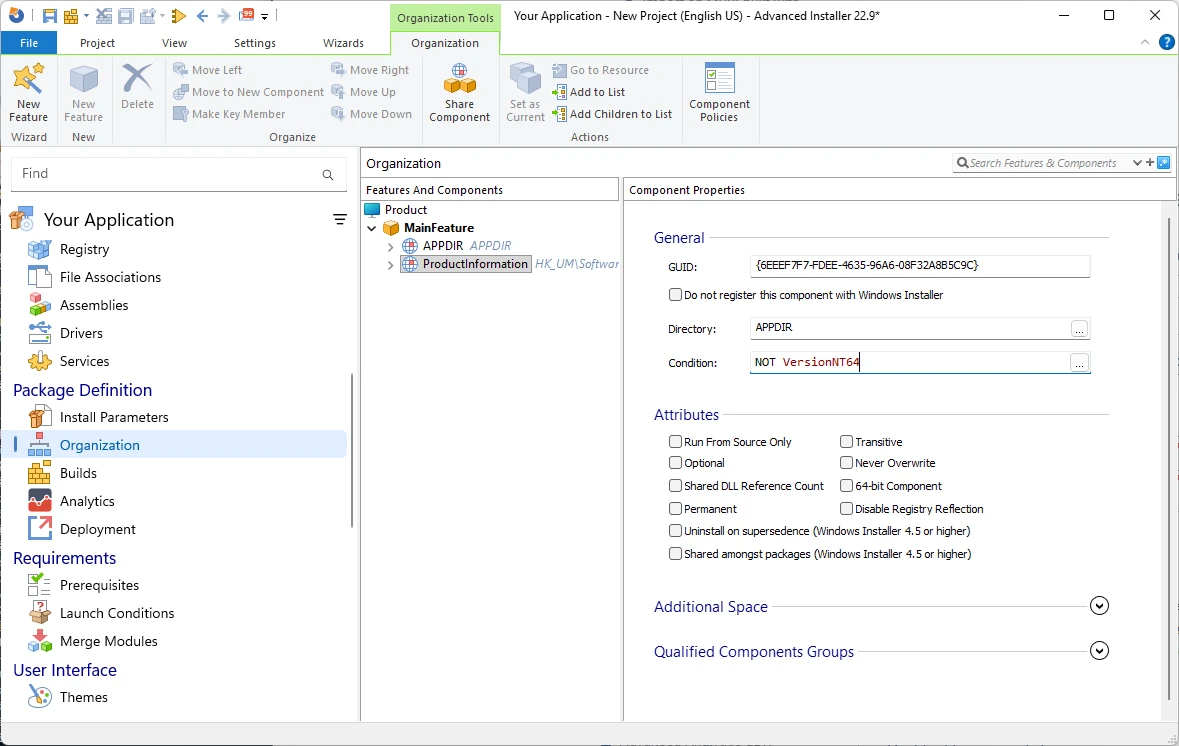
Next, we should also consider that an installation package might contain prerequisites. However, prerequisites may have some limitations depending on the architecture or OS version. Advanced Installer offers the possibility to install a prerequisite based on the OS version and architecture, and the implementation is simple.
First, go to the Prerequisites Page and select the prerequisite that you want to install conditionally. Once you click on it, go to the Conditions tab on the right side and select the Supported Windows Versions.
With this option selected, Advanced Installer will automatically design the package to check for the OS version or the system’s architecture before installing that specific prerequisite.

Finally, the OS version can also be useful within an installation package, specifically in the Custom Actions area. As with components and other areas we explored, you may want a certain Custom Action to execute only if the OS version or system’s architecture meets a certain standard.
Defining this custom action in Advanced Installer is easy, and we will again use the VersionNT property.
First, go to the Custom Actions page, and select the custom action you’d like to modify.
On the right side, under Execution Stage Condition, you have the Condition field. With the component setup, you can either type the condition directly into the field or click on the three dots “...” on the right to build your condition as desired.
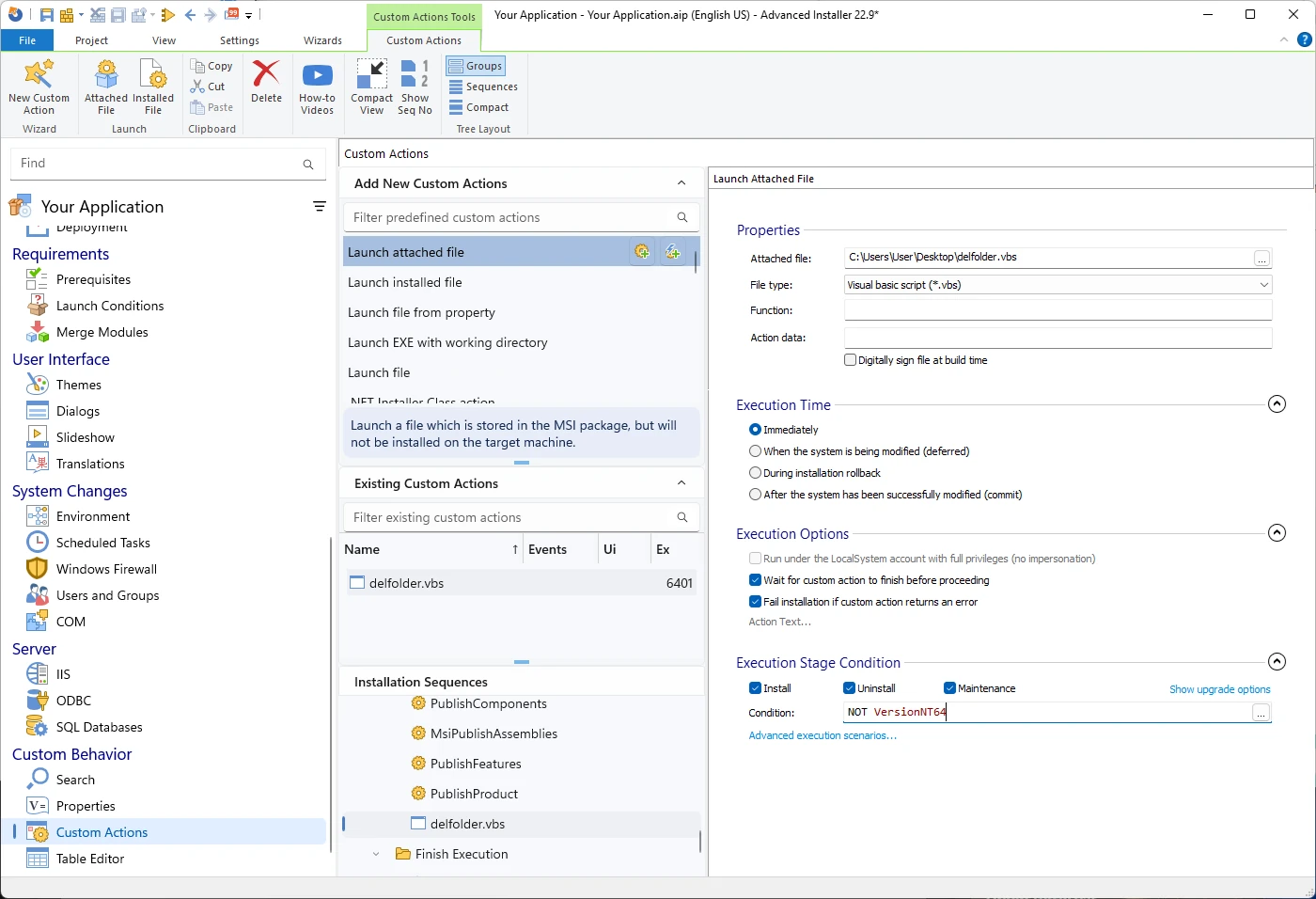
In the example above, we instructed the custom action to execute only when the OS is x86-based.
If you want to experiment with VersionNT conditions or PowerShell custom actions, you can download Advanced Installer and unlock a 30-day trial with all features enabled.
Every edition feature is included in the trial period, such as:PowerShell Automation Interface, Advanced Custom Actions, Prerequisites
Final Takeaways
- Modern packaging depends on accurate OS detection, and every workflow begins with knowing exactly what version and architecture you are dealing with before any installer runs.
- Batch and VBScript can still pull useful system facts, but each carries its age on its sleeve, and both remain trapped inside legacy constraints that shape how far they can be pushed today.
- PowerShell steps in as the natural successor, offering fast queries, rich objects, strong automation capabilities, and a future-proof path for environments that still depend on older scripts.
- Advanced Installer provides packagers with powerful options that rely on VersionNT logic, letting you steer components, prerequisites, and custom actions with precise OS and architecture conditions.
- The shift away from VBScript is already unfolding, and moving to PowerShell while modernizing installation logic is the safest way to avoid broken custom actions, stalled deployments, and painful rewrites later.
Conclusion
In the modern software packaging process, checking the OS version and architecture is a vital step to ascertain compatibility and eliminate deployment problems.
Although Batch and VBScript are still used for legacy purposes, PowerShell is the future of automation with strong, secure, and extensive abilities. Transitioning from VBScript to PowerShell is not just advised: it is the trend of the future.
The phasing out of VBScript leads to this question: what will be your alternative?
You can sign up to receive webinar invites, tutorials, and experts’ best practices directly to your inbox. We appreciate your time, which is why we only send the content that supports your work and brings in genuine expertise.
Written by

Alex Marin
Application Packaging and SCCM Deployments specialist, solutions finder, Technical Writer at Advanced Installer.