How to Run an .exe File on a Mac
In a previous blog article, we discussed what an EXE setup file is, how it differs from an MSI installer, and other general EXE file particulars related to Windows setup.exe.
In this blog article, we’ll explore beyond the Microsoft ecosystem and cross over to Apple’s exe files in macOS, and specifically, how to open an exe file on macOS. In other words, we’ll learn how to run an .exe file on a Mac.
Why Do I Need to Run an .exe File on a Mac?

By default, .exe files are Win32 executables designed to run on a Windows operating system (Win32 or Win64, depending on the architecture). Mac OS applications are packaged differently. They come in a .pkg format, and once installed, in a .app format. That is what actually happens when clicking on a Mac application.
Here is a simple side-by-side table:
Windows | macOS | |
|---|---|---|
Installer | .msi or .exe | .pkg |
Executable | .exe | .app |
Now the question is, why would you need to install an exe setup or simply execute an exe application on a Mac?
Here are some possible explanations:
- The application is not available or compatible with macOS.
- You don’t have a Windows-based PC.
What should you do in this situation? Buy another laptop?
How Do I Run an .exe File on a Mac Device?
As I mentioned earlier, .exe files are not natively supported on a Mac. When you try to open an .exe file inside macOS, you get an error message similar to this:
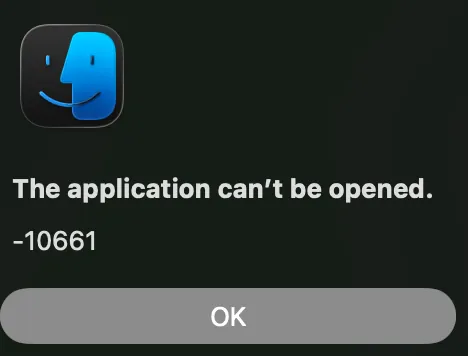
Fortunately, not everything is lost. Depending on the type of processors your Mac device has, there are some workarounds.
Boot Camp
If you have an Intel-based macOS, you can enable Boot Camp and install Windows. This way, when you turn on your device, you can decide whether to boot in Windows or macOS.
As a result, you’ll end up with two operating systems on the same device. This allows you to run .exe files on your Mac while using Windows.
Cloud PC / Remote Desktop
If you have cloud PCs stored in Azure that run on Windows, you can always use a remote connection to access them and run any .exe application there.
Virtual Machines
If you have a modern Apple Mac device with silicon processors, Boot Camp is not an option. Instead, you can opt for virtual machines like VirtualBox, VMware, or Parallels. On these virtual machines, you can install Windows, but not all .exe files will run properly. Why is that? These technologies still use emulation to translate between different hardware using a Rosetta-based solution.
So far, Parallels seems to do the best job, offering decent performance for running Windows applications and performing basic tasks, while continuously improving its features. However, keep in mind that this is a paid service and will not replace a native Windows device.
Even if you have the most recently released Mac device with the best specs in terms of processor and RAM, it will still feel like you’re running on a low-end Windows device. So take this with a grain of salt.
Wine / CrossOver
Wine and Crossover are software that allow you to run .exe applications on a Mac device.
Wine is free, but it works only on Intel-based Mac devices.
CrossOver, on the other hand, is paid software with more capabilities and works on Apple silicon-based devices by using the same Rosetta-based solution I mentioned earlier.
From the start, you need to know that Wine and CrossOver cannot run drivers and hardware-dependent software. While light apps work with either software, larger apps typically only work on Crossover, and its performance is better.
 Wine stands for Wine Is Not an Emulator (it does not emulate but translates Windows API calls into macOS).
How to Run EXE Files Using Wine
Let's see how to run apps using Wine. First, you need to install Wine. For this, we chose the Homebrew option.
From a terminal, run the following commands:
1. Install Homebrew if not already installed:
/bin/bash -c "$(curl -fsSL https://raw.githubusercontent.com/Homebrew/install/HEAD/install.sh)"
2. Install Wine:
brew install --cask wine-stable
3. Run your .exe file:
wine yourprogram.exe
How to Run EXE Files Using CrossOver
Now let’s see how we can run an .exe on a Mac using CrossOver with a few simple steps:
- Download CrossOver from the official website: CodeWeavers.
- Open the app and point it to your .exe files.
- Follow the installation wizard.
As you can see, Wine is a command-line-based solution, while CrossOver provides a more user-friendly GUI.
Final Takeaways
- The EXE files are built for Windows, so macOS cannot support them natively, and trying to run one directly will always result in an error.
- Depending heavily on your Mac’s processor, some virtual machines or remote desktops can give you a Windows environment where the EXE files can run properly.
- Tools such as Wine or CrossOver can run certain simple Windows apps, but their performance varies, and hardware-dependent software usually will not work.
- The smoother experienc e tends to come from either Parallels or CrossOver, but both of them come with a cost and still cannot fully replace a native Windows setup.
- Before investing time and tools, consider what you really need because sometimes the simplest solution is owning or accessing an actual Windows device.
Conclusion
While .exe files cannot be run natively on a Mac device, there are some workarounds. However, always keep in mind the limitations, performance issues, and the cost.
Sometimes, buying a separate Windows-based device is your best solution.
Written by

Radu Popescu
Technical Writer at Advanced Installer, Technical Engineer on various enterprise client projects. Experienced in Software Packaging, SCCM infrastructure and System Administrating. Tech enthusiast and music producer in his spare time.