Preserve User Settings Across Updates in an MSIX Package
MSIX is a modern packaging technology that provides reliable application deployment.
But what happens when you update an application and want to preserve user-specific settings?
Different software development technologies handle user configuration files in various ways.
For instance, in .NET applications using Properties.Settings for storing user configurations, the files are placed in versioned folders. When an application is updated, it starts pointing to a new folder, making it seem like the user settings have been reset – even though the old configuration file still exists in the previous version’s folder.
So, you’ll need to migrate these settings from the older version manually.
To avoid this, it’s important to control how your app manages configuration settings during an update.
A common approach is to store the user settings in a dedicated configuration file that your application manages directly. This way, the updated version of the app can continue using the same configuration file without interruption.
In this article, I’ll walk you through how to update a WinForms application deployed via MSIX while preserving user-specific settings.
 Did You Know?Advanced Installer was the first third-party tool to offer full built-in support for MSIX packaging.Watch the launch announcement to see how Advanced Installer pioneered MSIX integration.
Creating the Application

For this tutorial, I created a simple WinForms application that will be installed and later updated.
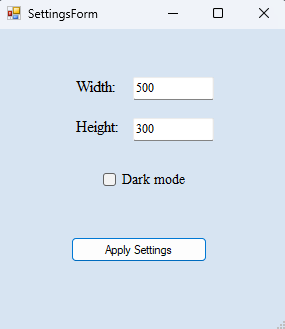
To simulate user-specific configuration, I added a configuration form that allows the users to customize the main windows. The configuration form includes fields for setting the width, the height, and a checkbox to enable the dark mode.
Saving User Configuration Settings
Now, let’s handle how user settings are saved. These settings are loaded at startup and used to configure the main window.
Default Approach in .NET
A common method to save user settings in a .NET app is:
- Right-click on the project → Properties.
- Go to the Settings tab.
- Define new settings to store and retrieve information for your application.
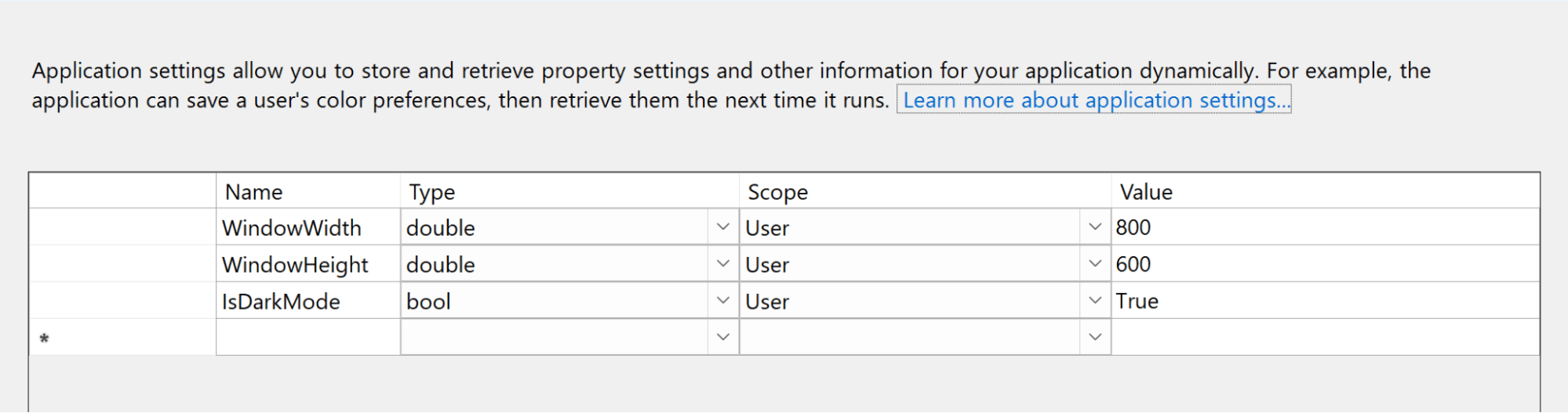
In my sample app, I added settings for window width, height, and theme, along with default values.
These settings are saved in a user.config file located in a versioned folder in the user’s profile, such as:
AppData\Local\Packages\<PackageFamilyName>\LocalCache\Local\<AppName>\<AppName>_Url_<Hash>\<Version>\user.config
To update or retrieve them, use the Properties.Settings.Default object.
Here’s how to update the settings.
private void btnSaveSettings_Click(object sender, RoutedEventArgs e)
{
    //…
    Properties.Settings.Default.WindowWidth = txtWidth;
    Properties.Settings.Default.WindowHeight = txtHeight;
    Properties.Settings.Default.IsDarkMode = chkTheme.IsChecked == true;
    Properties.Settings.Default.Save();
    MessageBox.Show("Settings saved successfully!");
    //…
}And here’s how to retrieve the settings on startup.
public MainWindow()
{
    InitializeComponent();
    this.Width = Properties.Settings.Default.WindowWidth;
    this.Height = Properties.Settings.Default.WindowHeight;
    if (Properties.Settings.Default.IsDarkMode)
    {
        // Apply your dark theme here
    }
}Migrating the User Settings Between Versions - The Core Challenge
The critical part is migrating the user settings between versions during an update.
With MSI, this is straightforward using the Properties.Settings.Default.Upgrade() method.
This method runs once after a new version is installed and migrates the settings from the previous version.
This works because MSI stores configuration files for different versions under the same base folder within the user’s AppData\Local directory.
\..\<AppName>\<AppName>_Url_<Hash>
			↳ <1.0.0>\user.config
				↳ <2.0.0>\user.config
The Upgrade() method looks for the shared location, for the configuration file of the previous version and automatically performs the migration.
Why It Doesn’t Work with MSIX
Unfortunately, with MSIX, the Upgrade() method does not work.
That's because MSIX isolates app data per version and assigns each version a unique hash.
This results in separate base paths for different versions.
\..\<AppName>\<AppName>_Url_<V1Hash>
			↳ <1.0.0>\user.config
	\..\<AppName>\<AppName>_Url_<V2Hash>
			↳ <2.0.0>\user.config
As a result, the Upgrade() method can not automatically migrate the previous version’s settings.
To work around this you can use a custom script or a custom logic that copies the <1.0.0>\user.config into the \..\<AppName>_Url_<V2Hash> folder. This puts them under the same base path so the new version can access the old settings.
Recommended Approach – Use a JSON File
A more reliable method for storing user settings is to use a custom JSON file. This gives you full control over where the data is stored and how it’s managed across updates.
Unlike the Properties.Settings approach, you don’t have to handle migrations as the file remains in the same location after updates.
{
  "WindowWidth": 800,
  "WindowHeight": 600,
  "IsDarkMode": true
}To ensure the settings persist between updates, save the file to a path under %LocalAppData%. At startup, the application simply reads from this JSON file and applies the settings to configure the main form.
string appData = Environment.GetFolderPath(Environment.SpecialFolder.LocalApplicationData);
string folder = Path.Combine(appData, "MyCompany", "MyApp");
Directory.CreateDirectory(folder);
string settingsPath = Path.Combine(folder, "AppSettings.json");
Installing the Application
Once your application is ready to be deployed, you can create the MSIX package for version 1.0 of the application.
 For a step-by-step guide on how to create an MSIX package with Advanced Installer, check the article here.
Install the application and run it.
Enter some values in the configuration form and click Apply Settings.
The settings will be saved to the AppSettings JSON file in the folder:
%LocalAppData%\MyCompany\MyApp
Updating the Application
After installing version 1.0 of the application, it's time to simulate an update:
- Make changes to your application
- Update the Assembly version to 2.0
Then, in your Advanced Installer project:
- Replace the old resource files with those from the 2.0 build
- Increase the package version number to 2.0 on the Product Details page.
Build the project to generate the new MSIX package and then install the updated application.
You’ll notice that the form is still configured with settings from version 1.0. This confirms that your user settings have been preserved across the update thanks to storing the configuration file in a persistent directory under %LocalAppData%.
Conclusion
When deploying an application through MSIX and needing to preserve user-specific settings, it’s recommended to save the settings in a file located in a user-specific directory, like %LocalAppData%.
This location isn’t affected by version updates, ensuring a seamless user experience from one version to the next.
If you enjoyed this article, subscribe to the Advanced Installer newsletter for more application packaging and deployment tips, updates, and insider insights—delivered right to your inbox!Subscribe to the Advanced Installer Newsletter
Written by

Renato Ivanescu
Renato is a technical writer for Advanced Installer and an assistant professor at the University of Craiova. He is currently a PhD. student, and computers and information technology are his areas of interest. He loves innovation and takes on big challenges.