Repackaging vs Wrapping: Which is the Best Option for Software Packaging?
One of the greatest things about software packaging is the variety of choices available to you to achieve your objectives. However, having too many alternatives to choose from can make it challenging to pick the best one for your requirements.
Wrapping an installation vs. repackaging is one of those options.
In this article, we'll compare them to help you decide which one suits your requirements the best.
What are Wrappers in Application Packaging?

A wrapper is an additional operation that you can add to an original software installation. Its purpose is to modify the installation process by using parameters and to perform additional tasks before or after the installation.
There are many types of software wrappers out there, and in this article, we'll talk about the two most popular ones: PowerShell App Deployment Toolkit and MSI Wrappers as well as the latest tool powered by Advanced Installer: PacKit, which includes the wrapper function.
What is PowerShell App Deployment Toolkit?
PowerShell App Deployment Toolkit is an open-source project composed from a set of functions that allow you to perform common application deployment tasks and interact with the user during deployment.
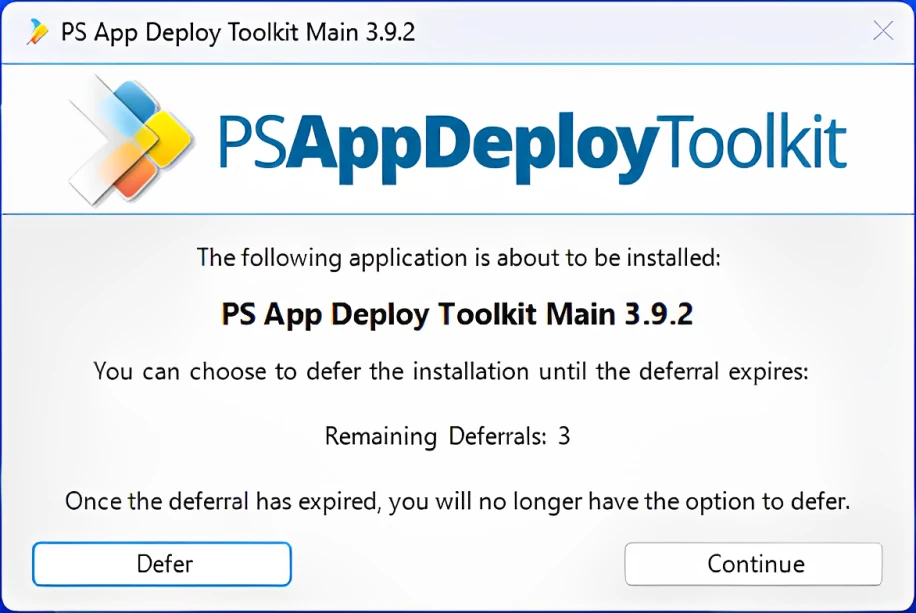
PowerShell App Deployment Toolkit simplifies complex installation or uninstallation scripts and improves the installation success rate. It helps you build an installation bundle (suite) or make additional system changes with just a few lines of code.
The installation logic of PSAppDeployToolkit consists of three main actions: Installation, Uninstallation, Repair. Each of these actions further consists of three sub-actions:
1. Pre-Installation/Pre-Uninstallation/Pre-Repair
2. Installation/Uninstallation/Repair
3. Post-Installation/Post-Uninstallation/Post-Repair
The PowerShell App Deployment Toolkit offers access to custom-developed cmdlets, and you can use the standard PowerShell cmdlets as well.
Using PowerShell App Deployment Toolkit to add a wrapper over your installation
For example, if we want to silently install an EXE (like VLC), here's what we need to do:
1. Perform all the pre-actions we want in the Pre-Installation stage,
2. Then, we install VLC Media Player silently in the Installation stage,
3. After, we can carry out any post-actions (i.e. disabling updates) in the Post-Installation stage.

By doing this, we can consider that we added a wrapper over the installation of the VLC Media Player.
Wrap Using PacKit
PacKit is a tool that bridges the gap between application packaging and deployment. Among its features, it offers the option to wrap your setup using the PowerShell App Deployment Toolkit (PSADT).
Here's how it works:
1. Create a Workspace
First, you create a workspace to manage your application packages. Think of it as your centralized packaging database.
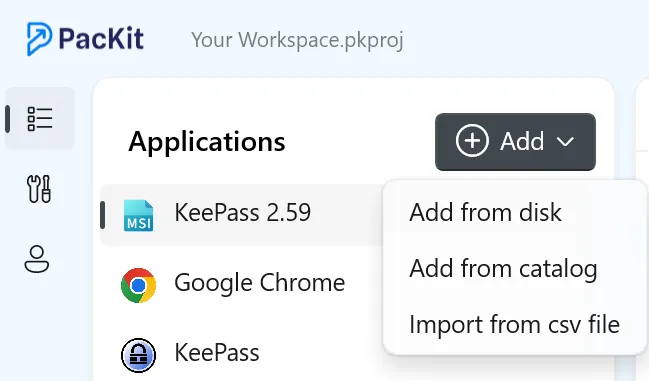
Once your workspace is ready, you can start adding applications by clicking the Add button. Here you have the option to choose between:
- Add from disk – Point to the location of the setup installer on your machine.
- Add from catalog – Search and import applications directly from the WinGet repository.
2. Select the Setup File
After adding your application, select the setup executable (MSI or EXE) from the top panel.
This will open a window with different options, including Wrap with PSADT.

3. Wrap with PSADT
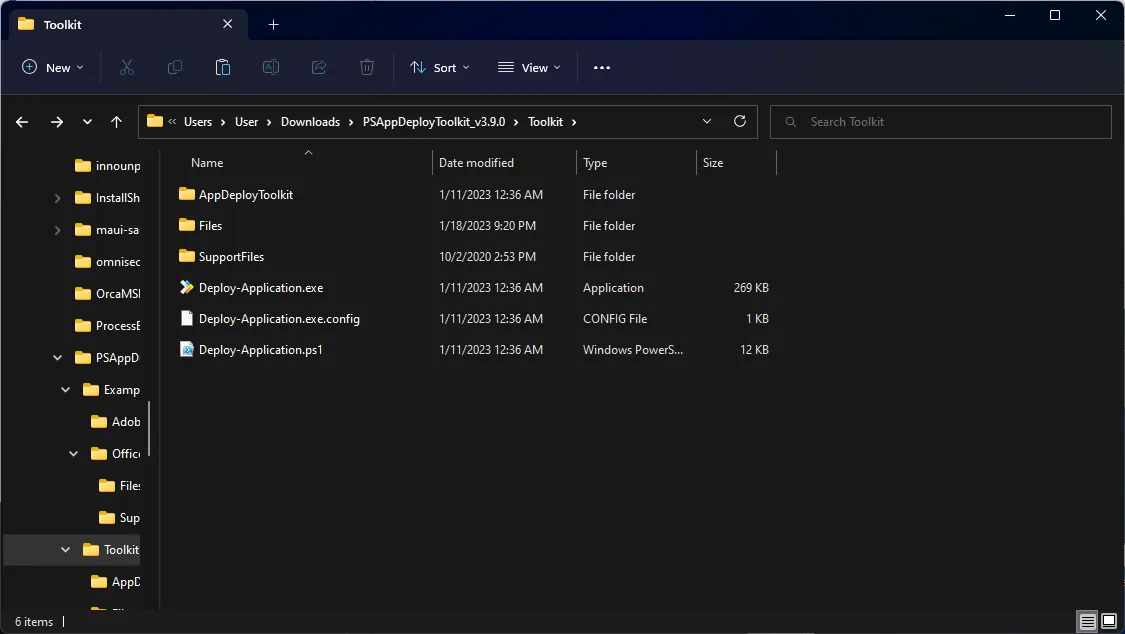
Clicking Wrap with PSADT generates the .ps1 deployment script and creates the full PSADT folder structure, including all necessary files. This can be seen in the auto-opened file explorer window.
4. View and Edit the Script
Navigating back to PacKit, you can see the .ps1 script generated in your application structure on the top panel.
In the proprietary window, you will see the related options. With the latest release of PacKit, you can now edit the script directly from packing. You can, of course, edit it in your preferred editor, and they load it into packing by clicking the load button.
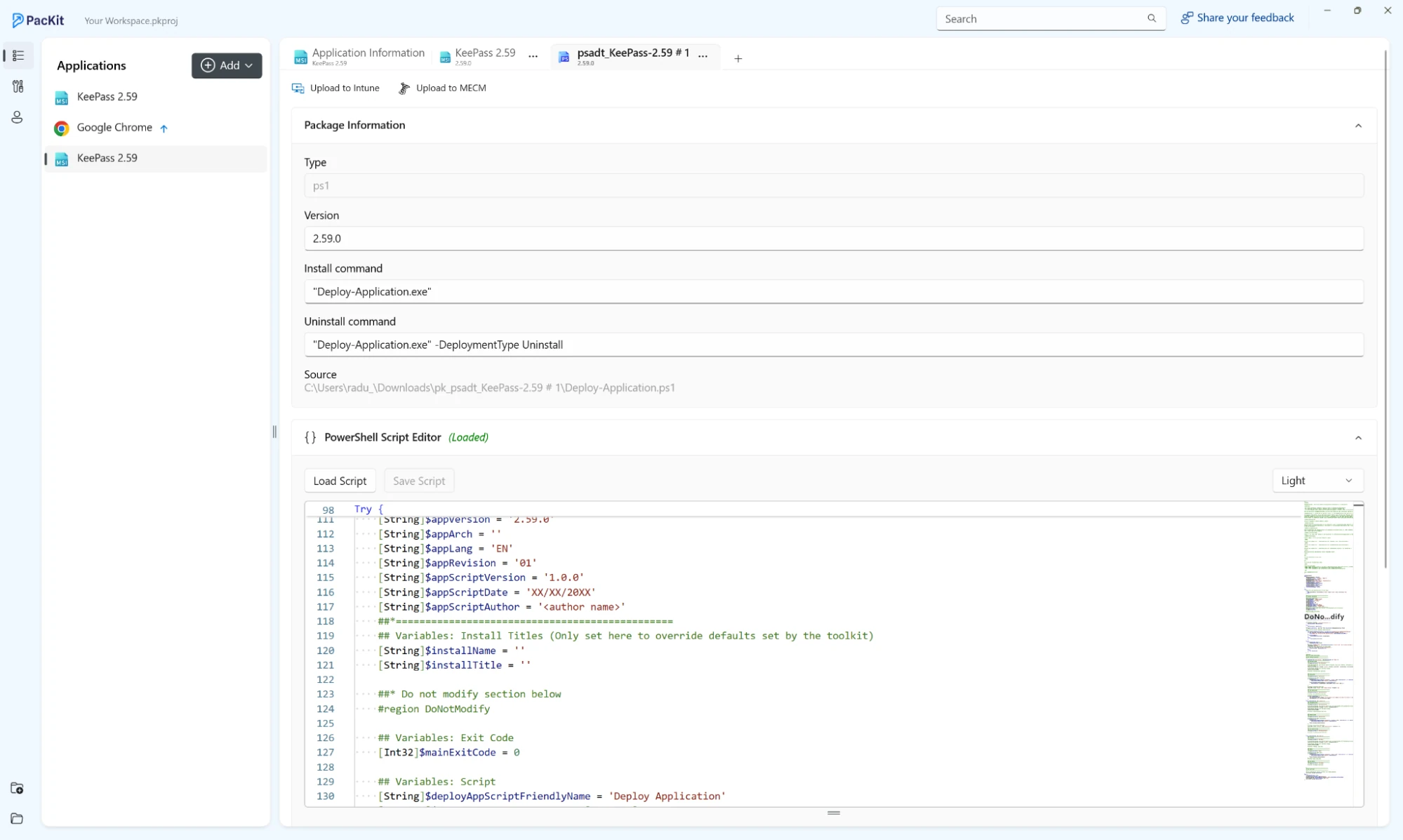
 PacKit automatically passes the information defined in the application’s metadata into the PSADT script, saving you setup time and reducing manual edits.
 Download PacKit for free — built by the Advanced Installer team to help IT professionals wrap, configure, and deploy applications with ease.
MSI Wrapper
If you don’t want to use PowerShell scripts, VBScript or any other type of scripting language to create a wrapper over your installation, you can easily create an MSI Wrapper over your EXE installation. How?
We can do this easily by using Advanced Installer MSI Wrapper.
We have a tutorial on How do I create an MSI wrapper over EXE installation files?. To sum it up, you can wrap your EXE into an MSI.
 Make sure not to register the MSI with Windows Installer to avoid double entries in the Add/Remove Programs section, and add all the needed actions directly from the GUI of Advanced Installer.
What is Repackaging?
Repackaging allows you to create projects based on capturing existing installations.
The installation repackaging operation is based on monitoring the file system and registry changes performed by the monitored installation.
If you choose to repackage an application, I strongly recommend reading the Repackaging Best Practices for this operation.
Repackaging an installation takes more time and relies heavily on the experience of IT Pros to make the installation perform as expected since repackaging is not an exact science, and each installer is different. Even if you use a tool like Advanced Installer to make it easier, that won't get rid of all the garbage in the output.
As a best practice, it is recommended that you repackage your installers into an MSI when pushing them in an infrastructure. Here are the main reasons:
- MSI Databases are created and designed by Microsoft, meaning that it’s easier to adopt them in an infrastructure. Also, many infrastructure management tools offer easier options to integrate MSIs, in comparison to EXE or other types of installations.
- MSI Databases offer advanced logging options which are important when it comes to debugging your faulty installations. Keep in mind that not all EXE installers include logging options, and not all installers have the same command line for logging, as EXEs can be created with a wide range of tools.
- MSI Databases provide a standard in the industry which makes it easier to understand what is going on with your installation.
- MSI Databases are editable with any tool out there, meaning everybody can check what is placed on the system during the installation, offering a much bigger sense of security.
Advanced Installer also includes command line actions to help you. Check out this article: Automating the Repackaging Process of SCCM Applications.
Conclusion
If you want a faster way to perform additional actions before or after your installation, you can use any type of wrapper available. However, if you want granular control over what exactly the installation package does, then I recommend using the repackaging method—yes, even if it takes more time.
We hope this article gives you a clearer perspective on these two options to help you make the best choice for you.
Let us know what other topics you'd like us to cover.
Written by

Alex Marin
Application Packaging and SCCM Deployments specialist, solutions finder, Technical Writer at Advanced Installer.