How to install RSAT on Windows 11
If you’re an IT administrator managing multiple Windows servers, you may have heard of Remote Server Administration Tools (RSAT). RSAT is a collection of Microsoft utilities that let you manage Windows Server roles and features remotely from a Windows client machine — meaning you don’t need to log in to the server itself to perform administrative tasks.
In this article, I will explain how to install RSAT on Windows 11. There are several ways to install RSAT on your device, and the installation process varies across different Windows versions.
How to install RSAT on Windows 11

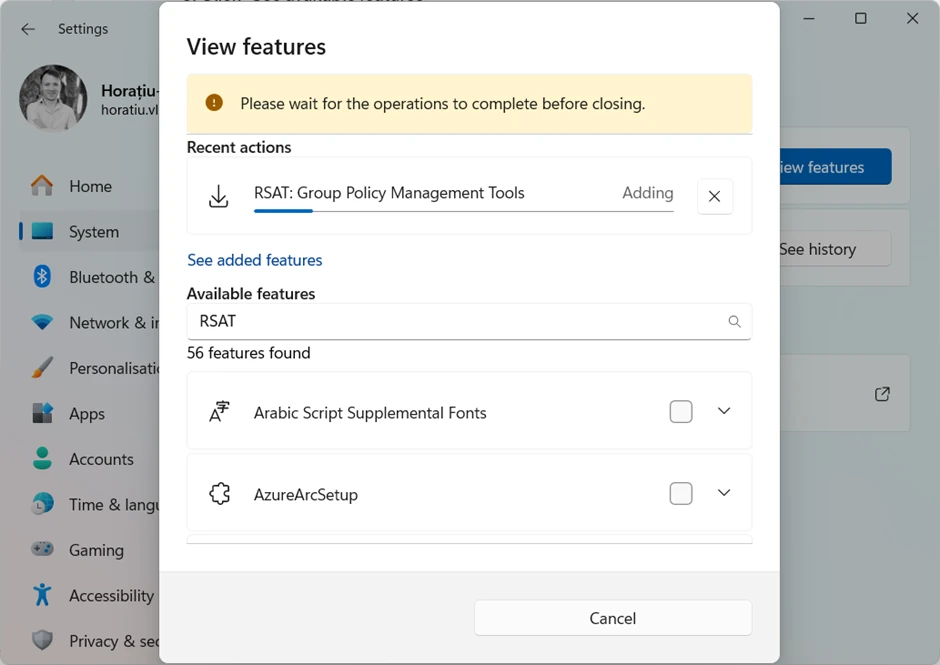
Here’s how you can install the GUI version of RSAT from Windows Settings:
1. In the “Settings” menu, click on “System”, and then click “Optionalfeatures”
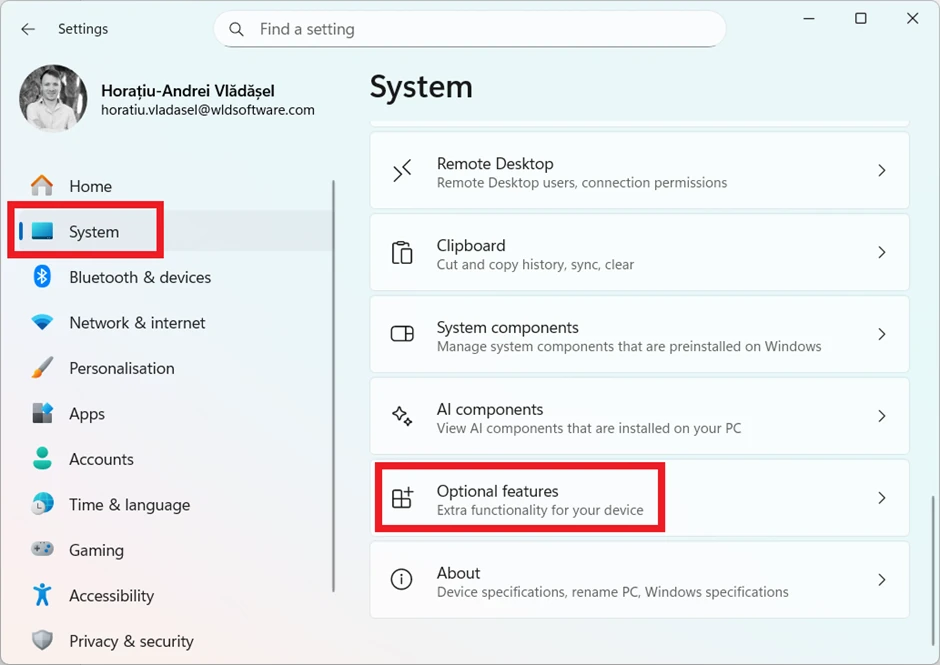
2. Click “View features”.
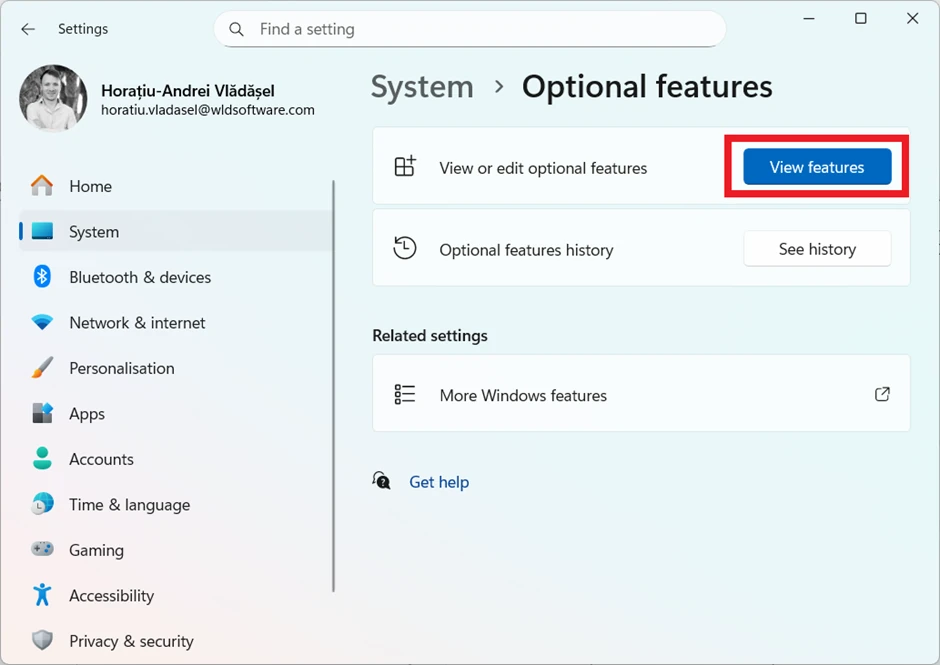
3. Click “See available features”.
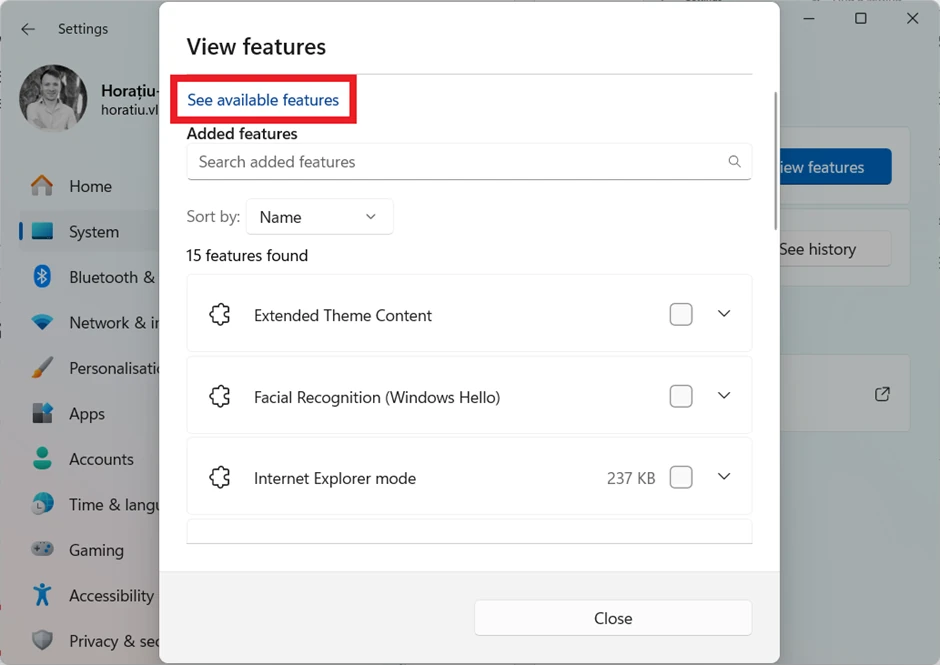
4. Type “RSAT” in the search field.
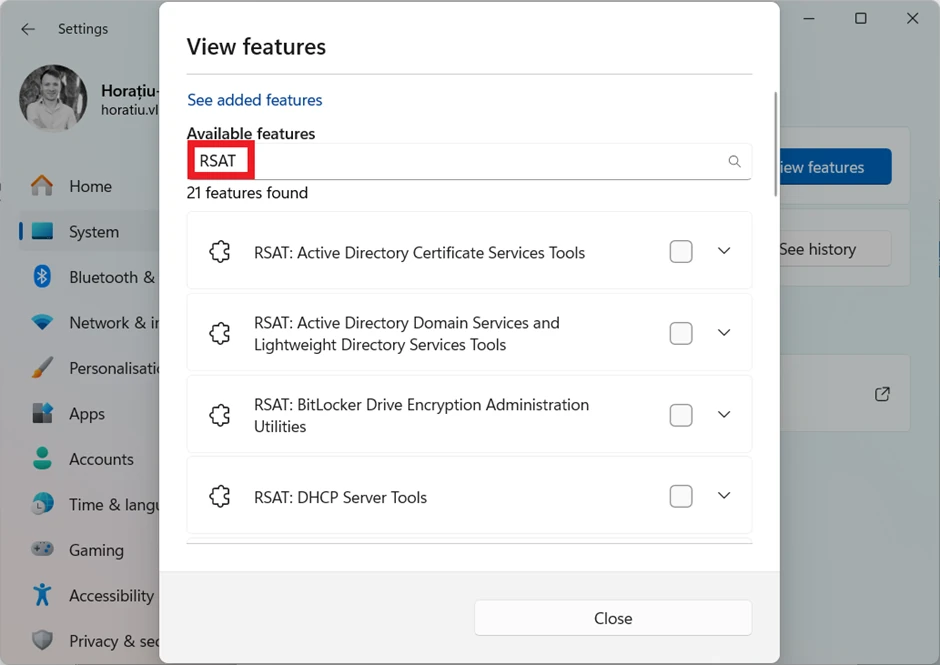
5. Select the RSAT features you want to install and then click “Add”.

6. Wait for operations to complete before closing the window.
How to install RSAT using PowerShell cmdlet
PowerShell is the most efficient way to automate or deploy in bulk. You can install RSAT features one at a time or all together.
Install a specific RSAT feature
To add a specific RSAT feature, you can use the Add-WindowsCapability PowerShell cmdlet:
Add-WindowsCapability -Online -Name "<CapabilityName>"
Here is a list of all RSAT features along with their proper capability name:
DisplayName | Name |
|---|---|
RSAT: Active Directory Domain Services and Lightweight Directory Services Tools | Rsat.ActiveDirectory.DS-LDS.Tools~~~~0.0.1.0 |
RSAT: PowerShell module for Azure Stack HCI | Rsat.AzureStack.HCI.Management.Tools~~~~0.0.1.0 |
RSAT: BitLocker Drive Encryption Administration Utilities | Rsat.BitLocker.Recovery.Tools~~~~0.0.1.0 |
RSAT: Active Directory Certificate Services Tools | Rsat.CertificateServices.Tools~~~~0.0.1.0 |
RSAT: DHCP Server Tools | Rsat.DHCP.Tools~~~~0.0.1.0 |
RSAT: DNS Server Tools | Rsat.Dns.Tools~~~~0.0.1.0 |
RSAT: Failover Clustering Tools | Rsat.FailoverCluster.Management.Tools~~~~0.0.1.0 |
RSAT: File Services Tools | Rsat.FileServices.Tools~~~~0.0.1.0 |
RSAT: Group Policy Management Tools | Rsat.GroupPolicy.Management.Tools~~~~0.0.1.0 |
RSAT: IP Address Management (IPAM) Client | Rsat.IPAM.Client.Tools~~~~0.0.1.0 |
RSAT: Data Centre Bridging LLDP Tools | Rsat.LLDP.Tools~~~~0.0.1.0 |
RSAT: Network Controller Management Tools | Rsat.NetworkController.Tools~~~~0.0.1.0 |
RSAT: Network Load Balancing Tools | Rsat.NetworkLoadBalancing.Tools~~~~0.0.1.0 |
RSAT: Remote Access Management Tools | Rsat.RemoteAccess.Management.Tools~~~~0.0.1.0 |
RSAT: Remote Desktop Services Tools | Rsat.RemoteDesktop.Services.Tools~~~~0.0.1.0 |
RSAT: Server Manager | Rsat.ServerManager.Tools~~~~0.0.1.0 |
RSAT: Storage Migration Service Management Tools | Rsat.StorageMigrationService.Management.Tools~~~~0.0.1.0 |
RSAT: Storage Replica Module for Windows PowerShell | Rsat.StorageReplica.Tools~~~~0.0.1.0 |
RSAT: System Insights Module for Windows PowerShell | Rsat.SystemInsights.Management.Tools~~~~0.0.1.0 |
RSAT: Volume Activation Tools | Rsat.VolumeActivation.Tools~~~~0.0.1.0 |
RSAT: Windows Server Update Services Tools | Rsat.WSUS.Tools~~~~0.0.1.0 |

For example, to install RSAT: Active Directory Domain Services and Lightweight Directory Services Tools, run the following PowerShell cmdlet:
Add-WindowsCapability -Online -Name "Rsat.ActiveDirectory.DS-LDS.Tools~~~~0.0.1.0"
Install all RSAT features at once
If you want to install all available RSAT features, then you can use the following PowerShell cmdlet
Get-WindowsCapability -Name RSAT* -Online | Add-WindowsCapability -Online
This will automatically download and install all RSAT components on your machine.
Uninstall a specific RSAT feature
To remove an RSAT feature, you can use the Remove-WindowsCapability PowerShell cmdlet. For example:
Remove-WindowsCapability -Online -Name "Rsat.ActiveDirectory.DS-LDS.Tools~~~~0.0.1.0"
Check installed RSAT features
To verify which RSAT components are installed on your system, use this:
Get-WindowsCapability -Name RSAT* -Online | Select-Object -Property DisplayName, State
This gives you a quick overview of what’s installed and what’s still available.

Final Takeaways
- RSAT is a library of Microsoft utilities that enable users to manage Windows Server roles and features remotely.
- If you want to install the GUI version, you can go to Settings → System → Optional features → View features → See available features → type “RSAT” in the search field → Select and add the features you need
- You can install a specific RSAT feature using PowerShell with this cmdlet: Add-WindowsCapability -Online -Name "<CapabilityName>"
- Use this cmdlet to install all RSAT features at once: Get-WindowsCapability -Name RSAT* -Online | Add-WindowsCapability -Online
- Uninstall a specific RSAT feature with a cmdlet such as: Remove-WindowsCapability -Online -Name
Conclusion
While the Settings app offers a simple way to install RSAT, PowerShell provides better control and automation. With just a few cmdlets, IT pros or administrators can install, remove, or simply audit RSAT features across multiple systems programmatically, saving time and resources.
Written by

Horatiu Vladasel
Horatiu is a Software Packager/Sequencer with over 10 years experience, who has worked as a Software Packager at IBM and is currently offering software packaging services to companies such as BT or Nationwide.