App-V to MSIX Conversion: MSIX Packaging Tool Limitations
Automatically converting your App-V application to MSIX spares you from rebuilding it from the ground up.
But remember that the MSIX platform has its own unique set of constraints. These limitations are notably more expansive compared to the relatively more forgiving App-V 5 environment.
App-V and MSIX – A Quick Recap

In our previous article we went through How to convert an App-V 5 file to MSIX.
Converting from an App-V package to MSIX is more direct and uncomplicated than with other installer technologies, such as MSI, EXE, or Script installers.
Basically, you are expedited through the process, bypassing the usual steps of capturing your application installer's files and registries that are typical in repackaging.
The simplicity of this conversion lies in the fact that only the manifest file of the package requires modification, while all other package resources remain unchanged.
The App-V to MSIX conversion can be automated for bulk conversion. Here’s a step-by-step tutorial on How to Automate App-V 5 to MSIX Conversion,
However, if you use a tool like MSIX Packaging Tool, you may notice that not all the package resources are converted successfully, and some may be skipped during the conversion process.
In this article, we're tackling a few snags you may hit during the App-V to MSIX conversion.
Shortcut argument skipped during conversion
When you switch from using App-V to MSIX for packaging your applications, you'll notice a big change in how shortcuts work. MSIX doesn't use the old .lnk StartMenu shortcuts you might be used to. Instead, it uses something called “modern application entries.”
These new entries are great because they can do more with the latest technology. But, this change can be a bit tricky, especially when dealing with these modern entries.
One of those challenges affects those App-V packages where shortcuts have arguments defined within the AppXManifest.xml.
And a very good example here is VLC Media Player, where the vendor installer copies two additional shortcuts in the Start Menu. While the destination for both shortcuts is the same, the arguments differ:
- VLC media player skinned

- VLC media player - reset preferences and cache files

For those familiar with App-V 5, you may recall that shortcut arguments can be defined in the App-V 5 AppXManifest.xml. For these two shortcuts, this is how it looks:
<appv:Extension Category="AppV.Shortcut">
<appv:Shortcut>
<appv:File>[{Common Programs}]\VideoLAN\VLC media player skinned.lnk</appv:File>
<appv:Target>[{ProgramFilesX86}]\VideoLAN\VLC\vlc.exe</appv:Target>
<appv:Icon>[{ProgramFilesX86}]\VideoLAN\VLC\vlc.exe.0.ico</appv:Icon>
<appv:Arguments>-Iskins</appv:Arguments>
<appv:WorkingDirectory>[{ProgramFilesX86}]\VideoLAN\VLC</appv:WorkingDirectory>
<appv:ShowCommand>1</appv:ShowCommand>
<appv:ApplicationId>[{ProgramFilesX86}]\VideoLAN\VLC\vlc.exe</appv:ApplicationId>
</appv:Shortcut>
</appv:Extension>
<appv:Extension Category="AppV.Shortcut">
<appv:Shortcut>
<appv:File>[{Common Programs}]\VideoLAN\VLC media player.lnk</appv:File>
<appv:Target>[{ProgramFilesX86}]\VideoLAN\VLC\vlc.exe</appv:Target>
<appv:Icon>[{ProgramFilesX86}]\VideoLAN\VLC\vlc.exe.0.ico</appv:Icon>
<appv:Arguments />
<appv:WorkingDirectory>[{ProgramFilesX86}]\VideoLAN\VLC</appv:WorkingDirectory>
<appv:ShowCommand>1</appv:ShowCommand>
<appv:ApplicationId>[{ProgramFilesX86}]\VideoLAN\VLC\vlc.exe</appv:ApplicationId>
</appv:Shortcut>
</appv:Extension>But when we install the MSIX package (either manually converted or automated via PowerShell), you'll find that only one of these shortcuts makes it to the Start Menu.

Why so?
The essence of the issue is that the AppXManifest.xml, post-conversion, has room for only one Application entry, causing the arguments to be lost in translation.
All three shortcuts point to the same executable (vlc.exe) and the arguments were skipped during the conversion.
<Application Id="VLC" Executable="VFS\ProgramFilesX86\VideoLAN\VLC\vlc.exe" EntryPoint="Windows.FullTrustApplication">
      <uap:VisualElements BackgroundColor="transparent" DisplayName="VLC media player" Square150x150Logo="Assets\VLC-Square150x150Logo.png" Square44x44Logo="Assets\VLC-Square44x44Logo.png" Description="VLC media player">
        <uap:DefaultTile Wide310x150Logo="Assets\VLC-Wide310x150Logo.png" Square310x310Logo="Assets\VLC-Square310x310Logo.png" Square71x71Logo="Assets\VLC-Square71x71Logo.png" />
      </uap:VisualElements>
      <Extensions>
        <desktop7:Extension Category="windows.shortcut">
          <desktop7:Shortcut File="[{Common Programs}]\VideoLAN\VLC media player - reset preferences and cache files.lnk" Icon="[{Package}]\VFS\ProgramFilesX86\VideoLAN\VLC\vlc.exe" Arguments="--reset-config --reset-plugins-cache vlc://quit" />
    	</desktop7:Extension>
        <desktop7:Extension Category="windows.shortcut">
          <desktop7:Shortcut File="[{Common Programs}]\VideoLAN\VLC media player skinned.lnk" Icon="[{Package}]\VFS\ProgramFilesX86\VideoLAN\VLC\vlc.exe" Arguments="-Iskins" />
        </desktop7:Extension>
        <desktop7:Extension Category="windows.shortcut">
          <desktop7:Shortcut File="[{Common Programs}]\VideoLAN\VLC media player.lnk" Icon="[{Package}]\VFS\ProgramFilesX86\VideoLAN\VLC\vlc.exe" />
</desktop7:Extension>The Workaround
So, how do you overcome this challenge? The Package Support Framework (PSF) is your go-to solution.
Injecting PSF into your converted MSIX package allows you to manually specify shortcut arguments in a config.json file.
If you’re using the MSIX Packaging Tool, you'll have to do this manually.
 For further insights on utilizing the Package Support Framework, have a look at our previous article – The most common MSIX limitations and how to fix them with the Package Support Framework (PSF).
Advanced Installer: The One-Stop Solution
For those fortunate enough to be using Advanced Installer, rest easy!
During the import of your App-V 5 package for conversion to MSIX, Advanced Installer automatically handles all these intricacies.
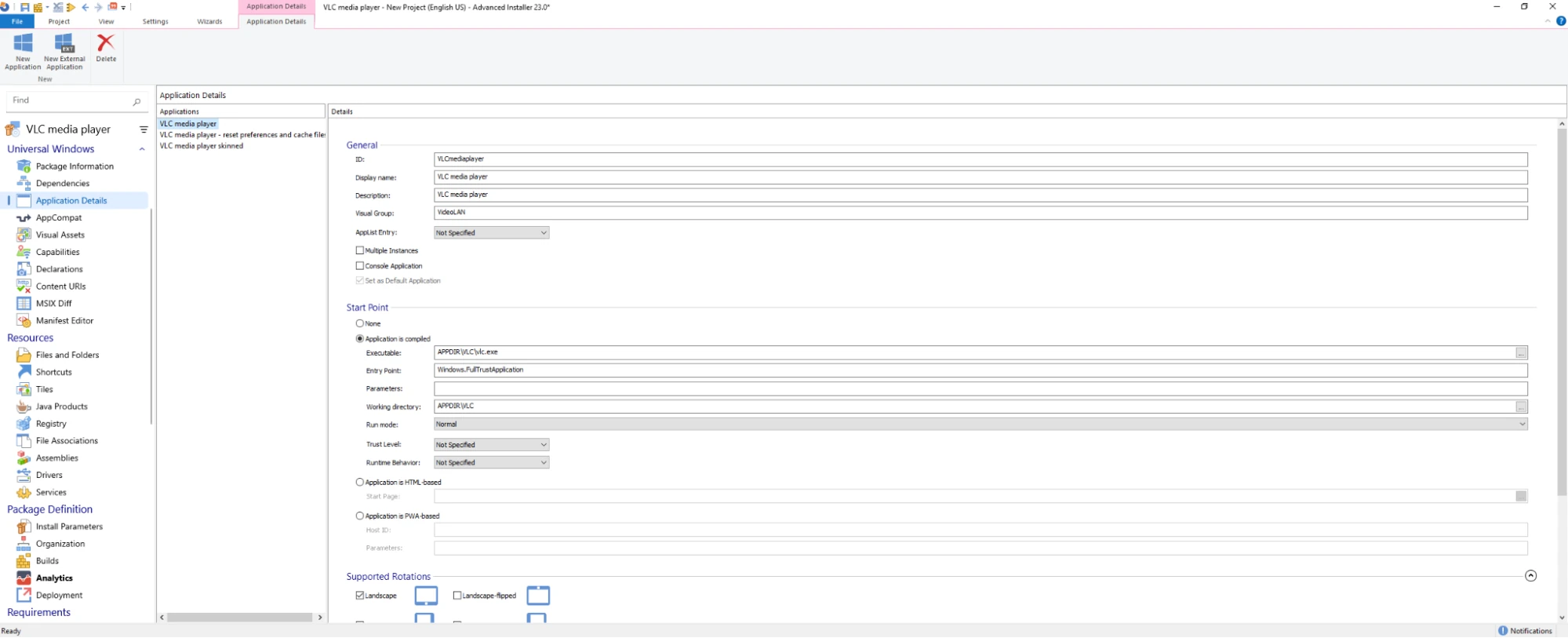
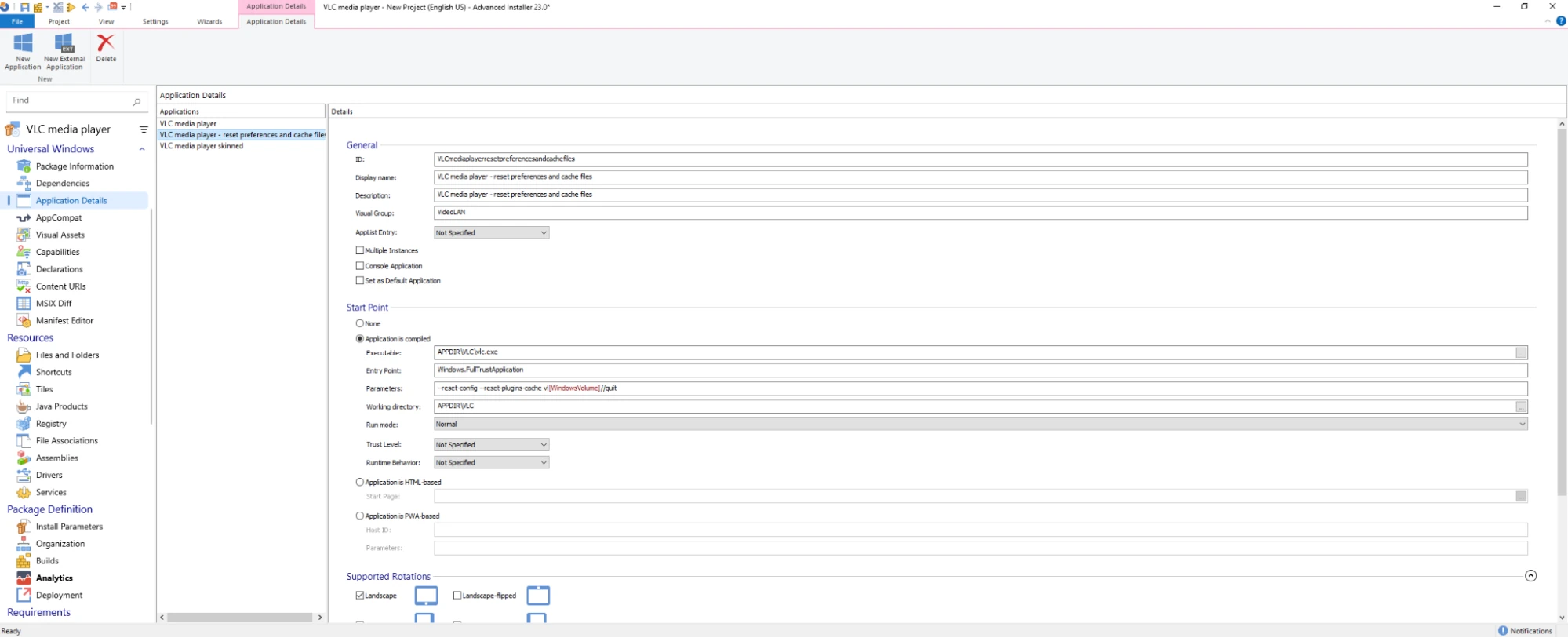
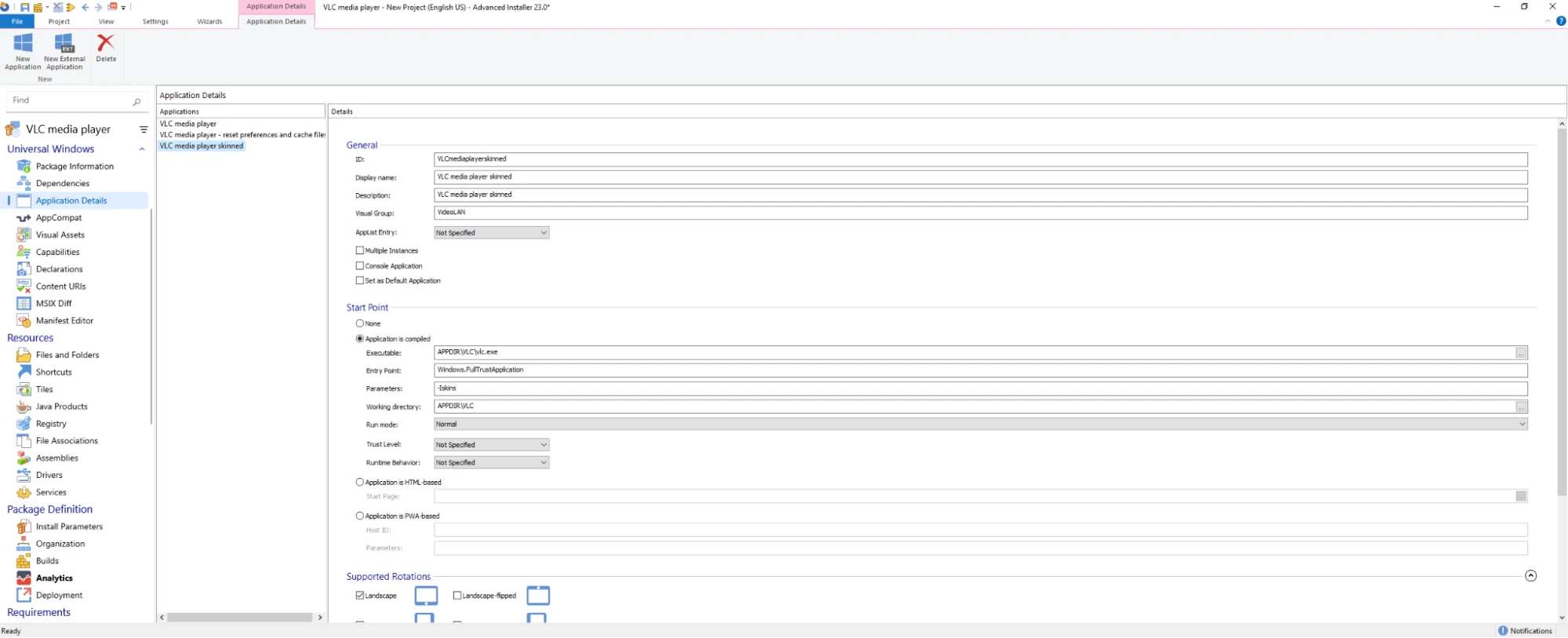
1. Go to the “Application Details” page, and you will see that there are three entries there – one for each of the shortcuts.
2. If we install the converted MSIX, all three shortcuts appear in the Start Menu, as they should.

3. And if we look into the AppXManifest.xml, we’ll see that we have three application entries in there.
<Applications>
	<Application EntryPoint="Windows.FullTrustApplication" Executable="AI_STUBS\AiStubX64.exe" Id="VLCmediaplayer">
      <uap:VisualElements BackgroundColor="transparent" Description="VLC media player" DisplayName="VLC media player" Square150x150Logo="Assets\VLCmediaplayerSquare150x150Logo.png" Square44x44Logo="Assets\VLCmediaplayerSquare44x44Logo.png">
        <uap:InitialRotationPreference>
          <uap:Rotation Preference="portrait" />
          <uap:Rotation Preference="landscape" />
    	</uap:InitialRotationPreference>
        <uap:DefaultTile Square310x310Logo="Assets\VLCmediaplayerSquare310x310Logo.png" Square71x71Logo="Assets\VLCmediaplayerSquare71x71Logo.png" Wide310x150Logo="Assets\VLCmediaplayerWide310x150Logo.png" />
        <uap:SplashScreen Image="Assets\VLCmediaplayerSplashScreen.png" />
        <uap:LockScreen BadgeLogo="Assets\VLCmediaplayerBadgeLogo.png" Notification="badge" />
      </uap:VisualElements>
      <Extensions>
            	...
      </Extensions>
    </Application>
	<Application EntryPoint="Windows.FullTrustApplication" Executable="AI_STUBS\AiStubX64.exe" Id="VLCmediaplayerskinned">
      <uap:VisualElements BackgroundColor="transparent" Description="VLC media player skinned" DisplayName="VLC media player skinned" Square150x150Logo="Assets\VLCmediaplayerskinnedSquare150x150Logo.png" Square44x44Logo="Assets\VLCmediaplayerskinnedSquare44x44Logo.png">
        <uap:InitialRotationPreference>
          <uap:Rotation Preference="portrait" />
          <uap:Rotation Preference="landscape" />
        </uap:InitialRotationPreference>
        <uap:DefaultTile Square310x310Logo="Assets\VLCmediaplayerskinnedSquare310x310Logo.png" Square71x71Logo="Assets\VLCmediaplayerskinnedSquare71x71Logo.png" Wide310x150Logo="Assets\VLCmediaplayerskinnedWide310x150Logo.png" />
        <uap:SplashScreen Image="Assets\VLCmediaplayerskinnedSplashScreen.png" />
        <uap:LockScreen BadgeLogo="Assets\VLCmediaplayerskinnedBadgeLogo.png" Notification="badge" />
      </uap:VisualElements>
      <Extensions>
  	  ...
      </Extensions>
    </Application>
	<Application EntryPoint="Windows.FullTrustApplication" Executable="AI_STUBS\AiStubX64.exe" Id="VLCmediaplayerresetpreferencesandcachefiles">
      <uap:VisualElements BackgroundColor="transparent" Description="VLC media player - reset preferences and cache files" DisplayName="VLC media player - reset preferences and cache files" Square150x150Logo="Assets\VLCmediaplayerresetpreferencesandcachefilesSquare150x150Logo.png" Square44x44Logo="Assets\VLCmediaplayerresetpreferencesandcachefilesSquare44x44Logo.png">
        <uap:InitialRotationPreference>
          <uap:Rotation Preference="portrait" />
          <uap:Rotation Preference="landscape" />
        </uap:InitialRotationPreference>
        <uap:DefaultTile Square310x310Logo="Assets\VLCmediaplayerresetpreferencesandcachefilesSquare310x310Logo.png" Square71x71Logo="Assets\VLCmediaplayerresetpreferencesandcachefilesSquare71x71Logo.png" Wide310x150Logo="Assets\VLCmediaplayerresetpreferencesandcachefilesWide310x150Logo.png" />
        <uap:SplashScreen Image="Assets\VLCmediaplayerresetpreferencesandcachefilesSplashScreen.png" />
        <uap:LockScreen BadgeLogo="Assets\VLCmediaplayerresetpreferencesandcachefilesBadgeLogo.png" Notification="badge" />
      </uap:VisualElements>
      <Extensions>
    	...
      </Extensions>
    </Application>
</Applications>WorkingDirectory skipped during conversion
Another challenge affects those App-V packages where shortcuts have a WorkingDirectory defined within the AppXManifest.xml.
When converting from App-V 5 to MSIX, any WorkingDirectory set within the App-V 5 package gets overlooked. For most applications, post-conversion, everything runs smoothly. But, for some of them, it doesn’t.
Why? Well, when it's packaged as MSIX, the application's default working directory becomes the System32 folder.
Let’s take an example!
A quick inspection of VLC Media Player’s “Start in” field reveals it to be "C:\Program Files (x86)\VideoLAN\VLC" - the WorkingDirectory of that shortcut.

Those of you who are familiar with App-V 5 might already know the shortcut arguments can be specified within the App-V 5 AppXManifest.xml.
Here is how it appears for the VLC Media Player shortcut:
<appv:Extension Category="AppV.Shortcut">
            	<appv:Shortcut>
                 	<appv:File>[{Common Desktop}]\VLC media player.lnk</appv:File>
            	 	<appv:Target>[{ProgramFilesX86}]\VideoLAN\VLC\vlc.exe</appv:Target>
            	 	<appv:Icon>[{ProgramFilesX86}]\VideoLAN\VLC\vlc.exe.0.ico</appv:Icon>
                 	<appv:Arguments />
            	 	<appv:WorkingDirectory>[{ProgramFilesX86}]\VideoLAN\VLC</appv:WorkingDirectory>
                 	<appv:ShowCommand>1</appv:ShowCommand>
            	 	<appv:ApplicationId>[{ProgramFilesX86}]\VideoLAN\VLC\vlc.exe</appv:ApplicationId>
            	</appv:Shortcut>
</appv:Extension>Post-conversion to MSIX, we look into AppXManifest.xml, and we see the WorkingDirectory is skipped during conversion.
<Application Id="VLC" Executable="VFS\ProgramFilesX86\VideoLAN\VLC\vlc.exe" EntryPoint="Windows.FullTrustApplication">
      <uap:VisualElements BackgroundColor="transparent" DisplayName="VLC media player" Square150x150Logo="Assets\VLC-Square150x150Logo.png" Square44x44Logo="Assets\VLC-Square44x44Logo.png" Description="VLC media player">
        <uap:DefaultTile Wide310x150Logo="Assets\VLC-Wide310x150Logo.png" Square310x310Logo="Assets\VLC-Square310x310Logo.png" Square71x71Logo="Assets\VLC-Square71x71Logo.png" />
      </uap:VisualElements>
      <Extensions>
        <desktop7:Extension Category="windows.shortcut">
          <desktop7:Shortcut File="[{Common Programs}]\VideoLAN\VLC media player - reset preferences and cache files.lnk" Icon="[{Package}]\VFS\ProgramFilesX86\VideoLAN\VLC\vlc.exe" Arguments="--reset-config --reset-plugins-cache vlc://quit" />
 	</desktop7:Extension>
        <desktop7:Extension Category="windows.shortcut">
          <desktop7:Shortcut File="[{Common Programs}]\VideoLAN\VLC media player skinned.lnk" Icon="[{Package}]\VFS\ProgramFilesX86\VideoLAN\VLC\vlc.exe" Arguments="-Iskins" />
        </desktop7:Extension>
        <desktop7:Extension Category="windows.shortcut">
          <desktop7:Shortcut File="[{Common Programs}]\VideoLAN\VLC media player.lnk" Icon="[{Package}]\VFS\ProgramFilesX86\VideoLAN\VLC\vlc.exe" />
</desktop7:Extension>The Workaround
So, how do we fix this?
You need to inject Package Support Framework into the converted MSIX Package and define the WorkingDir via the config.json file.
Using the MSIX Packaging Tool? This step's on you.
Looking for details on setting the shortcut WorkingDirectory using the Package Support Framework? We've got you covered in our article about overcoming MSIX limitations with the PSF.
Advanced Installer
Now, for those using Advanced Installer, there’s good news. All this gets handled automatically during the App-V 5 to MSIX conversion. No extra work required.
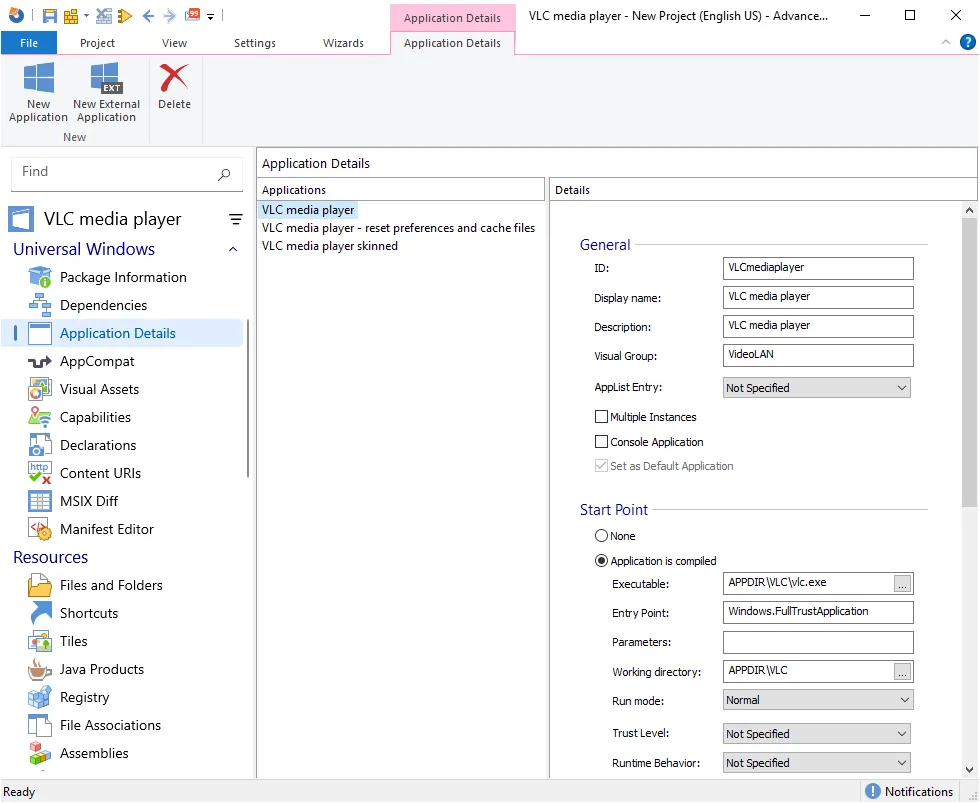
If you browse to the “Application Details” page and select the VLC Media Player entry, you’ll see that the “Working Directory” info is auto-filled using data from the App-V 5 package.
Here’s a detailed guide on How to convert an App-V 5 file to MSIX.
StartMenu folder skipped during conversion
Another challenge affects those App-V packages where shortcuts are grouped within a StartMenu shortcut folder.
Those of you familiar with App-V 5 might already know the shortcut folder's configuration is detailed within the AppXManifest.xml file, as illustrated below:
<Shortcuts Enabled="true">
        <Extensions>
          <Extension Category="AppV.Shortcut">
            <Shortcut>
              <File>[{Common Programs}]\MyApp\MyApp.lnk</File>
              <Target>[{ProgramFilesX64}]\MyApp\MyApp.exe</Target>
              <Icon>[{ProgramFilesX64}]\MyApp\MyApp.exe.0.ico</Icon>
              <Arguments />
              <WorkingDirectory>[{ProgramFilesX64}]\MyApp</WorkingDirectory>
              <ShowCommand>1</ShowCommand>
              <ApplicationId>[{ProgramFilesX64}]\MyApp\MyApp.exe</ApplicationId>
            </Shortcut>
          </Extension>
        </Extensions>
</Shortcuts>Upon installing the converted MSIX package using the MSIX Packaging Tool, you'll notice that the MSIX shortcut gets installed directly under StartMenu and not under the MyApp folder, as it was with the App-V 5 package.

This happens because that information was skipped during the conversion from App-V 5 to MSIX as you can see in the AppXManifest.xml below:
<Applications>
    <Application Id="MYAPP" Executable="VFS\ProgramFilesX64\MyApp\MyApp.exe" EntryPoint="Windows.FullTrustApplication">
      <uap:VisualElements BackgroundColor="transparent" DisplayName="MyApp" Square150x150Logo="Assets\MyApp-Square150x150Logo.png" Square44x44Logo="Assets\MyApp-Square44x44Logo.png" Description="MyApp">
        <uap:DefaultTile Wide310x150Logo="Assets\MyApp-Wide310x150Logo.png" Square310x310Logo="Assets\MyApp-Square310x310Logo.png" Square71x71Logo="Assets\MyApp-Square71x71Logo.png" />
      </uap:VisualElements>
      <Extensions>
        <desktop7:Extension Category="windows.shortcut">
          <desktop7:Shortcut File="[{Common Programs}]\MyApp\MyApp.lnk" Icon="[{Package}]\VFS\ProgramFilesX64\MyApp\MyApp.exe" />
        </desktop7:Extension>
      </Extensions>
</Application>The Solution
To fix this issue, you will need to add the VisualGroup attribute to the VisualElements item. This tells the system what name to use for the new folder in the StartMenu. The updated AppXManifest.xml should look like this:
<Applications>
    <Application Id="MYAPP" Executable="VFS\ProgramFilesX64\MyApp\MyApp.exe" EntryPoint="Windows.FullTrustApplication">
      <uap:VisualElements BackgroundColor="transparent" DisplayName="MyApp" Square150x150Logo="Assets\MyApp-Square150x150Logo.png" Square44x44Logo="Assets\MyApp-Square44x44Logo.png" Description="MyApp" VisualGroup="MyApp">
        <uap:DefaultTile Wide310x150Logo="Assets\MyApp-Wide310x150Logo.png" Square310x310Logo="Assets\MyApp-Square310x310Logo.png" Square71x71Logo="Assets\MyApp-Square71x71Logo.png" />
      </uap:VisualElements>
      <Extensions>
        <desktop7:Extension Category="windows.shortcut">
          <desktop7:Shortcut File="[{Common Programs}]\MyApp\MyApp.lnk" Icon="[{Package}]\VFS\ProgramFilesX64\MyApp\MyApp.exe" />
        </desktop7:Extension>
      </Extensions>
</Application>Advanced Installer
If you're using Advanced Installer, you're in luck! It takes care of these details for you.
When you look at the “Application Details” page, you'll see that the “Visual Group” field is already filled out.

After the conversion, you'll see that the MSIX package puts the shortcut in the right place in the Start Menu, just like in the App-V 5 package.

Environment Variables skipped during conversion
Another challenge affects those App-V packages that have environment variables.
For those of you familiar with App-V 5, you'd recognize how environment variables appear in the App-V 5 AppXManifest.xml. Here's a snapshot:
<!--
      Environment Variables
      -->
      <EnvironmentVariables Enabled="true">
        <Include>
          <Variable Name="MYAPP2" Value="[{ProgramFilesX64}]\MyApp" />
          <Variable Name="MYAPP1" Value="[{ProgramFilesX64}]\MyApp\MyApp.exe" />
        </Include>
</EnvironmentVariables>Let’s say you convert the App-V5 package to MSIX through the MSIX Packaging Tool.
But wait, all the environment variables are gone during the conversion process, which can lead to functionality issues for the application.
The Workaround
Don’t worry!
To fix this issue:
- Inject Package Support Framework into the converted MSIX Package
- Define the Environment Variables via the config.json file.
Or, you can define the Environment Variables via the AppXManifest.xml, but that’s applicable only for those Environment Variables targeting a File Path.
If you use MSIX Packaging Tool, that means extra effort compared to what I’m about to show you.
Yes, MSIX Packaging Tool means extra effort. That’s why you have Advanced Installer.
Advanced Installer
Advanced Installer comes with its own support for Environment Variables, it automatically takes care of environment variables in the background once you import the App-V 5 package.
If you browse to the “Environment Variables” page, you will see that all the Environment Variables are listed there.
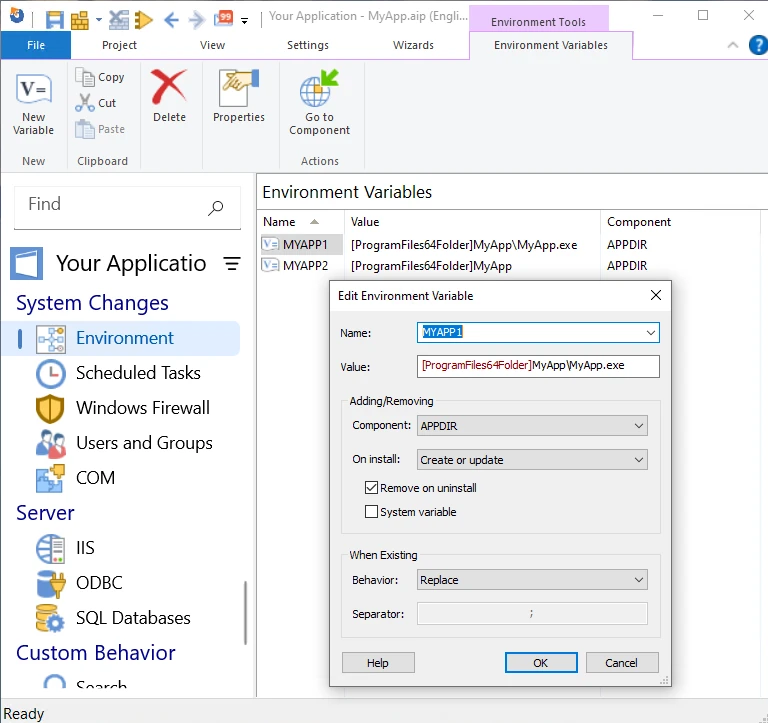
And, if we install the converted MSIX, we will notice that the Environment Variables are accessible from within the application.

Conclusion
Moving from App-V 5 to MSIX helps update your packages to a newer format without having to start from scratch.
Although some parts of this process can be a bit complex, using a tool like Advanced Installer simplifies it. Understanding these tools can make your switch to MSIX smooth, keeping your apps up-to-date with the latest packaging technology.
Written by

Horatiu Vladasel
Horatiu is a Software Packager/Sequencer with over 10 years experience, who has worked as a Software Packager at IBM and is currently offering software packaging services to companies such as BT or Nationwide.