How to Customize Your Suite Installer Theme
Starting with Advanced Installer version 23.0, you can bundle multiple applications into an installer that acts as an application store, allowing your users to choose which app to install.
For a premium installation experience, Advanced Installer also gives the possibility to customize how each bundled application appears in the Suite Installer UI – from the app name and description to logos and EULA.
 If you are curious about how each configuration setting is reflected in each bundled application, check out the full visual guide here: Branding the Suite Installer UI – A Cause-and-Effect Visual Guide.
Beyond customizing each bundle app, you can also customize the Suite Installer theme itself.
Suite Installers include a custom-designed theme by default. However, this component is open-source on GitHub, which means you can fully customize it to meet your specific needs.
In this article, I’ll walk you through the customization process step by step.
1. Create a Suite Installer Project

First, create the Suite Installer project in Advanced Installer.
This will give you access to the default configuration file that the open-source theme component will later use.
 The Suite Installer feature is available starting with the Advanced Installer Enterprise edition.
To create the Suite Installer app, follow the next steps:
- Launch the Advanced Installer tool.
- Select the Suit Installer project template from the Start Page.
- After creating and installing the project, locate the SuiteInstaller.ini configuration file in the following folder:
C:\Users\<UserName>\AppData\Roaming\Your Company\Your Suite Installer\bin\SuiteInstaller
We’ll use it later in the theme project.

2. Create the Theme Configuration Project
Next, prepare the project that will serve as the foundation for your custom theme.
Clone the open-source Suite Installer theme project from GitHub into Visual Studio:
https://github.com/Caphyon/suite-installer
After cloning and building the Visual Studio project:
- Copy the SuiteInstaller.ini configuration file from the installed location.
- Paste it into the Visual Studio project build location, under Debug\bin\x64\SuiteInstaller.
After adding the configuration file, launch the theme project in Visual Studio.
You should now see the Suite Installer theme running and ready for customization.
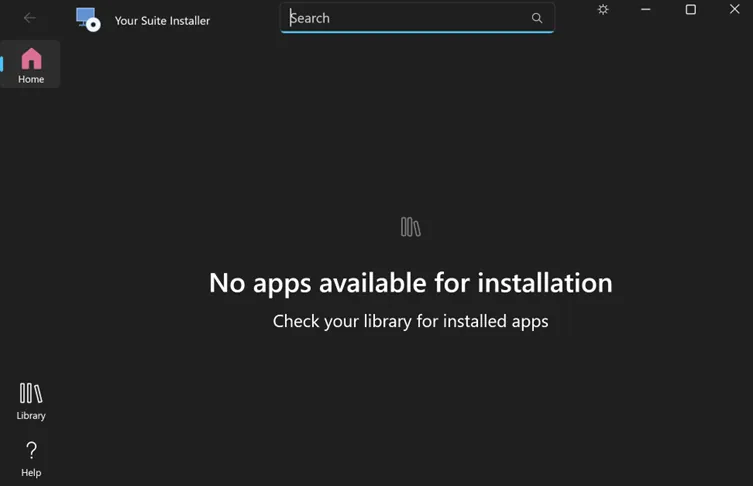
3. Customize the Suite Installer Theme
You can customize many visual and functional elements within the theme project to match your branding.
The UI is defined in XAML files for three pages:
- Home,
- Library,
- Prerequisites.
You can adjust colors, icons, layouts, and control templates.
For example, to change the Home page color, simply update the XAML file. Then rebuild and run the project.
For demonstration purposes, we’ve added the code below to the XAML file:
<Page.Background>
    <LinearGradientBrush StartPoint="0,0" EndPoint="1,1">
      <GradientStop Offset="0" Color="{ThemeResource SystemAccentColorLight2}" />
      <GradientStop Offset="0.5" Color="{ThemeResource SystemAccentColor}" />
      <GradientStop Offset="1" Color="{ThemeResource SystemAccentColorDark2}" />
    </LinearGradientBrush>
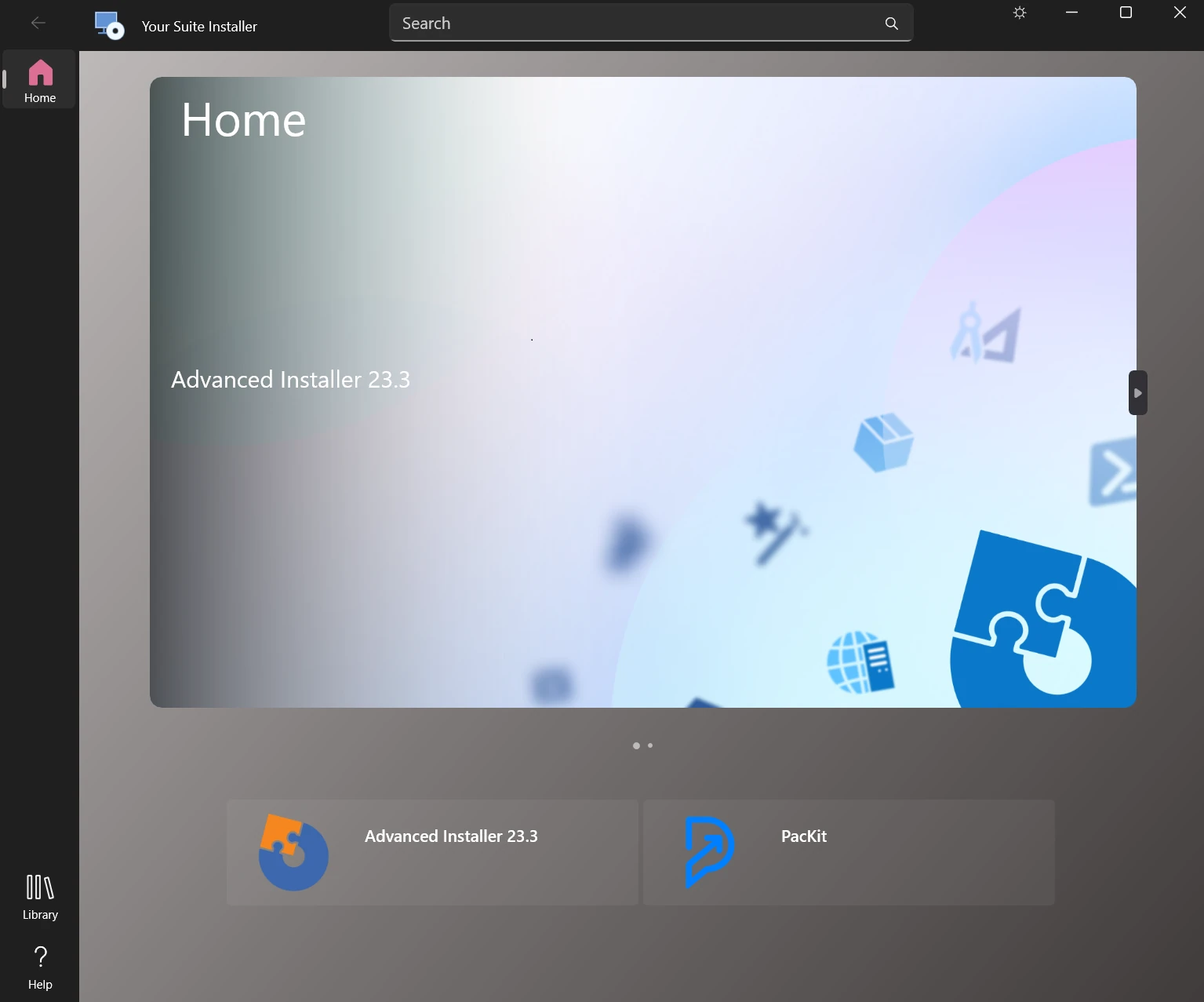
</Page.Background>Here’s how our theme looks after changing the Home page color:

4. Use a New Suite Installer Theme
When your theme looks the way you want, integrate it into the Suite Installer project:
- Navigate to the Files and Folders page in the Suite Installer project.
- Select the bin folder. Use the Add Folder command to add the SuiteInstaller folder under the Visual Studio project output location, specifically the Release\bin\x64\SuiteInstaller folder.
- You will be asked if existing files should be replaced, so select “Yes to All" to confirm that all files should be updated.
- Replace the existing SuiteInstaller folder in the bin folder with the customized one from your theme project, which is located at Release\bin\x64.
- Delete the bin\SuiteInstaller\SuiteInstaller.pdb file since it's a big file that may be used only by your testers.
Once replaced, simply build the project to generate the installer for the Suite Installer app and run it. Your new custom theme will now be displayed when the Suite Installer launches.
Final Takeaways
- Suite Installer customization turns a standard multi-app installer into a controlled branded environment.
- The open-source theme project backed by XAML gives full control over layout, color, and behavior.
- Once you replace the default theme with a custom version, the installer transforms into a product presentation with the same design intent as the software has.
- Start by creating a Suite Installer project and taking the generated SuiteInstaller.ini file. After that, clone and build the open-source theme project in Visual Studio. Modify the XAML pages to reflect your brand, and lastly, change the default SuiteInstaller folder to your new themed build.
The full 30-day full-feature trial of Advanced Installer allows you to explore the Suite Installer’s branding capabilities.
Download Advanced Installer - Trialfor free.
Conclusion
Advanced Installer’s Suite Installer not only bundles multiple applications into a single unified installer, but it also allows you to customize the installation experience, turning it into a premium user experience.
You can customize how the bundled apps appear in the Suite Installer UI, as well as the Suite Installer theme, which is open-source and can be freely modified to create an experience that is unique to your product.
Written by

Renato Ivanescu
Renato is a technical writer for Advanced Installer and an assistant professor at the University of Craiova. He is currently a PhD. student, and computers and information technology are his areas of interest. He loves innovation and takes on big challenges.