PSADT Service UI Deprecated: What is the impact on the defer feature?
PSADT 4.1.X finally brings direct user interaction to Intune deployments, so no more ServiceUI.exe. The new Invoke-AppDeployToolkit.exe automatically detects active sessions, displaying messages and prompts right from Intune. But the new Defer feature doesn’t work on an exact timer; it depends on Intune’s own unpredictable recheck cycle.
What’s New in PSADT 4.1.X?

Among multiple changes and new features, PSADT version 4.1.X has introduced something that many of us, application packagers, have been waiting for: direct user interaction by calling the PSADT executable Invoke-AppDeployToolkit.exe for applications deployed via Intune.
What does this mean? We no longer need to use the Service UI – it’s automatically integrated in the background. The new mechanism of the toolkit automatically detects if there’s an active user session while the script is running, calling the internal functions depending on the user interaction.
How Did PSADT Evolve From Version 3.x to 4.1.x
Let’s look back at how it was done in the past. If you were using PSADT version 3.x, this is what your folder structure would look like:

Except that ServiceUI.exe was not there. You would have to download it (being a third-party software) and copy it into the folder structure.
If you had wanted to display any messages that would interact with the user, let’s say, a close process window or a simple install-in-progress/install-finish notification, you would have to use ServiceUI.exe as a starting point in the install/uninstall command while you defined the application in Intune.
If you opted for the Deploy-Application.exe install command, for example, even if you had defined closed processes and install progress display windows in the script, these would not have been displayed.
 Read more about the Service UI usage in this article.
Now, let’s look at the latest version of the PSADT 4.1.x folder structure:
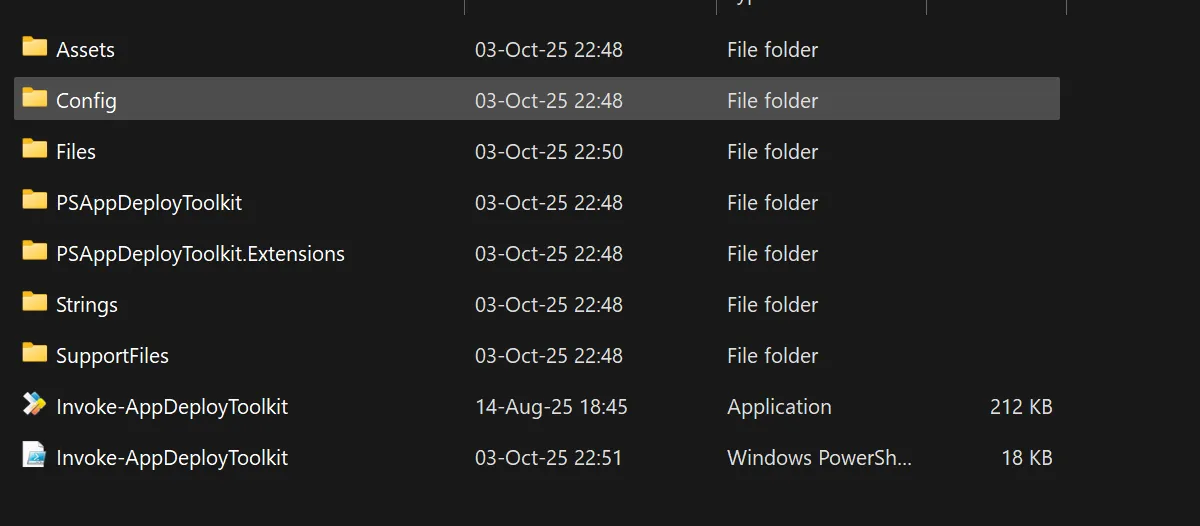
As you can see, by default, there is a cleaner view displaying only the Invoke-AppDeployToolkit.exe and .ps1 files. Called directly from Intune, there is no issue in displaying nice, interactive messages like the one below:
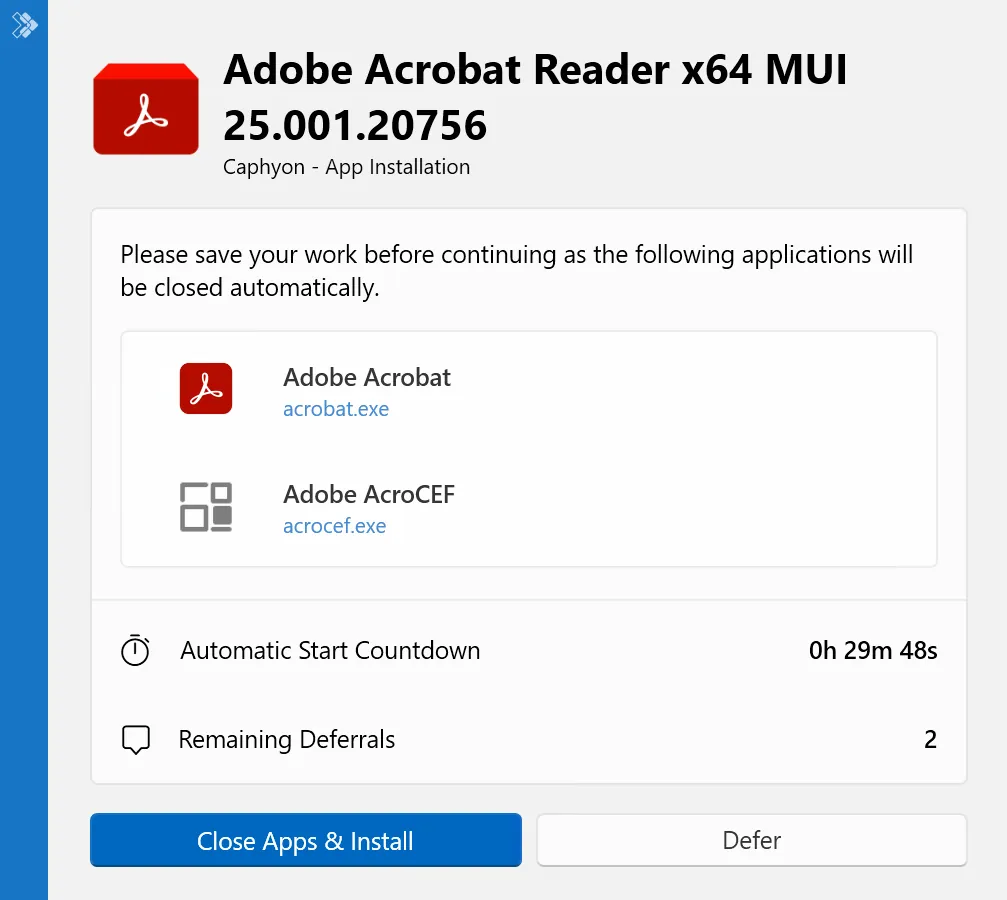
Among the multiple UI options, you can see the Defer options. What does that look like from the end user’s perspective?
Let’s say you are working on something, and you see that an application is about to be installed. If you have the option to postpone it, most likely, you will do it.
Now, let’s look from a software packager’s perspective who deploys this application through Intune.
What Are the Defer Parameters?
First, let's analyze the function that controls the Defer option.
Defer happens while the Show-ADTInstallationWelcome cmdlet is called with the deferral parameters, which in PSADT version 4.1.x are defined in the $saiwParams. Below you can see the parameters used to display the above message.
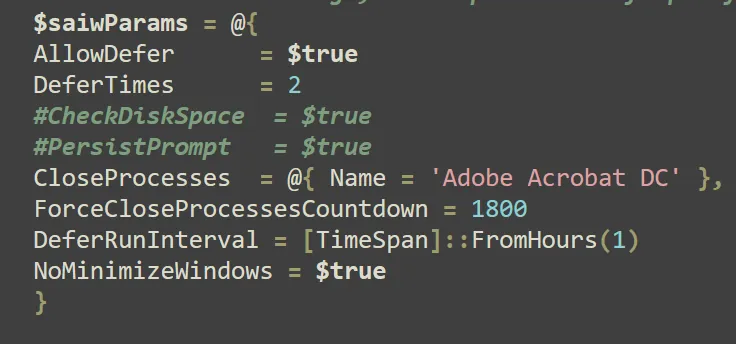
Here’s what each of them represents:
- AllowDefer: Enables an optional defer button to allow the user to defer the deployment. You can also use AllowDeferCloseProcesses as an alternative if you want to allow the user to defer the deployment only if there are running applications that need to be closed.
- ForceCloseProcessesCountdown provides a countdown in seconds until the specified applications are automatically closed, regardless of whether deferral is allowed. Alternatively, you can use ForceCountdown, which allows you to specify a countdown to display before automatically proceeding with the deployment when a deferral is enabled.
- DeferTimes specifies the number of times the deployment can be deferred.
- DeferRunInterval specifies the time span that must elapse before prompting the user again if a process listed in 'CloseProcesses' is still running after a deferral.
Now, you would think this would be the scenario:
- User clicks on the defer button.
- Since you defined the DeferRunInterval to one hour, you would expect that in exactly one hour, the user will be prompted to install the app again. The default is now one, so the user can defer one more time.
- After one more hour passes, the application is installed automatically.
Wrong. In reality, this is not what happens.
When the user clicks on the defer button, two things happen:
- The script ends with a deferred exit code that is interpreted by Intune, and then Intune reports the app install status as a “soft fail”: “user canceled the installation”.
- A deferral registry key is set under:
HKLM\Software\PSAppDeployToolkit\DeferHistory
DeferTimes indeed has the effect of allowing only one more defer, but DeferRunInterval actually only sets a timestamp when the initial defer was triggered. When the install script is retriggered, this timestamp is read by the PSADT script. If that one hour has elapsed, the script continues with the install logic. If that one hour has not passed, the script exits without the user noticing anything.
What Happens When You Defer App Installation in Intune?
Now the key question is: When is the script reexecuted? Should it not be in exactly one hour? No. Because the app installation – the script execution – is triggered via Intune, no option says “Hey Intune, check my failed/canceled-by-user applications, and retrigger them in exactly one hour from the failure time.”
Intune has its own triggering mechanism that cannot be controlled.
Basically, DeferRunInterval only prevents complete execution of the script if Intune decides to retrigger the app installation within one hour (or the time specified). That being said, use the defer function with a grain of salt, and expect that for some users, the second defer display message might happen after two hours, for some after four, and so on. There is no official Microsoft documentation that specifies the interval.
The only option an IT administrator has is to trigger a device sync, which eventually will also trigger an app install. But that's another discussion for another blog post.
Conclusion
PSADT 4.1.X feels like a fresh breath of automation. It's sleek, stripped down, and smarter. One executable, one script, full interactivity. Gone are the clunky ServiceUI calls and folder clutter. Now, apps talk to users directly, with clear prompts and progress screens that actually show up.
The deferral system, however, is more illusion than clockwork. Set a one-hour delay, and you might get one hour… or three. It logs a timestamp, waits, and lets Intune decide when to pull the trigger again. A neat concept, but Intune’s rhythm rules the process.
Final Takeaways:
- No more ServiceUI.exe: User interaction is now built directly into PSADT 4.1.X.
- Simplified setup: Only Invoke-AppDeployToolkit.exe and .ps1 scripts remain, so it's cleaner and easier to manage.
- Automatic session detection: The toolkit intelligently knows when a user is active and displays UI accordingly.
- Defer isn’t time-accurate:DeferRunInterval marks a timestamp, but Intune decides when to retry.
- Expect inconsistent behavior: Some users may see re-prompts after one hour, others after several.
- Practical takeaway: Enjoy smoother Intune deployments, but treat deferrals as flexible, not precise.
Check out PacKit if you’re looking for a tool to help bridge the gap between application packaging and deployment.
Here are some of its post-packaging configuration and deployment capabilities: PSADT Wrapper, IntuneWin Auto-Generator, App Catalog - Winget, Command Line Finder, Intune Detection Rules, Intune OS Requirements
Try it for free here.
Written by

Radu Popescu
Technical Writer at Advanced Installer, Technical Engineer on various enterprise client projects. Experienced in Software Packaging, SCCM infrastructure and System Administrating. Tech enthusiast and music producer in his spare time.