


How to create an MSI installer with WiX
The MSI format is a widely recognized standard in the software industry for distributing software packages on Windows devices. The WiX toolset allows you to build MSI packages by writing XML files that describe components, registry entries, and other resources.
In this article, I will show you how to create an MSI installer for a WPF (.Net Framework) application using WiX. I will also present to you an easier alternative for creating the installer with Advanced Installer. Let’s roll up our sleeves and get this thing built.
How to Add the Setup Project
 Before going through the next steps, make sure you have the HeatWave extension for Visual Studio installed. If not, you can add it from the Visual Studio Marketplace.
Let’s assume you have already created a WPF (.Net Framework) application, and the next step is to create the MSI installer. The first step is to add the setup project to your solution in Visual Studio:
- Right-click on the project solution → Add → New Project.
- Select the MSI Package template from the list.
- Set up the project and click Create. Then, you should see the project in the Solution Explorer.
How to Configure the Setup Project
Once the setup project is added, it’s time to configure it. By default, the project template includes three .wxs files that need to be configured: Package, Folder, and ExampleComponents. Their role is to define how the app is installed and managed on the user’s machine.
First, let’s configure the Package.wxs file. This is the entry point where you set the package identity, version, and upgrade behavior. It also connects the Installer’s Feature to the component group that contains the files to be installed.
<Package
    Name="$(var.ProductName)"
    Manufacturer="$(var.Manufacturer)"
    Version="$(var.Version)"
    UpgradeCode="{2F0B7C6F-0E6B-4F36-9E61-8F6E9E0F1111}"
    Scope="perMachine">
  <MajorUpgrade DowngradeErrorMessage="A newer version of $(var.ProductName) is already installed." />
  <Feature Id="Main" Title="$(var.ProductName)">
    <ComponentGroupRef Id="AppFiles" />
  </Feature>
</Package>The next step is to configure the Folder.wxs file. Here we define the installation folder structure.
<Wix xmlns="http://wixtoolset.org/schemas/v4/wxs">
  <Fragment>
    <StandardDirectory Id="ProgramFiles64Folder">
      <Directory Id="ManufacturerFolder" Name="$(var.Manufacturer)">
        <Directory Id="INSTALLFOLDER" Name="$(var.ProductName)" />
      </Directory>
    </StandardDirectory>
  </Fragment>
</Wix>Finally, configure the ExampleComponent.wxs file (which I’ve renamed to Component.wxs). Here we define the files that will be installed inside the INSTALLFOLDER.
<Fragment>
  <ComponentGroup Id="AppFiles" Directory="INSTALLFOLDER">
    <Component Id="Cmp_DemoAppExe" Guid="*">
      <File Id="Fil_DemoAppExe"
       Source="$(var.DemoAppBin)\DemoApp.exe">
      </File>
    </Component>
    <Component Id="Cmp_Config" Guid="*">
      <File Id="Fil_Config"
       Source="$(var.DemoAppBin)\DemoApp.exe.config" />
    </Component>
  </ComponentGroup>
</Fragment>Lastly, the constants used above must be defined in the .wixproj file.
<PropertyGroup>
    <DefineConstants>
      DemoAppBin=..\DemoApp\bin\Release;
      Manufacturer=MyCompany;
      ProductName=DemoApp;
      Version=1.0.0;
    </DefineConstants>
</PropertyGroup>How to Create Shortcuts for your Application
To create shortcuts for the app, we need to update the component that installs the executable in the Component.wxs file. Here is how to add both a Desktop and a Start Menu shortcut.
<Component Id="Cmp_DemoAppExe" Guid="*">
    ...
    <Shortcut Name="$(var.ProductName)" Directory="ProgramMenuFolder"
          Advertise="yes" WorkingDirectory="INSTALLFOLDER" />
    <Shortcut Name="$(var.ProductName)" Directory="DesktopFolder"
          Advertise="yes" WorkingDirectory="INSTALLFOLDER" />
</Component>How to Add Installation Dialogs
The installer packages created with WiX do not include a user interface, only a small progress window displayed during installation.
If you want to include a basic UI, you need to follow the next steps:
- Include the WixToolset.UI.wixext extension:
- Right-click on your WiX package project.
- Select Manage NuGet Packages.
- Search for the WiXToolset.UI extension and install it.
- Enable the UI in the Packages.wxs: reference the UI namespace and define the UI package:
<Wix xmlns:ui="http://wixtoolset.org/schemas/v4/wxs/ui">
…
   <Package>
        ...
       <ui:WixUI Id="WixUI_InstallDir"
... </Package>Build and Install the MSI
Once the setup project is configured, you can build it to generate the MSI installer for your application. Then, launch the MSI to begin installation. You’ll be guided through the installer’s dialogs, and once the installation is complete, the defined shortcuts (Desktop and Start Menu) will be created.
How to create an MSI installer using Advanced Installer
Advanced Installer offers an easier way to create MSI installers compared to WiX. It provides an intuitive graphical user interface that allows you to configure your setup package – no code required.
Let’s see how we can create a basic MSI installer with Advanced Installer:
1. Open Advanced Installer, select Simple Installer Project from the Start Page, and then click Create New Project.
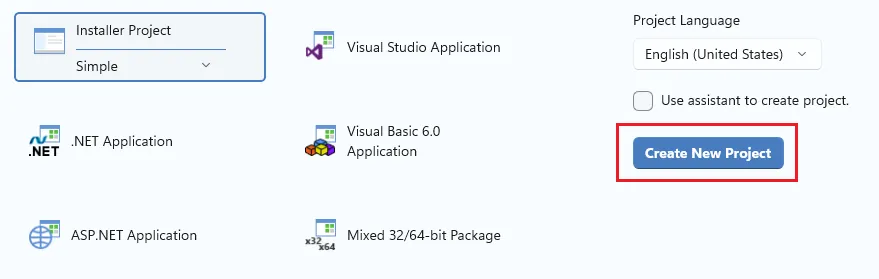
2. Navigate to the Product Details page to edit the general information about the application installed by the package.
3. Go to the Files and Folders page and add the application resource inside the Application Folder.

4. To create a shortcut:
- Right-click the executable file and choose New Shortcut to Installed file.
- In the dialog that opens, you can configure the shortcut and choose the destination. For a desktop shortcut, select the Desktop folder.

5. For further configuration options of the installer package, you can navigate through the pages available in the left pane of the Advanced Installer.
Once you finish configuring the project, click Build to generate the MSI package. Then, run it to test it. By default, the installer includes standard setup dialogs for a professional installation experience. Depending on the subscription plan, you can add new dialogs and customize them to match your installation scenario.
To see how you can create a basic MSI package using Advanced Installer, you can watch the video below.
For a full tutorial on customizing your installer, check the article here.
 Advanced Installer provides an extension for Visual Studio, so you can create and manage the setup project directly within the Visual Studio IDE. Check it out here.
Bottom line
- MSI installers are a reliable way to install and manage software on Windows. They define every part of the process: what gets copied, where it goes, and how it can be repaired or removed.
- WiX Toolset builds these installers through XML files. Each file describes structure and behavior: Package.wxs sets identity and version, Folder.wxs defines paths, and Component.wxs lists the files to include.
- You can add shortcuts and simple installation dialogs using WiX extensions for a more complete setup.
- Advanced Installer offers a visual approach, no XML editing needed. You configure options in a clean interface and generate an MSI quickly.
- Both tools create dependable installers; the main difference is how you prefer to work → manual configuration with WiX or visual setup with Advanced Installer.
Takeaway:
WiX offers full control through code. Advanced Installer offers speed and simplicity through a visual editor. Both deliver the same end result: a functional MSI package ready for distribution.
Final conclusions
The WiX Toolset is a flexible tool for creating installer packages, but when it comes to more complex packaging scenarios. It may require additional time and effort, as you need to manually edit the XML file to configure most settings.
Alternatively, you could explore a different path: use Advanced Installer, a GUI-based tool that handles the heavy lifting for you. Instead of writing XML, you click, drag, and select. Everything feels structured yet simple. The interface lays out every option in plain sight, while its built-in templates guide you from a blank project to a ready MSI in minutes. No syntax errors, no guesswork; just a clear workspace where packaging feels less like coding and more like assembling something that’s already halfway done.
