


Updater Cloud Service

Updater Cloud Service
 This feature requires an Advanced Installer Account with an
active Updater Cloud Service subscription.
This feature requires an Advanced Installer Account with an
active Updater Cloud Service subscription.
A 90 day trial with 1000 update checks is
available for new accounts. The trial will start when the first configuration file is
uploaded in your account.
Use this feature to enable cloud storage for your Updates Configuration files, eliminating the need to manually upload the updates configuration file to your server.
The files can be uploaded with a single click in our cloud directly from the Updates Configuration Project making it much easier to test the update, development or release process.
 Updater Cloud Service only stores the updates configuration file, not the package
itself.
Updater Cloud Service only stores the updates configuration file, not the package
itself.
Upload the Updates Configuration file
 Use the
toolbar button from Updates Configuration Project to
start the upload process.
Use the
toolbar button from Updates Configuration Project to
start the upload process.
We recommend creating and uploading at least two separate updates files for each
application. One file should be used for the testing environment and another for publishing
into production.
The updates hosted in Advanced Installer cloud will be using this domain name:
advancedupdater.cloud/<customer ID>

Upload Configuration File Name
Specify the name of your updates configuration file or select from the list a previously uploaded updates file to overwrite it.
Compare files/Show side by side
Using this button you can select the preferred view mode : show old and new updates files side by side or only highlight the differences between them.
Using the updates configuration files from cloud in your Installer Project
To use any of the updates configuration file uploaded to your account, open your instaler project (.AIP project) and go to Updater Page. Click on the Select Updates File toolbar button:
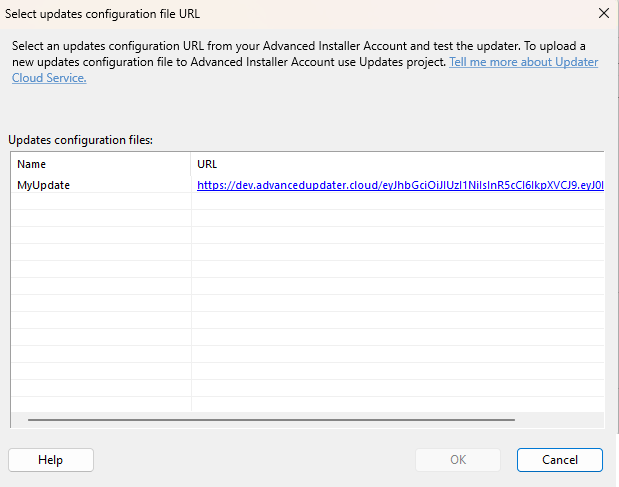
All the updates configuration files associated with your account will be displayed in the list. Select one and click OK. The link will be automatically set in the Updates Configuration File URL field in Updater Page.