


Game Information Tab

In order to integrate a game into Game Explorer a game definition file (GDF) is needed. A GDF is an XML file that contains metadata describing the game. Advanced Installer automatically generates this file for you based on the information you provide, and encapsulates it within a resource section of a binary file (DLL), along with the game's thumbnail and icon.
Parental Controls
The GDF contains all the metadata associated with the game including the game's rating. Windows Parental Controls use the game's rating to allow parents to control access to the game. The binary file which contains the GDF must be digitally signed with a valid Authenticode certificate, otherwise Game Explorer and the parental control system will ignore the game's rating, since the rating information can not be trusted without certification. The Advanced Installer Games Explorer configuration tool automatically signs the GDF binary with the digital certificate you provide.
General
Name
Specify the name under which the game will be displayed in Game Explorer. The content of this field is localizable.
Description
Specify a short description for the game. The content of this field is localizable.
Version
Specify the game version
 These fields are of PseudoFormatted Type
and can be edited using Smart Edit Control.
These fields are of PseudoFormatted Type
and can be edited using Smart Edit Control.
Release Date
Select the game release date. You can choose to use a fixed release date for your game or use the project build date (default) as the game release date.
System performance rating
The Windows System Performance Rating (WSPR), specifies the recommended and minimum ratings that a computer should have to play a certain game with acceptable performance. This is for display purposes only and does not restrict access to the game.
- Minimum - The minimum WSPR rating that a computer should have in order to play this game.
- Recommended - The recommended WSPR rating that a computer should have in order to play this game.
 This parameter is also known as Windows Experience
Index (WEI score).
This parameter is also known as Windows Experience
Index (WEI score).
Developers & Publishers
In this section you can specify the game developers and publishers.
Adding a new developer/publisher
Use the button or the “New...” context menu option.
You can add up to 5 developers and 5
publishers for a game.
Editing a developer/publisher
Use the button, the “Edit...” context menu option or press the Space key while an item is selected in the list.
Removing a developer/publisher
Use the button, the “Remove...” context menu option or press the Delete key while an item is selected in the list.
Ratings
This section allows you to describe the Parental Control ratings associated with the game. Multiple ratings are allowed, from multiple rating systems. Each rating can optionally have one or more content descriptors that are associated with that rating.
Adding a new game rating
Use the or the “Add...”context menu option.
Editing a game rating
Use the button, the “Edit...” context menu option or press the Space key while an item is selected in the list.
Removing a game rating
Use the button, the “Remove...” context menu option or press the Delete key while an item is selected in the list.
Content
Adding a new game genre
Use the or the “Add...” option. You can select a predefined game genre or specify a custom one.
You should add at least one genre for your game, as a content
description. You can add up to 5 genres for a game.
Editing a game genre
Use the button, the “Edit...” context menu option or press the Space key while an item is selected in the list.
Removing a game genre
Use the button, the “Remove...” context menu option or press the Delete key while an item is selected in the list.
Edit Developer/Publisher Dialog
This dialog allows you to specify general information about a developer or publisher.
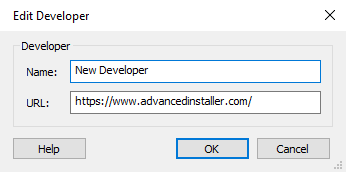
Name
Specify the developer or publisher name.
URL
Specify the developer or publisher URL.
The developer/publisher URLs will be "navigable" from
Game Explorer shell only if the GDF binary resource file is digitally signed with a valid
Authenticode certificate.
Game Rating Dialog

Parental Controls
The GDF contains all the metadata associated with the game including the game's rating. Windows Parental Controls use the game's rating to allow parents to control access to the game. The binary file which contains the GDF must be digitally signed with a valid Authenticode certificate; otherwise, Game Explorer and the parental control system will ignore the game's rating, since the rating information cannot be trusted without certification. The Advanced Installer Games Explorer configuration tool automatically signs the GDF binary with the digital certificate you provide.
Rating Organization
In this section is displayed general information about the rating organization which supplied the rating for your game.
Rating Information
Select the corresponding rating for your game, according to the Rating Organization rules.
Content Descriptors
Specify the content descriptors which apply to your game.