


How to run the Updater silently as a service at login

 The following article uses options that are available starting
with the Enterprise edition and project
type.
The following article uses options that are available starting
with the Enterprise edition and project
type.
There are cases when you want your software to automatically update when anyone logins on a computer. The process will be silent.
Configure the Updater
- Go to the Updater section
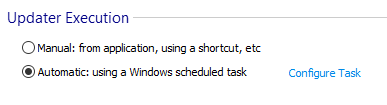
- Enable Automatic: using a Windows scheduled task from the Updater Execution section
- Press the Configure Task link
Edit Task Properties
Task
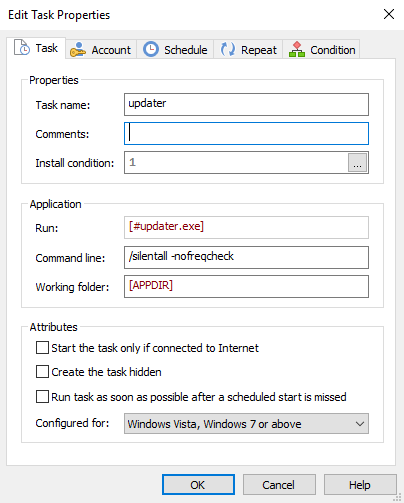
- Go to the Task tab
- Write the following command in the Command line field to be passed to the Updater
/silentall -nofreqcheck -nogui
 Learn more about commands for the
Updater.
Learn more about commands for the
Updater.
Account
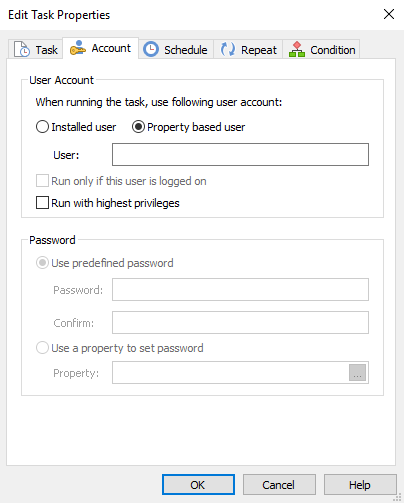
- Go to the Account tab
- Erase everything from the User field - this means that the task will run on the system account
Schedule
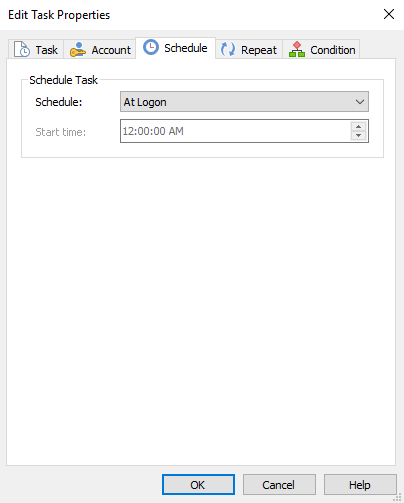
- Go to the Schedule tab
- From the Schedule drop-down select At Logon to determine when the task will run
Next steps
After you finish creating your main package and configuring the Updater you are now ready for the next steps.