


Importing a WISE project

 The following article uses options that are available starting
with the Freeware edition and project
type.
The following article uses options that are available starting
with the Freeware edition and project
type.
This tutorial will guide you in importing a WISE project into an Advanced Installer project.
Let's suppose you have a WISE project and you want to import its settings in an Advanced Installer project. Creating the project from scratch is a time consuming operation and requires extensive knowledge about the original .WSI project. By using the Advanced Installer support for importing WISE projects you can do this in no-time.
The import process may not add all the resources of the original
WISE project. So after importing you should inspect the resulted project
to make sure that everything is OK.
In this tutorial we'll import a sample project for an application called "My Application".
1. Start a "WISE Project" project type
If Advanced Installer is not currently running, launch it by double-clicking a desktop icon or selecting it from the "Start" menu. When the application starts, you will see a dialog where you can choose “Import” > “WISE Project” project type.
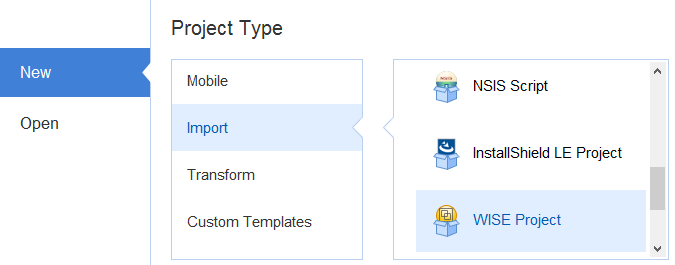
The "WISE Import Wizard" will be launched assisting you to configure the import parameters.
2. Collect information
In this dialog select the location of the .WSI that you want to import and specify a work directory where the .WSI resources will be extracted.
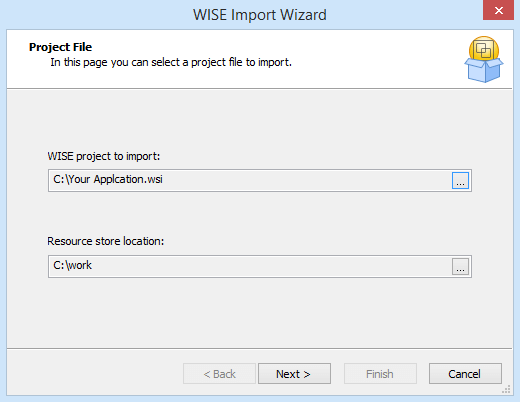
3. Change project type
Choose the project type you want to import the WISE project into.

4. Select installation folder
Specify the installation folder. Advanced Installer will automatically detect it and it will be marked italic in the folder tree. To change the installation folder use the "Set Installation Folder" context menu option. The new installation folder will appear bold.
System directories cannot be set as installation
folder.
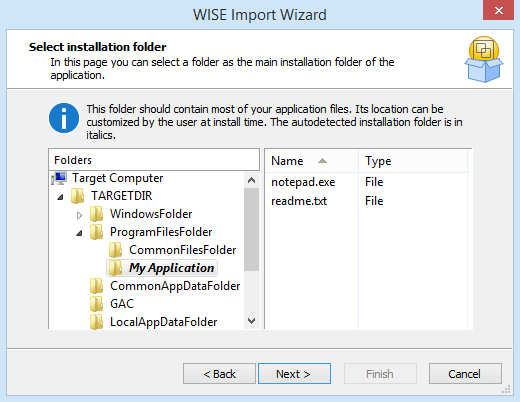
5. Import WISE project

Press button to import the .WSI into a new Advanced Installer project.