


Edit Property Dialog

Create or edit a property.
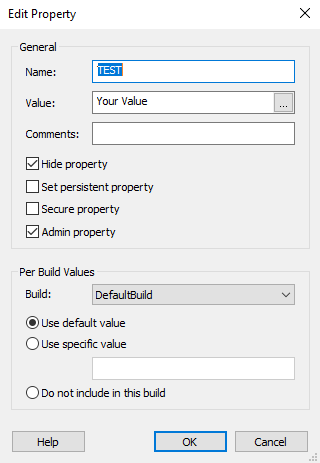
General
Name
In this field, you can specify the property name. When choosing the property's name, you should also decide if the property is private or public.
Value
In this field, you can specify the property's default value. Since this field is Pseudo-formatted, you can use some of the properties available when your custom property is initialized. To select one of them, type the "[" character and select the "Property..." menu.
Comments
In this field, you can add useful information about the property as comments.
Hide Property
Prevents the property from being written into the log file. This may be used to prevent the installer from displaying passwords or other confidential information in the log file.
 When the machine Debug policy is set to a value of 7, the installer writes the property
in the log, even if the property is marked as hidden.
When the machine Debug policy is set to a value of 7, the installer writes the property
in the log, even if the property is marked as hidden.
Set persistent property
If you enable this option, the property is stored in the registry and available in maintenance mode (repair, uninstall, etc.) and during the upgrade installation.
Secure property
Encrypts the value stored in the property.
Checking this option automatically adds the SecureProp.dll to the project and an internal custom action (AI_SecureProperty) that is executed during the install execute stage, during "Install Execution Stage -> Preparing" action group.
When this custom action runs, the current value of the property (to be secured) is encrypted and the property value is updated to the encrypted value.
The property value will be encrypted only after the install process moves beyond "Preparing" action group. After this stage, if you need to decrypt the value of the secure property you should create your own set of custom action that calls the "GetRevealedTextLength" and "RevealText" functions of our SecureProp.dll.
To learn how to integrate this functionality with your application see the Secure Property how-tos.
Admin property
Allows the property to be saved during administrative installation; meaning when the user installs from an administrative image, this value is used rather than the one stored in the MSI file.
Per Build Values
Configure the property's value for each build.
 This section is only available if your project contains multiple builds.
Build
Select a build from your project.
- Use the default value - use the default value for the selected build
- Use specific value - specify a different value for selected build
- Do not include in this build - don't include a property in the selected build
Edit Property's Value Source Dialog
Edit Property's Value Source

This feature enables you to automatically set the value of a property from a value contained by a file from disk.
 The value of the property is updated when loading the .AIP project, when the value is
edited from EditProperty dialog and at build time.
The value of the property is updated when loading the .AIP project, when the value is
edited from EditProperty dialog and at build time.
 If the property's value cannot be updated at build time, the build will be
stopped!
If the property's value cannot be updated at build time, the build will be
stopped!
General
Synchronize property's value with:
- File Version from an EXE or DLL from disk
- File Version from an EXE or DLL from project
- Assembly version from an EXE or DLL from disk
- Assembly version from an EXE or DLL from project
- Entry from an INI file
- Value from a JSON file
File Path
Pick the file using the [...] button.
Value
In this field, the value of the property is displayed.