


Images Tab

- Image Options Dialog - Installer Project
- Installation user interface frame customization
- Custom Frame colors configuration
In this page you specify custom images that can be displayed on the dialogs or controls. A preview of an image is showed in the lower pane if that image is selected in the list.

You can use regular images (e.g. .jpg, .png), but you can also pick a .SVG image resource and Advanced Installer will offer you the option to convert it to a regular image (i.e. .ico, .jpg or .png).
Adding a new image
Use the button, the “New...” context menu item or press the Ins key. The Image Options Dialog - Installer Project will be displayed allowing you to create a new binary image.
Generate
Use [Generate Button Sprite Image...] button to customize installer button colors and other parameters like Gradient, Border or Round Corners:
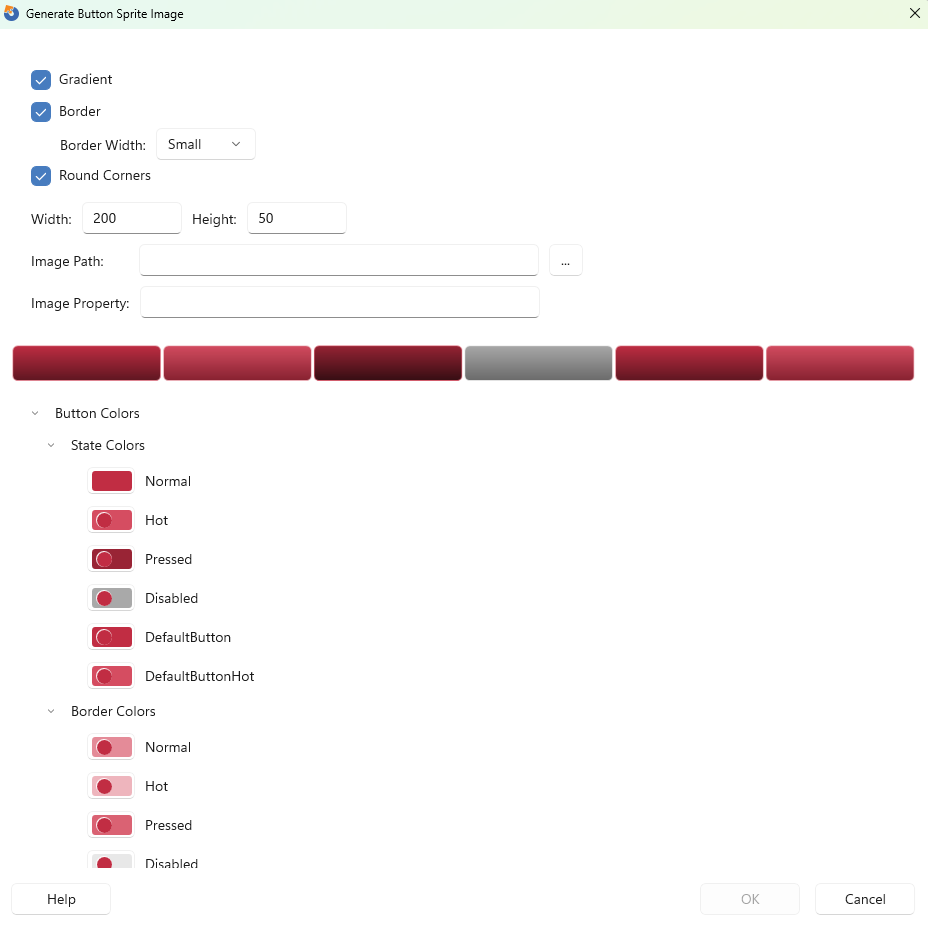
You can choose a specific color using the Color Picker by clicking on the color button. To revert to the automatically generated color just click on [Reset to default color..] button.
Editing an image
Use the button, the “Edit...” context menu item, press the Space key or double click an item in the list. The Image Options Dialog - Installer Project will be displayed allowing you to edit an image.
Removing an image
Use the button, the “Remove” or press the Del key while an element from the list is selected.
Image Options Dialog - Installer Project
This dialog allows you to create or edit a binary stored image.
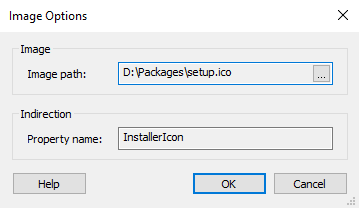
Image Path
Specify the image's path. Use the to select it.
Property Name
Specify the property that will refer the image.
Installation user interface frame customization
 The following article uses options that are available starting with the Enterprise edition and project type.
The frame is split into parts, and each part has a predefined property and image associated with it. To customize images go to Images tab and edit the image. The parts of a frame are:
- AI_CF_SysCloseDown - system close button when is pressed
- AI_CF_SysCloseHot - system close button when the mouse is over it
- AI_CF_SysCloseNormal - system close button
- AI_CF_SysCloseInactive - system close button when the application is inactive
- AI_CF_SysMinDown - system minimize button when is pressed
- AI_CF_SysMinHot - system minimize button when the mouse is over it
- AI_CF_SysMinNormal - system minimize button
- AI_CF_SysMinInactive - system minimize button when the application is inactive
- AI_FRAME_NO_SYSMENU - disable System Menu for a certain dialog
- AI_CF_FrameTopLeft - top left corner frame
- AI_CF_FrameTopLeftInactive - top left corner frames when the application is inactive
- AI_CF_FrameTopMid - top middle frame
- AI_CF_FrameTopMidInactive - top middle when the application is inactive frame
- AI_CF_FrameCaption - caption area frame
- AI_CF_FrameCaptionInactive - caption area when the application is inactive frame
- AI_CF_FrameTopRight - top right corner frame
- AI_CF_FrameTopRightInactive - top right corner when the application is inactive frame
- AI_CF_FrameLeft - left frame margin
- AI_CF_FrameLeftInactive - left margin when the application is inactive frame
- AI_CF_FrameRight - right frame margin
- AI_CF_FrameRightInactive - right frame margin when the application is inactive
- AI_CF_FrameBottomLeft - bottom left frame corner
- AI_CF_FrameBottomLeftInactive - bottom left frame corner when the application is inactive
- AI_CF_FrameBottomMid - bottom middle frame
- AI_CF_FrameBottomMidInactive - bottom middle frame when the application is inactive
- AI_CF_FrameBottomRight - bottom right corner frame
- AI_CF_FrameBottomRightInactive - bottom right frame corner when the application is inactive
The image format is bitmap. RGB(255, 0, 255) color is considered as transparent color.
Customizing a dialog window
To change the text style of the dialog title go to Text Styles tab and associate the text style with "AI_CF_TITLE_TEXT_STYLE" property.
To modify the spacing between the system menu buttons set the property "AI_CF_SYS_BTNS_SPACING". The value must be a number between 0 and 25 and represents pixels.
To customize the Y-pos of the system menu buttons set the "AI_CF_SYS_BTNS_YPOS" property. The value must be a number between 0 and 30. This number is considered a percent of the frame height.
 To set this types of properties go to Custom Actions
page and sequence a "Set installer property" custom action before "Wizard Dialogs Stage >
Searches".
To set this types of properties go to Custom Actions
page and sequence a "Set installer property" custom action before "Wizard Dialogs Stage >
Searches".
To customize the frame of a dialog, follow these steps:
- Add the frame images by going to Themes > Images > New...
- Set the Property name to the part you want to change (e.g., AI_CF_TemplateFrameBottomMid, AI_CF_TemplateFrameBottomMidInactive). The name of the property is formed from the unique identifier "Template" and the frame part you want to change.
- Go to Table Editor > Property
- Add the name of the dialog you want to change (e.g., AI_CF_CancelDlg, AI_CF_PrepareDlg) in the Table Editor and set its value to the unique identifier we want to apply to the dialog. In our example, we used Template, meaning both the AI_CF_FrameBottomMid and AI_CF_FrameBottomMidInactive of the AI_CF_CancelDlg and AI_CF_PrepareDlg will be changed to the new images we provided.
Example
AI_CF_CancelDlg                       | Template
.......................................................................
AI_CF_PrepareDlg                      | Template
.......................................................................
Custom Frame colors configuration
The following article uses options that are available starting with the Enterprise edition and project type.
 Customizing the Custom Frame with colors supersedes Installation user interface frame customization
The method presented in this article requires the AI_CF_TYPE
property to be set to either 1 - always use a custom
frame or 2 - use a custom frame only when the glass is
not available(Vista and above)
If AI_CF_FRAME_STYLE is configured with NoInactive, the
configuration of the Inactive state of all the other properties will be
ignored and the normal state colors will be used.
Advanced color customization for the custom frame can be achieved using the following MSI properties:
Frame Base Color property
AI_CF_FRAME_BASE_COLOR
The base color from which frame all colors are derived and used to generate the custom frame colors. It is encoded in HTML format #RRGGBB.
Minimize and Close buttons properties
AI_CF_MINBTN_BASE_COLOR
The base color from which minimize button colors are derived. Color is encoded in HTML format #RRGGBB. If not specified, a default color will be used.
AI_CF_CLOSEBTN_BASE_COLOR
The base color from which close button colors are derived. Color is encoded in HTML format #RRGGBB. If not specified, a default color will be used.
Detailed customization
If FlatCaption is defined in
AI_CF_FRAME_STYLE,
the detailed customization will be ignored and the caption will be drawn with the base color
(no gradients).
If FlatBorder is defined in AI_CF_FRAME_STYLE,
the detailed customization will be ignored and the border will be drawn with a single color
derived from the base one.
AI_CF_FRAME_BASE_INACTIVE_COLOR
The base color from which frame all colors are derived and used to generate the inactive frame color.
It is encoded in HTML format #RRGGBB.
AI_CF_FRAME_CAPTION2_COLORS
Caption2, Border1, Border2 and Border3 are optional. If not specified their corresponding colors are derived from AI_CF_FRAME_BASE_COLOR.
All custom frame caption2 colors Caption2 is the frame gradient end color (gradient from base color to caption2 color). Gradient style can be changed using AI_CF_FRAME_STYLE property.
The color is encoded in HTML format #RRGGBB.
Caption2;Caption2Inactive;Border1;Border2;Border3;BorderInactive1;BorderInactive2;BorderInactive3
AI_CF_FRAME_BORDER1_COLORS
Custom frame outer frame has three pixels. The color of these pixels can be changed using border1, border2 and border3 colors.
All custom frame border1 colors. Color is encoded in HTML format #RRGGBB.
Border1;Border1Inactive
AI_CF_FRAME_BORDER2_COLORS
All custom frame border2 colors. Color is encoded in HTML format #RRGGBB
Border2;Border2Inactive
AI_CF_FRAME_BORDER3_COLORS
All custom frame border3 colors. Color is encoded in HTML format #RRGGBB.
Border3;Border3Inactive
AI_CF_CLOSEBTN_COLORS
The close button colors. Normal color is set with AI_CF_CLOSEBTN_BASE_COLOR. The color is encoded in HTML format #RRGGBB.
InactiveColor;HotColor;HotInactiveColor;PressedColor
Leave an empty position if you want default color to be used:
InactiveColor;;;PressedColor
AI_CF_CLOSEBTN_BORDER_COLORS
The close button colors. The color is encoded in HTML format #RRGGBB.
NormalColor;InactiveColor;HotColor;HotInactiveColor;PressedColor
Leave an empty position if you want the default color to be used:
InactiveColor;;PressedColor
AI_CF_MINBTN_COLORS
The min button colors. Normal color is set with AI_CF_MINBTN_BASE_COLOR. The color is encoded in HTML format #RRGGBB.
InactiveColor;HotColor;HotInactiveColor;PressedColor
Leave an empty position if you want the default color to be used:
InactiveColor;;;PressedColor
AI_CF_MINBTN_BORDER_COLORS
The close button colors. Color is encoded in HTML format #RRGGBB.
NormalColor;InactiveColor;HotColor;HotInactiveColor;PressedColor
Leave an empty position if you want the default color to be used:
InactiveColor;;PressedColor
AI_CF_SYS_BTNS_BORDER_WIDTH
System buttons (min, close) border width (can be 1, 2 etc). If not set border width is 1
AI_CF_FRAME_METRICS
Custom frame metrics. Note: Used only if AI_CF_FRAME_BASE_COLOR is not empty. If empty, the custom frame metrics are set from custom frame images.
- Caption size
- X, Y frame border size
- min, close button width, height
Property format: CaptionSize;xFrame;yFrame;sysBtnWidth;sysBtnHeight
Leave an empty position if you want to use system metric for that field.
Example:
CaptionSize;;;sysBtnWidth;sysBtnHeight
Sizes are in pixels and 96 DPI. They are automatically scaled when loaded if DPI is not 96.
AI_CF_FRAME_STYLE
Custom frame style
Property format: FlatCaption;FlatBorder;NoInactive
Values can be 0 or 1, true, false, ''(empty) or name like "FlatCaption" etc. Any other value is considered false
All ';' separators are mandatory
- FlatCaption means that the caption is drawn with the base color (no gradients)
- FlatBoder means that border is drawn with a single color derived from the base one instead of three colors
- NoInactive means that inactive state is the same as normal state (colors used for normal state are used also for inactive state)