


Text Style Dialog

This dialog allows you to configure test styles.
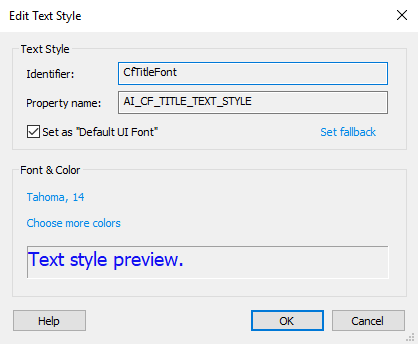
Text Style
Identifier
The text style's identifier.
Property Name
Property used to refer to this style (indirectly).
Set As Default UI Font
Set the current text style as the default UI font. If a control does not explicitly specify a text style, this text style will be used when rendering the UI.
Set Fallbacks
This option allows you to set conditional fallback text styles through the Edit Conditional Text Styles Dialog. This support is available only when text styles with a property are used indirect (by their property) and for the DefaultUI font.
For example, a static text control must have its "Use Indirection" text style property set to True from the Dialog Editor Page for this option to apply.
Font & Color
Edit
Click on the font link (Tahoma, 14) to edit the font face-name, size, effects and other properties.
Color
You can choose a text style color, from a full range color palette.
Preview
A text style's preview.
Edit Conditional Text Styles Dialog
This dialog allows you to configure fallback conditional text styles.

Adding a new fallback conditional text style
Use the button, the “New...” context menu item or press the Ins key. The Edit Condition Dialog will be displayed allowing you to set the condition, followed by the text style combo box.
Editing a fallback conditional text style
Edit Condition
Use the > “Edit Condition...” button, the “Edit” > “Edit Condition...” context menu item or double-click the “Condition” column of an item in the list. The Edit Condition Dialog will be displayed allowing you to edit the condition.
Edit Text Style
Use the > “Edit Text Style...” button, the “Edit” > “Edit Text Style...” context menu item or double click the “Text Style” column of an item in the list. The combo box will dropdown the available text styles to choose from.
Removing a fallback conditional text style
Use the button, the “Remove” context menu or press the Del key while an element from the list is selected.