


Custom SQL Connection Page

You can use this type of SQL connection to run your scripts when you require to configure a custom connection string for your ODBC Driver.
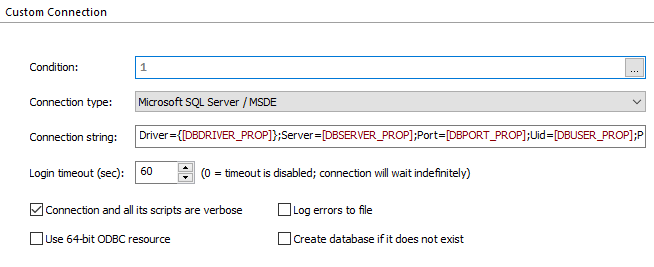
Condition
Condition the execution of all scripts from this connection. Edit this field using Smart Condition Edit Control.
Connection Type
Select the SQL database server type you want to connect to. The following SQL servers are available:
- Microsoft SQL Server / MSDE
- MySQL Server
- Postgre SQL Server
- Oracle SQL Server
Connection string
Edit the connection string. You can insert Formatted Type references.
Login timeout
Set the login timeout interval (in seconds) for this database connection. A value of "0" (zero) means the login timeout is disabled, and the connection will wait indefinitely for a server response. The range tolerance for this value is dependent on the specific ODBC driver used and its standard compliance / implementation.
Connection and all its scripts are verbose
When using the verbose mode for an SQL connection, if an error occurs when connecting or during the execution of one of its SQL scripts, a dialog box will be shown containing the ODBC error response.
 When using the SQL Scripts functionality and you require to prompt
the user for ODBC connection parameters (for an ODBC driver), you might
want to test if the connection works before proceeding. This will
prevent an installation rollback due to incorrect connection parameters
when executing the SQL scripts. Please see Test SQL Connection article for
details.
When using the SQL Scripts functionality and you require to prompt
the user for ODBC connection parameters (for an ODBC driver), you might
want to test if the connection works before proceeding. This will
prevent an installation rollback due to incorrect connection parameters
when executing the SQL scripts. Please see Test SQL Connection article for
details.
You can choose to let the installing user to pick an SQL
Server to connect to, from the available Microsoft SQL Servers on the
network. Advanced Installer can automatically browse the network to
discover any SQL Server (instances) online. Also, you have the
possibility of allow the user to select a database from a
list of available databases he is allowed to connect to. Please see
Browse for SQL Servers and Show Databases from an SQL Server articles for details.
Log errors to file
If this option is enabled and an error occurs, a log file(AI_SQLScripts.log) containing the error message will be automatically generated by the installer in the user's Temp folder, .
Use 64-bit ODBC resource
The connection will use the 64-bit DSN or driver.
Create database if it does not exist
Using this option will ensure the creation of the database if it doesn't exist.
If no SQL Scripts are defined but you still want to use this option
to create the database on the target machine you can add a script with a
simple query. Something like USE
database_name;.