


Synchronize with Temporary Tab

In this dialog, you can synchronize a project folder containing temporary files with a source folder on disk. The folder synchronization works like this:
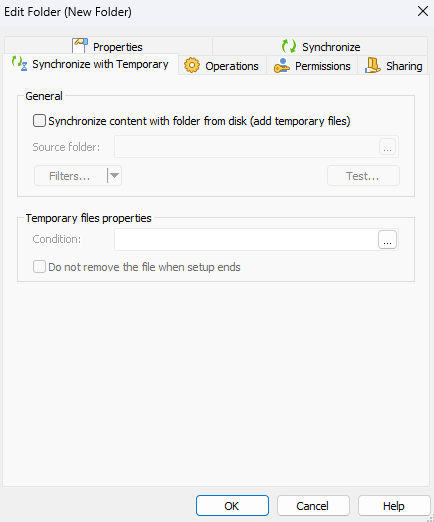
- If the files in the synchronized folder on the disk change, these changes are also made in the synchronized folder from your project.
- If you add additional files and folders in a synchronized folder from the project, these elements will not be affected by the synchronization.
- The synchronization is refreshed when you open the project, when you use the button in the "Files and Folders" page or when you build the project.
- When using Advanced Installer in GUI mode, the synchronization is not refreshed when you save the project.
General
Synchronized content with folder from the disk (add temporary files)
Enable this option in order to activate the synchronization between a project folder containing temporary files and a folder from the disk.
Source Folder
Use the button to select the source folder from the disk.
You can edit filters that will allow you to specify which temporary files will be added to the package. To do this, use the button from the drop-down menu that appears when clicking the black arrow from the button.
To use the same filters for multiple synchronized folders, use the and menu options from the drop-down menu that appears by clicking the black arrow from the button.
If you want to preview the changes made to the project, you can use the button. A dialog will be displayed showing what files will be added to the project, removed of left unchanged.
Temporary files properties
The properties detailed below will apply to all temporary files in the synchronized folder.
Condition
These conditions the temporary files’ extraction and removal. Use the button to edit it. The condition is evaluated when the file must be extracted or removed.
Do not remove the file when setup ends
Select this option if you want the files to remain on the system after the setup process ends.