


Schedule Settings Tab

This page allows you to specify the interval when the task is executed.
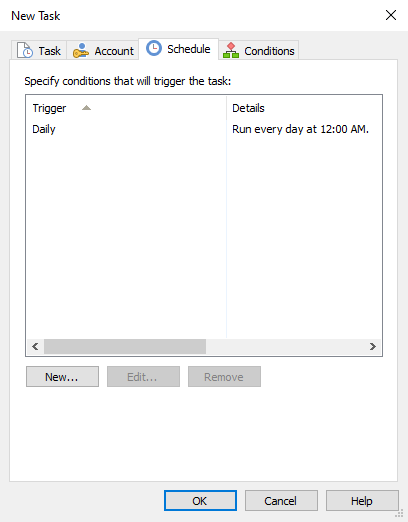
In this view you can specify new conditions that will trigger the task or edit an existing one using [New...] or [Edit...] buttons. The Edit Trigger Dialog will be displayed.
You can remove a condition from the list using [Remove...] button.
Edit Trigger Dialog
This page allows you to configure the task settings and set a repetition time interval for the task.
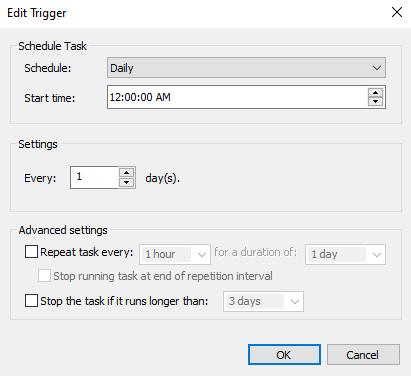
Schedule Task
Specify conditions that will trigger the task. Multiple conditions can be used. These are the options:
- Daily
- Weekly
- Monthly
- Multiple-day selection is possible.
- At System Startup
- At Logon
- When Idle
- On an Event
- At task creation
- On connection to user session
- On disconnect from user session
- On workstation lock
- On workstation unlock
- One time
Settins
Configure custom settings for each of the above condition types.
Advanced Settings
Delay task
Enable this option to specify a delay interval for this task (5 minutes , 10 minutes , 15 minutes , 30 minutes or 1 hour).
Repeat task
Enable the repeat settings.
Every
The task will run, wait for the time interval specified, and then run again.
Duration
This cycle will continue until the duration time is met.
Indefinitely
The task will run for an indefinite duration.
Stop running task at end of the repetition interval
If this setting is used the task will be forced to stop when the repetition interval is reached.
The repeat options are not available with following Schedule options:
- At System Startup
- At Logon
- When Idle
Expire
Set the expiration day and time for the trigger.
Enabled
By default, all triggers are enabled. Uncheck this option to disable the trigger.
Event Triggered Scheduled Tasks
To schedule tasks On an Event add your custom query to the Event query subscription field.
 This field is formatted, so any conflicting special
characters references must be escaped.
This field is formatted, so any conflicting special
characters references must be escaped.
Example
<QueryList>
  <Query Id="0" Path="Application">
    <Select Path="Application">*[System[Provider[@Name='Advanced Installer 13.5 License Service']]]</Select>
  </Query>
</QueryList>The above example should be included like this:
<QueryList>
  <Query Id="0" Path="Application">
    <Select Path="Application">*[\[]System[\[]Provider[\[]@Name='Advanced Installer 13.5 License Service'[\]][\]][\]]</Select>
  </Query>
</QueryList>