


Use the Windows Installer Session object from PowerShell custom actions

PowerShell custom actions can interact directly with the Windows Installer engine through the Session object. It provides access to installer properties, feature and component states, logging capabilities, the installation database, and other runtime information about the current installation session.
The Session object is automatically available to PowerShell custom actions. It allows you to read and modify installer properties, inspect or change feature and component states, write messages to the installation log, and interact with the installation context without requiring additional APIs.
 Support for the Windows Installer Session object in PowerShell
custom actions was introduced in Advanced Installer 23.8. This allows
PowerShell scripts to replace legacy VBScript custom actions while providing access to the
same Windows Installer functionality through a modern scripting language.
Support for the Windows Installer Session object in PowerShell
custom actions was introduced in Advanced Installer 23.8. This allows
PowerShell scripts to replace legacy VBScript custom actions while providing access to the
same Windows Installer functionality through a modern scripting language.
This tutorial demonstrates how to use the Session.FeatureRequestState collection to read and modify the requested state of a Windows Installer feature from a PowerShell custom action.
1. Access feature states
The requested state of a feature can be queried and modified through the Session.FeatureRequestState collection. Each feature is accessed using its Feature Identifier, which corresponds to the feature name defined in the installer project.
To retrieve the current requested state of a feature, access the collection using the feature identifier:
$featureName = "AutoUpdates"

$requestState = $Session.FeatureRequestState[$featureName]
To schedule the feature for local installation, assign the Local state, represented by the value 3:
$Session.FeatureRequestState[$featureName] = 3
The requested state uses standard Windows Installer feature state values:
| Value | Description |
|---|---|
| -1 | Unknown |
| 2 | Absent (not selected for installation) |
| 3 | Local (scheduled for installation) |
The Session object also exposes methods such as FeatureCost, which returns the installation cost of a feature.
The following sections demonstrate these APIs in a complete installer sample.
2. Create project
Launch Advanced Installer and create a new Enterprise project.
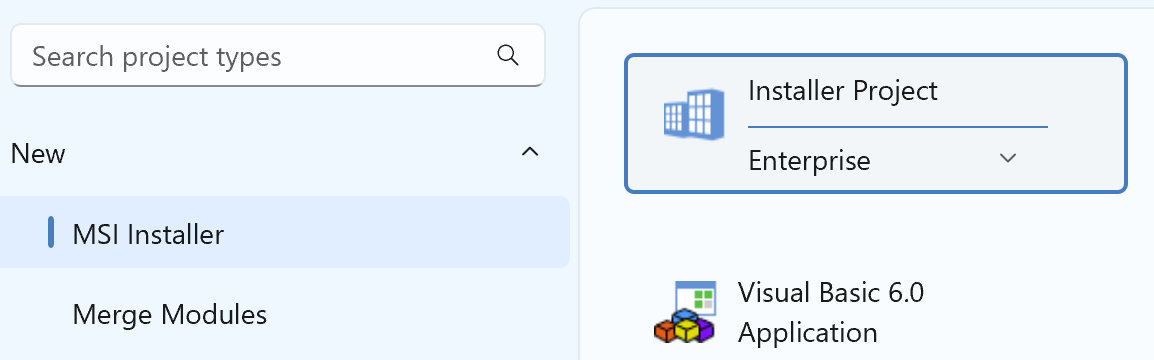
Select the Enterprise project type and click the Create Project button.
 Save the project using a meaningful name, such as PowerShell Session
Sample.
Save the project using a meaningful name, such as PowerShell Session
Sample.
3. Add resources
Add your application files to the project and enable the Updater.
Move Updater.exe into a dedicated feature so it can be enabled during installation instead of being installed by default.

4. Organize the setup into features
Configure the dedicated feature containing Updater.exe so that it is not selected for installation by default.
During installation, the PowerShell custom action inspects the feature's current requested state and allows the user to enable it dynamically.
If the user chooses to enable the feature, the custom action updates its requested state through Session.FeatureRequestState, scheduling it for local installation.

5. Add a PowerShell custom action
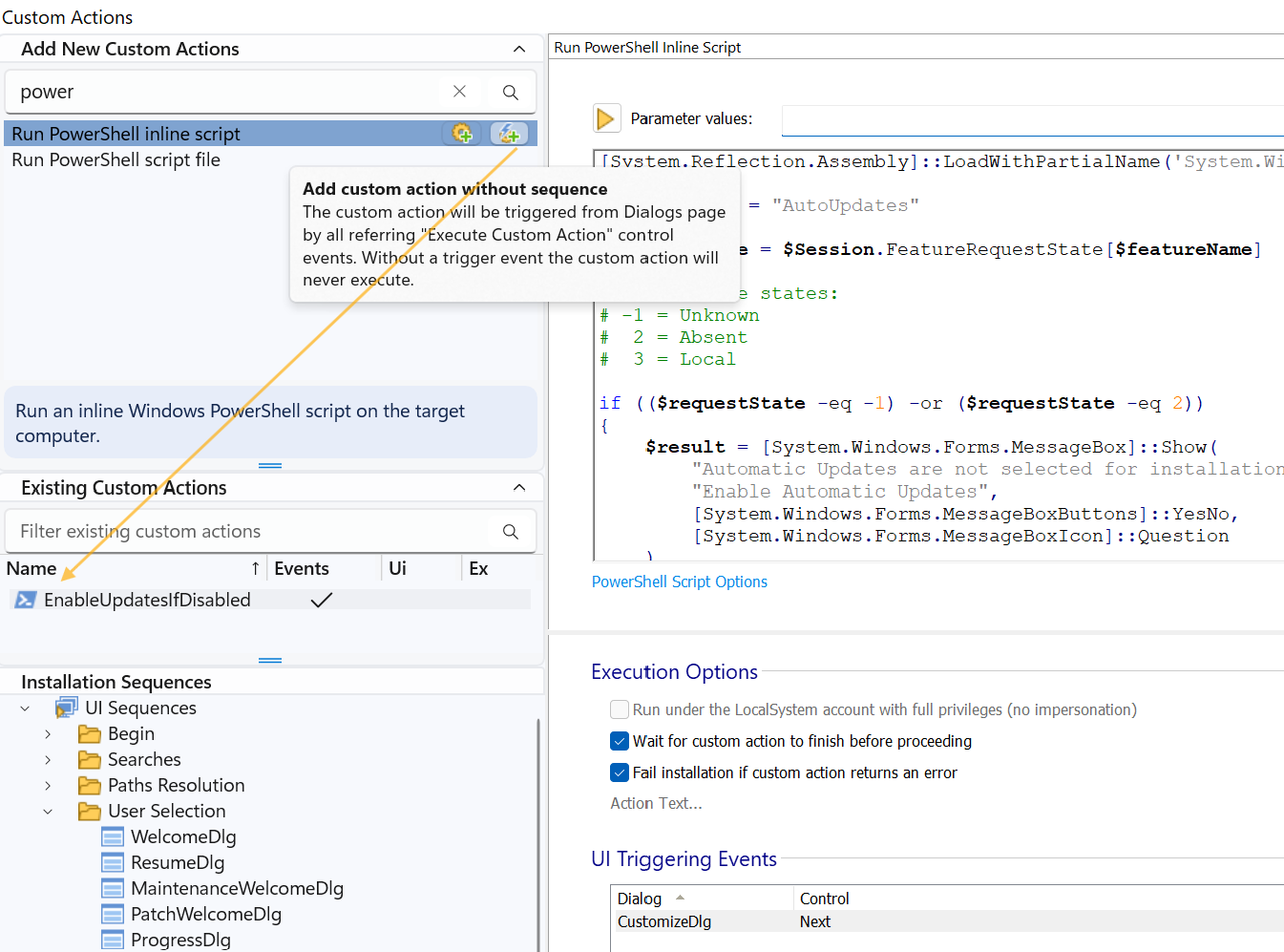
Open the Custom Actions view and add a PowerShell custom action as a custom action without sequence.
For a quick introduction to working with the Session object, see the Access Session object from PowerShell how-to article.
This custom action demonstrates how to use the Windows Installer Session object to read and modify the requested state of the AutoUpdates feature.
- Read the current requested state of the AutoUpdates feature.
- Prompt the user to enable the feature if it is not selected for installation.
- Update the feature's requested state to Local if the user accepts, scheduling it for installation.
- Retrieve and display the feature's installation cost through the FeatureCost method if it is already selected.
The following PowerShell script implements this behavior:
[System.Reflection.Assembly]::LoadWithPartialName('System.Windows.Forms') | Out-Null

$featureName = "AutoUpdates"

$requestState = $Session.FeatureRequestState[$featureName]

# MSI feature states:
# -1 = Unknown
#  2 = Absent
#  3 = Local

if (($requestState -eq -1) -or ($requestState -eq 2))
{
    $result = [System.Windows.Forms.MessageBox]::Show(
        "Automatic Updates are not selected for installation.`n`nDo you want to enable them?",
        "Enable Automatic Updates",
        [System.Windows.Forms.MessageBoxButtons]::YesNo,
        [System.Windows.Forms.MessageBoxIcon]::Question
    )

    if ($result -eq [System.Windows.Forms.DialogResult]::Yes)
    {
        # Set the feature state to Local: 3
        $Session.FeatureRequestState[$featureName] = 3
    }
}
elseif ($requestState -eq 3)
{
    $featureCost = $Session.FeatureCost($featureName, 0, 3)
    $featureCostMB = [Math]::Round($featureCost / 1MB, 2)

    [System.Windows.Forms.MessageBox]::Show(
        "Automatic Updates are already enabled.`n`nFeature size: $featureCostMB MB",
        "Automatic Updates",
        [System.Windows.Forms.MessageBoxButtons]::OK,
        [System.Windows.Forms.MessageBoxIcon]::Information
    )
}
6. Execute the custom action
Since the custom action was added as a custom action without sequence, it must be triggered explicitly.
In this sample, the custom action is executed when the user clicks Next in the CustomizeDlg dialog.

7. Build and install
Build and run the project. During installation, the user is prompted to enable the Automatic Updates feature if it is not already selected. If the user accepts, the PowerShell custom action updates the feature's requested state through Session.FeatureRequestState, scheduling the feature for local installation. If the feature is already enabled, the script retrieves its installation cost through Session.FeatureCost and displays it instead.
8. Summary
In this tutorial, you learned how to use the Windows Installer Session object from a PowerShell custom action to:
- Read the requested state of a feature.
- Modify a feature's requested state through Session.FeatureRequestState.
- Retrieve a feature's installation cost through Session.FeatureCost.
- Prompt the user and dynamically adjust the installation configuration.
The same Session object can also be used to access Windows Installer properties, component states, logging capabilities, the installation database, and other runtime information available during setup.