


XML Element Attributes Tab

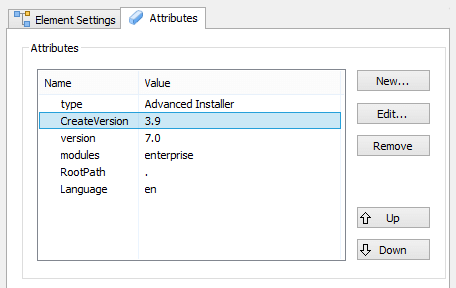
Adding a new attribute
Use the button, the “New...” context menu item or press the Insert key while the "Attributes" list is focused.
Edit an attribute
Use the button, the “Edit...” context menu item or press the Space key while an element from the "Attributes" list is selected.
Removing an attribute
Use the button, the “Remove” context menu item or press the Delete key while an element from the "Attributes" list is selected.
Change the attribute order
Use the / buttons, the “Move Up” / “Move Down” context menu options or press the PgUp / PgDown keys to move the selected element.
 When an XML element is being updated the attributes found in the
target file are merged with the ones configured here, using
the specified attribute update rules. All the specified element
attributes that are meant to be created or updated will be added to the
target's elements already existing in the attribute list, changing the
value of the overlapping attributes.
When an XML element is being updated the attributes found in the
target file are merged with the ones configured here, using
the specified attribute update rules. All the specified element
attributes that are meant to be created or updated will be added to the
target's elements already existing in the attribute list, changing the
value of the overlapping attributes.
Edit XML Attribute Dialog
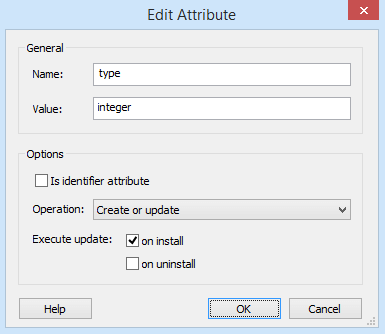
General
Specify the name and value of an XML attribute.
 The “Value” field is of Formatted Type and can be edit using Smart Edit Control. Also you can localize it.
Options
Is identifier attribute
In order to enhance the localizing precision of matching elements, you can use identifier attributes to pinpoint an exact element from the file, in case several nodes have the same ancestors. By enabling this option only target elements that have an attribute with the same name and value set here will be considered a match for the update.
You can specify several attributes as identifiers
for an XML element.
Operation
Specify the attribute update behavior. The following options are available:
- Create or update - if a matching attribute is found , the update operation will execute.
- Create only if it does not exist - if a matching attribute is found no action will be performed.
- Remove - if a matching attribute is found the remove action will execute.
Execute update
Specify when the changes should be applied: at install, at uninstall or both.
If you need to assign different values for an attribute
when installing and uninstalling, you
can add a pair of attributes with the same
name and different values, one scheduled for install and the
other for uninstall. You can use the same strategy if you need to
create or update an attribute at install and
remove it on uninstall.